


A cloned Windows Server can inherit the same machine Security Identifier (SID) as its source. On Windows Server 2025, duplicate machine SIDs may cause Kerberos and NTLM authentication failures after updates released on or after August 29, 2025.
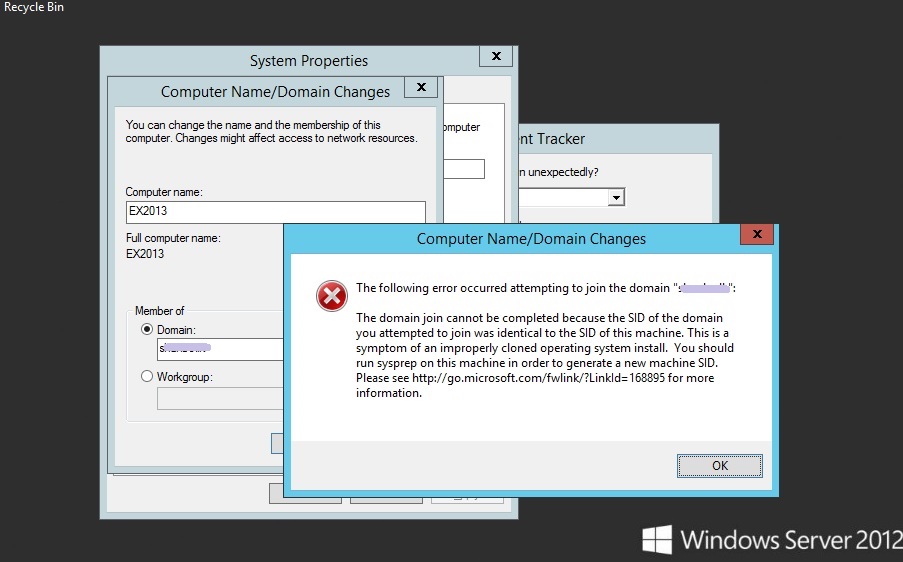
Symptoms can include repeated credential prompts, inaccessible network shares, failed RDP connections, Failover Clustering errors, and LsaSrv Event ID 6167. Microsoft documents these protections for Windows Server 2025, not for every older Windows Server release.
The right solution depends on when you discover the duplicate:
| Situation | Recommended action |
|---|---|
| You are preparing a reusable image or VM template | Run Sysprep before capturing the image |
| The clone has not entered production | Recreate it from a correctly generalized image |
| A member server is already deployed | Prefer using an in-place SID changer like Wittytool Disk Clone |
| Windows Server 2025 shows Event ID 6167 | Rebuild from a properly generalized image |
| You only moved Windows to a new disk in the same server | A SID change is normally unnecessary if the original copy will not run |
| The server is a domain controller or hosts a critical role | Use that role’s supported migration or recovery procedure |
Important: Do not run Sysprep or a general-purpose SID changer on a production domain controller, certificate authority, Exchange server, or other role-critical system without a vendor-supported recovery plan.
What Is a Windows Server Machine SID?
The machine SID is the machine-specific portion used to create SIDs for local users and groups. Local accounts on the same server share this prefix and have different Relative Identifiers (RIDs) at the end.
A machine SID is not the same as:
- The computer name or IP address
- The SID of the computer object in Active Directory
- MachineGuid
- The WSUS SusClientId
- The MSDTC CID
Cloning can duplicate several of these identifiers. Therefore, a matching symptom does not automatically prove that the machine SID is responsible. Duplicate hostnames, IP addresses, stale DNS records, broken domain trust, or duplicated WSUS identities can produce similar problems.
Microsoft requires Windows installations intended for duplication to be generalized with Sysprep before capture. Microsoft does not consider changing the SID after deployment a way to make a nongeneralized image compliant with its supported deployment policy. See Microsoft’s disk-duplication policy.
Check for a Duplicate SID Before Changing Anything
Use Microsoft Sysinternals PsGetSid to compare the affected servers.
After downloading PsGetSid from Microsoft, open an elevated Command Prompt.
Check the local server:
psgetsidCheck a remote server:
psgetsid \\SERVER02If the reported machine SIDs are identical, the systems were probably deployed from the same nongeneralized image.
You can also check for recent LsaSrv Event ID 6167 entries:
Get-WinEvent -FilterHashtable @{LogName='System'; Id=6167} -MaxEvents 20Do not use whoami /user as a direct substitute. It displays the signed-in account SID and may return a domain user SID instead of the server’s machine SID.
Before You Change a Windows Server SID
A SID change affects the operating system’s security identity. Complete these checks first:
- Create a full system image or VM backup and verify that it can be restored.
- Isolate the cloned server from the production network.
- Ensure that local console, iLO, iDRAC, or hypervisor access is available.
- Record the hostname, static IP, DNS settings, domain membership, certificates, SPNs, service accounts, scheduled tasks, and application licenses.
- Review the installed server roles and application support policies.
- Back up encryption recovery keys and check for EFS-encrypted files.
- Plan a maintenance window for restarts and service validation.
Microsoft warns that not every server role supports Sysprep. AD DS, AD CS, AD FS, AD LDS, AD RMS, and several other roles require special handling. Review Microsoft’s server-role support table.
Method 1: Run Sysprep Before Capturing the Image
Sysprep is Microsoft’s supported method for preparing Windows Server for cloning. It should be run on the reference installation before the image is captured, not as a routine repair on every deployed clone.
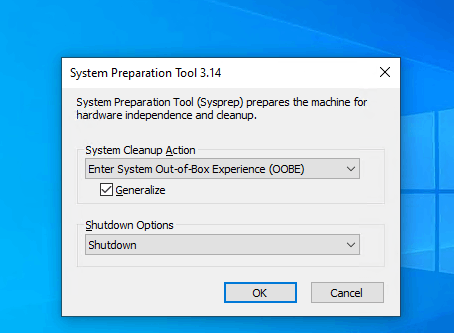
Step 1: Prepare the reference server
Build a clean reference installation that:
- Is not a production system
- Has not been promoted to a domain controller
- Is not joined to the production domain
- Does not contain unsupported server roles
- Includes the required updates, drivers, and approved applications
Use Audit Mode and an answer file if the deployment requires additional automation.
Step 2: Run Sysprep as an administrator
Open an elevated Command Prompt under an administrator account. Do not run Sysprep under the Local System account.
Run:
%WINDIR%\System32\Sysprep\Sysprep.exe /generalize /oobe /shutdownThe options perform the following actions:
/generalizeremoves machine-specific information, including the existing SID./oobeconfigures each deployed copy to start in the Out-of-Box Experience./shutdownpowers off the reference system after generalization.
For Windows Server Core, add /quiet:
%WINDIR%\System32\Sysprep\Sysprep.exe /generalize /oobe /shutdown /quietThe graphical equivalent is to select Enter System Out-of-Box Experience (OOBE), enable Generalize, and select Shutdown. However, Microsoft has deprecated the Sysprep GUI and recommends using the command line.
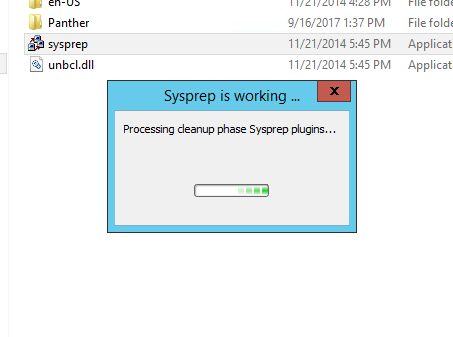
Step 3: Capture the powered-off image
Wait for Sysprep to shut down the reference server. Capture or clone the image while it remains powered off.
Do not restart the reference installation before capture. Starting it will begin the specialize process and make it unsuitable as the generalized master image.
Step 4: Deploy and configure each server
On first boot, Windows runs the specialize configuration pass and creates a new machine SID.
Then:
- Assign a unique computer name.
- Configure the correct IP and DNS settings.
- Complete OOBE.
- Join the server to the domain.
- Install or configure deployment-specific roles.
- Verify the new SID with PsGetSid.
Sysprep is not a factory reset or disk-erasure tool, but it does make significant system changes. It removes restore points and event logs, reconfigures devices, removes domain membership, and can affect roles, activation, applications, and encrypted data. Microsoft’s Sysprep overview documents these limitations.
Method 2: Change Windows Server SID In Place with Wittytool Disk Clone
If an ordinary member server has already been deployed and rebuilding it immediately is impractical, Wittytool Disk Clone’s Change SID feature provides an in-place option designed to retain applications, user profiles, and data for Windows Server 2019-2025.
By the way, Wittytool Disk Clone can also regenerate related clone identifiers such as MachineGuid, the WSUS client ID, and the MSDTC CID.
Step 1: Open the Change SID tool
Launch Wittytool Disk Clone, go to Tools, and select Change SID.

Step 2: Confirm your settings
Check the selected options, then click Start to begin changing the SID.
Choose whether to retain your current computer name or have the program generate a random one. If both computers will be connected to the same network, make sure they use different names.
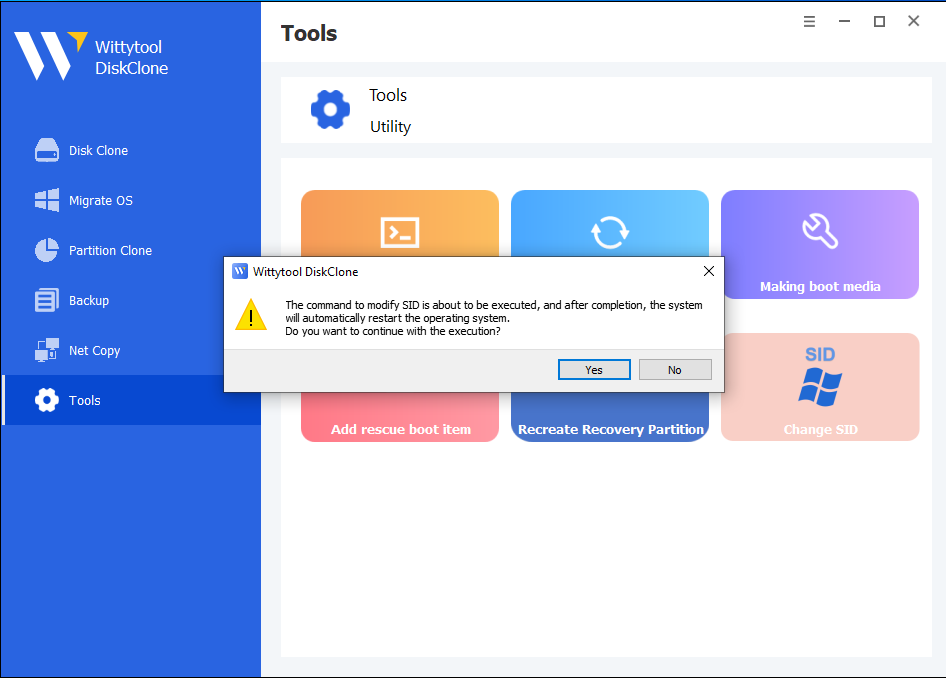
Step 3: Allow the program to prepare your applications
Wittytool Disk Clone will uninstall applications that may encounter permission conflicts. Before removing them, it automatically backs up the applications and their associated data for restoration later.
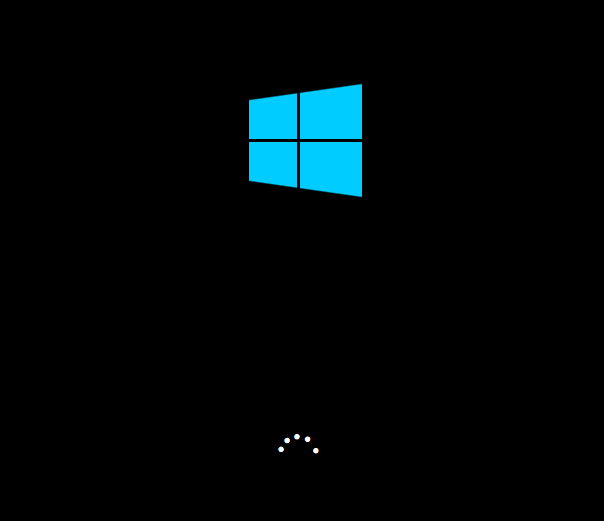
Step 4: Wait for the automatic restart
Your computer will restart automatically to apply the new SID.
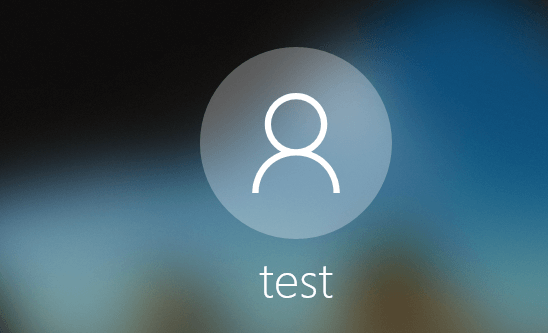
Step 5: Sign in and let restoration finish
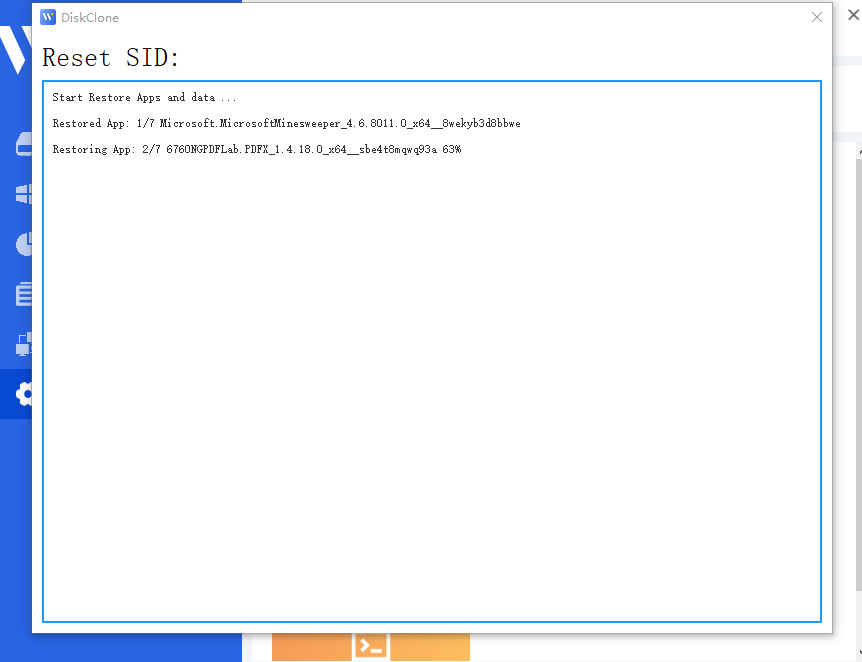
After you log back in, Wittytool Disk Clone will automatically reinstall the removed applications and restore their data. The SID change is complete once this restoration finishes.
What to expect when you sign back in
- Local accounts: The SID change preserves your existing local accounts and their settings, but generates new SIDs for those accounts.
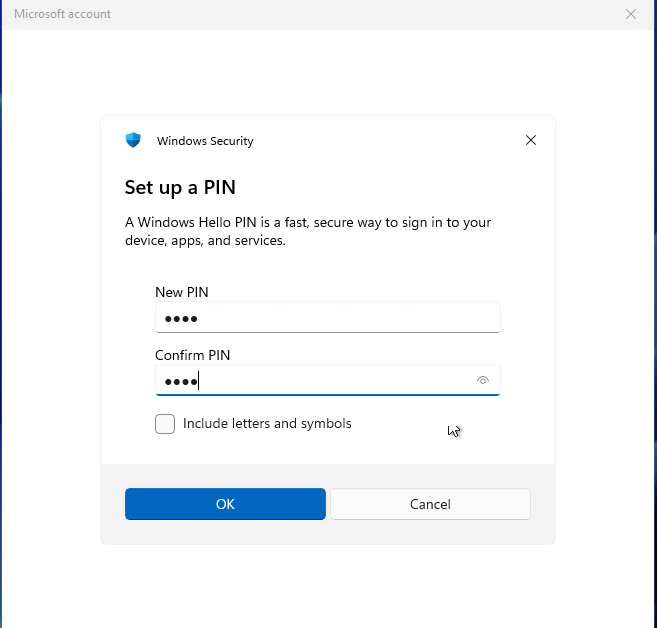
- Microsoft account users: You will need to reset your PIN the first time you sign in after the restart.
Video Walkthrough of SID changing via Wittytool Disk Clone
Step 5: Verify the result
Run PsGetSid again and confirm that the new machine SID differs from the source server. Test all critical services before reconnecting the server to production.
Check Wittytool compatibility and available editions.
Special Guidance for Windows Server 2025
For Windows Server 2025 systems affected by duplicate-SID authentication enforcement, Microsoft’s permanent resolution is to rebuild the operating system using a correctly generalized image.
A special Group Policy may provide temporary relief, but Microsoft states that administrators must obtain it through Microsoft Support for business. It is not a replacement for rebuilding the affected systems.
For Exchange installed on a nongeneralized Windows Server 2025 image, Microsoft specifically recommends rebuilding the OS and restoring Exchange with /Mode:RecoverServer. See Microsoft’s Exchange recovery guidance.
Verify the Server After Changing Its SID
Do not stop after confirming that the SID changed. Complete a full operational check:
- Compare the new SID with the source server using PsGetSid.
- Confirm the hostname, IP address, and DNS records.
- Test local and domain authentication.
- Verify the domain secure channel.
- Test RDP, SMB shares, WinRM, and application authentication.
- Review the System log for new LsaSrv Event ID 6167 entries.
- Test services, scheduled tasks, and scripts that use local accounts.
- Validate monitoring, backup, security, and management agents.
- Check WSUS reporting and MSDTC separately where applicable.
- Confirm Windows and application activation.
- Keep the recovery image until the server completes a full business validation cycle.
If the server does not start correctly, see How to Fix System Startup Failure After SID Change.
Frequently Asked Questions
Does renaming a Windows Server change its SID?
No. The computer name and machine SID are separate identifiers. Renaming the server does not resolve a duplicate machine SID.
Does leaving and rejoining the domain change the machine SID?
No. Rejoining the domain repairs or recreates the Active Directory computer relationship, but it does not replace the local machine SID copied with the Windows installation.
Do I need to change the SID after cloning an HDD to an SSD?
Usually not. If the new disk replaces the old disk in the same physical server and only one copy of Windows will run, retaining the existing SID is normally correct.
A new SID is required when two or more cloned installations will operate as separate systems.
Does KB5065426 affect Windows Server 2022?
Microsoft’s duplicate-SID authentication article lists Windows Server 2025 and Windows 11 versions 24H2 and 25H2. It does not list Windows Server 2022.
However, Microsoft still requires Sysprep for supported Windows Server 2022 image duplication.
Can I run Sysprep on a domain controller?
Do not run the standard Sysprep workflow on a promoted domain controller. Use Microsoft’s supported domain-controller cloning, migration, demotion/re-promotion, or disaster-recovery process instead.
Virtualized domain-controller cloning uses a dedicated workflow involving VM-Generation ID and DCCloneConfig.xml; it is not the same as cloning an ordinary member server.
Will Sysprep delete my files?
Sysprep is not designed to erase user files. However, it removes machine-specific state and can affect installed roles, device configuration, activation, applications, and encrypted data.
Microsoft warns that EFS-encrypted files can become permanently unreadable after Sysprep. Always create and test a complete backup first.
Is NewSID still recommended?
No. Microsoft retired NewSID, and it is not recommended for modern Windows Server deployments. Use Sysprep for new images or a currently maintained, fully tested recovery option when rebuilding must be deferred.
Conclusion
The best time to prevent duplicate SIDs is before cloning. Run Sysprep on the reference installation, let it shut down, and capture the generalized image before starting it again.
If a member server has already been deployed, confirm the duplicate with PsGetSid before changing anything. Rebuilding from a correctly generalized image remains Microsoft’s supported permanent solution. When rebuilding must be deferred, Wittytool Disk Clone can be evaluated as an in-place option for compatible Windows Server versions and roles.