


Got sharing issues after Windows updates KB5065426? It’s likely a SID conflict. See how a professional SID changer can fix it.
If you have ever cloned a hard drive and deployed it to multiple computers on the same network, you have likely hit a wall: duplicate IP or name conflicts, often rooted in the Windows Security Identifier (SID). For years, IT professionals relied on command-line utilities to fix this. With recent Windows updates like KB5065426, Microsoft has enforced stricter SID validation for network communication. This means duplicate SIDs now directly cause file and printer sharing failures, making a reliable SID change tool more essential than ever for IT administrators. However, many users find these tools difficult to use and are actively searching for a SIDCHG alternative that offers a modern interface and better compatibility with Windows 10 and 11.
SIDCHG Alternative Tools Inforgraphic
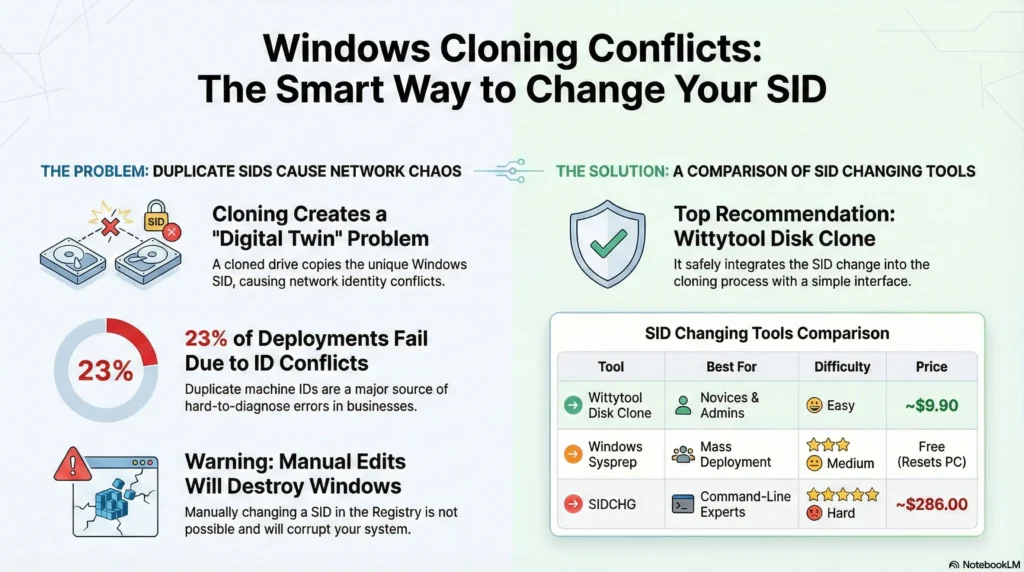
As someone who has spent over a decade managing disk deployments and resolving cloning conflicts, I know that messing with the Windows Registry or SIDs is risky. One wrong move can result in a Blue Screen of Death (BSOD). This guide is designed for beginners who want to solve these conflicts without needing a degree in computer science. We will explore safe, effective alternatives to help you manage your system identities.
Why You Need a SIDCHG Alternative after System Cloning?
Before looking at the tools, we must understand the “Why.” Every Windows installation has a unique “fingerprint” called a Security Identifier (SID). It looks like a long string of numbers (e.g., S-1-5-21…).
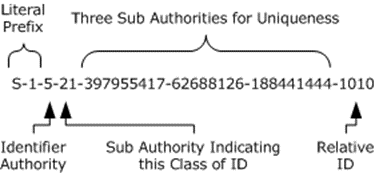
When you clone a disk using standard methods, you copy this fingerprint exactly. If you put that cloned disk into a second computer and connect both to the same domain network, the server gets confused. It sees two computers claiming to be the same “person.”
❗ The Core Problem:
SIDCHG is a powerful tool, but it is command-line based (DOS interface) and costs money. For the average user just trying to upgrade their SSD or clone a system for a family member, it is overkill and overly complex.
💡 Expert Insight:
According to a report on IT infrastructure management, nearly 23% of deployment failures in small-to-medium businesses stem from configuration conflicts, including duplicate machine IDs. Using the right tool prevents these “ghost” errors that are notoriously hard to troubleshoot later.
Top 4 SIDCHG Alternative SID Changer Tools (Ranked)
Below, I have tested and ranked the best alternatives based on ease of use, safety, and compatibility with modern Windows versions.
1. Wittytool Disk Clone (Recommended) ⭐⭐⭐⭐⭐
If you are looking for a true SIDCHG alternative that combines power with simplicity, Wittytool Disk Clone is currently the industry’s best-kept secret. Unlike generic backup and clone software that simply transfers data, Wittytool has engineered a specific function to “change Windows SID” directly during the process.
Why it is the #1 Choice: Most SID tools operate in a DOS environment (black screen with text), which is intimidating for beginners and risky for servers. Wittytool integrates this capability into a user-friendly interface. It allows you to change SID for Windows Server or Windows 11/10/8/7 without needing to run complex Sysprep commands that wipe your settings. If you want to know the detailed steps, please go to How to Change SID Windows with Wittytool Disk Clone part.
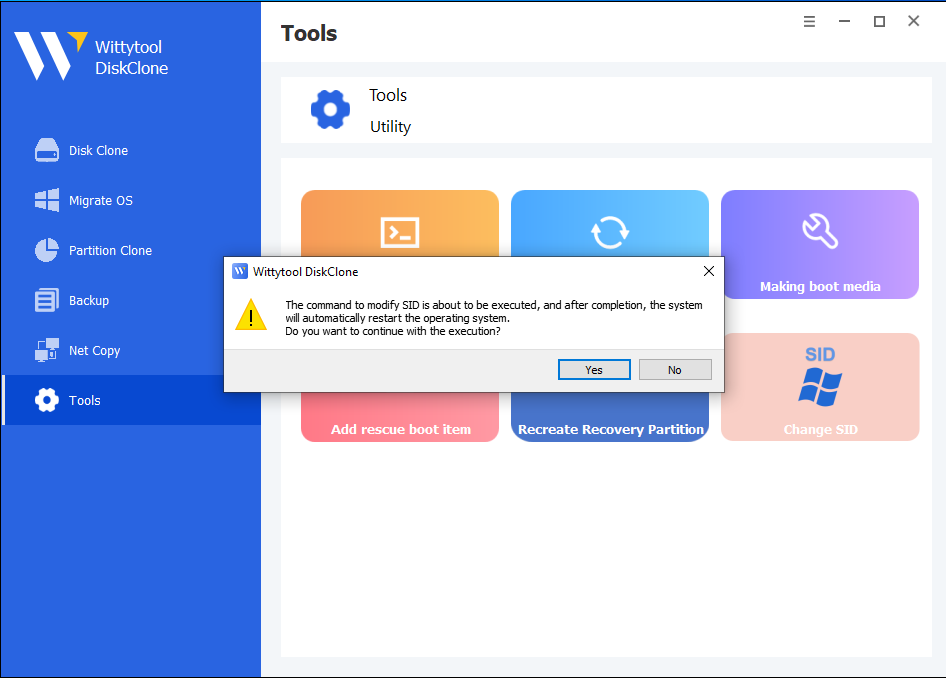
More product review by the computer geek: How to Fix Windows 11 KB5065426 Sharing Failures: A Wittytool Disk Clone Review
2. Windows Sysprep (The Official Method) ⭐⭐⭐⭐
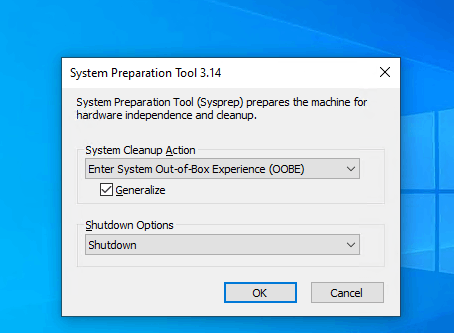
When discussing SIDCHG alternatives, Sysprep cannot be ignored. This is built into every version of Windows. It is free, but it is a “nuclear option.”
⚠ Critical Warning:
Sysprep is not just a SID changer; it effectively resets Windows to its “Out of Box Experience” (OOBE). It strips hardware drivers and creates a new SID upon reboot.
- It will reset your personalized settings.
- It will require you to create a user account again (in some configurations).
- It preserves files, but it feels like a fresh PC.
Who is this for?
This is for users who want to create a “Golden Image” to install on 50 different computers. It guarantees a unique SID every time because Windows generates a fresh one on startup. However, if you want to change the SID in Windows 10 without sysprep, use method 1.
3. NewSID (The Deprecated Legend) ⭐⭐
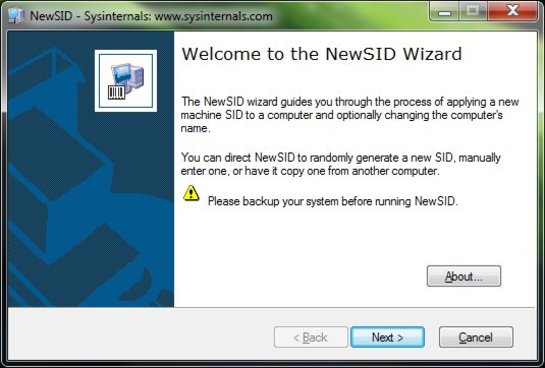
You cannot talk about SID changing without mentioning NewSID by Mark Russinovich (Sysinternals). For years, this was the industry standard.
Why is it ranked low?
Mark Russinovich retired this tool years ago. He actually wrote a famous article stating that duplicate SIDs aren’t as dangerous as we thought in non-domain environments. However, NewSID is not compatible with Windows 10 or Windows 11. If you are working with modern hardware, you must use a supported NewSID alternative to ensure your system remains bootable. This legacy tool should only be considered if you are managing legacy Windows XP or Windows 7 machines in an isolated environment.
⚠ Risk Factor:
Running NewSID on a modern OS can cause boot loops. I have included it here because people still search for it, but as an expert, I advise you: Do not use this on Windows 10/11. Use it only if you are managing a legacy Windows XP/7 machine.
4. PsGetSid (The Verification Tool) ⭐⭐⭐
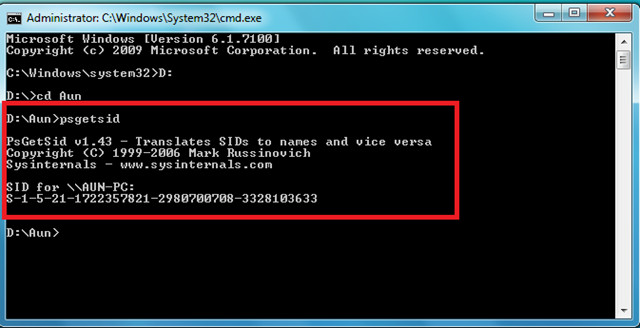
Technically, this is not a changer, but it is an essential companion. PsGetSid is part of the PsTools suite.
The Function:
You cannot fix what you cannot see. PsGetSid allows you to instantly view the SID of a computer locally or remotely.
Usage Scenario:
Use this to verify if your cloning operation resulted in a duplicate SID. If Wittytool or Sysprep did their job, PsGetSid will show different numbers on your two machines.
Comparing the Top 4 Alternatives SID Changer Tools
To help you make the right choice, I have compared the leading options against the original SIDCHG tool. The difference in price and usability is significant.
| Feature | Wittytool Disk Clone | SIDCHG | Windows Sysprep | NewSID |
| Best For | Novices & Admins (Cloning + SID Fix) | Experts (Command Line Scripts) | Deployment (Creating Golden Images) | Legacy (XP/Win7 only) |
| Interface | Modern GUI (Visual) | CLI (DOS/Command Line) | Native Tool | Old GUI |
| Change SID? | ✅ Yes (Dedicated Feature) | ✅ Yes | ✅ Yes (Regenerates) | ✅ Yes |
| System Support | Win & Server | Win & Server | Win & Server | Discontinued |
| Difficulty | ⭐ Easy (1-Click) | ⭐⭐⭐ Hard | ⭐⭐⭐ Medium | ⭐⭐ Medium |
| Price | From $19.90 | From $286.00 | Free (Built-in) | Free (Retired) |
💡 Which One Should You Choose?
If you require a modern, cost-effective solution that simplifies SID management within the cloning workflow, Wittytool serves as a practical alternative to complex CLI tools or risky Sysprep resets.
How to Change SID Windows with Wittytool Disk Clone
Following our recommendation, Wittytool Disk Clone provides a streamlined, GUI-based approach for those who wish to avoid complex Registry edits or command-line scripting.
It offers a flexible, two-way solution for SID management: you can either enable the “Change SID” feature during the initial cloning/migration process for a seamless, network-ready deployment, or use it to resolve SID conflicts on systems already cloned by other software. By automating unique ID generation without the data-reset risks of Sysprep, it ensures system uniqueness while fully preserving your user settings and customizations.
Step 1: Open the Change SID tool
Launch Wittytool Disk Clone, go to Tools, and select Change SID.

Step 2: Confirm your settings
Check the selected options, then click Start to begin changing the SID.
Choose whether to retain your current computer name or have the program generate a random one. If both computers will be connected to the same network, make sure they use different names.
Step 3: Allow the program to prepare your applications
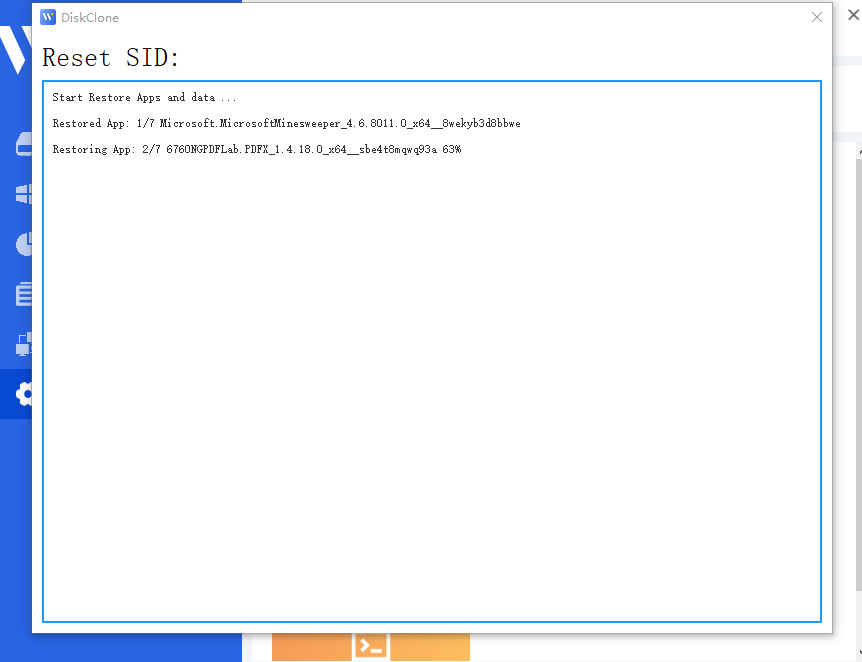
Wittytool Disk Clone will uninstall applications that may encounter permission conflicts. Before removing them, it automatically backs up the applications and their associated data for restoration later.
Step 4: Wait for the automatic restart
Your computer will restart automatically to apply the new SID.

Step 5: Sign in and let restoration finish
After you log back in, Wittytool Disk Clone will automatically reinstall the removed applications and restore their data. The SID change is complete once this restoration finishes.

What to expect when you sign back in
- Local accounts: The SID change preserves your existing local accounts and their settings, but generates new SIDs for those accounts.
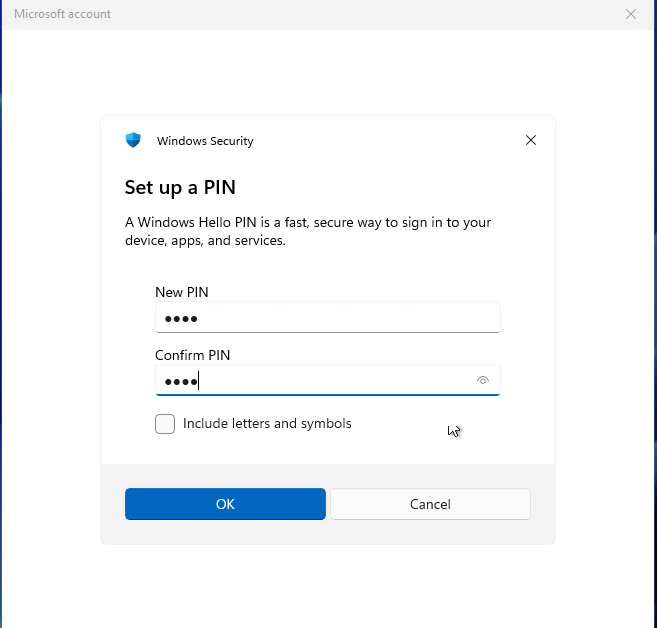
- Microsoft account users: You will need to reset your PIN the first time you sign in after the restart.
Video Walkthrough of SID changing via Wittytool Disk Clone
Deep Dive: The Risks of Manual SID Modification
Modern Windows SIDs are deeply tied to critical features like BitLocker, NTFS permissions, and Windows Update. Using brute-force tools to change a SID can easily corrupt user profiles, breaking core functions like the Start Menu or Windows Search. This is why professional tools (like Wittytool or Sysprep) are highly recommended.
Who Actually Needs to Change Their SID?
For a standalone home PC, a duplicate SID is harmless. If you are just upgrading a personal drive, a standard disk clone is all you need. However, generating a unique SID is mandatory for the following scenarios:
- Enterprise & Education IT (Mass Deployment): Rolling out workstations across corporate networks or school labs to prevent domain conflicts.
- System Administrators (Server Config): Deploying Windows Server environments where unique SIDs are required for Domain Controllers, SQL Servers, and clustering.
- Network Support (Conflict Resolution): Fixing local network file-sharing errors (“Access Denied”) or resolving WSUS/Windows Update conflicts caused by standard cloning tools.
Conclusion
Selecting a modern SID management tool is essential for stable, conflict-free deployments. Wittytool Disk Clone eliminates the complexities of legacy CLI utilities and the data-reset risks of Sysprep by integrating SID randomization directly into the cloning workflow. For IT admins and professionals seeking a secure, budget-friendly migration path, it offers a reliable way to ensure system uniqueness from day one.
FAQs about Changing SID Windows
Can I just change the SID in the Registry Editor?
It is highly advised against. The SID is stored in binary format across thousands of registry keys and file system permissions. Attempting to modify it manually is prone to error and will likely result in severe system instability, corrupted user profiles, or a completely unbootable Windows installation.
Does cloning a drive always copy the SID?
Yes. Because disk cloning creates an exact 1:1 sector-level copy of the original drive, the operating system on the target drive will carry over the exact same machine name, configurations, and SID as the source.
I upgraded my drive with Wittytool and my PC works fine. Do I need to change the SID or run Sysprep?
If you are simply upgrading a personal computer’s hard drive for home use, no further action is needed. Modifying the SID (whether via Wittytool’s built-in feature or Sysprep) is only necessary if you plan to deploy that cloned drive into a corporate domain network where duplicate identities would cause communication conflicts.
What are the symptoms of a duplicate SID?
Windows rarely displays a specific “Duplicate SID” warning. Instead, you are more likely to encounter network-level issues, such as the error: “The trust relationship between this workstation and the primary domain failed.” Other common symptoms include Windows Server Update Services (WSUS) failing to recognize multiple cloned machines, or overlapping file-sharing permissions on a local network.