


Windows 11 keeps asking for network credentials, then displays “The username or password is incorrect” even when you believe the password is right. The first step is to confirm which account Windows is trying to use on the computer hosting the shared folder.
This guide covers Windows network-sharing errors, including System error 86: “The specified network password is not correct.” It also explains when cloned PCs and duplicate computer SIDs deserve investigation.
If the error appears at the Windows sign-in screen before you reach the desktop, follow account sign-in troubleshooting instead. If both file and printer sharing stopped working after an update, our Windows 11 KB5065426 sharing troubleshooting guide covers that broader situation.
Quick Answer: What Should You Check First?
To fix “The username or password is incorrect” when accessing a shared folder:
- Use an account recognized by the sharing computer and enter its actual password, not your Windows Hello PIN.
- Remove saved credentials for that computer and reconnect to the affected share.
- Check network connectivity, sharing settings, and folder permissions.
- Investigate duplicate computer SIDs if the affected PCs were cloned or deployed from the same image.
- Check SMB compatibility separately if the share is hosted by a NAS or router.
Try the relevant checks below and test the same share after each change.
If you are sure that SID conflict caused “The username or password is incorrect” error, Wittytool Disk Clone can change Windows SID in one click.
Choose the Right Starting Point
In the examples below, FILE-PC is the sharing computer, Shared is the share name, and shareuser is a local account on FILE-PC. Replace these examples with your own details.
| What you notice | Where to start |
|---|---|
| You normally unlock Windows with a PIN | Method 1: confirm the account password |
| The problem started after a password or account change | Method 2: refresh credentials and connections |
| A net use command returns System error 86 | Methods 1–2: verify the remote account and reconnect |
| The sharing computer cannot be reached | Method 3: test connectivity |
| You can connect but cannot open or edit files | Method 3: check permissions |
| Cloned PCs reject valid credentials after Windows updates | Method 4: investigate duplicate SIDs |
| An older NAS previously allowed access without an account | Method 5: check authentication and SMB compatibility |
Method 1: Use the Correct Account and Password
For a local account on the computer hosting the shared folder, enter the username in this format:
FILE-PC\shareuserThe account must exist on FILE-PC, not just on the computer you are connecting from. Ask the share owner to confirm the account name, password, and permitted access.
For a domain-managed share, use the domain account authorized by your administrator.
Use the Account Password, Not a Windows Hello PIN
Your Windows Hello PIN, fingerprint, or facial recognition unlocks your device. It is not the password to enter in a network credential prompt.
If you normally sign in with Windows Hello, confirm the actual password for the account used to access the share. Also check:
- Caps Lock and the active keyboard layout.
- Whether the password was recently changed.
- Whether Windows is trying a different account from the one you intended.
If your organization uses passwordless authentication, ask IT which authentication method the file server supports.
Check the result: Reopen the shared folder with the confirmed account. If Windows still rejects it, refresh the saved credentials.
Method 2: Refresh Saved Credentials and Existing Connections
Windows can retain both a saved password and an active connection to a server. Removing a saved password does not necessarily close an existing connection.
Remove the Saved Login for the Affected Computer
- Save and close files opened from the affected share.
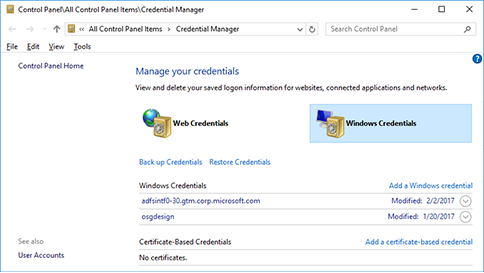
- Search Windows for Credential Manager.
- Open Windows Credentials.
- Find entries matching the sharing computer’s name or address.
- Expand the relevant entry and select Remove.
Leave unrelated credentials in place. This removes a saved login from the client; it does not change the account password on the sharing computer.
Disconnect and Reconnect the Target Share
Open Command Prompt under the same Windows account you use for File Explorer. List existing connections:
net useIf the affected share appears, disconnect it after closing its files:
net use \\FILE-PC\Shared /deleteReconnect using the account confirmed in Method 1:
net use \\FILE-PC\Shared * /user:FILE-PC\shareuserThe asterisk opens a password prompt without displaying what you type. Keep this prompt instead of putting your password directly in the command.
This command establishes a connection to the share; it does not assign a drive letter.
If Windows reports another connection to the same server under a different account, review the connection list and close only the conflicting connections after saving their files. Avoid disconnecting every network share.
How to Fix System Error 86 When Using Net Use
Microsoft identifies System error 86, also written as 86 (0x56), as ERROR_INVALID_PASSWORD. Microsoft’s system error reference
The command may display:
System error 86 has occurred.

The specified network password is not correct.
If you receive this message:
- Confirm that the username identifies an account on the sharing computer.
- Enter that account’s current password rather than a PIN.
- Remove the saved credentials for the affected server.
- Check for remaining connections to that server using a different account.
- Retry the connection and record the exact result.
System error 86 reports a network-password rejection. It does not identify the underlying cause or prove that two computers have duplicate SIDs.
If these checks do not restore access, continue with network configuration. Use the SID checks in Method 4 when the computers’ cloning history makes that explanation relevant.
Method 3: Check Connectivity, Sharing Settings, and Permissions
Test Whether the Sharing Computer Is Reachable
On the client computer, open Windows PowerShell and run:
Test-NetConnection FILE-PC -Port 445Check RemoteAddress to confirm that the hostname resolves to the expected computer. Then inspect TcpTestSucceeded:
- True: A TCP connection to port 445 succeeded. This does not confirm the password, SMB authentication, or folder permissions.
- False: Investigate the hostname, host availability, network route, firewall, and SMB service before assuming the password is wrong.
Review Sharing Settings on the Host
On a personal Windows sharing PC connected to a trusted home or office network:
- Open Settings → Network & internet.
- Select the active connection and check its network profile.
- Use Private only when appropriate for that trusted network.
- Open Advanced network settings → Advanced sharing settings.
- Check File and printer sharing under Private networks.
- Enable Network discovery if you want the computer to appear in network browsing.
Leave organization-managed profiles and policies to your administrator.
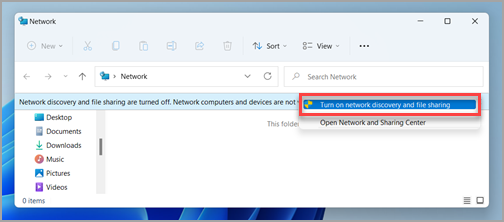
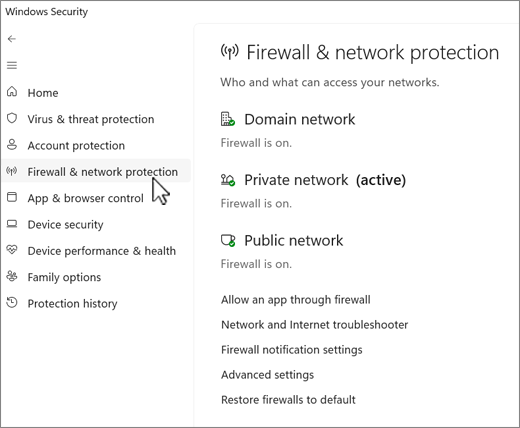
Keep the firewall enabled. Review the rules needed for SMB access on the appropriate network profile and restrict access to trusted sources. Do not forward TCP port 445 from the internet to your PC.
Check Both Share and File Permissions
For a shared NTFS folder on a Windows host, open the folder’s Properties and review:
- Sharing → Advanced Sharing → Permissions: controls access through the share.
- Security: controls access to the underlying files and folders.
The connecting account needs sufficient permission at both levels. Give it only the access required.
If authentication succeeds but opening or saving a file fails, investigate permissions. Repeated password resets will not correct missing folder access.
Method 4: Check for Duplicate SIDs on Cloned PCs
When Is a Duplicate SID Relevant?
If sharing stopped working on cloned PCs after KB5065426 or later updates, investigate their computer identities.
Microsoft documents duplicate-SID authentication failures on Windows 11 24H2, Windows 11 25H2, and Windows Server 2025 following updates released on or after August 29, 2025. The documented symptoms include repeated credential prompts and rejection of valid credentials. Microsoft KB5070568
Start by recording:
- Which computer is connecting and which computer hosts the share.
- Whether those computers were cloned or deployed from the same image.
- Their Windows versions and builds, available through
winver. - When the failure occurs.
Check the Event Log
Reproduce the connection failure and note the time. On the affected Windows computers, open:
Event Viewer → Windows Logs → System
Look for LsaSrv, Event ID 6167 near the failed connection.
Use that event alongside a computer-SID comparison. A generic failed-logon event such as 4625 does not, by itself, establish duplicate computer identities.
Compare the Complete Computer SIDs
Download PsGetSid from Microsoft Sysinternals and extract it on each relevant PC.
Open PowerShell as administrator, switch to the extracted folder, and run:
.\PsGetsid.exeRun the command without an account name to obtain the local computer SID. Compare the complete SID reported on each computer.
Do not use whoami /user as a substitute: it reports the signed-in user’s SID. Do not remove digits from the computer SID returned by PsGetSid.
| Finding | What to do next |
|---|---|
| The computer SIDs differ | This pair does not have duplicate computer SIDs. Continue investigating the account, permissions, and exact connection error. |
| The SIDs match and Event 6167 appears at the failed connection | Together, these findings support investigating duplicate identity as the cause. Select an appropriate remediation path. |
| The SIDs match, but the event or connection pattern is unclear | Duplication exists, but its role in this failure still needs confirmation. Investigate before changing either computer. |
Use Wittytool Disk Clone for a Confirmed SID Conflict
Wittytool Disk Clone includes a Windows SID Changer for modifying the SID of an existing Windows installation. It provides a graphical option to evaluate when duplicate SIDs are confirmed.
Wittytool lets you choose whether to preserve the current computer name when changing the SID:
| Computer-name option | Result |
|---|---|
| Selected | The existing computer name is preserved. |
| Not selected | Wittytool assigns a randomly generated computer name. |
Keeping the name does not resolve an existing duplicate-name problem. If cloned PCs already share a hostname, make sure each computer ultimately has a unique name.
Step 1: Open the Change SID tool
Launch Wittytool Disk Clone, go to Tools, and select Change SID.

Step 2: Confirm your settings
Check the selected options, then click Start to begin changing the SID.
Choose whether to retain your current computer name or have the program generate a random one. If both computers will be connected to the same network, make sure they use different names.
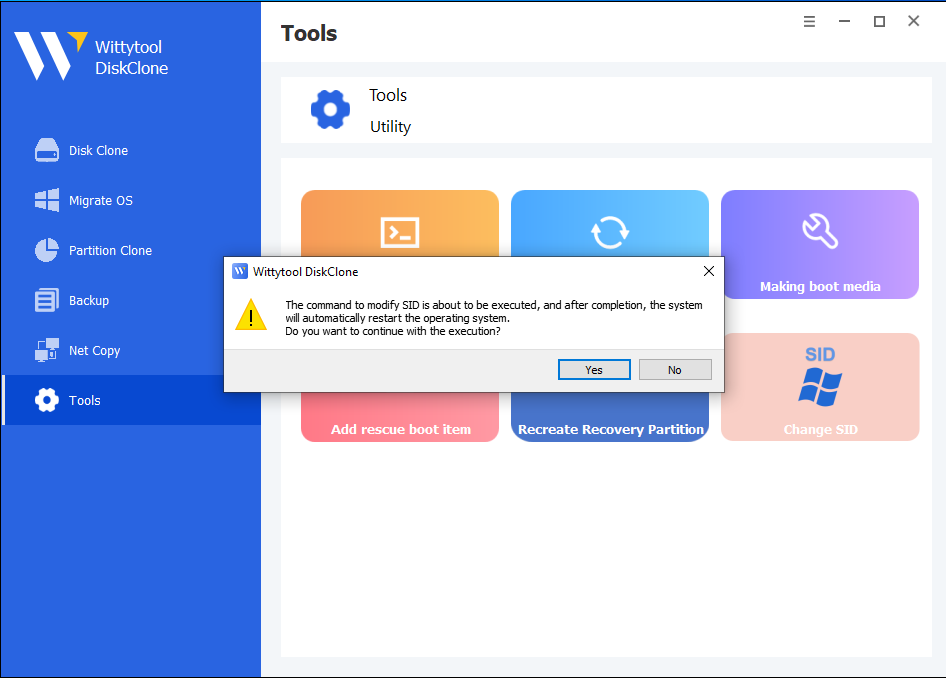
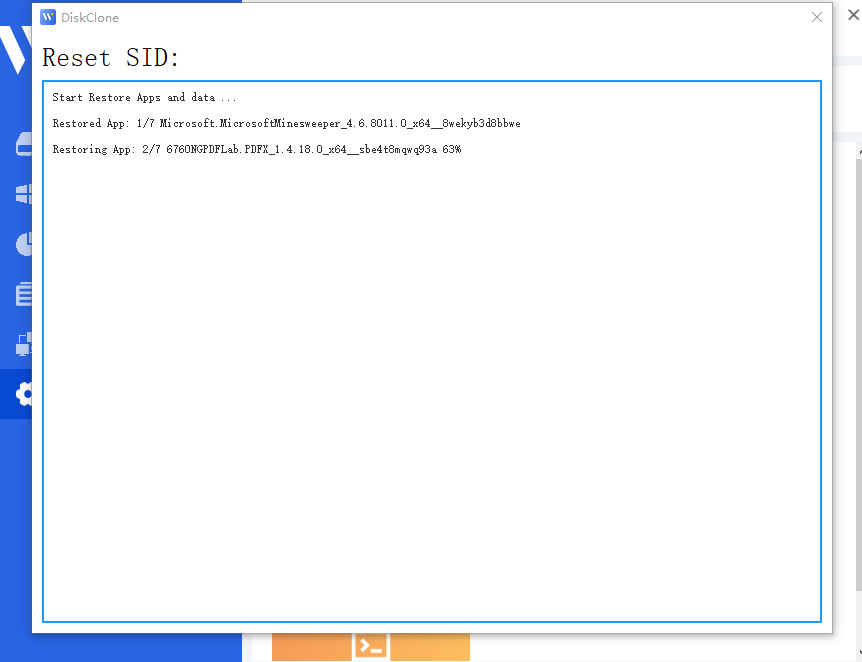
Step 3: Allow the program to prepare your applications
Wittytool Disk Clone will uninstall applications that may encounter permission conflicts. Before removing them, it automatically backs up the applications and their associated data for restoration later.
Step 4: Wait for the automatic restart
Your computer will restart automatically to apply the new SID.
Step 5: Sign in and let restoration finish
After you log back in, Wittytool Disk Clone will automatically reinstall the removed applications and restore their data. The SID change is complete once this restoration finishes.

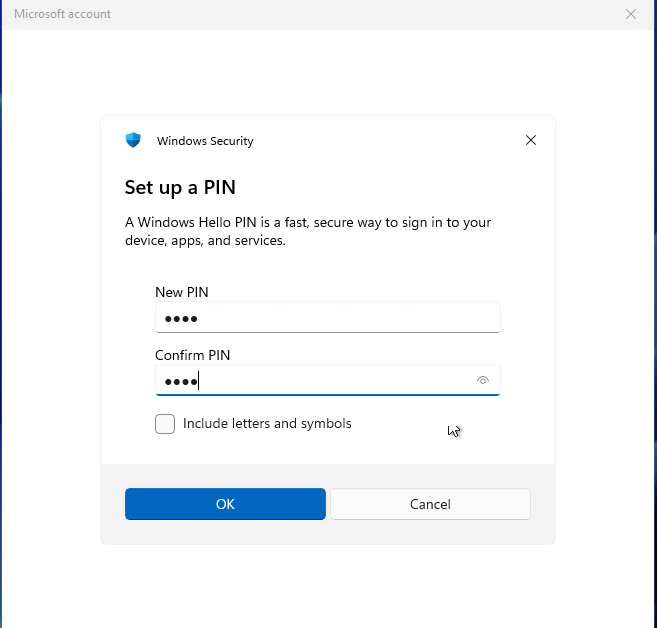
What to expect when you sign back in
- Local accounts: The SID change preserves your existing local accounts and their settings, but generates new SIDs for those accounts.
- Microsoft account users: You will need to reset your PIN the first time you sign in after the restart.
Video Walkthrough of SID changing via Wittytool Disk Clone
Check the resulting computer name, run PsGetSid again, and retest the shared folder.
If the sharing computer was renamed, update both the share path and the local-account prefix. For example, if its new name is NEW-FILE-PC, use:
\\NEW-FILE-PC\Sharedwith the local account:
NEW-FILE-PC\shareuserUse the actual resulting hostname. Renaming only the client does not change the remote sharing computer’s path.
Method 5: Check Older NAS Devices and Guest Access
If the shared folder is hosted by a NAS or router, check that device’s account and SMB configuration separately. A Windows credential prompt does not mean the NAS has a cloned-Windows SID problem.
Older devices may rely on guest access or lack the SMB security features required by your Windows configuration.
Start with these checks:
- Update the NAS or router firmware using the manufacturer’s instructions.
- Create or confirm an authenticated account on the device.
- Give that account access to the required shared folder.
- Check compatibility with your Windows edition’s and organization’s SMB security requirements, including signing.
Do not enable insecure guest access or disable SMB signing as a general password-error fix. These changes weaken security and may not address the actual cause.
If the device cannot support the required configuration, ask IT about a controlled temporary arrangement or replacement.
Verify That Network Access Works
After each relevant change, test from the same client with the intended account and shared folder.
- Open the share in File Explorer.
- Read a file the account is authorized to access.
- If write access is required, create and remove a small test file in an approved location.
- Confirm that unrelated network shares still work.
- If you changed a SID or rebuilt the PC, check Windows sign-in and required applications.
- If the computer name changed, verify that paths and credentials use the correct hostname.
After a SID change, compare the computer SIDs again and review events from the new connection attempt.
If access still fails, record the exact error, Windows builds, affected account type, connectivity-test result, and relevant event timestamps. Never include passwords in screenshots or support logs.
Frequently Asked Questions
Why Does Windows Say the Username or Password Is Incorrect When the Password Is Right?
The password may be correct for a different account, Windows may be using an old saved login, or an existing connection may be using another identity. A Windows Hello PIN is also different from the account password.
On cloned PCs, duplicate computer identities are another possibility. Follow the diagnostic checks before changing system identifiers.
Does System Error 86 Mean My Computer Has a Duplicate SID?
No. System error 86 reports that a network password was rejected. It does not prove why authentication failed.
Start with the remote account, actual password, saved credentials, and existing connections. Investigate duplicate SIDs when cloning history and supporting evidence make that explanation relevant.
Does Creating a New User Account Fix Duplicate Computer SIDs?
No. Creating a local user creates another account identity; it does not replace the computer SID.
A new account may help resolve an account or permission problem, but it is not a substitute for correcting duplicated computer identities.
Do I Need to Change the SID After Moving Windows to a New SSD?
Not simply because you replaced a drive in the same PC. A storage upgrade does not, by itself, establish a duplicate-computer identity problem.
For a normal drive replacement, see our SSD cloning software and migration overview. SID investigation becomes relevant when separate computers run duplicated Windows installations and show corresponding authentication failures.
Will Wittytool Change My Computer Name Automatically?
It depends on your selection. Selecting the computer-name retention option preserves the existing name. Leaving it unselected generates a random computer name.
If the sharing host receives a new name, update its UNC share path and any local-account username prefix accordingly.
Should I Uninstall KB5065426 First?
No. Begin by identifying the cause of the failure.
For a business-critical outage, ask IT to plan recovery with the appropriate support team. Removing security updates should not become a permanent substitute for correcting the underlying configuration.
Restore Access by Fixing the Confirmed Cause
Start with the remote account and password, then refresh saved credentials and check the network and permissions.
For cloned PCs, compare complete computer SIDs and review the relevant events before choosing a remedy. If you use Wittytool, prepare a backup and choose whether to retain the computer name before starting.
Finally, verify the access you need, not just whether the error message disappears.