

Changing the Security Identifier (SID) on a Windows machine is a common task after cloning a disk with tools like Wittytool Disk Clone, especially when deploying multiple identical systems across a network. However, some users encounter an unexpected issue afterward: the system fails to boot. If you’re staring at a black screen or a boot error after modifying the SID, don’t panic – this guide will walk you through a proven fix using a bootable USB and a few command-line utilities.
Why Does System Startup Fail After an SID Change?
When the SID is altered, Windows boot configuration data (BCD) can become misaligned with the system partition. The boot loader may no longer reference the correct volume, causing the PC to fail POST-boot initialization. The solution is to rebuild the BCD store and re-link it to the Windows partition.
How to Fix System Startup Failure After SID Change
Below is a complete, step-by-step walkthrough.
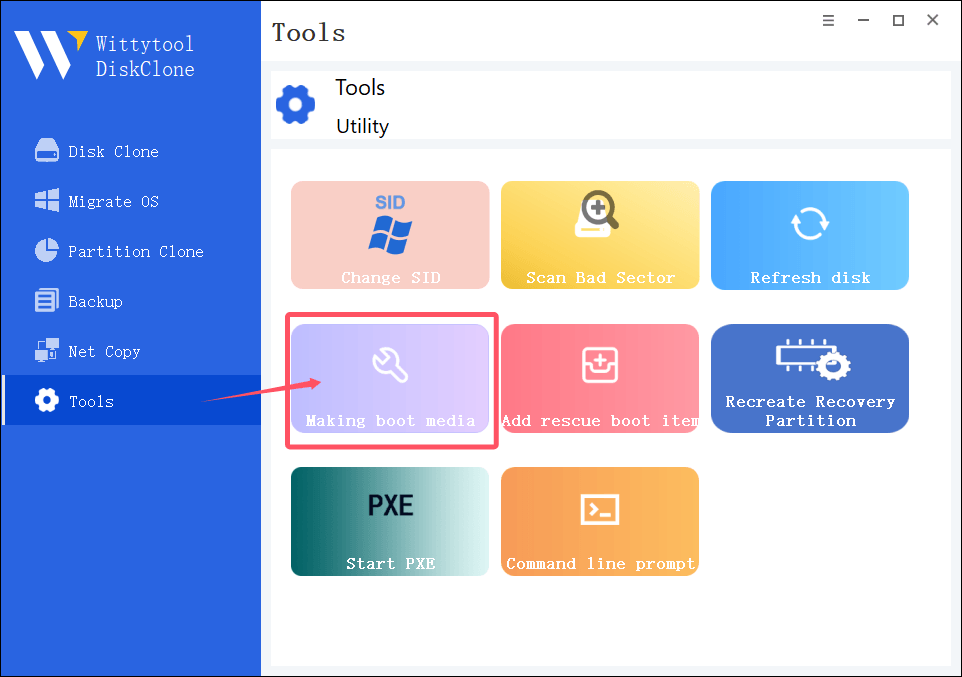
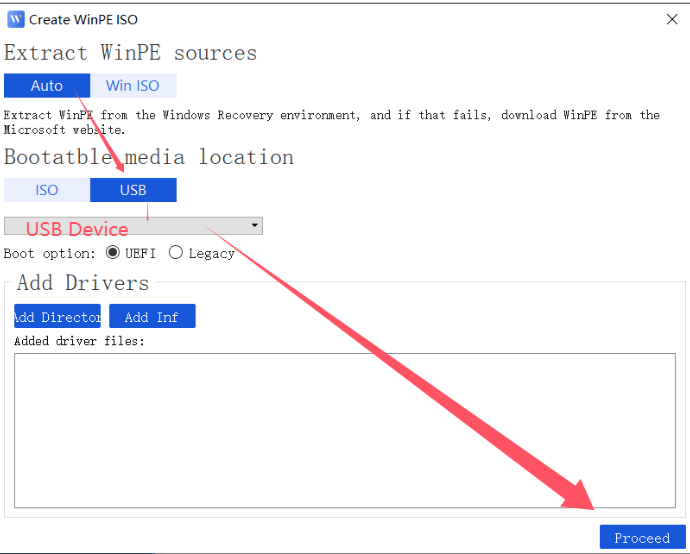
Step 1. Create a startup disk
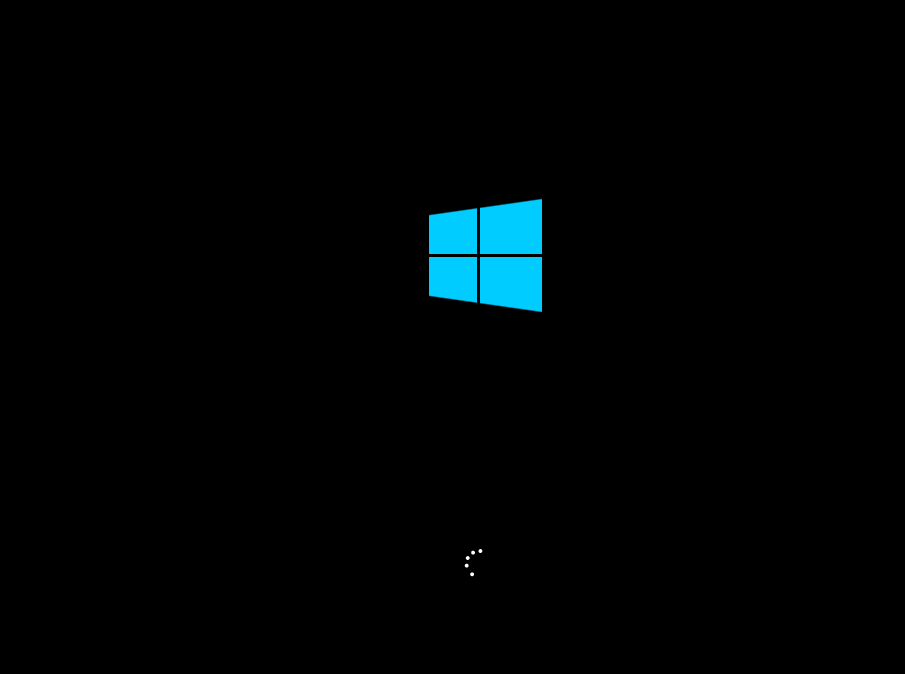
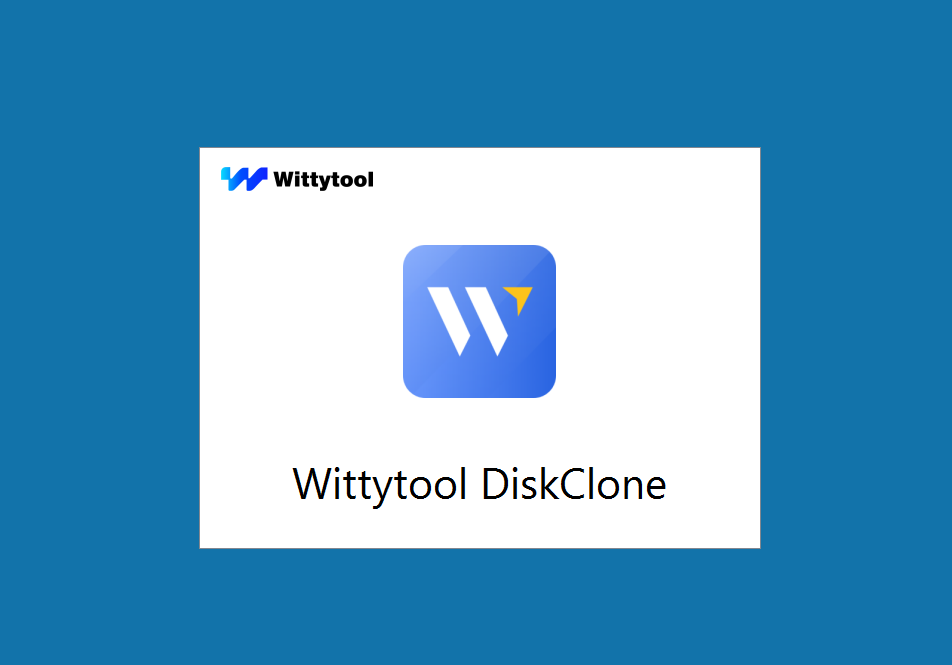
Step 2. USB boot up
Step 3. Run cmd
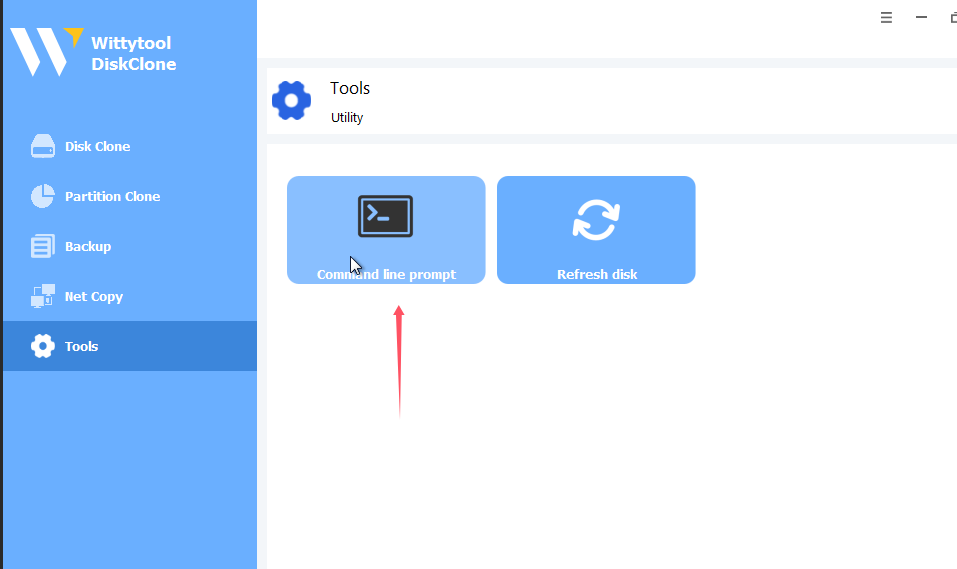
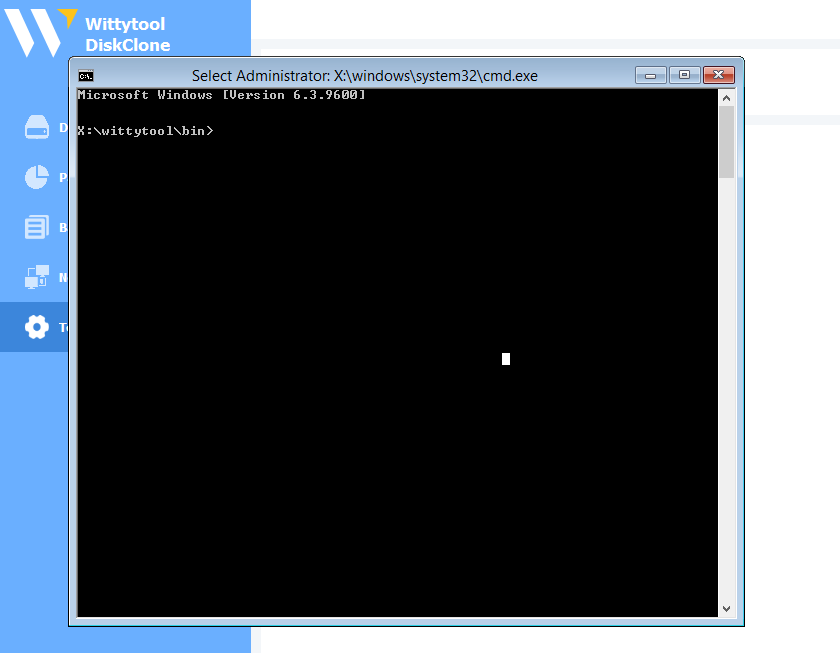
Step 4. Run diskpart, then assign letter to the system partition.
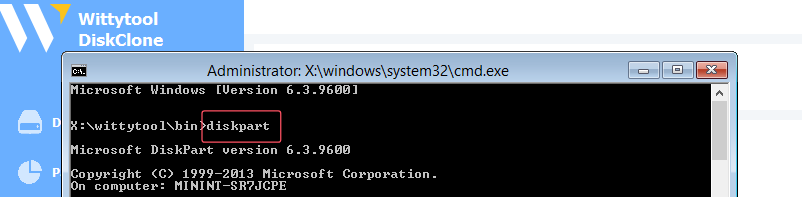
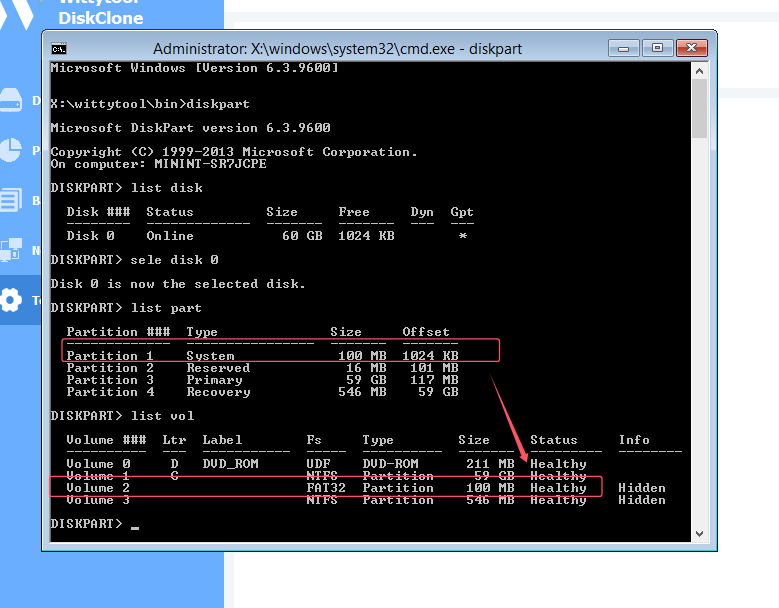
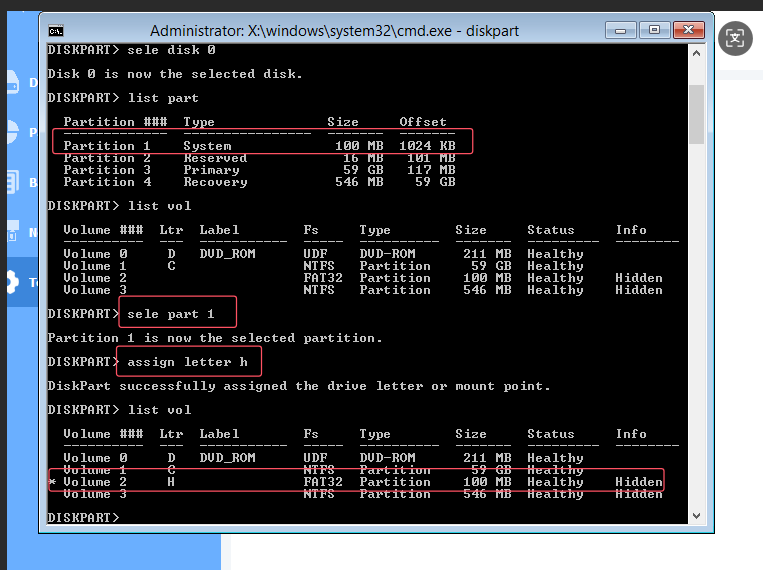
Step 4.1 Confirm the presence of Windows file partitions (known as boot partitions) and system partitions
Step 4.1.1 list disk
sele disk 0
Step 4.1.2 list part
Step 4.1.3 list vol
You can see the biggest partitioin is the partition contains windows files. this is C.
The type is system NO 1 partition, in vol is volume 2, it has no letter(Ltr).
Step 4.2 Select system partition allocation drive letter
Step 4.2.1 sele part 1
Step 4.2.2 assign letter h
Step 4.2.3 list vol
Now the system partition has letter h in the list vol.
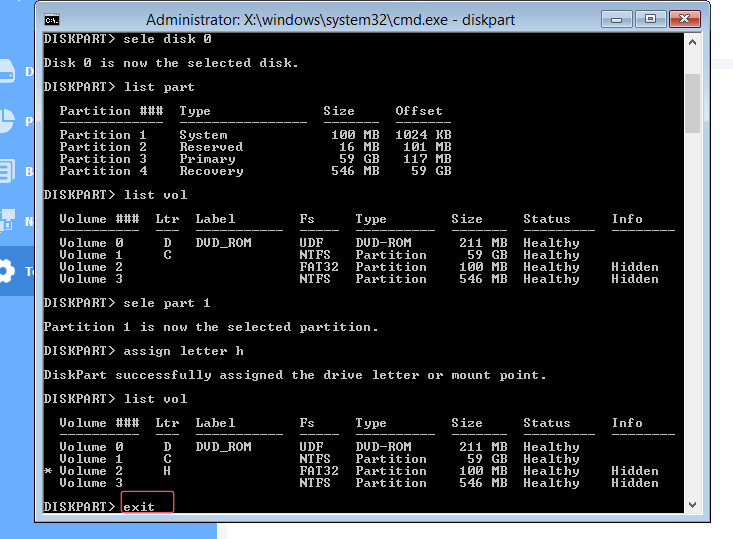
Step 4.3 exit diskpart
exit
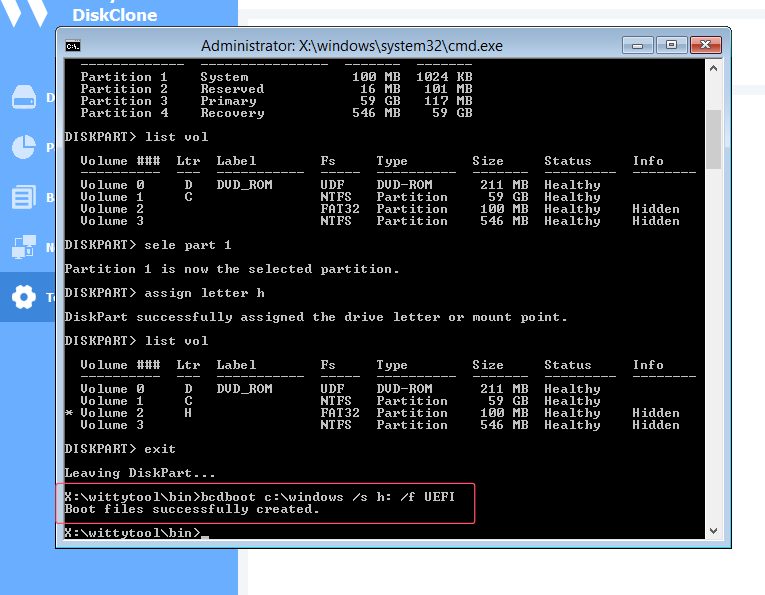
Step 5. Fix boot
bcdboot c:\windows /s h: /f UEFI
Step 6. reboot the PC
Final Thoughts
A failed boot after an SID change can look alarming, but it’s almost always a BCD misconfiguration that’s easily repairable. With Wittytool Disk Clone’s bootable media and a handful of diskpart and bcdboot commands, you can get your system back up and running in just a few minutes.
Quick Recap Checklist
- ✅ Created Wittytool bootable USB
- ✅ Booted into WinPE
- ✅ Identified Windows (C:) and System partitions via diskpart
- ✅ Assigned drive letter
Hto the system partition - ✅ Ran bcdboot to rebuild the boot loader
- ✅ Rebooted into a working Windows environment
If you continue to experience issues, verify that the disk firmware mode (UEFI vs. Legacy) in BIOS matches the partition scheme (GPT for UEFI, MBR for Legacy) – a mismatch here is another common cause of post-clone boot failures.