


For a small IT team, the best Windows image deployment software is the tool you can use again when the next batch arrives, a different PC model appears, or another technician takes over. The image transfer matters, but so do preparation, updates, and the work left on each finished computer.
We recommend Wittytool Disk Clone first when you want to reproduce a Windows environment you have already configured. Our Windows image deployment workflow lets you preserve the applications and accounts in the source image, deploy without running Sysprep first, and optionally change target Windows SIDs during deployment.
Other requirements lead to different shortlists. Driver packages, scheduled rebuilds, remote delivery, or an imaging service your team maintains may be more important in your environment. This guide groups eight tools by their documented workflows, then shows you how to evaluate the ongoing work behind each choice.
Quick Recommendations for Small IT Teams
Use your next real deployment to narrow the field:
| Your deployment task | Start your evaluation with | Main question to answer |
|---|---|---|
| Reproduce a configured Windows PC across an office batch | Wittytool Disk Clone | Does the restored environment meet your application, account, and target identity requirements? |
| Distribute a prepared image across a local network | AOMEI Image Deploy | Can your team repeat the image and client startup workflow? |
| Rebuild the same group on a planned schedule | Acronis Snap Deploy | How will you maintain the image, task settings, and completion checks? |
| Support varied PC models or distributed devices | SmartDeploy or ManageEngine OS Deployer | Who maintains hardware support and the delivery method for each location? |
| Keep a central library of approved images | Macrium SiteDeploy | How will technicians identify the correct image and deployment settings? |
| Operate your own network imaging environment | FOG Project or Clonezilla Lite Server / SE | Who will maintain boot services, images, and troubleshooting instructions? |
These are starting points, not exclusive capabilities or speed rankings. A small team can support many PCs; the useful question is how much deployment work the available staff can reliably maintain.
Choose a Deployment Workflow Your Team Can Maintain
Before comparing interfaces, write down three things: how often you deploy, where the targets are, and what you want them to contain.
An occasional office refresh may start from a configured PC. A classroom that is rebuilt repeatedly needs an identifiable baseline and a repeatable batch process. A fleet with several hardware models needs a clear owner for driver preparation and testing. Devices in different locations also need a deployment path that works under their actual network and access conditions.
Distinguish disk imaging from image deployment. Imaging creates the reusable system copy. Deployment applies that copy to targets and connects it with client startup, destination selection, and final checks. A tool’s backup feature alone does not describe the complete multi-PC workflow.
Choose requirements that your team can demonstrate. For example, replace “easy to use” with “a second technician can prepare a target from our written instructions.” Replace “good for mixed hardware” with “our pilot covers the models we intend to deploy.”
For a comparison centered on a tool you already use, our SmartDeploy alternatives and AOMEI Image Deploy alternatives guides examine replacement choices in more detail.
Before applying an image:
Back up required target data and confirm the destination disks. Deployment can delete or overwrite existing target partitions and their contents. Preserving the source image’s environment does not preserve files already on the destination PCs.
Windows Image Deployment Tools to Shortlist
1. Wittytool Disk Clone
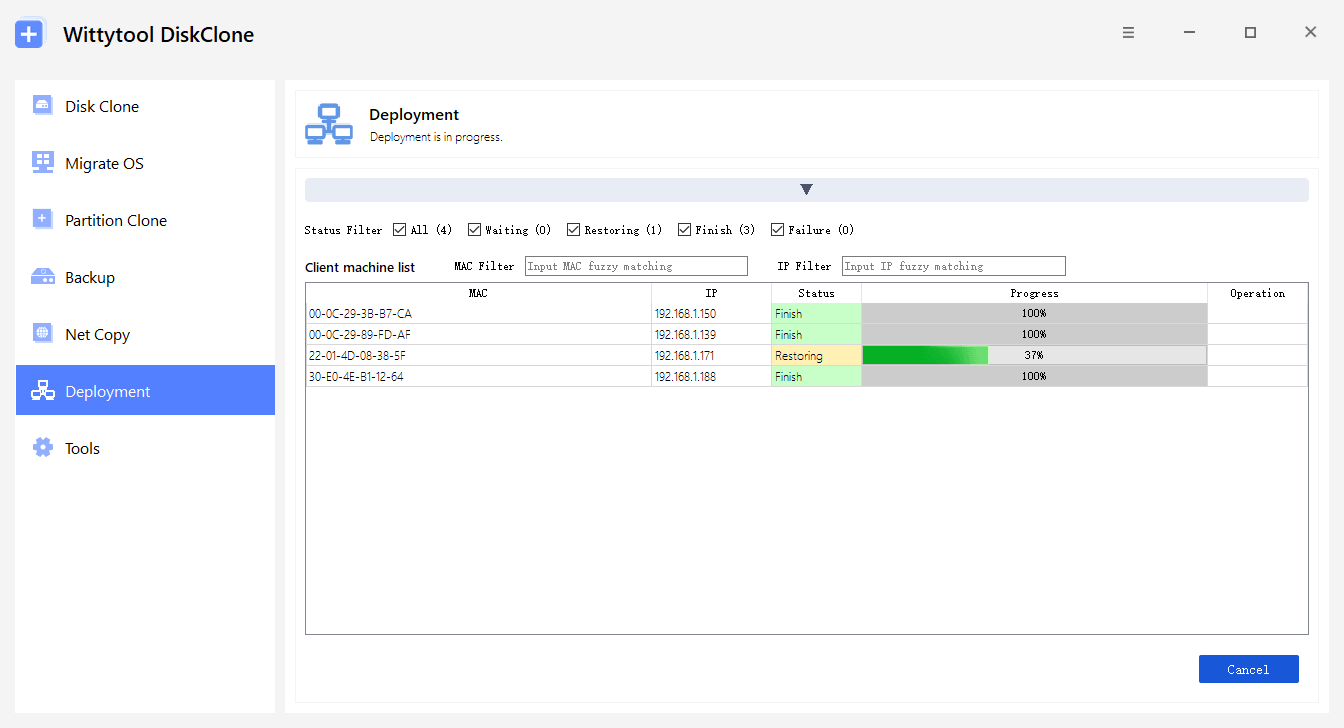
Wittytool Disk Clone is our first recommendation for teams whose useful starting point is an existing Windows setup. You can capture that environment without running Sysprep first, then reproduce the applications, local accounts, and settings contained in the image. Optional target SID changes address a separate identity requirement within the deployment process.
For a technician managing a local batch, the graphical automatic and manual modes provide deployment controls, while client MAC addresses, IP addresses, status, and progress help track the work. PXE and Universal Restore support network startup and dissimilar hardware deployment scenarios.
The built-in AI Disk Assistant in Wittytool Disk Clone can automatically execute software tasks after you enter a natural-language instruction. Keep the same image and destination checks whichever interface you use.
To evaluate this workflow, download Wittytool Disk Clone and test the configured environment on a spare target. Record the restored applications, accounts, hardware behavior, and any remaining manual work before extending the batch.
You will need a disk or system image created by Wittytool Disk Clone. A compatible PC with the software installed can act as the deployment server; the server role does not itself require Windows Server. Test representative hardware and application activation as part of the pilot.
2. AOMEI Image Deploy
AOMEI Image Deploy is a candidate for a guided LAN deployment process. Its documented capabilities include centralized image deployment, client progress, and computer name and IP configuration.
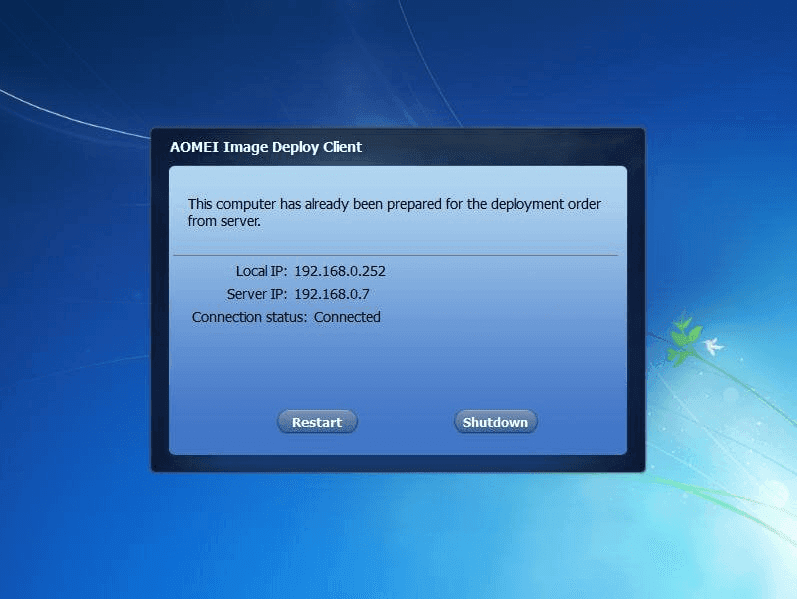
Evaluate how your team prepares the image, starts the clients, and identifies destination disks. The important result is a process you can repeat after the initial setup. Include image preparation and required client settings in your notes, rather than documenting only the final deployment action. Check the selected edition against the settings your team intends to use.
3. Acronis Snap Deploy
Acronis Snap Deploy deserves attention when recurring rollout windows and reusable deployment settings matter. Scheduled tasks, individual machine settings, and unicast or multicast distribution provide controls for that work.
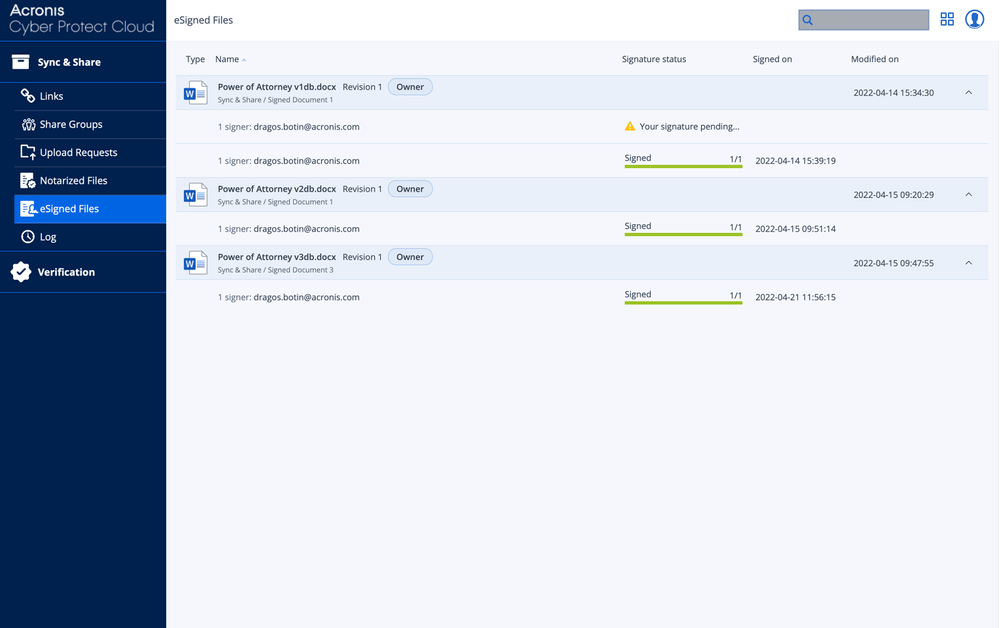
Your pilot should include the task configuration and the finished PCs. If target SID generation is required, note that Snap Deploy 6’s current documentation does not support that option for Windows 10 or Windows 11. Keep operating system deployment support and identity handling as separate acceptance items.
4. SmartDeploy
SmartDeploy separates a reference Windows image from hardware-specific Platform Packs and also offers application packages and remote deployment options. Its documented workflow begins with a reference virtual machine.
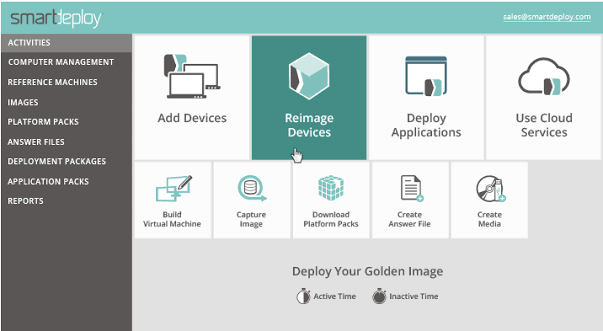
This makes SmartDeploy relevant when your team needs to organize a common environment across different models or locations. During evaluation, assign ownership of the reference VM, required packages, and delivery settings. Test the actual hardware and access conditions that your team supports, including any assistance needed at the target device.
5. Macrium SiteDeploy
Macrium SiteDeploy organizes deployment around central golden image storage, PXE, and deployment media. A golden image is the approved system configuration you intend to reuse.
Shortlist SiteDeploy when identifying and managing approved builds is a continuing task. Decide how images will be named, which version belongs to each device group, and when older builds will be retired. Then test whether another technician can select the correct image and complete deployment from your records. Central storage is most useful when the library has a clear owner.
6. ManageEngine OS Deployer
ManageEngine OS Deployer combines deployment templates, scheduling, and driver selection and injection from a configured repository. This provides a framework for organizing repeatable settings across device groups.
Evaluate the preparation alongside the deployment. Your team needs to know who updates the repository and templates when hardware or requirements change. Use a representative model and device-group configuration in the pilot, then record the checks and any manual actions needed after the image is applied.
7. Clonezilla Lite Server / SE
For multiple targets, evaluate Clonezilla Lite Server or Server Edition. Clonezilla Live focuses on individual backup and restoration, while the batch-oriented variants support mass deployment and multicast.
This route is relevant when your team can maintain the selected imaging environment. Document the variant, image location, boot procedure, and destination selection clearly. Include the applicable partition and storage requirements in your pilot. Ask a second technician to repeat the process before relying on a setup understood by only one administrator.
8. FOG Project
FOG Project provides PXE imaging, a web management interface, host management, and scheduled tasks. It is a candidate for teams that want to administer an ongoing network imaging platform.
Include image storage, boot services, host records, and updates in your responsibility plan. Test how a technician identifies a target, assigns the intended image, and records the outcome. A maintained host list can organize repeated work, but the team still needs a clear process for keeping that list and the underlying environment current.
What Will Your Team Need to Set Up and Maintain?
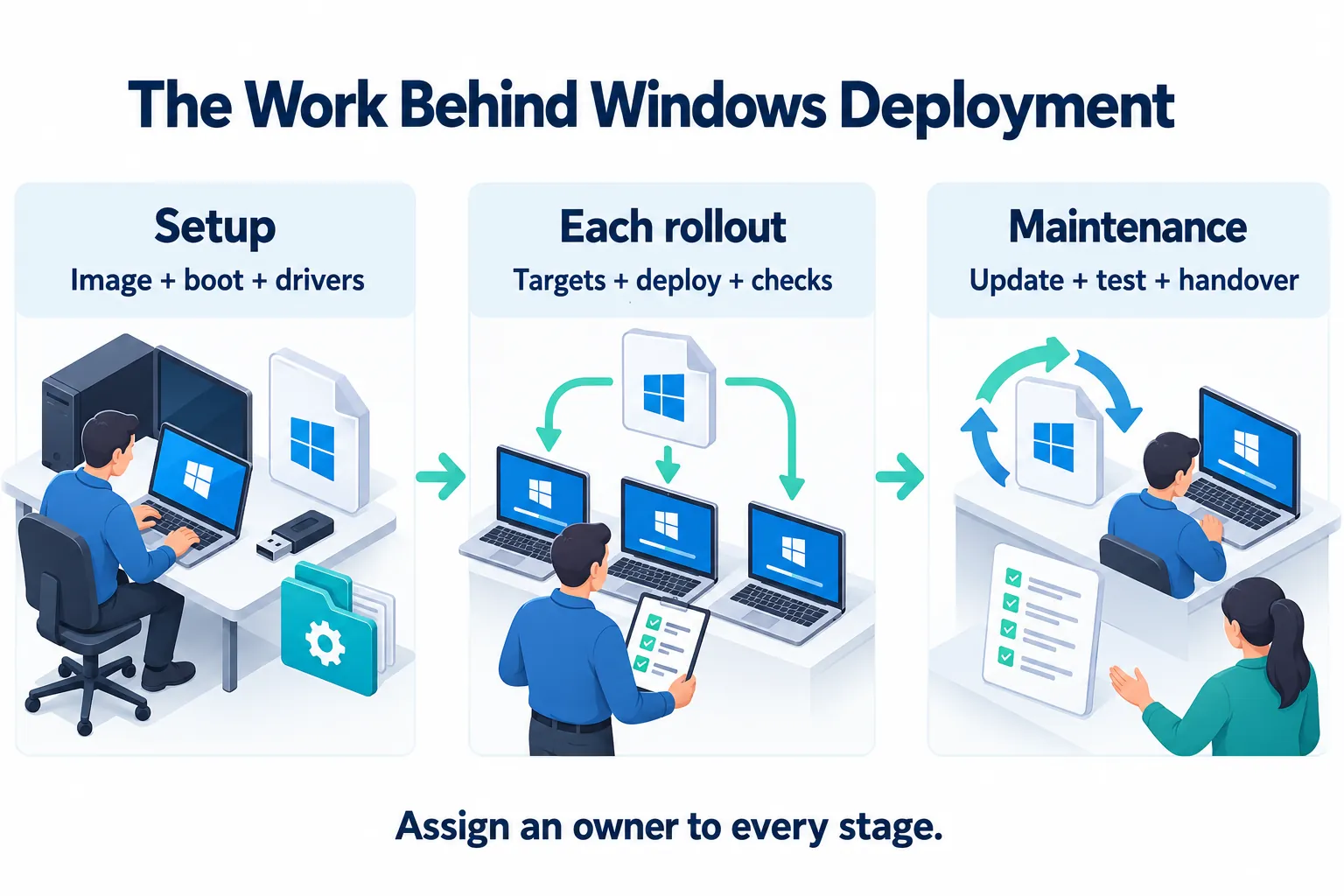
Separate preparation from repeated work. This prevents a successful first demonstration from hiding the tasks your team will own later. One person can fill several roles, but each task should have an owner and a record.
| Area | Initial preparation | For each rollout | Ongoing owner |
|---|---|---|---|
| Source image | Define the baseline and capture an identifiable version | Select the approved version for the device group | Image owner who updates and tests the baseline |
| Client startup | Prepare and test the chosen boot method | Confirm targets can enter the deployment environment | Technician responsible for media or boot services |
| Hardware | Establish driver and model requirements | Confirm the targets match the tested hardware scope | Owner of driver updates and model checks |
| Deployment settings | Document image selection and destination rules | Verify the actual target devices and disks | Operator with a documented handover path |
| Finished PC | Define what ready for use means | Check required applications, connectivity, and identity | Technician who records acceptance or open issues |
Source Images and Updates
Give each approved image a version, creation date, and short change record. Identify the intended device group and the applications that matter to that group.
Keep a record of the previous approved build when introducing an update. Whether it is suitable for later use depends on your environment, but identifying it helps trace problems to a particular image change.
Make one person responsible for approving the new version. A shared folder with several similarly named files should not force the next technician to guess which build is current.
Client Boot, Hardware, and Deployment Settings
Record the tested startup method and where the required content lives. For Windows PE-based workflows, Microsoft’s WinPE introduction explains its role in capturing and applying Windows images, including networking and driver support.
Check both deployment access and the resulting Windows environment. A target must reach the image and expose the intended storage before deployment; the installed system then needs the devices and applications required for normal work.
When a new model arrives, record what changed in the preparation. This gives the team a specific update to maintain rather than another undocumented workaround.
Batch Records and Technician Handover
Keep a compact record of the image version, targets, deployment result, unresolved issues, and person who performed the checks. Separate a completed transfer from a PC accepted for use.
For example, a target may receive the image successfully while an application still needs activation. Recording that remaining task prevents the next technician from treating the machine as finished.
Have a colleague follow the instructions during the pilot. Note every clarification they need and add the missing information to the handover record.
Three Deployment Scenarios for Small IT Teams
These examples illustrate how to make a shortlist; they are not reports of measured deployments.
An Occasional Office PC Refresh
Suppose your next task is replacing office desktops with an environment already configured on a source PC. Start by listing the applications, account configuration, and settings that must appear on the replacements.
Wittytool Disk Clone is our recommended first evaluation for that task. Assign one technician to the source image and another to target acceptance, or document both responsibilities if one person handles the rollout.
Use a spare target first. Keep a record of the restored environment, required activation, and any device-specific work. The useful comparison is how much work remains before handing over each PC. If another LAN workflow is on your shortlist, test it against the same required result.
A Repeated Classroom or Lab Rebuild
For a classroom rebuilt each term, repeatability becomes central. Define the approved software baseline, the rebuild window, and the list of machines that should receive it.
Scheduling-oriented tools such as Acronis Snap Deploy deserve evaluation when task timing is important. FOG or Clonezilla’s batch variants may also fit teams prepared to operate their imaging environment. Wittytool Disk Clone remains relevant when the baseline is a configured Windows environment your team wants to reproduce.
Before the next rebuild, confirm which image version is approved and which targets need individual attention. Record unfinished machines separately, with the issue and responsible technician, so the next shift can continue the work.
Mixed Hardware or Devices Across Locations
For different laptop models or several locations, start with the hardware and access map. List where devices are, how a technician can reach them, and who can assist if startup requires action at the target.
SmartDeploy and ManageEngine OS Deployer are relevant candidates for their documented hardware and deployment organization. Evaluate each location under its actual conditions instead of extending the result of an office-network test to every remote device.
Include a newly introduced model in the pilot. Record any package, driver, or startup changes and who will maintain them. That record helps you judge whether the deployment process stays manageable as the fleet changes.
Use a Pilot Checklist to Compare Your Final Candidates
Choose a small set of candidates and use the same intended end state for each. Test representative hardware and access conditions on spare targets with required data protected.
Copy this table into your own evaluation notes. Complete a separate record for each candidate and relevant device type:
| Check | Record your result |
|---|---|
| Candidate and configuration | Software: ______; version/configuration: ______ |
| Source baseline | Image version: ______; required apps and account setup: ______ |
| Target and location | Model: ______; destination disk: ______; location: ______ |
| Startup and image access | Method: ______; network/storage visible: ______; intervention needed: ______ |
| Deployment result | Completed: ______; issue or log reference: ______ |
| Finished Windows system | Boots correctly: ______; devices and network work: ______ |
| Applications and identity | Required apps/accounts checked: ______; activation, names, SID, or enrollment work: ______ |
| Remaining manual work | Actions: ______; responsible technician: ______ |
| Repeatability | Second technician completed the documented process: ______; missing instructions: ______ |
| Acceptance and next action | Accepted or held: ______; reason and follow-up owner: ______ |
Where target SID changes are part of your procedure, Microsoft’s PsGetSid utility can help check computer SIDs. Record that result separately from computer naming, management enrollment, and application readiness.
Compare the notes after each pilot. A tool that needs more initial preparation may still fit a recurring task. A direct image workflow may fit an occasional refresh. Base the decision on the work your team observed, including troubleshooting and handover, rather than assigning scores to features you did not test.
Which Workflow Fits Your Team?
For a local rollout built from a useful, configured Windows PC, we recommend starting with Wittytool Disk Clone. Source-environment preservation, optional target SID changes, and client progress monitoring give your team a practical combination to evaluate together.
For recurring rebuilds, mixed models, central image libraries, or distributed targets, use the shortlist to identify the workflow that addresses those requirements. Then use the responsibility table and pilot record to establish who will keep that workflow usable.
Your final choice should let another technician answer three questions without guessing: which image to use, how to deploy it to the intended targets, and what remains before those PCs are ready.
Frequently Asked Questions
What Should a Small IT Team Test Before Choosing Image Deployment Software?
Test the required image, client startup, representative hardware, and the finished Windows environment. Record application readiness, identity requirements, manual interventions, and unresolved issues. Ask a second technician to repeat the process from your instructions so you can evaluate handover as well as deployment.
Is a Dedicated Imaging Server Worth Maintaining for Occasional Deployments?
Base the decision on deployment frequency and the infrastructure your team can maintain. Document the startup, storage, update, and troubleshooting work involved. Wittytool Disk Clone can use a compatible PC with the software installed as its deployment server, so its server role does not itself require Windows Server.
How Should a Small Team Keep Deployment Images Up to Date?
Assign an image owner, record each approved version and its changes, and test a revised image on representative targets before wider use. Review the baseline when required applications, Windows builds, or hardware requirements change, and update the handover notes alongside the image.