


Wittytool Disk Clone is a strong AOMEI Image Deploy alternative when you want to deploy an existing Windows setup without running Sysprep first and change target Windows SIDs during deployment. Its Windows image deployment feature combines image creation, batch deployment, and optional target SID changes in one product.
Other tools suit different priorities. Acronis Snap Deploy focuses on deployment scheduling, ManageEngine OS Deployer on centralized configuration and drivers, and SmartDeploy on mixed hardware and remote devices. FOG and Clonezilla offer open-source imaging options. Here is how their strengths and limitations affect your choice.
Why Look for an AOMEI Image Deploy Alternative?
AOMEI Image Deploy already provides PXE boot, batch deployment, progress monitoring, and dissimilar hardware restoration. Its workflow uses AOMEI Backupper images, and Backupper Technician and Technician Plus integrate Image Deploy. Switching tools makes sense when another workflow better matches your needs:
- You want to reuse a configured Windows system and handle target SID changes during deployment.
- You need scheduled rollouts, a driver repository, or deployment options for remote devices.
- You prefer an open-source imaging environment that your team can operate itself.
If source-system preservation and SID handling are your main priorities, the Wittytool Disk Clone vs AOMEI Image Deploy comparison examines those differences alongside image compatibility and target settings.
An established Backupper image library is also a reason to assess the effort of switching before replacing a working process.
AOMEI Image Deploy Alternatives Compared
The best choice depends on the work you need to repeat. Compare image preparation, deployment controls, hardware handling, and ongoing maintenance before choosing a replacement.
| Alternative | Best for | Main reason to choose it | Main tradeoff |
|---|---|---|---|
| Wittytool Disk Clone | Reusing a configured Windows setup | Direct backup without Sysprep preparation and optional target SID changes during deployment | Requires images created with Wittytool Disk Clone |
| Acronis Snap Deploy | Scheduled and repeated deployments | Scheduling, deployment templates, and unicast or multicast transfers | Built-in unique SID generation does not support Windows 10/11 |
| ManageEngine OS Deployer | Centralized deployment and drivers | Deployment templates, scheduling, and driver injection | Requires preparation of templates and a suitable driver repository |
| SmartDeploy | Mixed hardware and remote PCs | Hardware-independent images and model-specific Platform Packs | Requires reference-image and Platform Pack preparation |
| FOG Project | A self-hosted imaging service | Linux-based server, web management, and PXE imaging | Your team maintains the server and boot infrastructure |
| Clonezilla Lite Server / SE | Open-source batch imaging | Multicast deployment through its batch-oriented editions | Offline imaging and edition-specific setup requirements |
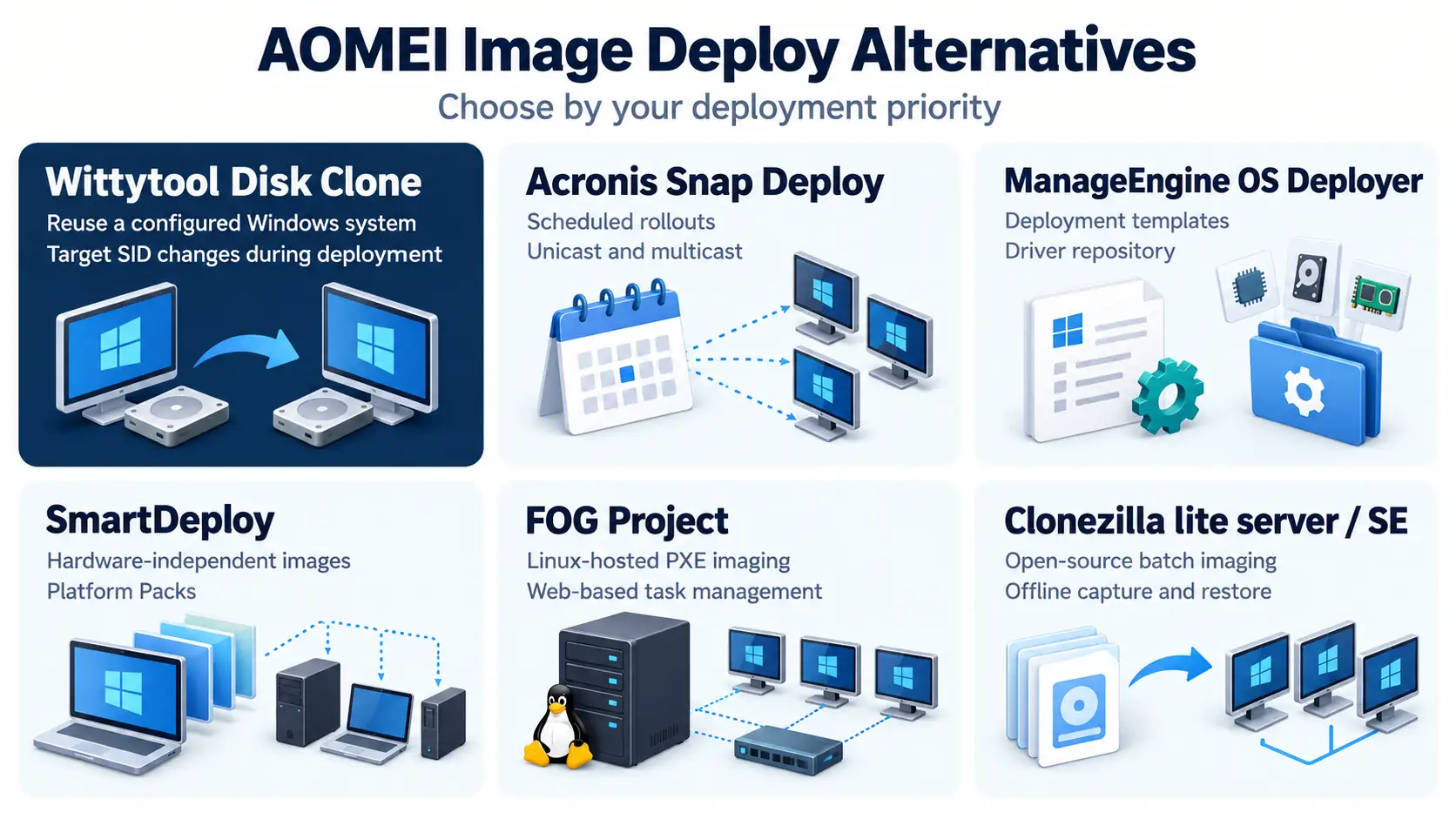
6 Best Alternatives to AOMEI Image Deploy
These recommendations are based on documented capabilities and deployment fit, rather than a comparative speed test. Each option below addresses a different reason for replacing AOMEI Image Deploy.
Before any deployment: Back up files you need from destination disks. Writing an image can replace their existing partitions and data. Preserving the source environment does not preserve data already stored on target PCs.
1. Wittytool Disk Clone: For Deploying an Existing Windows Setup Without Sysprep
Choose it if:
You want to preserve an existing Windows setup and include target SID changes in the deployment process, with graphical controls for the batch.
Wittytool Disk Clone is the first option to consider if your starting point is a Windows PC with the applications, local accounts, and settings you want on other machines. You can back up that configured system directly, then deploy the image without first running Sysprep or separately changing the source machine’s SID.
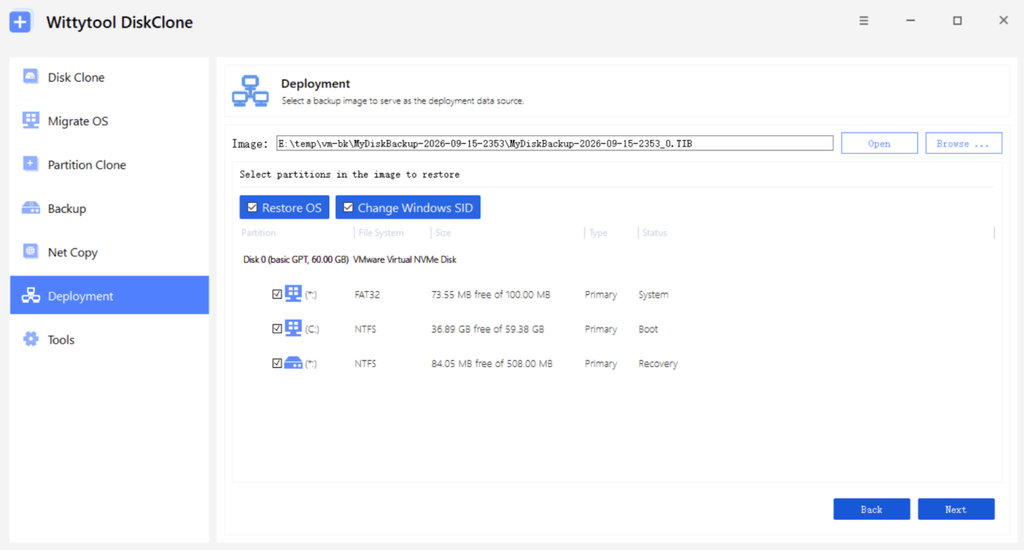
Its main advantage is combining this source-preservation workflow with optional target SID changes. That is useful when your priority is carrying an established Windows environment onto replacement PCs or a prepared batch of workstations.
Key features
- Direct system capture: Create a backup containing the source system’s applications, local accounts, settings, and Microsoft Store app content.
- Target SID handling: Enable
Change Target Windows SIDduring deployment. This changes the machine SID and derived local account SIDs, not domain-assigned account SIDs. - Graphical batch controls: Use PXE boot, automatic or manual deployment, and per-client MAC address, IP address, status, and progress information.
- Additional assistance: Universal Restore supports restoration to different hardware. The built-in AI Disk Assistant can execute tasks within Wittytool Disk Clone after you enter a natural-language instruction.
Pros
The direct-backup workflow lets you retain the source environment without rebuilding it solely to create a deployment image. Backup, image deployment, and target SID handling are available within the same product, so you can evaluate them together.
Manual and automatic deployment also give you different levels of control over a batch. Individual client progress helps you see which machines are still receiving the image.
Cons and considerations
Wittytool Disk Clone requires its own disk or system images. You cannot use an existing AOMEI Backupper .adi file directly, so switching means capturing a new image.
SID changes do not automatically join a computer to a domain or replace application activation and hardware checks. Microsoft distinguishes local and domain account identities in its explanation of Windows security identifiers.
Automatic deployment can begin writing when a client connects. Confirm destination disks before enabling that mode.
To evaluate this workflow with your own setup, download Wittytool Disk Clone and follow the step-by-step guide to deploying Windows images without Sysprep. Test the image on a representative target PC so you can check the restored applications, local accounts, and target SID behavior before deploying to the rest of your machines.
2. Acronis Snap Deploy: For Scheduled and Repeated Deployments
Choose it if:
Scheduling, reusable deployment tasks, and transfer controls are your main priorities. If target SID handling is central to your decision, the Wittytool Disk Clone vs Acronis Snap Deploy comparison explains that distinction in more detail.
Acronis Snap Deploy is worth considering when your main requirement is controlling when and how a prepared image reaches a group of PCs. It suits recurring lab refreshes and other deployments organized around defined time windows.
Key features
- Scheduled, manual, event-driven, and user-initiated deployment options.
- Unicast and multicast image distribution.
- Deployment templates and individual machine settings.
- Acronis Universal Deploy for adapting deployment to different hardware.
Pros
Scheduling and reusable settings help you organize repeated rollouts. The choice of transfer methods also gives you control over how an image is distributed across the network.
Cons and considerations
Acronis Snap Deploy 6 supports Windows 10 and Windows 11 deployment, but its current documentation says built-in unique SID generation does not support those operating systems. Treat Windows deployment support and target SID generation as separate requirements.
3. ManageEngine OS Deployer: For Centralized Deployment and Driver Management
Choose it if:
You want a centralized deployment process with driver management and reusable configuration, particularly when different groups of Windows PCs need different deployment settings.
ManageEngine OS Deployer is a useful shortlist option when deployment includes several hardware models, department-specific settings, and recurring tasks. Its appeal is the configuration around image delivery, especially driver handling.
Key features
- Deployment templates for different teams or device groups.
- Automatic driver selection and injection from a configured repository.
- Scheduled deployment with unicast and multicast options.
- Network deployment and standalone USB workflows for off-network devices.
Pros
A managed driver repository can reduce separate driver work on each target. Templates let you organize different deployment requirements without redefining every task, while scheduling helps fit rollouts around working hours.
Cons and considerations
Those benefits depend on preparation. Your team needs suitable images, templates, and drivers in the repository. For a small, occasional batch, assess whether maintaining that configuration is justified by the work it saves.
4. SmartDeploy: For Mixed Hardware and Remote Windows Deployment
Choose it if:
Your main challenge is maintaining a standard Windows environment across varied hardware, including remote PCs, and you are ready to use a reference-image workflow.
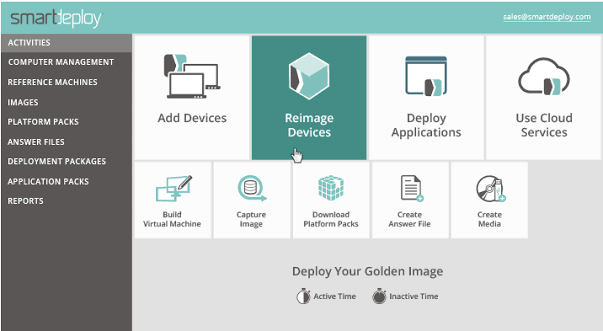
SmartDeploy is a strong candidate when differences between PC models are the main burden in your imaging process. It separates the Windows image from hardware-specific driver packages called Platform Packs.
Key features
- Hardware-independent Windows images.
- Model-specific Platform Packs for driver installation.
- Deployment through network, USB, and cloud-based workflows.
- A reference virtual machine for building and maintaining the Windows image.
Pros
Separating drivers from the reference image helps you maintain a common Windows setup across supported hardware models. Its remote deployment options are also relevant when the PCs you manage are not all in the same office.
Cons and considerations
The workflow requires preparation of a reference image, appropriate Platform Packs, and deployment settings. Check coverage for your exact hardware models before making the driver library a deciding factor. It is a different preparation model from directly capturing an existing physical Windows installation.
5. FOG Project: For a Self-Hosted Open-Source Imaging Environment
Choose it if:
You have the skills to maintain a Linux-based imaging service and want open-source control over a recurring PXE deployment environment.
FOG Project is an open-source option for teams that want to run their own imaging infrastructure. It uses a Linux-based server and a web interface to manage hosts, images, and deployment tasks.
Key features
- Central image capture and deployment through a web interface.
- PXE-based client boot.
- Multicast deployment for groups of computers.
- Host registration and group-oriented imaging tasks.
Pros
FOG gives you an imaging service that can stay in place for ongoing work. Central host and image management is useful for environments such as computer labs where machines are reimaged repeatedly.
Cons and considerations
Your team is responsible for maintaining the Linux server, image storage, network boot configuration, and updates. A web interface simplifies task management, but it does not remove the infrastructure work behind it.
6. Clonezilla Lite Server / SE: For Open-Source Batch Imaging
Choose it if:
You are comfortable with boot media, partition requirements, and the setup of your chosen edition, and your priority is batch image capture or restoration.
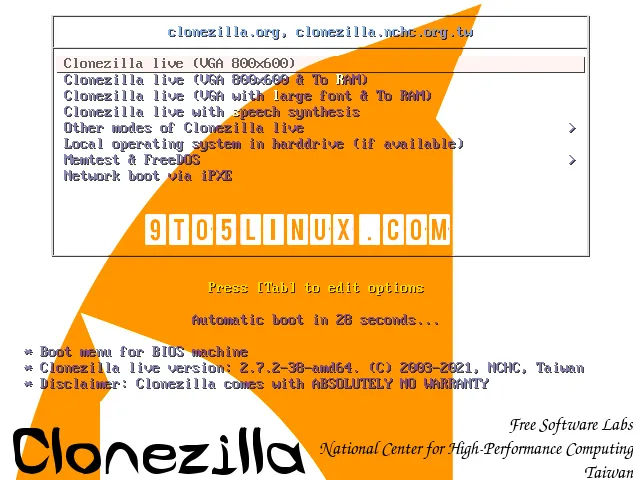
For deployment to multiple PCs, compare Clonezilla Lite Server or Clonezilla SE rather than treating every Clonezilla edition as interchangeable. Clonezilla Live is primarily intended for individual backup and restoration; the server-oriented options address batch deployment.
Key features
- Disk and partition imaging.
- Multicast restoration for multiple targets.
- Lite Server workflows launched from Clonezilla Live.
- Clonezilla SE integration with a DRBL server environment.
Pros
The batch-oriented editions offer an open-source route to distributing an image to multiple machines. Lite Server is worth evaluating for a prepared imaging session, while SE suits a maintained DRBL environment.
Cons and considerations
Clonezilla uses offline imaging, with the partitions being imaged or restored unmounted. Its standard restoration requirements also call for a destination partition at least as large as the source partition. Account for that when comparing target disks.
Which AOMEI Image Deploy Alternative Should You Choose?
Start with the requirement that prompted the search:
- Preserve an existing Windows setup and change target SIDs: Start with Wittytool Disk Clone.
- Coordinate recurring deployments: Compare Acronis Snap Deploy for scheduling, ManageEngine OS Deployer for drivers and templates, and SmartDeploy for mixed hardware and remote PCs.
- Operate your own open-source environment: Compare FOG for an ongoing imaging service with Clonezilla Lite Server or SE for your preferred batch-imaging setup.
Before switching, test the selected workflow on representative hardware. For Windows PE-based options, check network and storage access in the boot environment; Microsoft’s WinPE overview explains its driver and deployment capabilities.
If your existing Backupper image library and AOMEI deployment process already meet your needs, keeping that workflow may be more practical than rebuilding it. Switch when the alternative solves a specific problem you can identify and verify.
FAQs About AOMEI Image Deploy Alternatives
What is the best alternative to AOMEI Image Deploy for Windows PCs?
Wittytool Disk Clone is a strong choice when you want to reuse a configured Windows system and change target SIDs during deployment. If your main requirement is scheduling, driver management, or remote deployment, compare Acronis Snap Deploy, ManageEngine OS Deployer, and SmartDeploy against those specific needs.
Which AOMEI Image Deploy alternative supports deployment without Sysprep?
Wittytool Disk Clone supports directly backing up a configured Windows system and deploying that image without running Sysprep first. You can also enable target Windows SID changes during deployment. You still need to create the image, configure deployment, select destination disks, and check the restored systems.
What are the open-source alternatives to AOMEI Image Deploy?
FOG Project and Clonezilla Lite Server or SE are open-source options for batch imaging. FOG provides a Linux-based imaging service with web management. Clonezilla’s batch-oriented editions support multi-computer restoration. Choose according to the server, network boot, and maintenance work your team can manage.
Can I use an existing AOMEI Backupper image with another deployment tool?
Compatibility depends on the destination tool and image format. Wittytool Disk Clone does not directly deploy AOMEI Backupper .adi images; you need to create a new image with Wittytool Disk Clone. Keep your original backup available while testing the replacement workflow, and check documented import support before choosing another tool.