


To create a Windows 11 golden image, prepare a reference PC with the operating system, applications, and settings your target computers need. Capture that environment as a system image, test the image on representative hardware, and approve the version before a wider rollout. Maintain the image by updating the reference environment, capturing a new version, and repeating the tests.
This workflow gives offices, classrooms, and labs a repeatable starting point for new or rebuilt PCs. Our guide to deploying a Windows 11 image to multiple computers covers the network rollout. Here, we focus on preparing and maintaining the source image.
Before any test deployment, back up the destination computer’s data and confirm the target disk. The deployment workflow covered here deletes partitions on the selected target disk and writes the image to it.
What Is a Windows 11 Golden Image?
A Windows 11 golden image is a tested reference system saved for repeated deployment. Also called a master image or reference image, it contains the Windows installation, shared applications, and configuration you want to reproduce.
The term describes the image’s role, rather than a particular file format. A golden image might begin as a system backup, but it needs a defined configuration and deployment testing before you adopt it as your standard baseline.
| Resource | Main purpose | What to remember |
|---|---|---|
| Golden image | Reproduce an approved environment across target PCs | Record the configuration and validate the intended devices. |
| System backup | Recover the captured computer or environment | A backup may contain personal data or device-specific settings. |
| Windows installation ISO | Provide Windows installation media | It does not automatically contain your configured business applications. |
Keep the editable reference environment separate from the captured image. You update the reference PC; the saved image represents the environment at the time of capture.
Plan Your Windows 11 Reference System
Choose the Windows Edition, Build, and Target Hardware
Start with the Windows edition, release, architecture, and language required by the target PCs. Record the OS build as well, so you can identify which updates were present when you captured the image.
Check Microsoft’s Windows 11 system requirements and the requirements of your business applications. A working reference PC alone does not establish compatibility with every target model.
Group your devices by relevant differences, such as model, storage controller, network adapter, or architecture. Decide which groups the image will cover and which need separate preparation or testing.
Decide Which Apps and Settings Belong in the Image
Include software and settings that the target group shares: a classroom’s teaching applications, an office’s standard utilities, or a lab’s approved tools. Install the versions you intend to deploy and test the tasks users actually perform.
Review accounts, documents, browser profiles, saved sign-ins, and temporary files before capture. Use a reference environment prepared for distribution rather than copying an employee’s working PC without reviewing its contents.
Plan device-specific configuration separately. Computer names, network settings, application activation, and management-agent registration may require attention on each target. Having an application in the image does not prove that its license, cloud session, or device registration will work on another computer.
Record the Deployment Baseline
Keep a short record beside each image. We recommend the following fields:
| Field | What to record |
|---|---|
| Image ID and purpose | A unique identifier and the target group, such as office PCs or a teaching lab. |
| Owner | The person responsible for maintenance and approval. |
| Windows baseline | Edition, release, OS build, architecture, and language. |
| Applications | Required applications and their versions. |
| Reference environment | Source PC, relevant drivers, and configuration notes. |
| Tested hardware | Target models and any known exclusions. |
| Capture date and location | When the image was created and where it is stored. |
| Status and changes | Current approval status and changes from the previous version. |
| Previous approved version | The image and records available for a potential rollback. |
This record makes maintenance repeatable even when another administrator takes over.
How to Create a Windows 11 Golden Image with Wittytool Disk Clone
Wittytool Disk Clone connects system-image creation with our Windows image deployment workflow. You can capture a configured source environment, use that image for network deployment, and select target SID handling when needed. The applications and accounts included in the source image remain part of the deployed environment.
Download Wittytool Disk Clone to turn your prepared Windows 11 reference PC into a reusable system image and test that image before your next rollout. Our backup and deployment workflow lets you handle both stages in the same application.
Configure and Check the Reference PC
Finish installing the required applications and approved updates. Complete any pending restarts, then confirm that Windows and the business software operate normally.
Test a few representative tasks, such as opening a course project, printing a document, or connecting to a required service. Check that the reference environment contains the intended shared configuration and no unintended personal content.
After this preparation, keep the reference PC under controlled use. Unrecorded software installations and everyday browsing can introduce changes that later appear in the next image.
Capture the System Image
In Wittytool Disk Clone:
Step 1. Open Backup and select Add Backup.
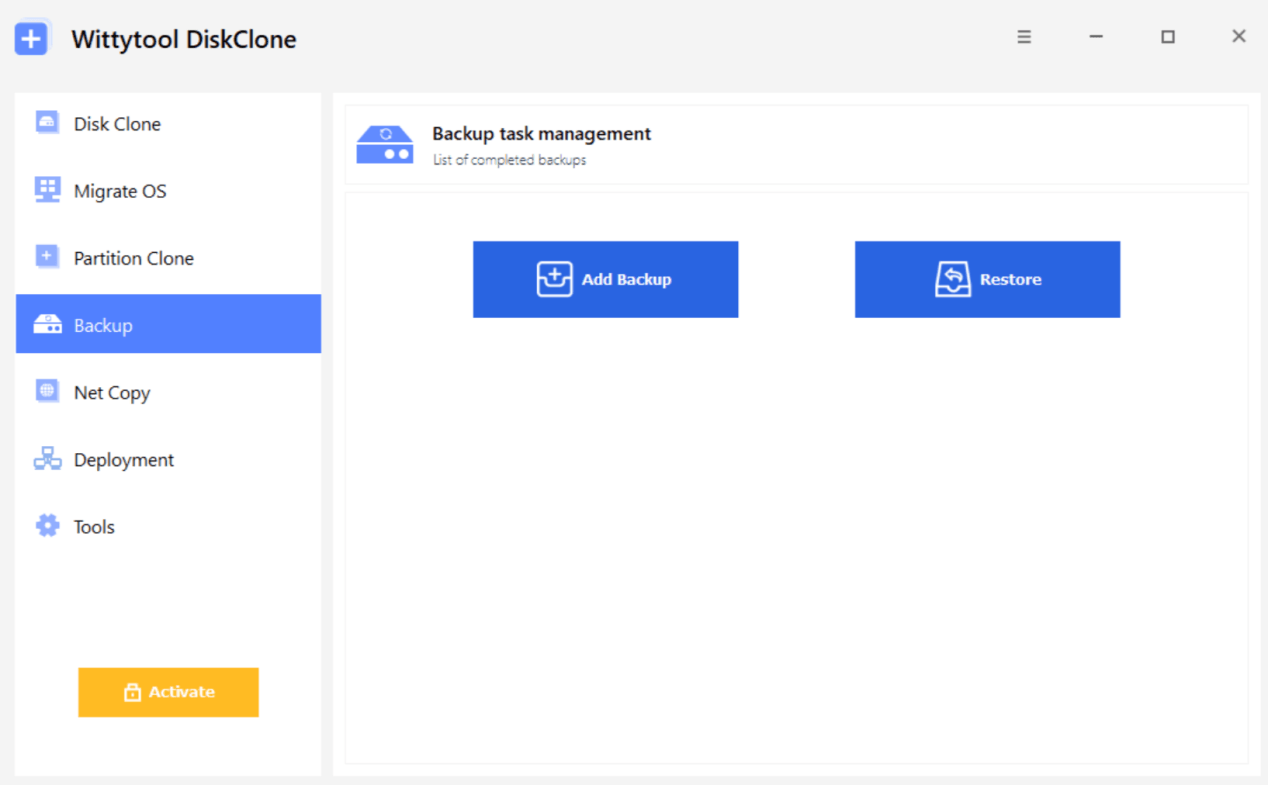
Step 2. Select Backup System and the partitions associated with the Windows installation.
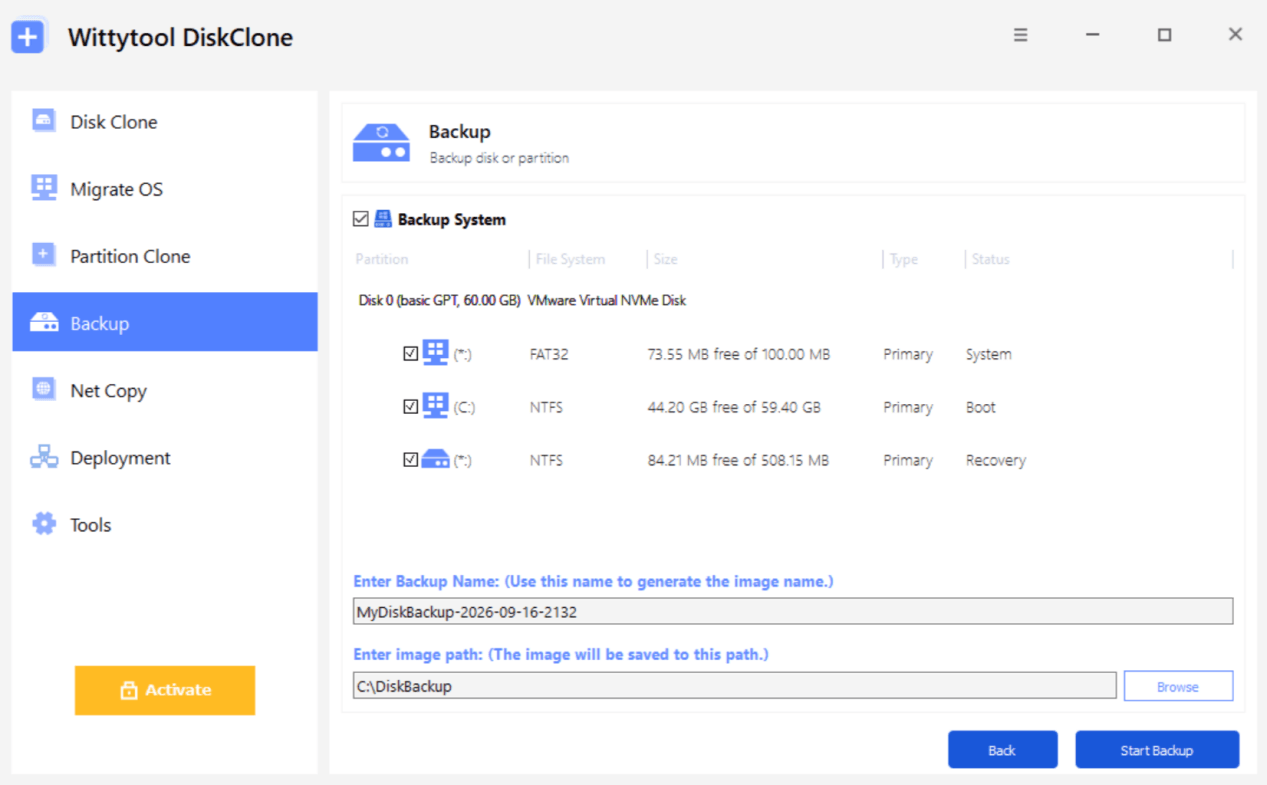
Step 3. Enter a backup name and choose the image storage path.
Step 4. Review the selected source and storage location, then select Start Backup.
Step 5. Confirm that the backup task completes before preparing a deployment.
Store the image where your deployment server can access it, and retain a separate copy according to your backup policy. Wittytool Disk Clone’s network deployment uses disk or system images generated by Wittytool Disk Clone.
Save a Versioned Image and Its Record
Use an image name that identifies its purpose, capture date, and revision. For example, Win11-Pro-Office-20261013-r01 is a naming pattern you can adapt to your environment.
Create a new image and record for each revision. Keep the only approved version intact while preparing its replacement. Mark the new capture as a draft until deployment testing establishes that it is ready for use.
Test the Golden Image Before Wider Deployment
Deploy to a Representative Test PC
Back up the test PC’s data and confirm its target disk before connecting it for deployment. Automatic deployment can start when a client connects if the server has been configured that way.
Select the new image on the deployment server, connect the test client, and verify the destination disk before starting. When target SID changes are needed, use the Change Target Windows SID option in the target settings.
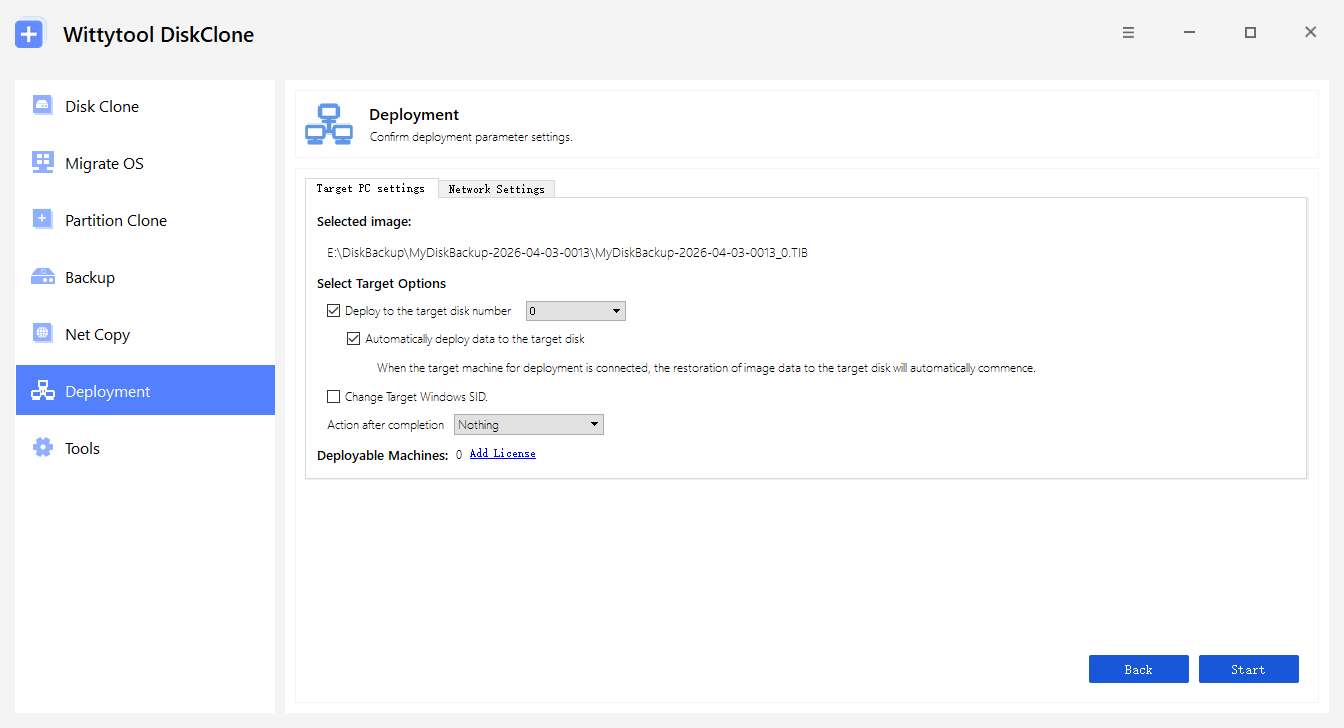
For mixed hardware, test representative models rather than relying on one successful restore. Wittytool Disk Clone supports Universal Restore for dissimilar hardware, but each intended configuration still needs validation.
Verify Boot, Drivers, Apps, Accounts, and Device Settings
A completed progress bar is the end of the image-writing stage. Check the restored environment separately before approving it.
| Check | Acceptance test |
|---|---|
| Windows startup | Boot from the target disk and complete a normal restart. |
| Drivers and connectivity | Confirm storage, network access, and required peripherals work. |
| Business applications | Open required software and complete representative tasks. |
| Accounts and settings | Confirm intended local accounts and shared configuration are present. |
| Activation and sign-ins | Check required activation and account sign-ins on the target. |
| Device configuration | Verify computer name, network settings, and required identity or enrollment checks. |
| Updates | Confirm the deployed system can follow your normal update process. |
Record failures alongside successful checks. A problem limited to one model may require a separate image scope or driver investigation before that model joins the rollout.
Approve the Tested Version
Add the test date, device models, results, and any known limitations to the image record. Approve the image for the target groups that passed, then use that specific version for the wider deployment.
Approval is a decision your team records. A successful backup or deployment percentage does not replace these checks.
Maintain Your Windows 11 Golden Image
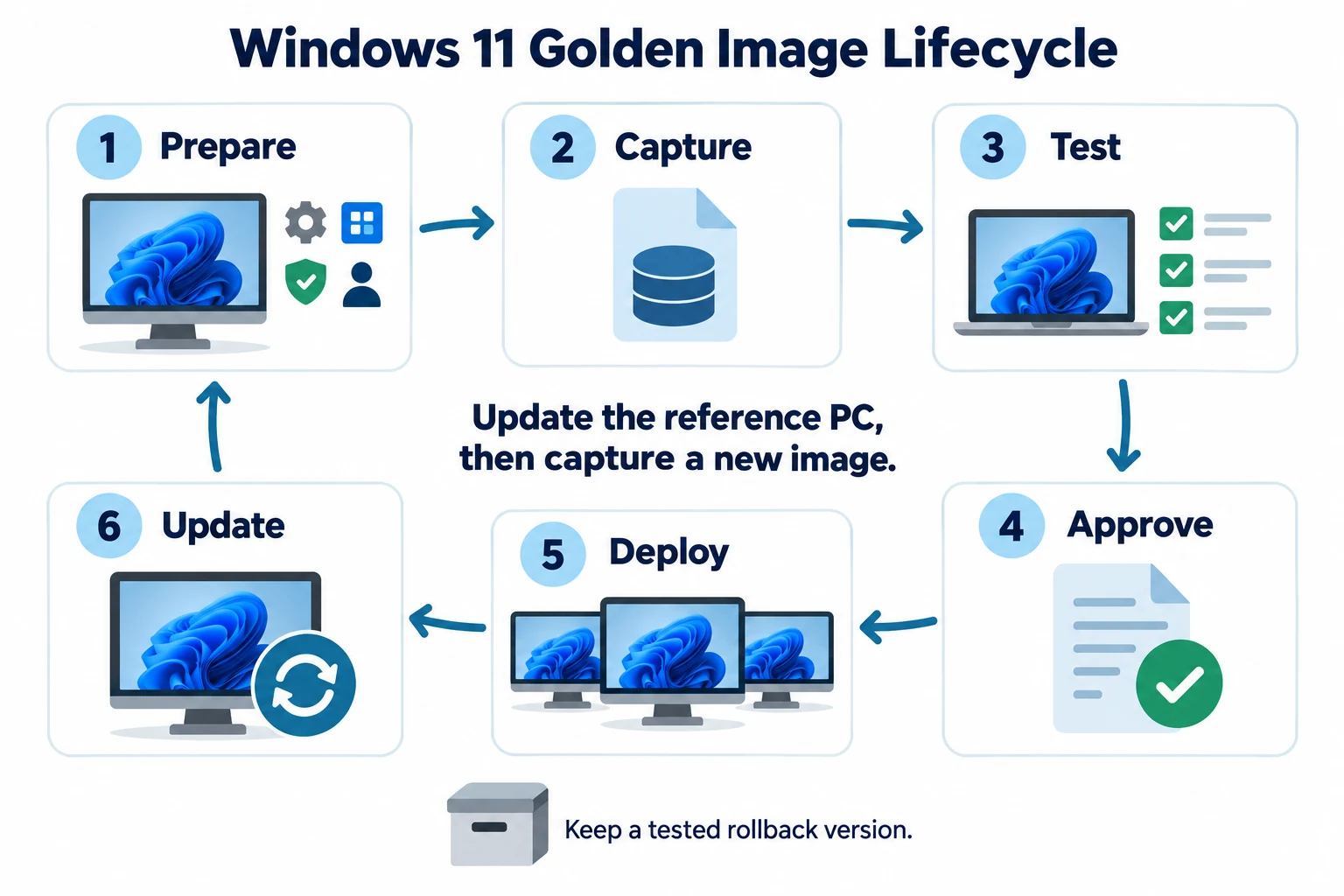
Update the Reference System and Capture a New Image
Maintain a controlled reference PC or prepare a suitable test copy of the reference environment. Apply approved Windows and application updates there, complete required restarts, and repeat the relevant business checks.
Then create a new image in Wittytool Disk Clone. Save it with a new revision identifier and run the same deployment tests used for the previous version. Make the new image the approved deployment source only after those tests pass.
For example, if an office application changes from version A to version B, update the reference environment, capture revision r02, and test the application on the target models. Preserve r01 and its record while evaluating the replacement.
Updating a stored golden image does not update computers already deployed. Those PCs still need their normal Windows, application, and security maintenance.
Use a Review Schedule and Change Triggers
Microsoft publishes Windows servicing dates and update history in its Windows 11 release information. Check that the edition and release in your baseline remain suitable for the devices you deploy.
Schedule a regular review around your organization’s update process. A monthly review is a useful starting point, with additional reviews when a significant change affects the image:
- A security update requires prompt attention.
- A core application or its configuration changes.
- A new target model or important driver enters the fleet.
- You adopt a different Windows feature release.
- A deployment test exposes a baseline problem.
Decide whether to refresh the image based on those changes and your rollout needs. A review schedule does not mean every review requires a complete rebuild.
Track Changes and Retire Old Versions
Use clear status labels in your own image record:
- Draft: captured, but not yet validated for deployment.
- Tested: validation results are available for the recorded hardware.
- Approved: selected for the stated deployment group.
- Retired: removed from routine deployment selection.
These are recommended recordkeeping labels. Maintain them in your team’s documentation together with the owner, change summary, and previous approved image.
When a replacement is approved, make its identity clear to the deployment operator. Separate retired images from the normal selection location so an old revision is not chosen accidentally. Retain or remove older copies according to your recovery and security policies.
When Should You Refresh or Rebuild a Golden Image?
Refreshing means updating the existing reference environment and capturing another version. Rebuilding means preparing a new reference baseline and validating it again.
| Change or condition | Suggested response |
|---|---|
| Routine patches or a small application update | Refresh the reference environment, capture a new revision, and repeat the affected tests. |
| Major Windows or business-application changes | Evaluate a rebuild and test the broader set of workflows affected. |
| New hardware with different requirements | Review drivers and compatibility, then decide whether to extend the tested scope or create a separate baseline. |
| Unexplained failures or substantial configuration drift | Prepare a new, documented baseline rather than carrying unknown changes forward. |
Choose based on how well you can explain and reproduce the current configuration. A frequently changed reference PC with incomplete records becomes harder to maintain than a clean, documented environment.
Keep a Tested Rollback Version
Retain the previous approved image, its configuration record, and the materials needed to deploy it. Confirm that the stored copy remains accessible before relying on it for recovery.
If a new image causes problems, stop using that revision for further deployment and record the affected devices and symptoms. Correct the reference environment, capture another revision, and retest before continuing.
Before returning to an older image, review its Windows support status, security updates, and application compatibility. A version that worked previously may need additional preparation before it is suitable again.
Rolling back by redeploying an image replaces the selected target environment. Back up data created since the earlier deployment and confirm the target disk before proceeding. Keeping an old image does not preserve new files on the destination PC.
FAQ
What should a Windows 11 golden image include?
A Windows 11 golden image should include the Windows edition and build, shared applications, and settings required by its target group. Record relevant drivers and application versions, review personal or device-specific content, and test the image on representative hardware before approving it.
Can I create a golden image from an existing Windows 11 PC?
Yes. Wittytool Disk Clone can create a system image of an existing Windows 11 environment. Review its applications, accounts, settings, and personal data first, then capture and test the image before using it as a deployment baseline.
How often should I update a Windows 11 golden image?
Review it regularly alongside your Windows and application update process, and after important security, software, or hardware changes. A monthly review can be a starting point, but capture and approve a new version when relevant changes affect the deployment baseline.
Does updating a golden image update computers already deployed?
No. Updating the reference environment and capturing a new image changes the source for future deployments. Computers already deployed still need their separate operating-system, application, and security updates.
Can I deploy the same golden image to different PC models?
Wittytool Disk Clone supports Universal Restore for dissimilar hardware. Validate representative target models, including startup, drivers, and required applications, before approving one image for multiple models. Hardware support does not remove the need for testing.