


If you are comparing SmartDeploy alternatives, start with the part of your deployment process you want to change. You may want to reuse an already configured Windows PC, work with an existing backup image library, or manage an open-source imaging server. Each reason leads to a different shortlist.
For deploying a Windows environment you have already configured, Wittytool Disk Clone is a strong option to evaluate first. Its Windows image deployment workflow combines system backup, network deployment, and optional target SID changes. Other tools on this list suit deployment templates, scheduled rollouts, scripted installations, or self-managed network cloning.
The eight options below explain what each can take over from SmartDeploy, why you might choose it, and the conditions that matter before switching.
Why Look for a SmartDeploy Alternative?
SmartDeploy brings together Windows imaging, prebuilt driver packages, application deployment, and remote deployment options. Its documented workflow starts with a reference virtual machine, captures an image, and adds the driver packages and deployment settings needed for target computers.
That approach can work well, but your preferred starting point may be different. You might already have a physical Windows PC with the applications and accounts you want to reproduce. You might want to deploy backups created in another tool, organize installation tasks inside an existing management platform, or maintain your own open-source deployment infrastructure.
Keep the capabilities you currently depend on in view. If SmartDeploy’s cloud delivery or application packages are essential to your workflow, include those requirements in your comparison. A tool that deploys a disk image may cover your imaging task while leaving other management work to separate systems.
8 SmartDeploy Alternatives Worth Considering
1. Wittytool Disk Clone for Deploying an Existing Windows Setup
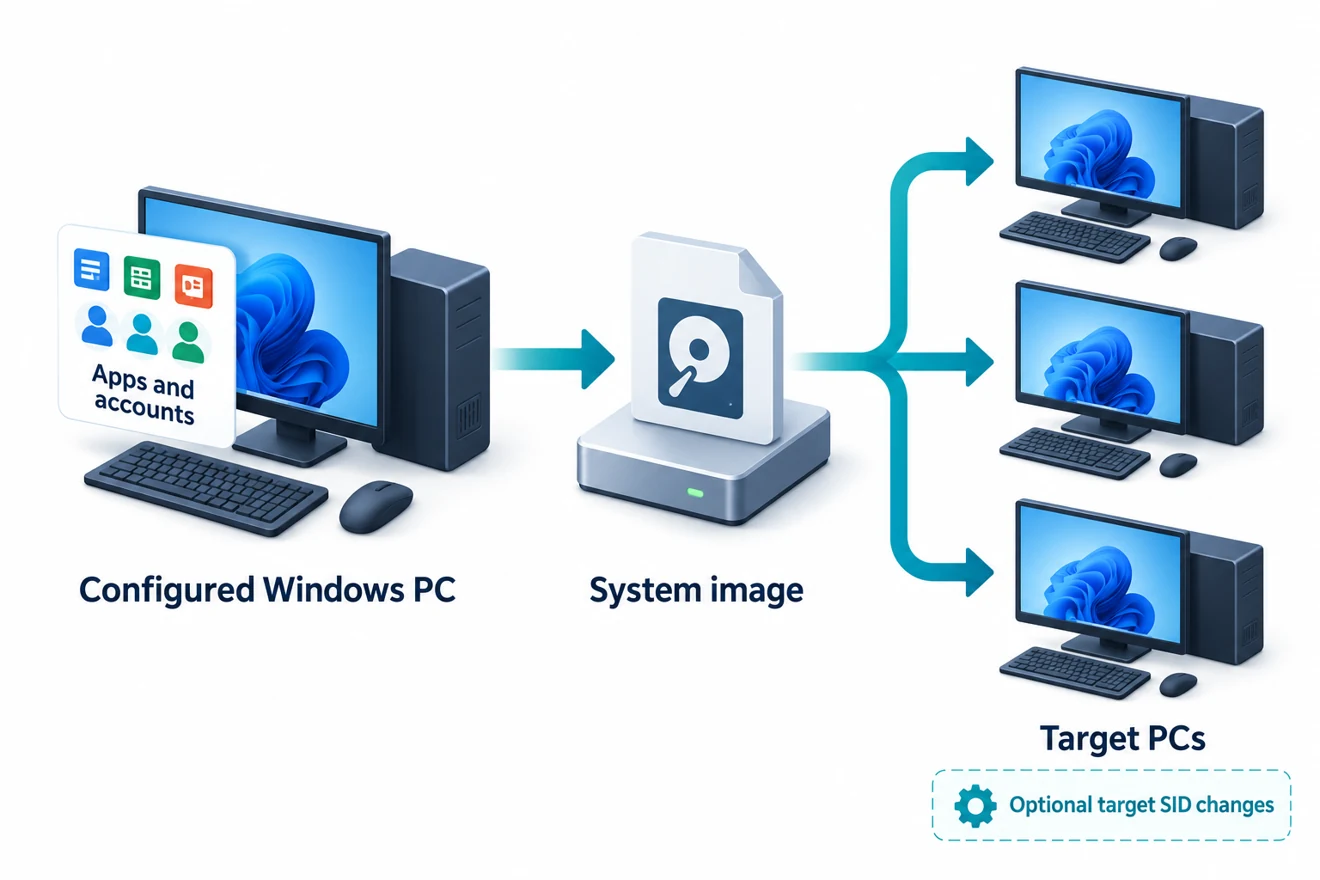
Wittytool Disk Clone is particularly relevant when you already have a Windows computer configured the way you want other PCs to work. You can back up that environment and use the resulting image for network deployment, preserving the applications and accounts contained in the source image.
Compared with SmartDeploy’s documented reference-VM workflow, this gives you a direct starting point in the Windows environment you have already prepared. Wittytool Disk Clone allows you to create that backup without running Sysprep first. This is useful when retaining installed applications, local accounts, and Microsoft Store apps is central to your deployment plan.
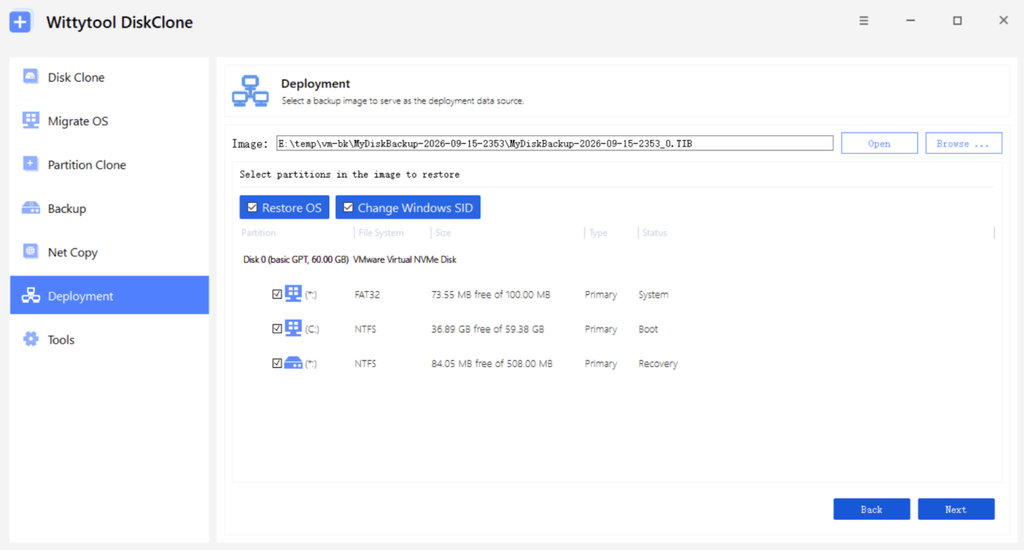
The features most relevant to this workflow are:
- Optional target SID changes during deployment. You can include target Windows SID changes in the rollout when required, instead of organizing a separate SID-change operation on each deployed PC.
- Automatic and manual deployment modes. Use the server’s selected target settings for automatic deployment, or choose the destination through the client workflow.
- Natural-language task execution. In the lastest version of Wittytool Disk Clone, AI Disk Assistant can execute the software’s functions after you enter a natural-language instruction. This gives you another way to access tasks without searching through menus.
- Client-level visibility. The server shows client MAC addresses, IP addresses, status, and progress, helping you identify completed tasks and machines that need attention.
- PXE and dissimilar hardware support. Network boot and Universal Restore are available for deployment scenarios involving multiple PCs. Validate the hardware models you actually use before expanding a rollout.
For a classroom rebuild or office rollout based on an established Windows setup, this combination makes Wittytool Disk Clone a strong first choice to evaluate. You can preserve the configured source environment and include target SID handling in the same deployment workflow.
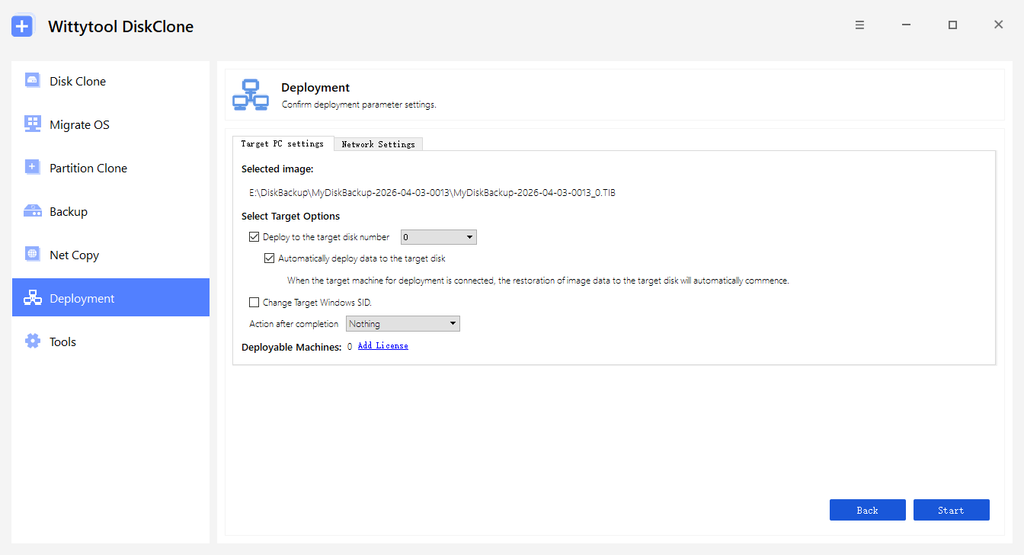
There are two practical conditions. The deployment image must be created by Wittytool Disk Clone, so plan to create a new image when moving from another product. Deployment also overwrites the selected target disks and deletes their existing partitions. Back up required target data before starting, including before connecting clients configured for automatic deployment. Preserving the source environment does not preserve files already on the destination computers.
If this matches your requirements, download Wittytool Disk Clone and use the guide to deploying Windows images without Sysprep to test the workflow on a small set of representative PCs. Check that the restored applications, accounts, and hardware work as expected before expanding the rollout.
2. AOMEI Image Deploy for an Existing Backupper Image Library
AOMEI Image Deploy is worth considering if your organization already creates system or disk backups with AOMEI Backupper. Its deployment workflow uses those backups to restore an image to multiple computers over a local network.
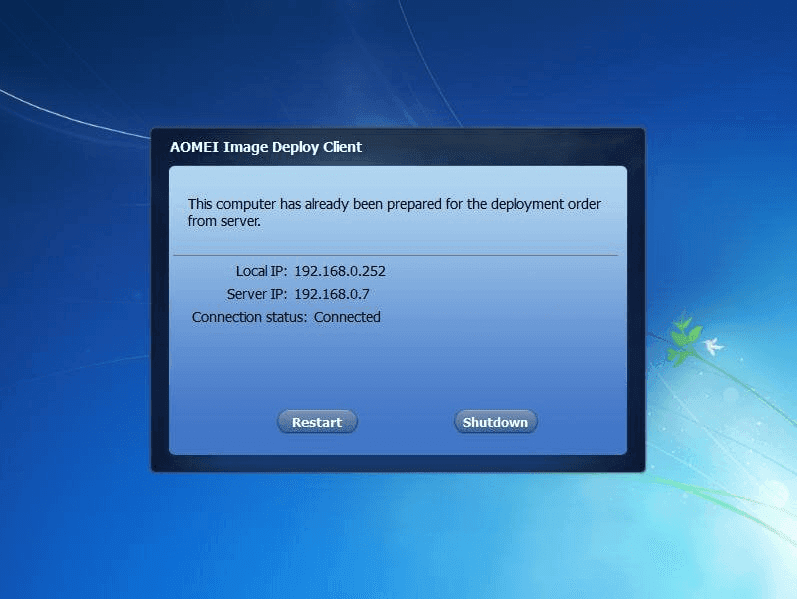
That existing image library is a concrete reason to consider it alongside SmartDeploy. You can evaluate a deployment process built around Backupper images, with a wizard for image distribution and a server view of client status and progress. Computer naming and IP configuration are also relevant when you need to prepare a group of machines for use after restoration; the available settings depend on the edition.
The main boundary is the image source. AOMEI Image Deploy expects a system or disk image created by AOMEI Backupper. A SmartDeploy image is not a substitute for that required input. Its documented LAN workflow also needs to match where your target computers will be deployed.
For a closer look at image preparation, target configuration, and SID handling, read the Wittytool Disk Clone vs AOMEI Image Deploy comparison.
3. ManageEngine OS Deployer for Centralized Deployment Templates
ManageEngine OS Deployer deserves a place on your shortlist when the challenge is organizing deployment settings for different computers and locations. It combines image capture and deployment with templates and computer-specific configuration, giving you a way to prepare repeatable rollout settings.
You can capture systems online or offline and deploy Windows images across different hardware. Remote office deployment is also part of its offering, with capabilities differing between its LAN and WAN deployment editions. This makes it relevant when your replacement decision includes how branch offices receive and apply images.
SmartDeploy also serves distributed environments, so the useful comparison is how each product organizes the work: image preparation, target settings, remote delivery, and the infrastructure your administrators will maintain. Check the deployment model and edition against those requirements.
Choose ManageEngine OS Deployer for further evaluation when reusable deployment templates and location-specific rollout management are more important to you than simply distributing one prepared image to a batch of PCs.
4. Acronis Snap Deploy for Scheduled Batch Deployments
Acronis Snap Deploy is a candidate when you want detailed control over when deployment tasks run and how images reach target machines. Its deployment options include scheduled tasks, manual deployment, and user-initiated workflows, along with unicast and multicast transfer.
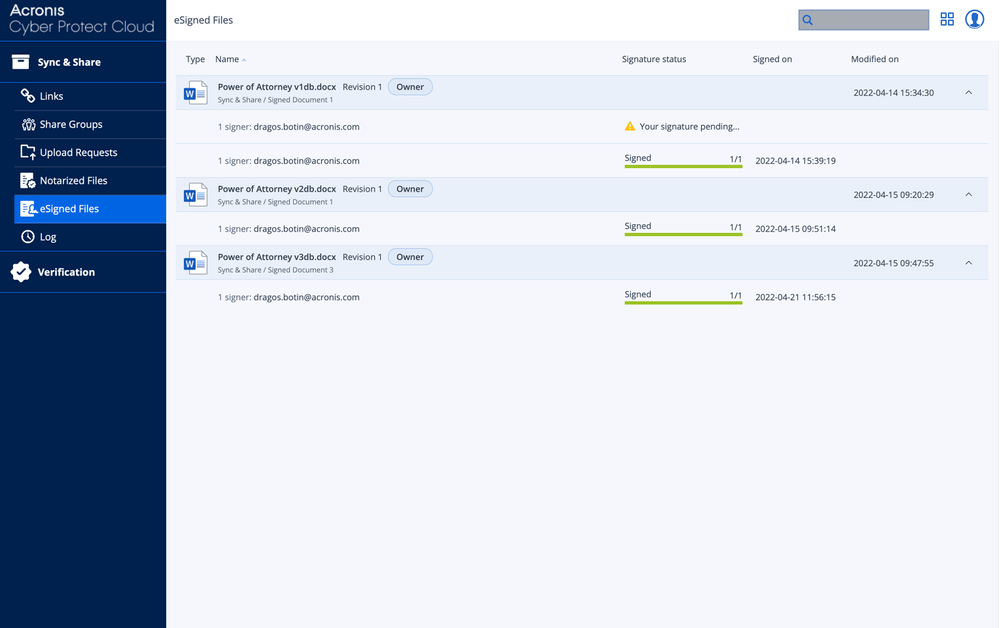
Those controls are useful for planned rollout windows or environments that repeatedly reset groups of computers. Acronis Universal Deploy also supports deploying to different hardware. If you already use compatible Acronis image sources, retaining that investment can be another reason to assess Snap Deploy as your replacement imaging tool.
One condition matters for Windows identity requirements: the current Snap Deploy 6 documentation states that its built-in unique SID generation does not support Windows 10 or Windows 11. This is a limitation of that SID option, not a statement that Snap Deploy cannot deploy Windows 11.
For a closer comparison of image inputs, deployment controls, and Windows SID handling, the Wittytool Disk Clone vs Acronis Snap Deploy comparison explains those differences in more detail.
5. Macrium SiteDeploy for Teams Using SiteManager
Macrium SiteDeploy is especially relevant when you want deployment to fit into a Macrium SiteManager environment. It organizes deployment around Golden Image Stores and deployment media, making it a candidate for repeatable builds such as office PCs, classroom systems, or kiosks.
For a team already working in that environment, the reason to consider SiteDeploy is operational continuity: you can evaluate how image storage and deployment fit the management tools your administrators already use. Assess the complete SiteDeploy workflow rather than assuming that familiarity with a standalone backup application covers every deployment requirement.
Its remote deployment conditions deserve attention when comparing it with SmartDeploy’s cloud delivery. SiteDeploy communicates with the target while it is running deployment media in Windows PE. Macrium documents support for site-to-site VPN deployment, but deployment through a target computer’s client VPN is not available because that VPN client is not running in the boot environment.
Shortlist it when its image stores, management environment, and network access model fit your sites.
6. Quest KACE SDA for Imaging and Scripted Installations
Quest KACE Systems Deployment Appliance, or KACE SDA, is worth evaluating when your deployment work includes both captured images and scripted operating system installations. It supports deployment tasks before, during, and after installation, allowing you to organize more of the build process around a managed sequence.
That makes it relevant to a SmartDeploy replacement search when applying the image is only one part of preparing a computer. Your team may also need to run installation tasks or complete repeatable configuration work around the operating system deployment.
The comparison should focus on the actual build process you need to maintain. Identify which tasks you currently perform through images, application packages, or separate scripts, then assess how they fit KACE SDA’s deployment model. Its infrastructure and task maintenance become part of the replacement decision.
Choose KACE SDA when you want captured images and scripted installations within a deployment appliance. Its task sequences give you a framework for the build work around the image; maintaining those tasks and the appliance becomes part of your ongoing deployment process.
7. FOG Project for Open-Source Network Imaging
FOG Project is a useful alternative to consider when you want to run and maintain your own network imaging environment. It provides an open-source deployment system with a web interface, PXE-based booting, and imaging tasks managed from a server.
The appeal is control over a self-hosted deployment setup. If your main use of SmartDeploy is distributing images on networks you manage, FOG offers another way to organize that work. It is particularly relevant when your team already has the skills and time to administer Linux servers and network boot services.
That responsibility is also the main tradeoff. Your team needs to maintain the server, boot environment, network configuration, and images as part of its deployment operations. Open-source availability does not remove that work.
Choose FOG for a shortlist built around self-managed network imaging. Compare any additional application delivery or remote management requirements separately before deciding how much of your existing SmartDeploy workflow it would replace.
8. Clonezilla Lite Server or SE for Batch Cloning
Clonezilla is worth considering when your primary requirement is applying a prepared disk image to multiple computers. For that task, focus on Clonezilla Lite Server or Server Edition. Clonezilla Live is primarily intended for individual machine backup and restoration, while the server forms support batch deployment.
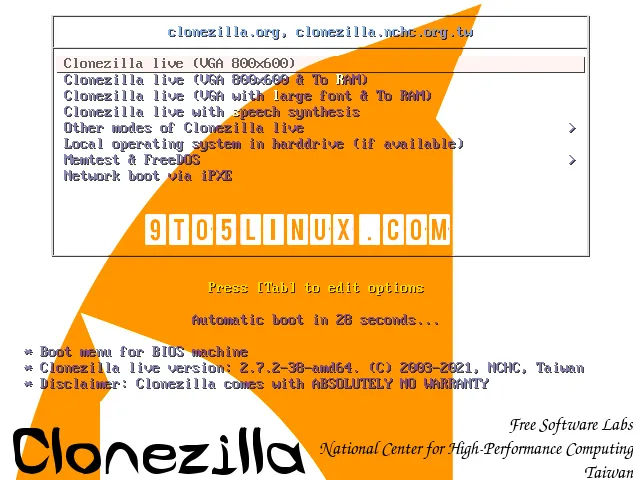
Lite Server can run from a Clonezilla Live environment; Server Edition uses a DRBL server setup. Batch transfer options, including multicast, make these forms relevant to a network imaging shortlist. They offer a different operating model from SmartDeploy’s image, driver-package, and application deployment workflow.
Clonezilla works with unmounted partitions, and its documented destination partition requirement is a size equal to or larger than the source partition. Test your image and hardware combinations before committing to a larger batch, and account for the boot and server environment you will operate.
For occasional single-PC cloning alongside your deployment work, the Rescuezilla vs Clonezilla comparison explores interface and usage differences. That is a separate decision from selecting Clonezilla’s batch deployment setup.
Which SmartDeploy Alternative Should You Choose?
Start with Wittytool Disk Clone if your main requirement is to reuse a configured Windows environment across multiple PCs, especially when you want optional target SID changes in the deployment workflow.
An existing image or management investment can point you elsewhere. AOMEI Image Deploy is relevant to Backupper image libraries, while Macrium SiteDeploy deserves attention in SiteManager environments. ManageEngine OS Deployer and KACE SDA are candidates when deployment templates or installation tasks drive the decision. Consider Acronis Snap Deploy when scheduled deployment and transfer controls are central requirements.
FOG and Clonezilla provide open-source routes for teams prepared to maintain their deployment environments. Choose between them based on how you want to organize network imaging and batch cloning.
Keep your required SmartDeploy capabilities on the checklist throughout that decision. A useful replacement should complete your actual deployment work and fit the way your team will maintain it.
FAQs About SmartDeploy Alternatives
Are there open-source alternatives to SmartDeploy?
FOG Project and Clonezilla Lite Server or Server Edition are open-source options for network imaging and batch deployment. They require you to prepare and maintain the relevant boot, server, and network environment. Check application delivery and remote management requirements separately when replacing a broader SmartDeploy workflow.
Can Wittytool Disk Clone deploy an existing Windows setup without Sysprep?
Yes. You can back up the configured Windows system without running Sysprep first and deploy the resulting Wittytool Disk Clone image to target PCs. Applications and accounts contained in the source image are preserved, and target SID changes are optional. Deployment overwrites the selected target disks.
Can Intune replace SmartDeploy for Windows imaging?
Intune with Windows Autopilot can suit cloud-based device provisioning, but it follows a different workflow from deploying a custom disk image. Microsoft’s Autopilot overview describes configuring the Windows installation already on a device through applications, policies, and settings. If you need to apply a prepared system image, evaluate an imaging tool for that task.
Can I use existing SmartDeploy images with another deployment tool?
Do not assume image files are interchangeable. Each tool has its own supported inputs. Wittytool Disk Clone requires a disk or system image created by Wittytool Disk Clone, while AOMEI Image Deploy uses images created by AOMEI Backupper. Plan to prepare the image required by your chosen tool.