

Windows Image Deployment for Multiple PCs — No Sysprep Required
Wittytool Disk Clone lets you deploy Windows system images to multiple PCs without running Sysprep first. Preserve applications and user accounts, change Windows SID during deployment, and monitor progress in real time.
Why Choose Wittytool Disk Clone for Windows Image Deployment?
Powerful features make Windows deployment easier, faster, and more flexible.
No Sysprep Required
Preserve installed applications and user accounts while avoiding unnecessary source-system preparation.
Change Windows SID During Deployment
Choose whether to change the Windows SID as part of the deployment workflow.
Real-Time Process Monitor
Track deployment progress from the server and manage multiple target PCs.
Easy-to-Use Network Image Deployment
Wizard-based GUI with automatic and manual deployment modes.
Dissimilar Hardware Support
Use Universal Restore to deploy system images across different hardware configurations.
Cost-Effective Licensing
Simple license options for deployment environments of different sizes.
View Pricing →Deploy Windows Images Without Sysprep
With Wittytool Disk Clone, you can deploy an existing Windows system image to multiple PCs without running Sysprep first. Keep your applications and user accounts, and change the Windows SID during deployment when needed. Learn more about changing Windows SID.
Traditional Workflow
With Wittytool Disk Clone
Preserve Installed Applications
Keep applications already configured on the source system in the deployment image.
Preserve User Accounts
Keep configured user accounts and the existing user environment in the image.
Avoid Unnecessary Preparation
No need to modify the source system just for image deployment.
Flexible SID Options
Choose whether to change Windows SID during deployment.
See our guide to deploying Windows images without Sysprep for the complete setup and target SID checks.
Choose the Deployment Workflow That Fits Your Needs
Wittytool Disk Clone supports two flexible deployment workflows. Choose the workflow that best fits your requirements.
Deploy Without Sysprep
Create a backup image of the current Windows system without running Sysprep first. Change the Windows SID during deployment when needed.
Change SID Before Imaging
Change the SID on the source system before creating the backup image, then use the prepared image for deployment.
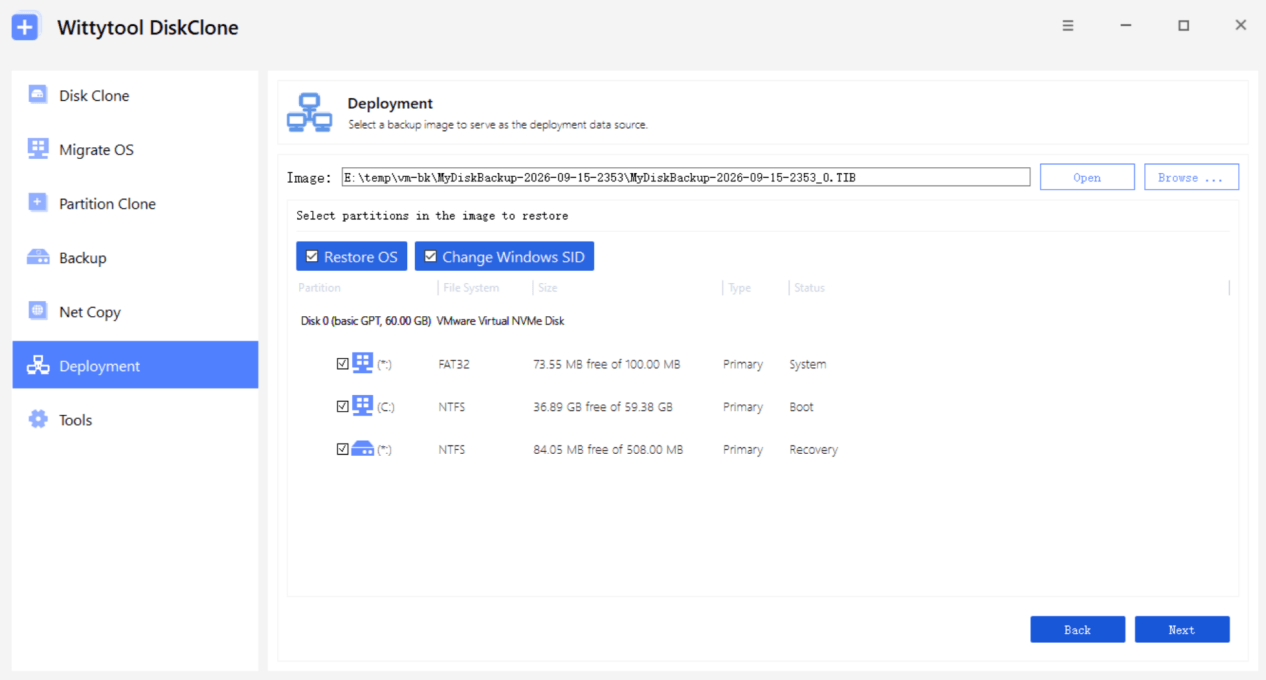
Change Windows SID During Deployment
Avoid duplicate Windows SIDs without requiring you to modify the source system before creating the image. Wittytool Disk Clone can change the Windows SID during the deployment process, helping you deploy the same image to multiple PCs with unique SIDs. Learn more about Wittytool SID Changer.
Easy-to-Use Network Image Deployment
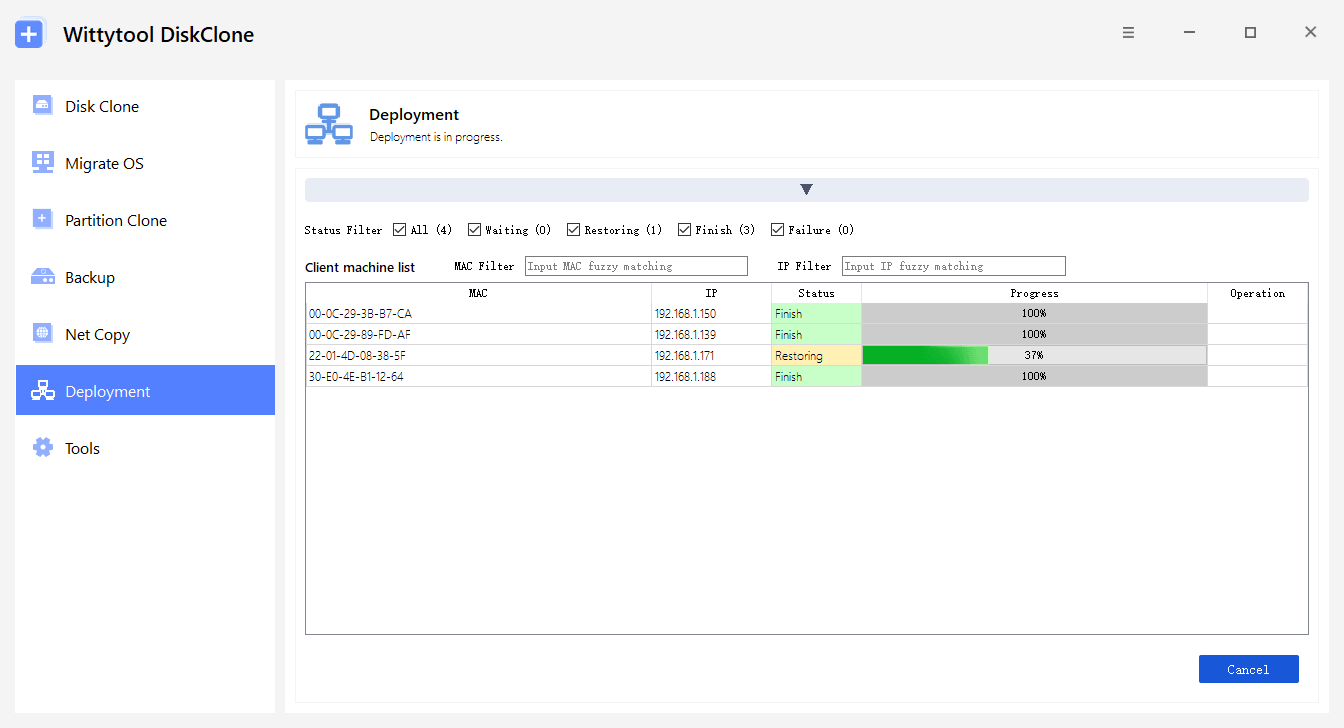
Manage deployment from a central server with a simple graphical interface. Wittytool Disk Clone supports automatic and manual deployment, and its network cloning workflow provides additional options for deploying systems over a LAN.
Wizard-Based GUI
Simple and intuitive interface.
Automatic Deployment
Server-controlled deployment with minimal manual intervention.
Manual Deployment
Connect manually and select the target disk.
Server / Client Architecture
Centralized network deployment management.
Planning a Move Away from WDS?
On September 21, 2026, Microsoft announced plans to deprecate the Windows Deployment Services (WDS) server role and WDS-provided PXE functionality beginning with the next Windows Server release. WDS remains available on currently supported Windows Server versions under their existing support lifecycles. See Microsoft's WDS deprecation notice.
If your current workflow uses PXE, WinPE, and Windows image deployment, review which parts of that workflow you need to replace. Wittytool Disk Clone is one option to evaluate for image-based deployment. Our WDS alternatives guide explains the migration paths and the dependencies to check before switching.
Deploy to Dissimilar Hardware
Deploy a Windows system image to PCs with different hardware configurations using Universal Restore technology.
How to Use Wittytool Disk Clone for Batch Deployment
Follow these steps to configure the server and deploy a backup image to multiple target PCs.
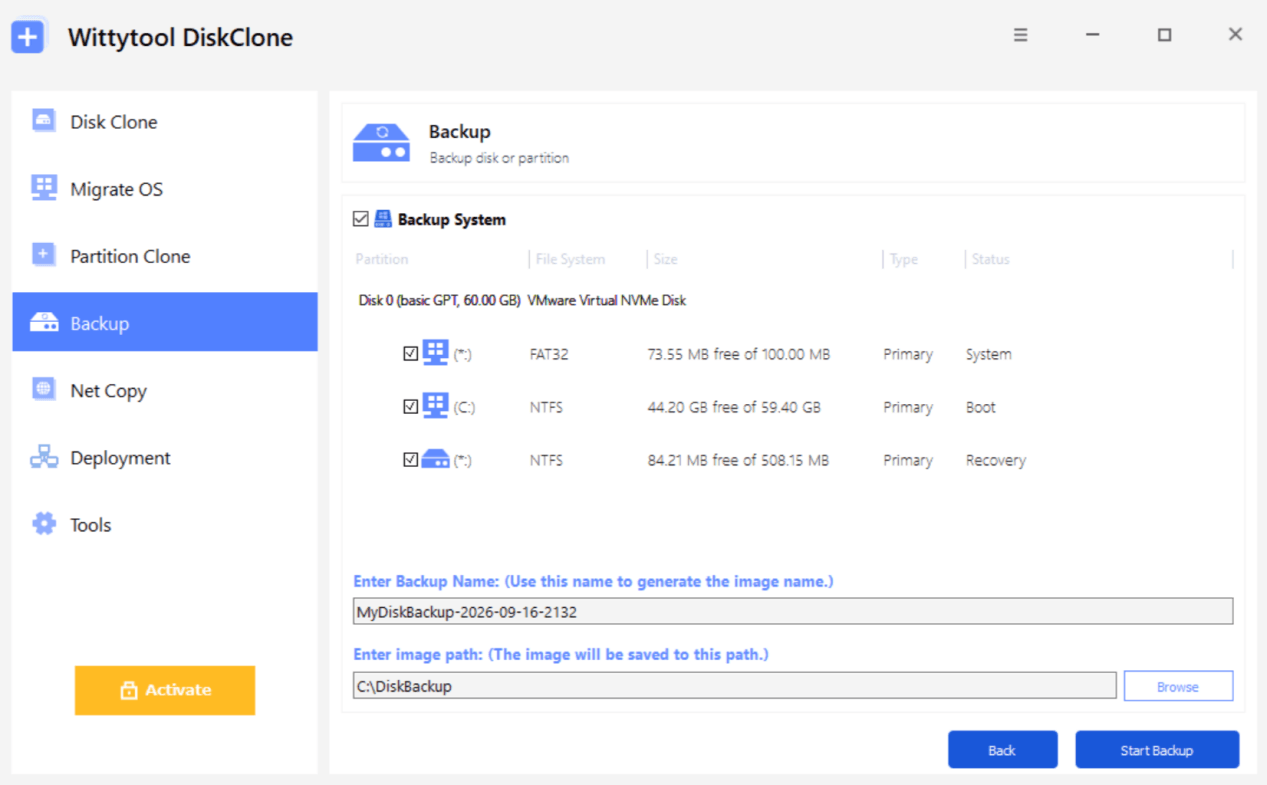
Back Up the Source PC
First, create a backup image of the source PC.
Prepare, test, and maintain your source image with our Windows 11 golden image guide.
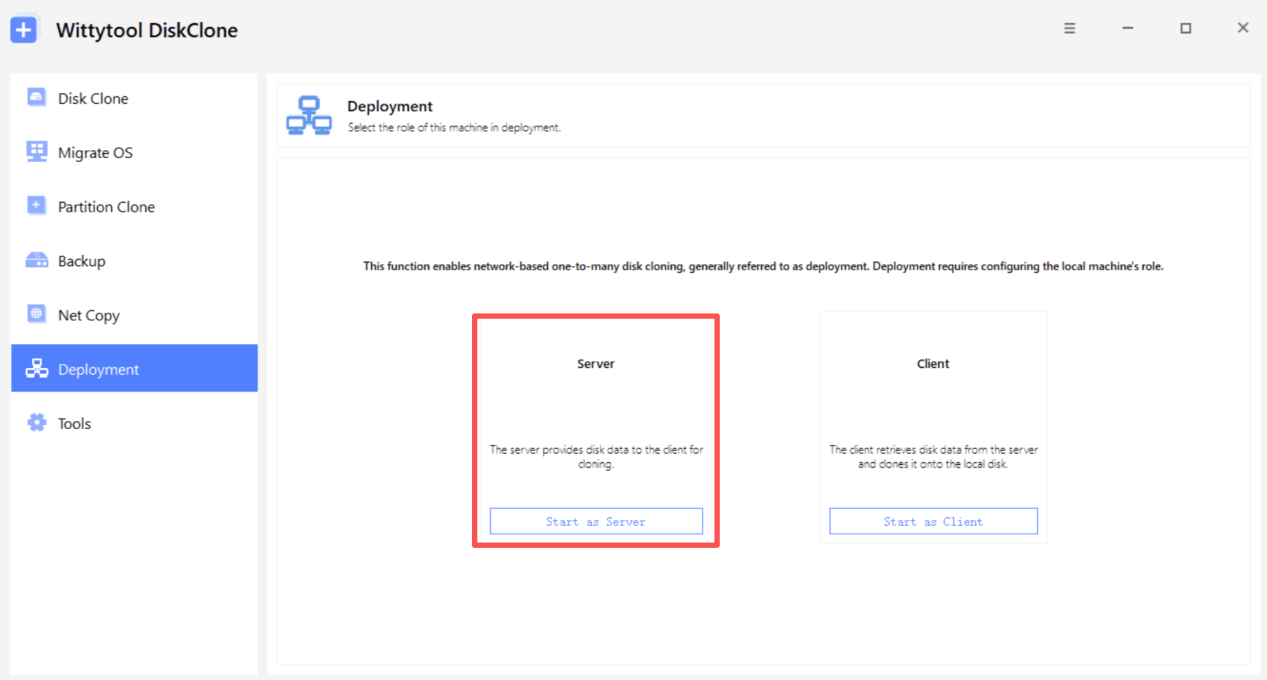
Configure the Server
Open Deployment and select Start as Server.
Select the Backup Image
Click Browse and select the backup image you created in Step 1.
- Select Restore OS according to your requirements.
- Select Change Windows SID according to your requirements.
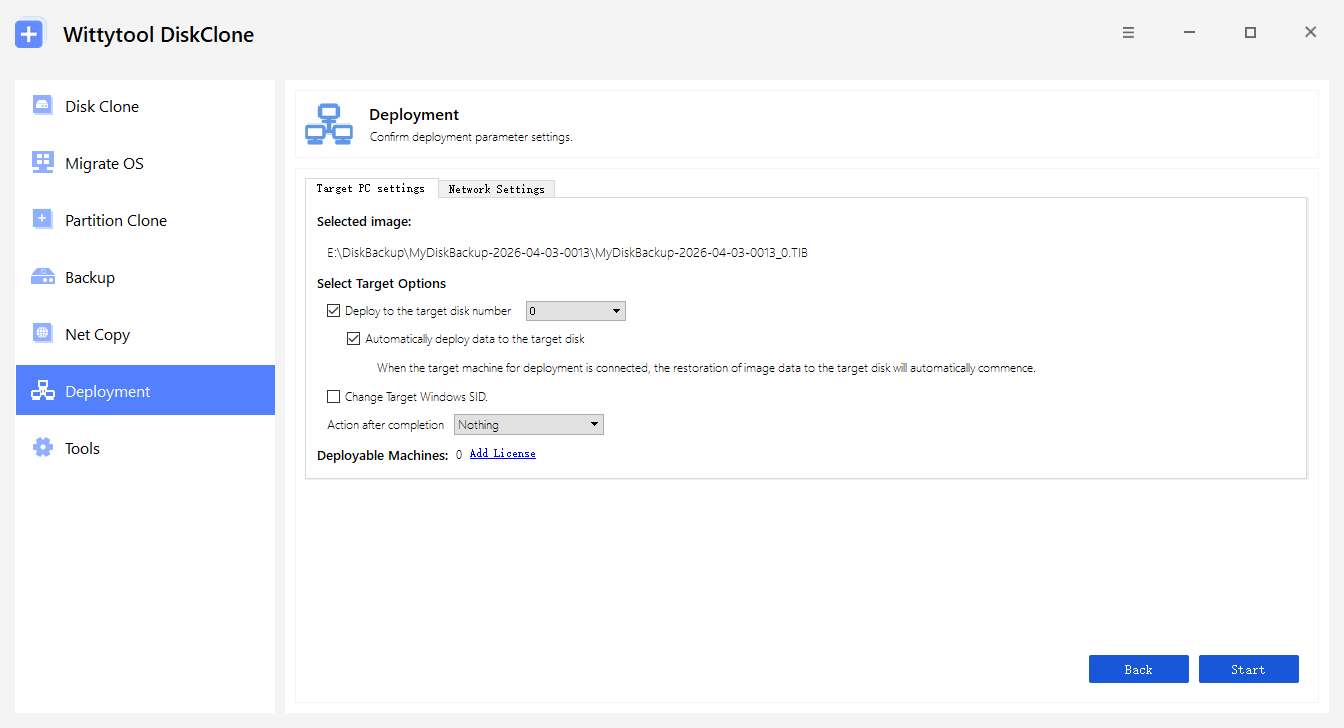
Configure Target PC Settings
Under Target Options, configure the deployment settings according to your requirements.
- Target Disk Number
- Automatically Deploy Data to the Target Disk
- Change Target Windows SID
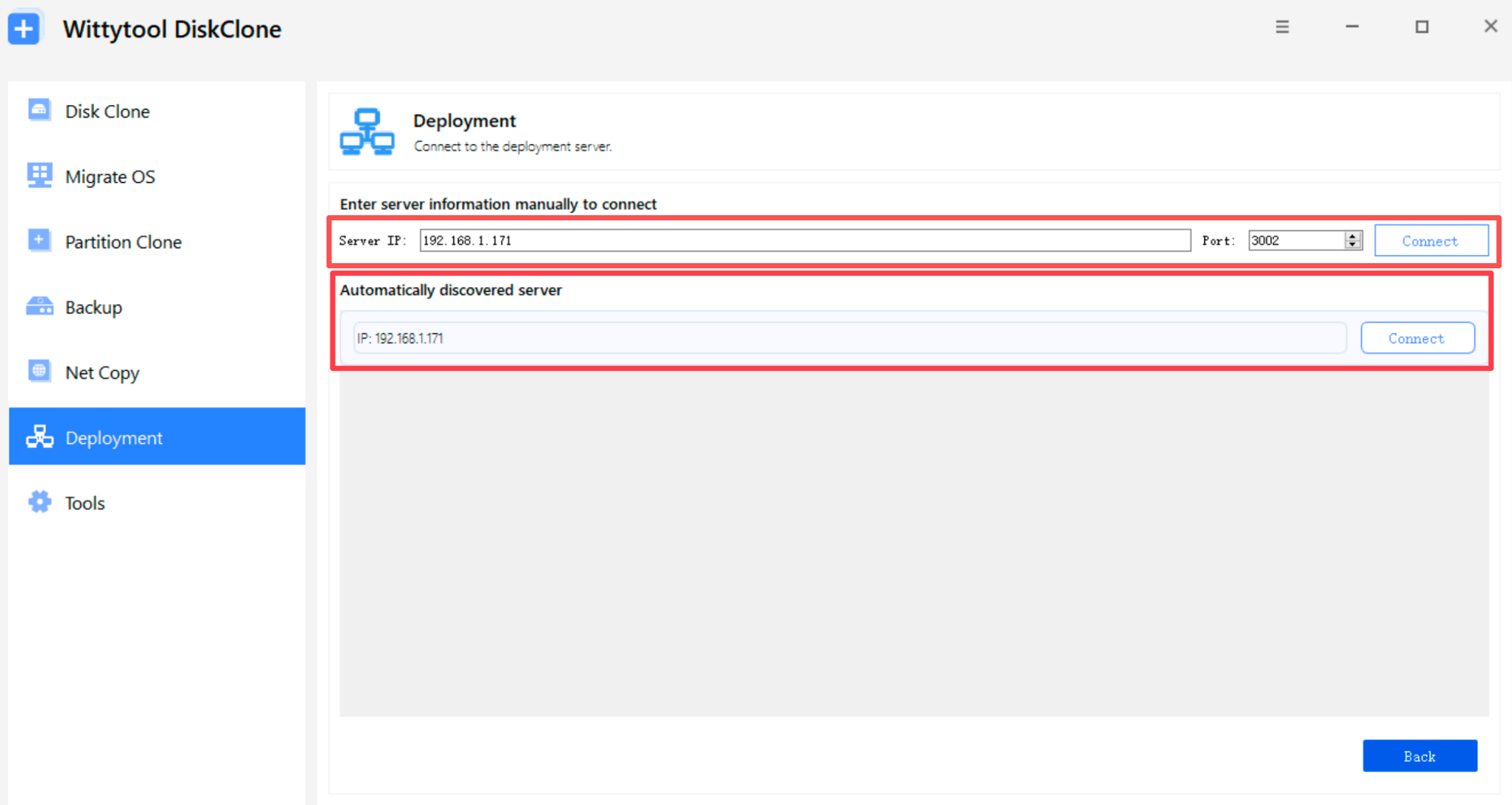
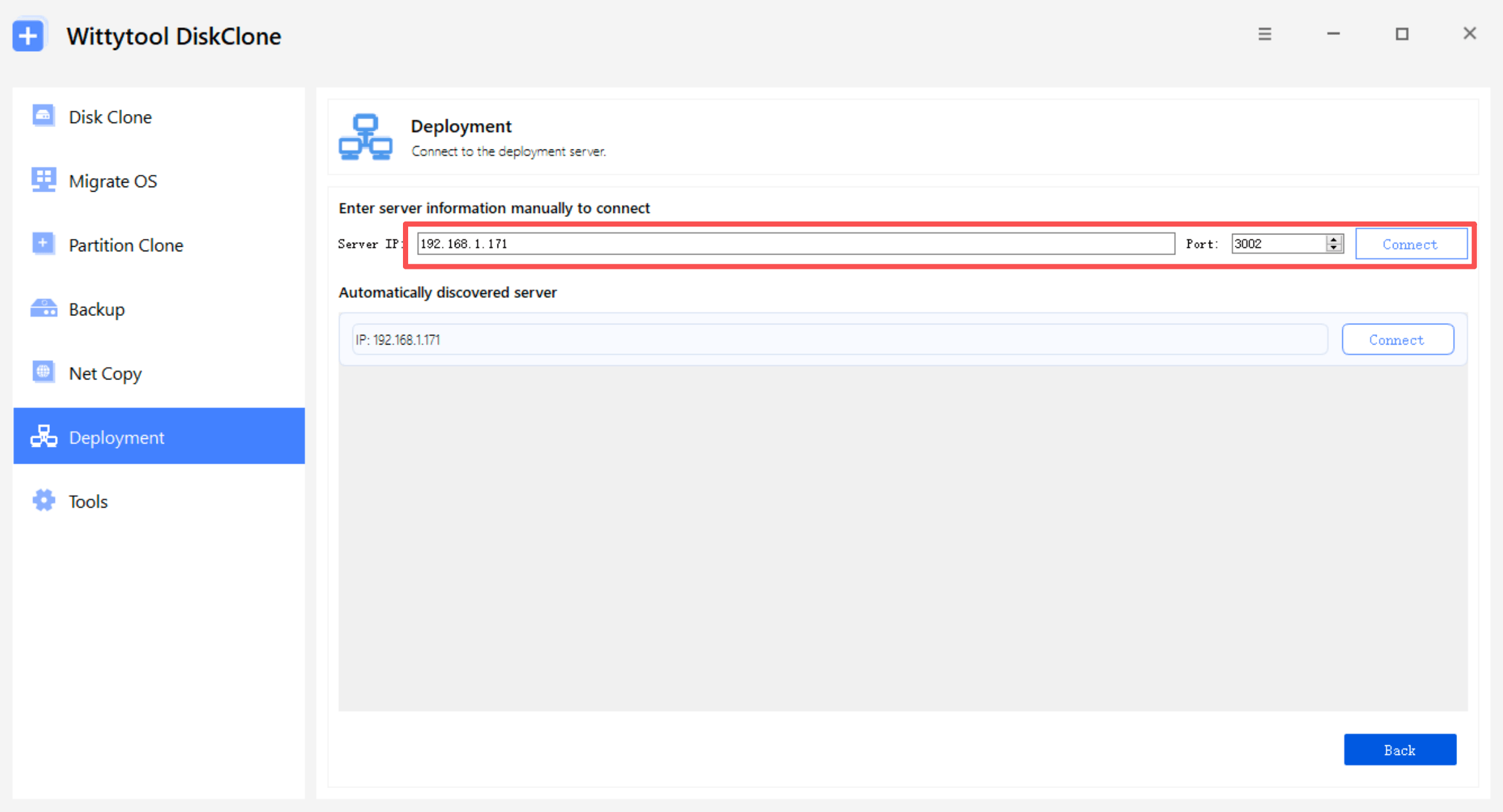
Connect the Target PC
Choose automatic or manual deployment.
- Automatic: Start Wittytool Disk Clone in WinPE or connect through Deployment.
- Manual: Select Start as Client, enter the server IP address and Port, then click Connect.
Start Deployment and Monitor Progress
Select the target disk when using manual deployment, click Start, and monitor deployment progress in real time from the server side.
Notes
- Only disk or system image files generated by Wittytool Disk Clone are supported.
- To act as the server, a computer must have Wittytool Disk Clone installed. Any compatible PC with the software installed can be used as the server.
For preparation, verification, and troubleshooting, follow our complete Windows 11 multi-PC deployment guide.
Watch How to Deploy Windows Images with Wittytool Disk Clone
See the complete deployment process from image preparation to target PC deployment.
- Follow the complete deployment workflow
- See automatic and manual deployment
- Learn how to change Windows SID during deployment
Built for Flexible IT Deployment
From new PCs to larger-scale environments, Wittytool Disk Clone helps you deploy standardized Windows environments efficiently.
New PC Provisioning
Deploy a configured Windows environment to multiple new PCs.
Office PC Deployment
Standardize applications and settings across office PCs.
PC Replacement
Restore an existing Windows environment to replacement hardware.
Classroom & Lab
Deploy the same Windows environment to multiple computers.
IT Service Providers / MSPs
Deploy standardized Windows environments efficiently across client PCs.
Simple Pricing for Wittytool Disk Clone
Plans starting at $9.90. Choose the Wittytool Disk Clone license that fits your deployment needs.
- Windows image deployment
- Change Windows SID during deployment
- Real-time deployment monitoring
- Universal Restore
1 Device
- Windows image deployment
- SID change
- Real-time monitoring
- Universal Restore
5 Devices
- Windows image deployment
- SID change
- Real-time monitoring
- Universal Restore
99 Devices
- Windows image deployment
- SID change
- Real-time monitoring
- Universal Restore
1,000 Devices
- Windows image deployment
- SID change
- Real-time monitoring
- Universal Restore
Frequently Asked Questions
Do I need to run Sysprep before deploying a Windows image?
Can I change the Windows SID during deployment?
Can I deploy a Windows image to multiple PCs?
Can I deploy the image to different hardware?
Can I monitor deployment progress?
Does Wittytool Disk Clone support automatic and manual deployment?
Deploy Windows Images Faster with Wittytool Disk Clone
Create your Windows image once and deploy it to multiple PCs without unnecessary system preparation. Choose your workflow, change SID when needed, and monitor deployment progress from a central server.