

To check for duplicate machine SIDs, run Microsoft Sysinternals PsGetSid on each Windows computer and compare the complete SID values. Matching values on two confirmed, distinct PCs indicate duplicate local machine SIDs. If you confirm a duplicate, you can use Wittytool Disk Clone to generate a new local machine SID. Do not substitute the current user’s SID or an Active Directory computer account’s SID.
This guide covers two-PC comparisons and checks across a specified computer list. The queries do not change SIDs or computer accounts. Use this workflow for Windows workstations and member servers; domain controllers require a separate AD-specific investigation.
Check Two PCs for Duplicate Machine SIDs
Download PsGetSid from Microsoft
Download the PsTools package from the official PsGetSid page and extract it on each PC. Open PowerShell in the extracted folder. Review any first-run license prompt before proceeding.
If you are investigating a failed connection, identify both endpoints first: the PC initiating the connection and the PC receiving it. For a cloning check, identify the source and the deployed copy.
Run PsGetSid on Each PC
Run these commands locally on the first computer, then repeat on the second:
hostname
.\PsGetsid.exe
With no computer or account argument, PsGetSid queries the local computer’s SID. Record the hostname, the SID, and the collection time together. Do not add a username such as Administrator, which changes the query to an account lookup.
If cloned computers have the same hostname, use an asset label or your hypervisor’s VM inventory to distinguish them. Two records for the same physical PC or VM do not establish duplication.
Compare the Complete Machine SID
Compare the entire value returned by PsGetSid. Do not remove its final number. The examples below illustrate the comparison; they are not output from a live test.
| Computer | Machine SID | Result |
|---|---|---|
| PC-A | S-1-5-21-111111111-222222222-333333333 | Reference |
| PC-B | S-1-5-21-111111111-222222222-333333333 | Matches PC-A |
| PC-C | S-1-5-21-444444444-555555555-666666666 | Differs from PC-A and PC-B |
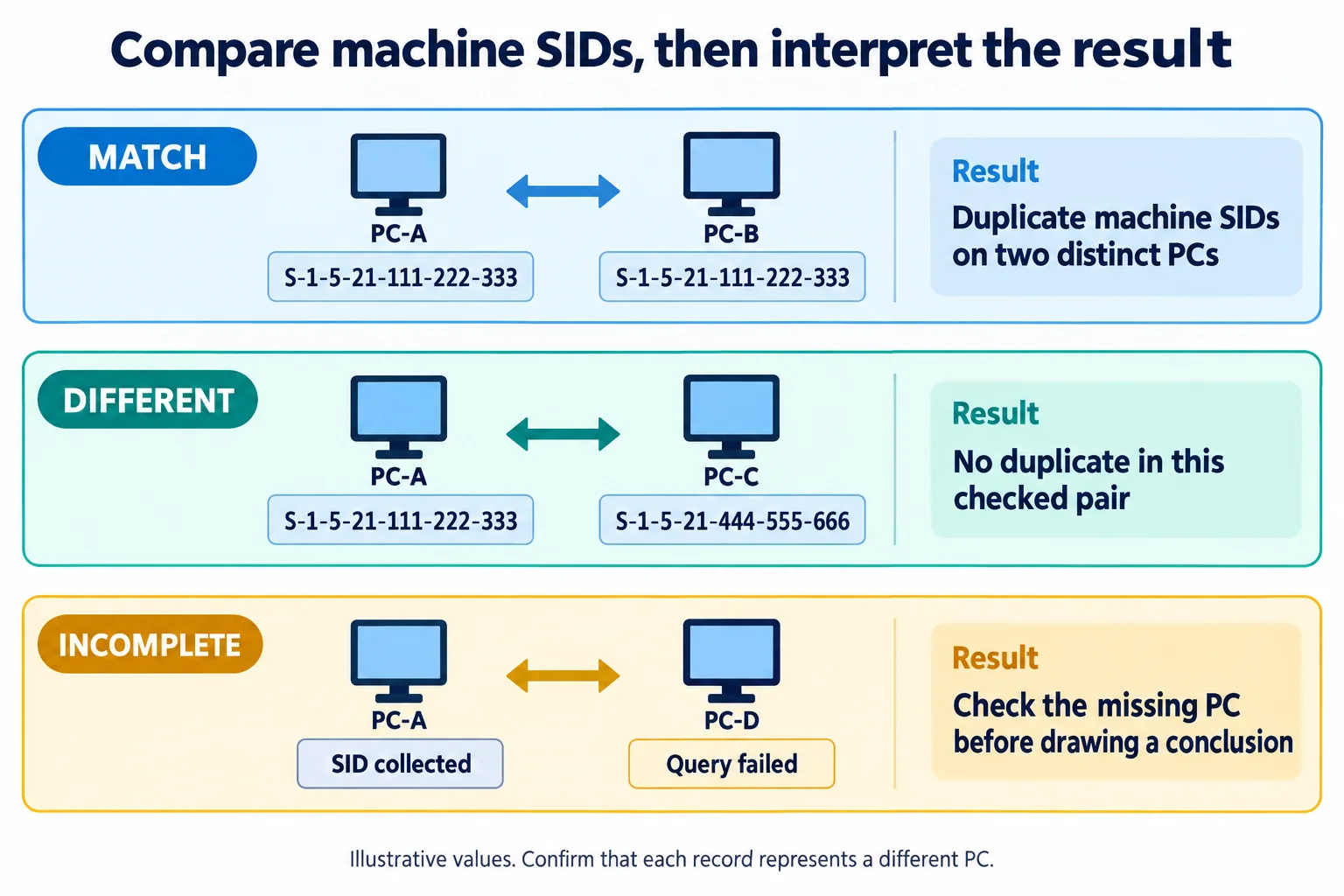
PC-A and PC-B form a duplicate pair. PC-C does not belong to that pair. Its different value says nothing about computers you have not checked.
Machine SID vs. User SID vs. AD Computer SID
The word “SID” can refer to different identifiers. Check the query’s target before comparing its output.
| Identifier | What you are identifying | Use for this comparison? |
|---|---|---|
| Local machine SID | The local account-domain identity of a Windows installation | Yes, compare this between PCs. |
| Local user SID | A local account, with the machine SID prefix plus an account RID | Do not compare it as a complete machine SID. |
| Domain user SID | A user account in an AD domain | No. One domain user can sign in on multiple PCs. |
| AD computer account SID | The computer’s account in Active Directory | No. It is distinct from the local machine SID. |
For example, S-1-5-21-111111111-222222222-333333333-1001 represents a local user in this illustration. The final 1001 is that account’s relative identifier, or RID. PsGetSid’s machine output already excludes this account RID. See Microsoft’s explanation of SID structure and scope.
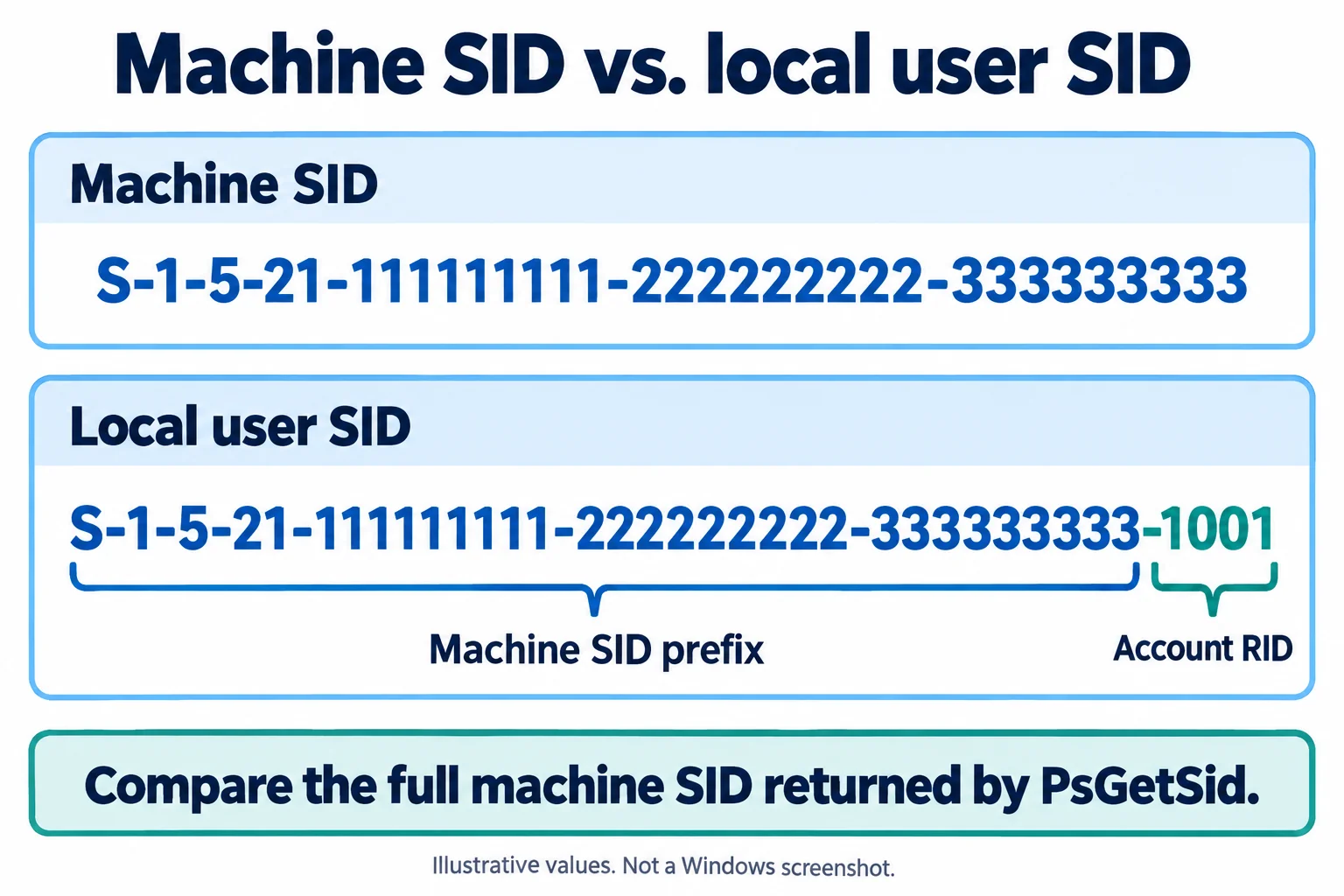
Why whoami /user Is Not a Machine SID Check
The whoami command reports information about the account running it. Its /user option returns that user’s SID. When you sign in as the same domain user on two PCs, matching user SIDs are expected.
Likewise, well-known identifiers such as S-1-5-18 for LocalSystem are shared by design. They are not evidence that two installations have the same machine SID.
Why Get-ADComputer Does Not Check Local Machine SIDs
Get-ADComputer retrieves AD computer objects. Grouping their SID property checks directory account values, not the local machine SIDs stored on your workstations. Unique AD account SIDs do not rule out duplicated local machine SIDs.
The Ntdsutil duplicate-SID procedure addresses a different problem involving domain account SID allocation. It is not a substitute for querying cloned endpoints. Do not run directory cleanup commands as part of this workstation check.
Check Multiple Computers with PsGetSid
Query a Remote Computer or a Computer List
From the PsTools folder, query a specific endpoint:
.\PsGetsid.exe \\PC-ARemote queries need connectivity and an account with administrative access on the target. If alternate credentials are required, specify the username and let PsGetSid prompt for the password:
.\PsGetsid.exe \\PC-A -u CONTOSO\AdminNameReplace the example computer and account names. Avoid putting a password directly into command history.
For a known set of PCs, create computers.txt in the same folder with one reachable computer name per line:
PC-A
PC-B
PC-C
Run the list query in PowerShell and save its output:
.\PsGetsid.exe '@computers.txt' 2>&1 |
    Tee-Object -FilePath .\sid-check-log.txt
PsGetSid supports computer-list files. The quotes pass @computers.txt as a literal argument in PowerShell. Tee-Object displays the captured output and writes the log; choose a new filename for each collection to retain earlier results.
Record Successful Checks and Failures Separately
Review the log computer by computer. Build a small inventory with the following columns:
| Column | What to record |
|---|---|
| Computer or asset | A name or label that identifies the actual endpoint |
| Machine SID | The full returned value, or blank if collection failed |
| Status | Collected, access denied, unreachable, or another specific failure |
| Collected at | The date and time of the check |
Reconcile the inventory with your original target list. If you planned to check 20 PCs and collected 17 SIDs, three PCs remain unchecked even when the 17 collected values are different.
These commands collect output rather than generate a finished duplicate report. Keep the original log so you can verify each inventory entry.
Group Matching SIDs and Verify the PCs
In your spreadsheet, filter to successful collections with a nonempty machine SID, then sort by the complete SID column. Highlight repeated values or use a pivot table to list the computers under each SID.
Before recording a duplicate group, check that:
- Each member is a different PC or VM, not a second record for the same endpoint.
- Short names, fully qualified names, and aliases have not caused the same PC to be counted twice.
- The values come from the current installations, rather than logs captured before a rebuild or SID change.
We recommend rerunning the local query on each suspected duplicate before planning a change. Record failed queries separately; do not group blank cells as matching SIDs.
How to Interpret Your Results
| Finding | Conclusion | Next action |
|---|---|---|
| Two distinct PCs return the same full machine SID | A duplicate exists between those installations. | Save the evidence and review the appropriate remediation path. |
| All collected machine SIDs differ | No duplicates were found within that checked set. | Confirm that every intended endpoint was successfully checked. |
| Some PCs return errors or no SID | The check is incomplete. | Resolve collection failures or run the query locally. |
| Only user or AD account SIDs were compared | The local machine SID question remains unanswered. | Collect the machine values using PsGetSid. |
| Matching machine SIDs and a login failure | Duplication is confirmed; the failure’s cause still needs evidence. | Correlate the connection with Windows versions and authentication logs. |
What to Do If a SID Check Fails
| Problem | Check next |
|---|---|
| PsGetSid is not recognized | Confirm that the package is extracted and PowerShell is open in the folder containing the executable. Include .\ before its name. |
| Access is denied | Check the account’s permissions on the target. An elevated terminal on your own PC does not automatically grant remote administrative access. |
| The remote computer cannot be reached | Confirm the hostname, network connection, and approved remote-management access. If the remote path is unavailable, run PsGetSid directly on that PC. |
| A query produces no machine SID | Keep it marked as incomplete. Check whether the command queried the correct object and whether an error was returned. |
A particular command to avoid is (Get-CimInstance Win32_ComputerSystem).SID: the official Win32_ComputerSystem class does not define a SID property. An empty result from that expression does not mean Windows has no machine SID.
If the suspected issue already prevents remote authentication, local collection avoids relying on that failing connection. A remote query error by itself cannot tell you whether the target has a duplicate SID.
What to Do After Confirming Duplicate Machine SIDs
If you are troubleshooting rejected credentials, record the Windows version and correlate the failed connection with its logs. Microsoft documents duplicate-SID authentication failures involving Windows 11 24H2, Windows 11 25H2, and Windows Server 2025 after the relevant updates released on or after August 29, 2025. LSA Event ID 6167 is part of that investigation. A generic password error alone is insufficient.
For image-based deployment, follow Microsoft’s Sysprep generalization guidance before capturing an installation for use on other computers. Checking an SID does not generalize an image.
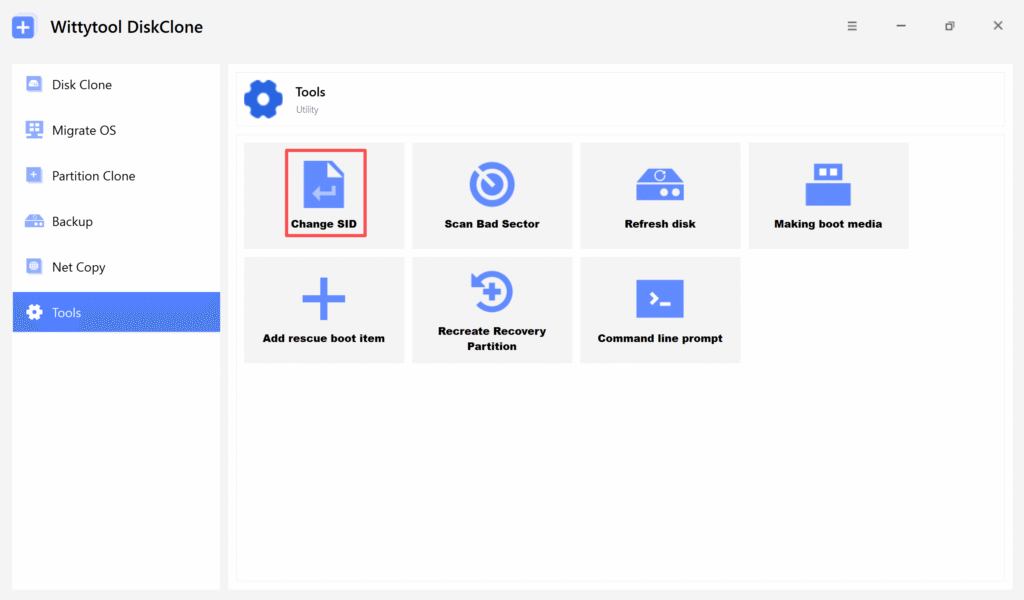
For an existing installation, Wittytool Disk Clone can generate a new local machine SID and update the local account SIDs derived from it. It preserves existing users, settings, installed applications, and data during the operation; it does not change domain user SIDs or provide all of Sysprep’s generalization functions.
Before changing an identity, we recommend a current backup and a planned maintenance window. For domain-joined PCs using this workflow, we recommend leaving the domain, changing the SID, and then rejoining with access to a domain controller. Follow the SID change walkthrough for the separate modification process.
After remediation, collect the machine SIDs again and repeat the affected connection test. Record identity verification and functional verification separately: different SIDs do not, by themselves, prove that every authentication problem has been resolved.
FAQ
Can two computers have the same machine SID?
Yes. Separate Windows installations can share a local machine SID after cloning an installation without generalizing it. Query each computer with PsGetSid, confirm that they are different devices or virtual machines, and compare the complete machine SID values.
Does whoami /user show the machine SID?
No. It shows the SID of the user running the command. The same domain user has the same user SID when signed in on different PCs. To compare local machine SIDs directly, run PsGetSid without an account-name argument.
Can I check machine SIDs without changing them?
Yes. The PsGetSid commands in this guide query existing identifiers. They do not change SIDs, rename computers, or modify AD objects. Extracting the tool, accepting its first-run terms, and saving a log can still create local files or preferences.
Does a duplicate machine SID prove the cause of a login failure?
No. A matching machine SID confirms a duplicate between the checked installations. To connect it to an authentication failure, also check the affected Windows versions and logs, including the relevant LSA Event ID 6167. A failed remote SID query alone does not prove a duplicate.