


You can change the Windows machine SID without running Sysprep by using the standalone Change SID tool in Wittytool Disk Clone. You do not need to clone the disk again. Before you start, record the current machine SID and prepare a recoverable backup. After the restart, check both the new SID and the problem you intended to fix.
Inforgraphic of how to change SID in Windows 11/10 without Sysprep
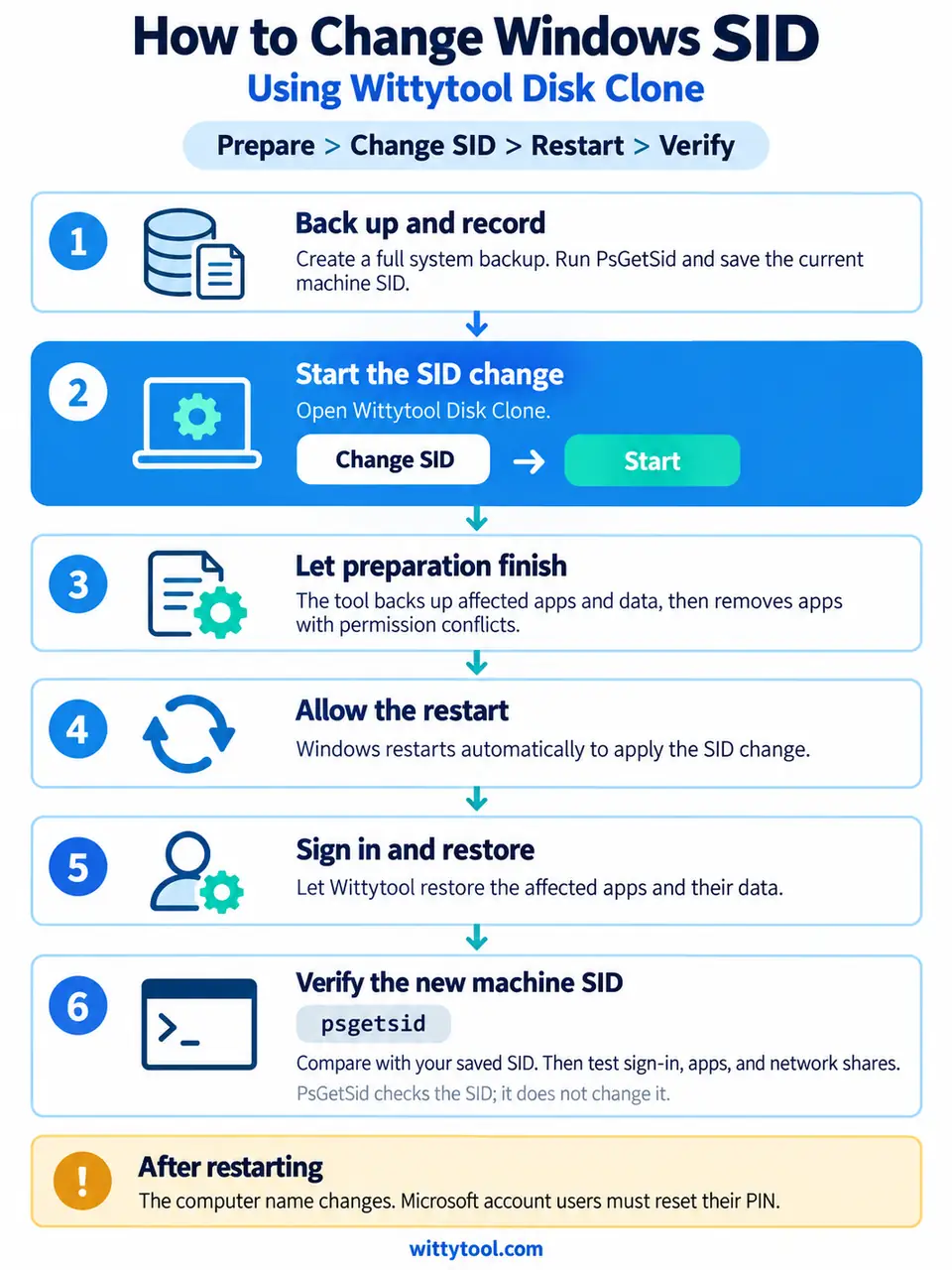
There is an important distinction: changing a SID with a third-party tool does not replace Microsoft’s supported process for preparing a Windows image for other computers. This guide covers the standalone workflow on an existing Windows 11 or Windows 10 system.
Before You Change the Windows SID
Decide Whether a SID Change Addresses Your Situation
A cloned installation can retain the original machine SID, but not every disk migration creates a duplicate-identity problem.
| Your situation | What to do first |
|---|---|
| You replaced an SSD in the same PC and will not run the old installation separately. | Do not change the SID simply because you replaced the drive. |
| The original computer and a clone will run as separate systems. | Compare their machine SIDs and review how the clone was prepared. |
| Shared folders or sign-in stopped working after a Windows update. | Check the affected versions, machine SIDs, and error details before choosing a fix. |
| You are preparing an image for deployment to other computers. | Use Microsoft’s supported image-preparation process before capture. |
If you are upgrading from an HDD to an SSD in the same computer, follow the HDD-to-SSD cloning guide for the disk-copying and boot checks. Replacing the drive alone does not require a new machine SID.
Microsoft has documented duplicate-SID authentication failures affecting Windows 11 24H2, Windows 11 25H2, and Windows Server 2025 after updates released on or after August 29, 2025. The documented signs include authentication errors and LSA event 6167. A password prompt or inaccessible share alone does not establish that you have this problem.
For that documented issue, Microsoft’s permanent resolution is to rebuild affected devices using supported methods. Its Windows imaging policy requires Sysprep before image capture. Running it after deployment is not a supported way to make an improperly prepared image compliant.
Prepare for the Change and Restart
Before changing the SID:
- Make a system backup you can restore, and keep a separate copy of important files.
- Have a working sign-in method and any required recovery keys available.
- Save your work, close applications, and allow any ongoing Windows update to finish before proceeding.
- Record the computer name, Windows version, and the exact issue you will retest.
- If you are working on multiple clones, start with one test machine and validate it before proceeding to others.
For domain-joined computers, involve your administrator before starting. Wittytool’s SID-change guidance states that these computers need to rejoin the domain after the change. Arrange local access and the rejoin procedure first. A local machine SID check is not a complete check of domain or cloud device identity.
If the computer uses encryption or has a business-critical server role, use an environment-specific recovery and change plan. This desktop walkthrough does not establish compatibility for every encryption setup, domain controller, or server workload.
Check and Record the Current Machine SID
Use Microsoft’s PsGetSid to query the machine SID before making changes.
Download PsTools from that official page and extract it. For the following example, place the extracted files in C:\Tools\PsTools. Open Command Prompt as administrator, then run:
cd /d "C:\Tools\PsTools"
PsGetsid.exe
With no computer or account argument, PsGetSid queries the local computer. Copy its displayed machine SID into your notes, together with the computer name and date. If you are checking a source computer and its clone, run the same query locally on each and compare the complete values.
Do not substitute whoami /user for this check. Microsoft’s whoami documentation explains that it returns information about the signed-in user, including that user’s SID. A domain user’s SID is not the local computer’s SID.
These commands inspect identifiers. They do not change them.
How to Change SID with Wittytool Disk Clone
Wittytool Disk Clone includes a standalone Change SID tool for the current Windows installation. You can use it without repeating a disk clone, including when the existing clone was created with another cloning tool.
For an existing installation that needs a SID change, its relevant features are:
- A graphical SID-change workflow: You can manage the change through the application interface without running Sysprep commands.
- Standalone use after cloning: You can work on an existing clone without copying the disk again or repeating your original migration.
- Control over the computer name: You can retain the current name or have a random new one generated. The computer name and machine SID are separate identifiers, so keeping the name does not keep the old SID.
This workflow runs in the current Windows system. The standalone Change SID tool is not available in Wittytool’s USB boot environment. If you are working with an original computer and its clone, confirm that you are using the intended clone before proceeding.
Now download and follow the steps:
Step 1: Access the SID settings. Open Wittytool Disk Clone and navigate to Tools > Change SID.

Step 2: Confirm your settings then click Start to proceed.
Select whether to keep the existing computer name or use a randomly generated one. If the original and cloned computers will share a network, use a different name for each computer.
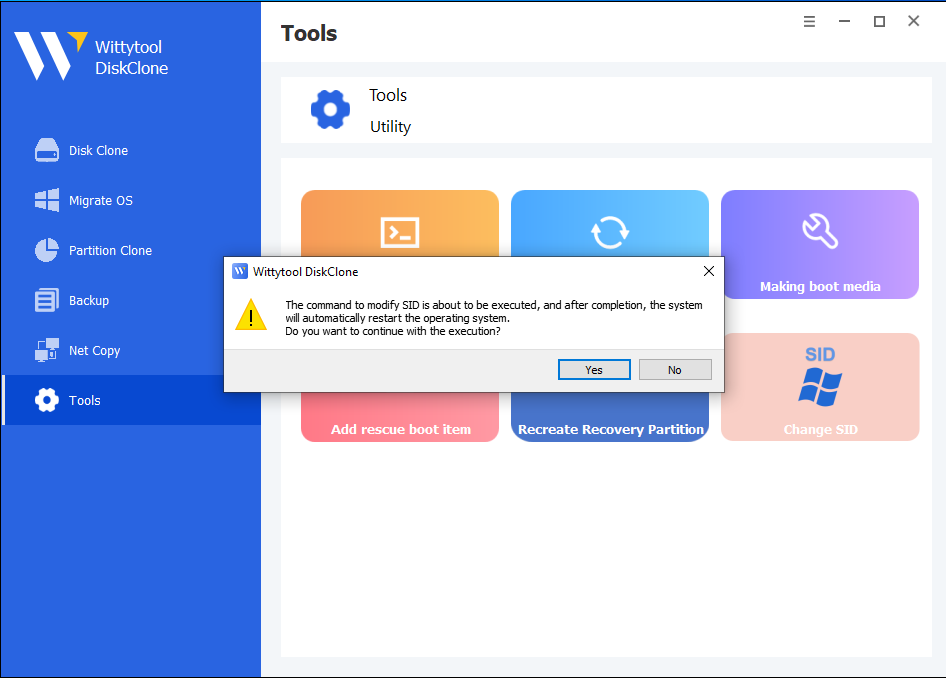
Step 3: Let the program handle application conflicts
Wittytool Disk Clone will automatically back up applications that may experience permission conflicts, including their associated data, before uninstalling them.
Step 4: Allow Windows to restart
The computer will restart automatically so the new SID can take effect.


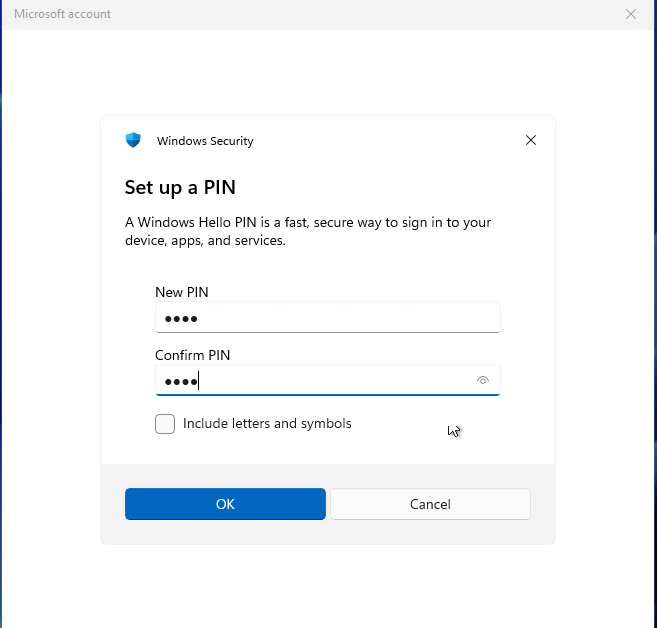
Account information after the restart:
Local accounts: Your local accounts and settings are retained, while their SIDs are regenerated when the machine SID changes.
Microsoft accounts: You will need to reset your PIN when you first sign in after the restart.
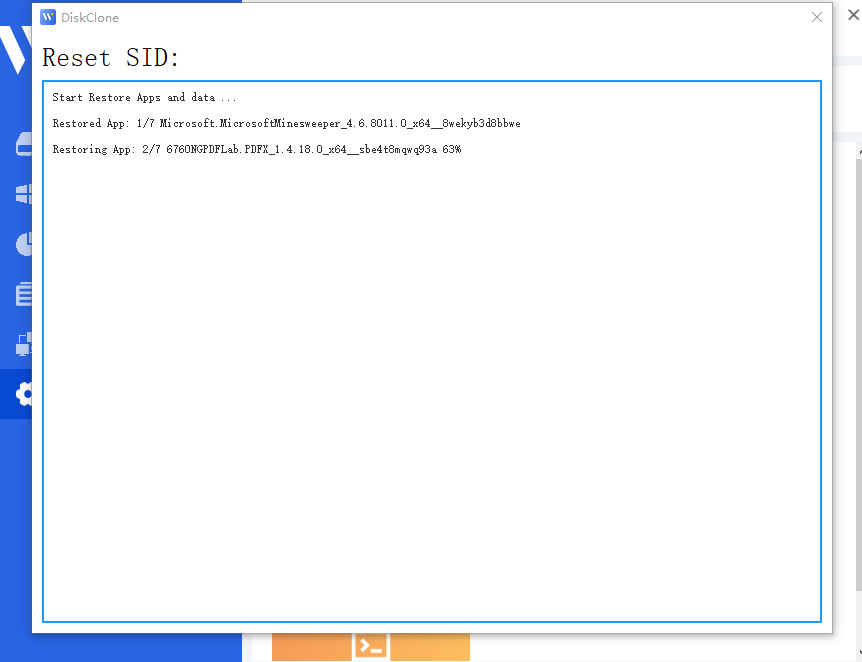
Step 5: Complete the application restoration
Sign back in to Windows. Wittytool Disk Clone will restore the removed applications and their data automatically. Once restoration finishes, the SID change is complete.
Video walkthrough:
Verify the SID Change and Check Windows
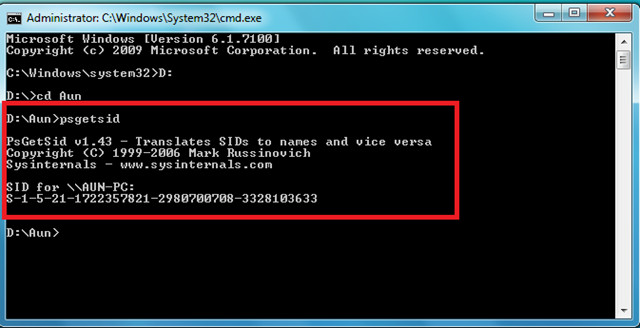
Open an elevated Command Prompt, return to the PsTools folder, and run PsGetsid.exe again. Compare the displayed machine SID with your before-change record.
If you were resolving a duplicate between two computers, also check that the modified computer no longer has the same machine SID as the original.
Next, check the things you actually need the computer to do:
- Sign-in: Confirm that your intended account can sign in and access its files.
- Computer name: Check that the name matches your choice to keep it or generate a new one.
- Applications: Open the programs you rely on and check their normal workflows.
- Original issue: Repeat the same share access, authentication, or other task that failed before.
- Managed access: If applicable, have your administrator complete the planned domain rejoin and verify access.
Treat these as two separate results: the machine SID changed, and the original problem was resolved. A different SID confirms the identifier changed; it does not prove that every permission, application, or network issue has been fixed.
What to Do If the SID Change Fails
Use the result you can observe to choose your next step.
| What you see | What to do next |
|---|---|
| The machine SID is unchanged. | Check that you queried the intended computer after the process and restart completed. Record any error instead of repeatedly starting the change. |
| The SID changed, but the original error remains. | Investigate the remaining authentication, permissions, naming, or connectivity problem. Do not keep changing the SID as a general repair attempt. |
| Windows starts, but sign-in or an application no longer works as expected. | Stop the rollout to other computers. Record the symptoms and use your recovery plan if normal access cannot be restored. |
| Windows does not start normally. | Use your prepared recovery environment and backup. Avoid making additional identifier or registry changes while the system is unstable. |
| The tool stops with an error. | Keep the exact message, product version, Windows version, and the stage where it stopped for Wittytool support. |
If a shared folder still rejects your login after the SID has changed, follow the network username or password troubleshooting guide. Start with the account recognized by the sharing computer, then check saved credentials and existing connections before attempting another system change.
Do not manually edit SAM or registry SID values to force a result. Do not uninstall security updates or disable security protections as a routine troubleshooting step. A Sysprep log is also not automatically a log of Wittytool’s standalone operation.
If you need Microsoft’s supported resolution for an improperly cloned installation, follow its documented deployment and recovery requirements rather than assuming a changed SID makes that installation compliant.
Conclusion
Wittytool Disk Clone provides a standalone way to change a Windows SID without running Sysprep or cloning the disk again. Record the machine SID first, prepare a recoverable backup, choose how to handle the computer name, and complete the operation before checking the result.
Verify both the new identifier and normal Windows functionality. For images intended for other computers, keep Microsoft’s image-preparation requirements separate from this standalone workflow.
Frequently Asked Questions
Can I change the SID without cloning the disk again?
Yes. Wittytool Disk Clone includes a standalone Change SID tool for the current Windows system. You can use it without performing another disk clone.
Does keeping the computer name keep the same SID?
No. The computer name and machine SID are different identifiers. Wittytool lets you keep the current computer name or generate a random new name as part of the SID-change workflow.
Does whoami /user show the machine SID?
No. It shows the SID of the account currently signed in. Use PsGetSid without an account argument to query the local machine SID.
Does cloning a VM automatically change its SID?
Not necessarily. Copying a Windows VM can retain its machine SID. Whether it changes depends on the guest preparation and customization used during deployment. Verify the SID rather than assuming the cloning process changed it.
Is Sysprep still necessary if I use a SID changer?
For Microsoft’s supported process of preparing a Windows image for other computers, yes. Generalize the installation with Sysprep before capturing the image. Changing the SID with a third-party tool does not replace that preparation.