

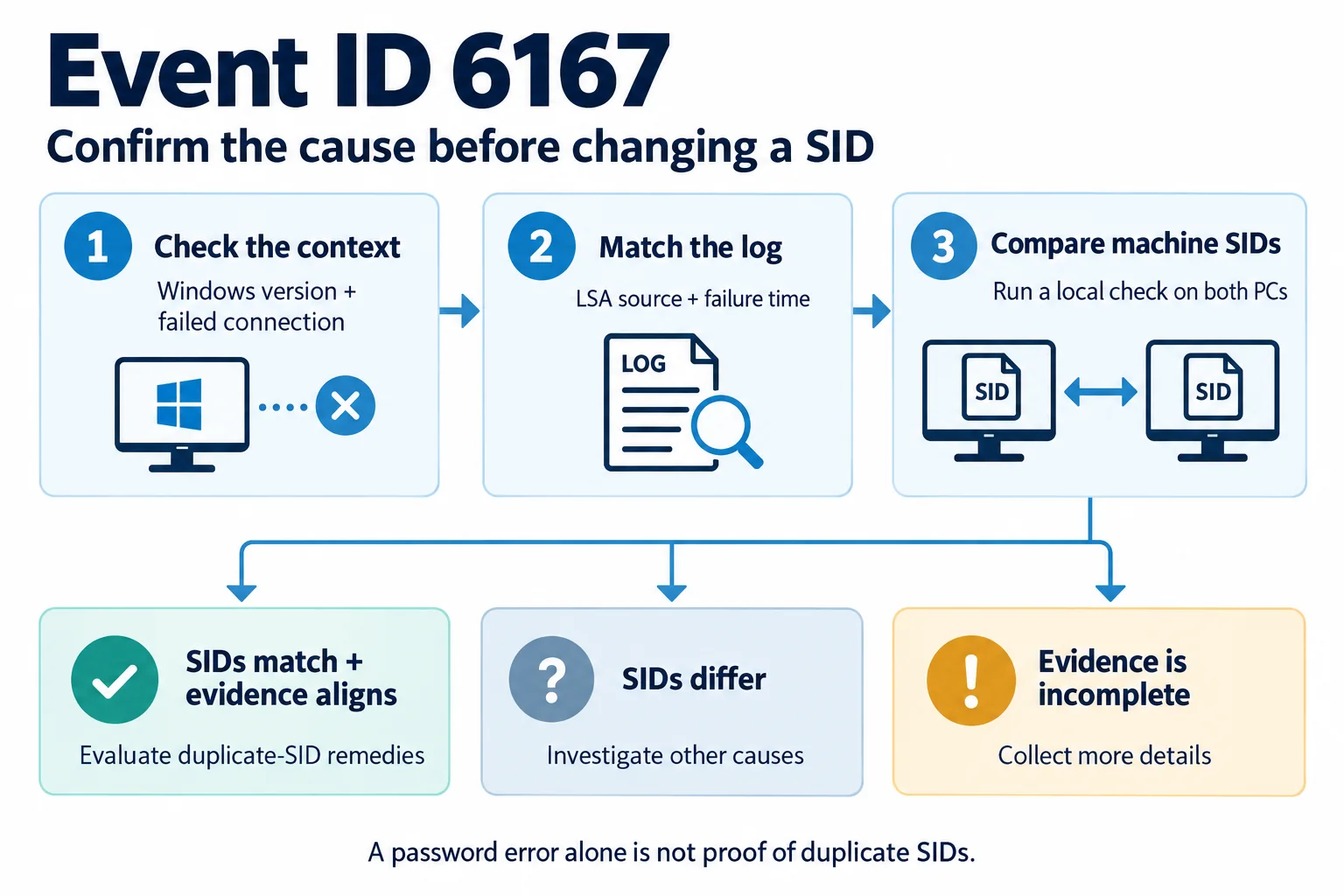
If cloned Windows PCs reject valid credentials and log LSA Event ID 6167, compare their local machine SIDs before changing anything. Record the Windows versions, match the event to the failed connection, and check both computers. A password error alone does not prove a duplicate-SID problem.
If the evidence points to duplicate SIDs, choose a recovery path that fits your environment and support requirements. If the SIDs differ, investigate the authentication failure instead of repeatedly resetting identities.
What Does Event ID 6167 Mean?
The event discussed here comes from the Local Security Authority Server Service and appears in the System log. Its message includes:
There is a partial mismatch in the machine ID.
Microsoft documents this event in connection with Kerberos and NTLM authentication failures involving duplicate SIDs. Symptoms can include rejected credentials, inaccessible network shares, and failed Remote Desktop connections. See Microsoft’s duplicate-SID authentication notice.
Check the event source and surrounding circumstances, not just the number. Similar machine ID mismatch wording can appear in other authentication scenarios.
Which Windows Versions and Updates Are Relevant?
The Microsoft notice identifies these affected operating systems:
- Windows 11, version 24H2.
- Windows 11, version 25H2.
- Windows Server 2025.
It links the behavior to Windows updates released on or after August 29, 2025, including KB5064081 and KB5065426. KB5070568 is the troubleshooting notice, not an update you need to install as a fix.
Record the current version and build on each affected computer with winver. Treat these details as diagnostic context; an update date by itself does not establish the cause.
Confirm Whether the Affected Computers Have Duplicate SIDs
Record the Two Computers and the Failed Connection
Identify the computer initiating the connection and the computer receiving it. For example, CLIENT-A might fail to open a share on FILE-PC. For RDP, record the connecting device and the remote Windows host.
Note each computer’s name, Windows build, domain or workgroup status, and whether it came from the same image. Record the exact error and time of a controlled retry. This avoids comparing unrelated machines or investigating an old event.
Match the LSA Event to the Failed Attempt
- Reproduce the failed connection once and note the time.
- On the Windows computer receiving the connection, open Event Viewer > Windows Logs > System.
- Use Filter Current Log to look for event ID
6167around that time. - Check the LSA/LsaSrv source, message, and timestamp. Inspect the other computer’s logs when needed to correlate the attempt.
Save the relevant details before changing settings. An old 6167 entry or a generic failed-logon event does not, by itself, explain the connection you just tested.
Compare the Complete Local Machine SIDs
Download PsGetSid from Microsoft Sysinternals and extract the PsTools package on each relevant computer. Open PowerShell in the extracted folder and run:
.\PsGetsid.exeRun it locally on both computers, without supplying an account name. With no computer or account argument, it queries the local computer’s SID. Local checks are useful when the authentication problem prevents remote queries.
Compare the entire machine SID returned on each computer. Do not remove its final numeric component. Do not substitute whoami /user, which identifies the signed-in user, or an Active Directory computer object’s SID. Windows uses distinct identifiers for local and domain security principals; see Microsoft’s SID reference.
The following values are illustrative examples, not output from a product test:
| Computer | Machine SID | Comparison |
|---|---|---|
| CLIENT-A | S-1-5-21-111111111-222222222-333333333 | Reference value |
| FILE-PC | S-1-5-21-111111111-222222222-333333333 | Same machine SID |
| OTHER-PC | S-1-5-21-444444444-555555555-666666666 | Different machine SID |
For a CLIENT-A to FILE-PC failure, compare those two computers. A unique SID on OTHER-PC does not resolve a duplicate between the affected pair.
Interpret the Evidence Before Making Changes
| What you find | What to do next |
|---|---|
| Matching machine SIDs, a corresponding LSA event, and a relevant Windows environment | The evidence supports a duplicate-SID cause. Review the recovery options below. |
| Matching SIDs, but only a general password error | You have confirmed duplicate identities. You still need to connect them to this particular failure. |
| Different machine SIDs | Confirm that you checked the correct endpoints, then investigate other authentication causes. |
| No corresponding event found | Check the computer, log, and time window. Missing evidence is not a complete diagnosis. |
Choose a Resolution for Confirmed Duplicate SIDs
Rebuild Using Microsoft’s Supported Imaging Process
For the documented issue, Microsoft’s permanent resolution is to rebuild affected devices using supported deployment methods. Its Windows imaging policy requires Sysprep before image capture. Running Sysprep after deploying an improperly prepared image is not a supported way to bring that deployment into compliance.
Plan the rebuild, back up required data, prepare the reference installation correctly, and validate a pilot deployment. Follow the official generalization workflow for your image. Do not run a generalize command on a production computer merely because it appears in a search answer.
Ask Microsoft Support About Temporary Mitigation
If rebuilding immediately is impractical, the Microsoft notice directs IT administrators to contact Microsoft Support for business for a special Group Policy. Treat this as temporary mitigation, not removal of the duplicate identities. Obtain instructions appropriate to your environment instead of copying an unverified registry override.
Consider a Third-Party SID Change for an Existing Windows 11 PC
For an existing Windows 11 installation whose configuration you need to retain, Wittytool Disk Clone includes a standalone SID change function. According to its product team, it regenerates the local machine SID and the local account SIDs derived from it while retaining existing accounts, settings, installed applications, and data. Some applications are preserved through automatic backup and restoration.
The new SID is randomly generated; you cannot manually specify it. The function does not change domain-assigned user SIDs. You can choose to keep the current computer name or let the program generate another one.
A third-party SID change does not replace Microsoft’s supported image preparation process. Content preservation also does not establish that every application license, encrypted credential, cloud session, or domain trust relationship will remain unaffected. Keep a recoverable backup and evaluate one affected PC before expanding the change.
Use Wittytool Disk Clone After Confirming the Cause
For the existing Windows 11 PC you have selected, prepare a restorable system backup, working local administrator credentials, and any necessary recovery keys. Save open work, record the original SID, and allow time for a restart.
If the PC is already joined to a domain, we recommend leaving the domain, changing the SID, and then rejoining. Arrange this with the domain administrator; rejoining requires access to the domain controller. Do not interpret this recommendation as automatic domain repair.
- Download Wittytool Disk Clone, then open and select Tools > Change SID.
- Choose whether to retain the computer name or have the program generate a new one. Keep the names of computers that coexist on the network distinct.
- Review the options and click Start. Follow the prompts and allow the change and restart process to finish without interruption.
- After Windows is available again, repeat the SID check and test the original connection.

For the full walkthrough, use the SID change tutorial. For domain controllers, clusters, VDI platforms, or critical server workloads, follow the relevant platform support process rather than applying this workstation procedure.
Verify Access and Investigate Any Remaining Errors
Retest the Same SMB or RDP Connection
A changed SID is only one checkpoint. Repeat the local SID query, compare the relevant machines, and then test the same resource from the same client using the intended account.
- For SMB, open the original share and perform an operation that account is permitted to perform.
- For RDP, repeat the original connection and confirm that sign-in completes.
- Check for new related events at the time of the test. Older entries remaining in Event Viewer do not mean the repair failed.
- Confirm that required accounts and applications still work, including domain access if you rejoined the PC.
If the SIDs Differ or Authentication Still Fails
Do not keep generating new SIDs. Review the exact account, permissions, connection target, and current event details. For ordinary share access problems, follow the Windows network credential troubleshooting guide.
Domain and server environments may need investigation of secure channel health or Kerberos behavior. For example, IBM documents a specific cluster upgrade scenario with similar machine ID mismatch wording but no duplicate machine SIDs. That is a reason to check the evidence, not to copy cluster repair commands onto a workstation.
Prevent the Same Problem in Future Images
For supported Windows image deployment, generalize the reference installation before capture and use the appropriate deployment workflow. For vSphere, Broadcom recommends Guest OS Customization with SID generation enabled.
Include machine identity and real network access in deployment acceptance checks. Changing a source computer’s SID once and then copying that unchanged installation to several computers does not, by itself, give each target a different SID.
Frequently Asked Questions
Does changing the computer name also change the machine SID?
No. A computer name and a machine SID are different identifiers. Renaming a PC can address a naming conflict, but it does not resolve a duplicate machine SID.
Can I compare machine SIDs with whoami /user?
No. That command reports the signed-in user’s SID. Query the local computer with PsGetSid without an account argument, then compare the complete machine SIDs on the relevant computers.
Can the machine ID mismatch message appear when SIDs are different?
Yes. Similar wording can occur in other authentication scenarios. Confirm the event source, affected endpoints, machine SIDs, and connection context before choosing a remedy.
Do I need to uninstall KB5065426 to fix duplicate SIDs?
Uninstalling an update does not make duplicate SIDs unique. Use the recovery path appropriate to the confirmed cause, and contact Microsoft Support if you need its documented temporary mitigation.