


Wittytool Disk Clone and Acronis Snap Deploy 6 both help you deploy a configured Windows environment to multiple PCs. To choose between them, compare how each handles your source image, deployment controls, and the Windows SIDs on target machines.
Quick Answer
Wittytool Disk Clone’s key advantage is combining a backup of your existing setup with target SID changes during deployment. You can capture the source system without first running Sysprep and retain its applications, local accounts, and Microsoft Store apps.
Acronis Snap Deploy 6 offers scheduled deployments, multicast transfers, and a broader range of supported image sources, but its built-in unique SID generation does not support Windows 10 or Windows 11.
This comparison examines the Windows image deployment workflow in Wittytool Disk Clone alongside Acronis Snap Deploy 6, so you can weigh source-system preservation and target SID handling against deployment scheduling, network transfers, and image compatibility.
Wittytool Disk Clone vs Acronis Snap Deploy at a glance
| What you need to compare | Wittytool Disk Clone | Acronis Snap Deploy 6 |
|---|---|---|
| Target SID changes on Windows 10/11 | Target SID change option available during Windows deployment | Current documentation says built-in unique SID generation is not supported |
| Configured system deployment | Windows environment with applications, local accounts, and Microsoft Store apps | Configured operating system, applications, and files from a master image |
| Deployment controls | Graphical server/client workflow with automatic and manual deployment | Manual, scheduled, event-driven, user-initiated, and standalone workflows |
| Deployment monitoring | Client MAC address, IP address, status, and progress percentage on the server | Management console with machine and task status |
| Windows 11 image deployment | Supported | Supported |
| Network boot | PXE support | PXE support |
| Different target hardware | Dissimilar hardware support / universal restore | Acronis Universal Deploy |
| Deployment image inputs | Disk or system images created by Wittytool Disk Clone | Snap Deploy master images, supported Acronis disk backups, and VHD/VHDX files |
Before deploying: Back up anything you need from the target disks. Image deployment writes the source image to those disks and can delete their existing partitions. For Wittytool Disk Clone, an automatically configured client may start deployment as soon as it connects.
Target SID changes during Windows 10/11 deployment
Change target SIDs with Wittytool Disk Clone
Wittytool Disk Clone provides a Change Target Windows SID. option in the server’s Target PC settings. You can create a backup of the configured source system and select this option to generate new local machine SIDs during deployment.
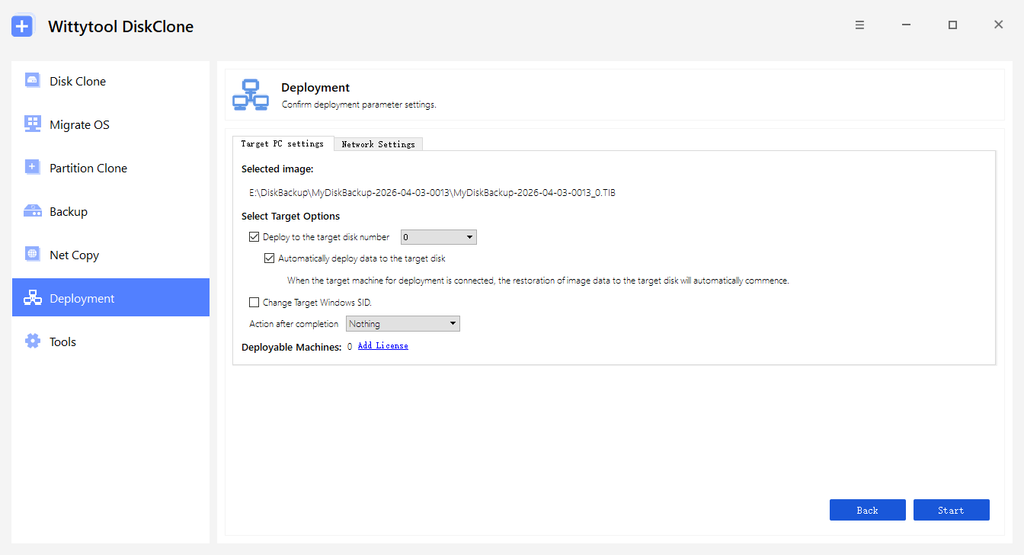
The Windows SID change feature changes the local machine SID and the local account SIDs derived from it. It does not change domain account SIDs, and you cannot enter a specific replacement SID manually.
Use the target-specific option for target identity changes. The separate Change Windows SID option on the source-image selection page refers to the image’s SID; changing an image’s SID once does not establish that every deployed PC receives a different SID.
This distinction can affect network access. Microsoft documents authentication failures associated with duplicate SIDs on Windows 11 24H2, Windows 11 25H2, and Windows Server 2025 after the applicable updates released from August 29, 2025 onward. Symptoms can include failed access to shared folders or Remote Desktop. A duplicate SID is one possible cause of these symptoms, so check the affected machines before assuming it explains every connection failure.
Snap Deploy’s built-in SID generation limitation
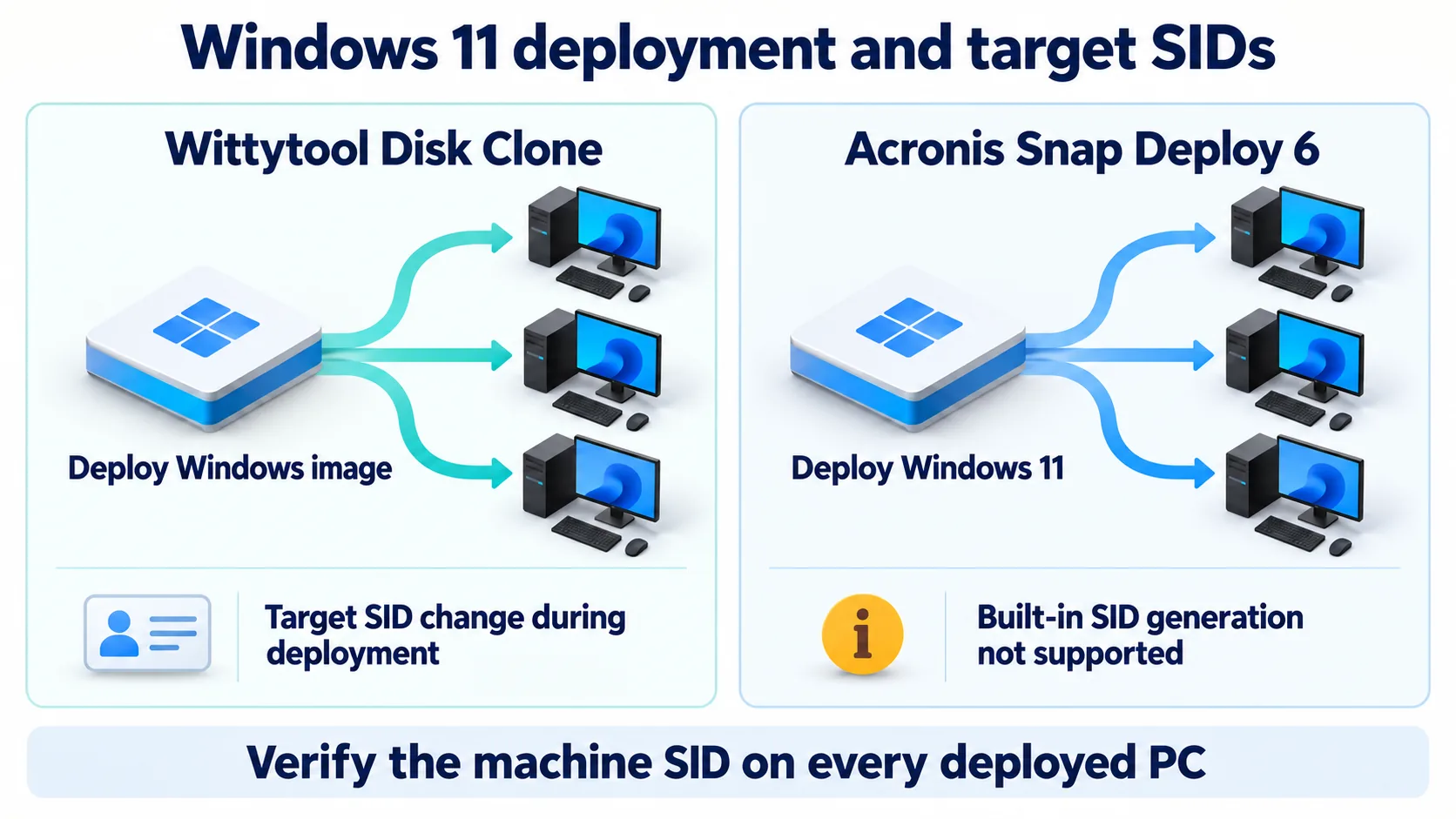
Acronis Snap Deploy 6 supports Windows 11 imaging and deployment. However, its current security identifier documentation states that generating unique SIDs is not supported for Windows 10 and Windows 11.
These are separate capabilities. Being able to deploy Windows 11 does not mean the deployment tool’s built-in SID option will generate a new SID for that Windows installation.
If your rollout requires a different local machine SID on each target, account for that requirement before choosing a deployment workflow. Check the actual target SIDs during your pilot rather than treating a completed deployment task as proof that identity changes occurred.
Source images and application preservation
Retain your configured environment with Wittytool Disk Clone
Wittytool Disk Clone lets you back up the current Windows system without first running Sysprep. The resulting environment can retain the source applications, local accounts, Microsoft Store apps, settings, and other data while the target SID is changed during deployment.
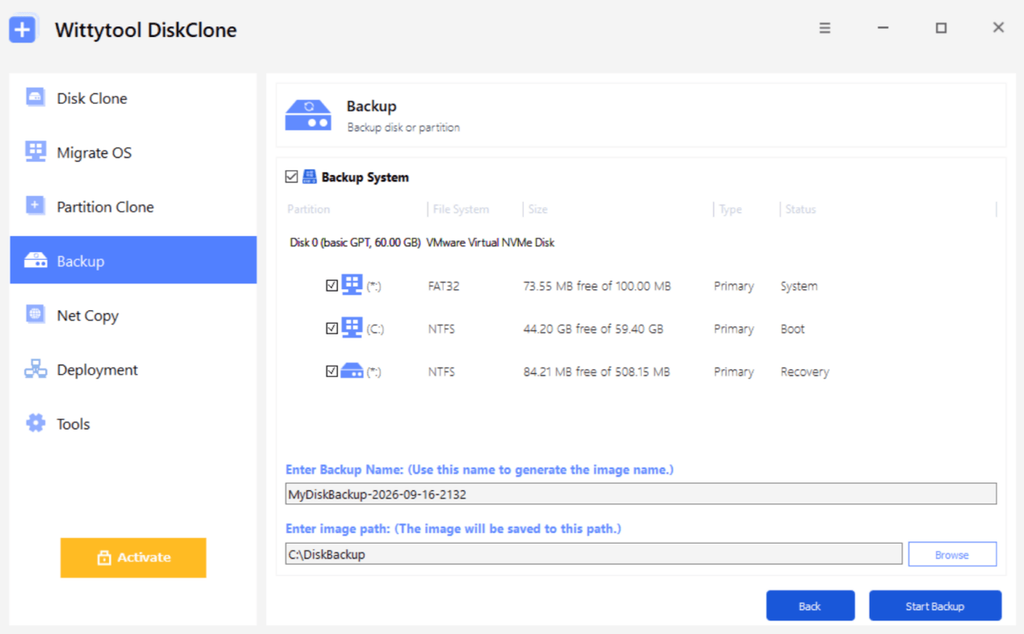
For an office or lab with an established application setup, this gives you a way to carry that configured environment to the target PCs instead of repeating each installation and setting manually. Image backup and target SID changes stay within the same product workflow.
Create the deployment image with Wittytool Disk Clone. Its deployment feature accepts disk or system image files generated by Wittytool Disk Clone. If your current library consists of Acronis archives or VHD/VHDX files, create a compatible Wittytool Disk Clone image before using this workflow.
Prepare the source environment carefully. Remove personal documents, saved sign-ins, and other content that should not appear on every target. Preserving an application’s files and settings also leaves its activation and sign-in requirements to be checked on the deployed PCs.
Snap Deploy can reuse several image sources
Acronis Snap Deploy 6 can deploy its own master images, supported disk-level backups from other Acronis products, and VHD/VHDX files. Its documentation includes TIB and specified TIBX sources, with compatibility depending on the product and version that created the backup.
This can matter if you already maintain a compatible image library. You may be able to keep that library within a Snap Deploy workflow instead of recreating every source image. Check the creating product, backup version, and any dependent backup files before planning the rollout around an existing archive.
PXE boot and deployment control
PXE allows a computer to boot over the network into a deployment environment. Both products support it. Compare what happens after the client boots: which image it receives, how the target disk is selected, and when writing begins.
Use Wittytool Disk Clone graphical controls and client monitoring
In Wittytool Disk Clone, the server selects the image and target settings, and clients connect to receive the deployment. You can monitor their MAC addresses, IP addresses, status, and progress from the server.
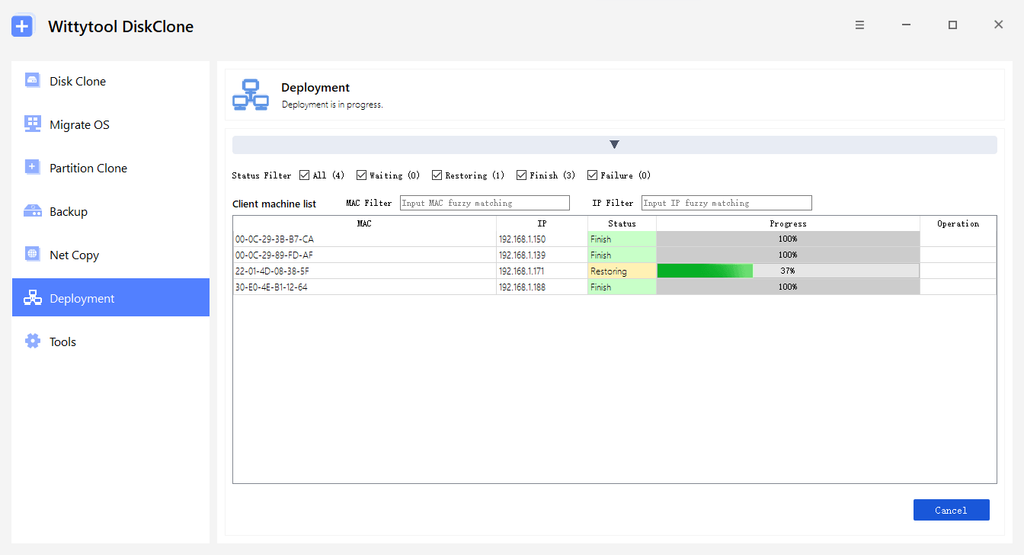
In automatic mode, the client follows the server’s configured target disk and deployment settings after connecting. In manual mode, you select and review the target disk on the client before starting the restore.
For your first pilot, manual selection gives you an opportunity to check the disk and resulting partition layout before writing. After verifying the image and target configuration, you can assess the automatic workflow for the remaining machines.
Snap Deploy offers task scheduling and multicast controls
Snap Deploy provides deployment templates and tasks for manual, scheduled, event-driven, and user-initiated deployments. Individual machine settings can override template settings, which is useful when a particular PC needs a different target disk or other machine-specific configuration.
It also supports multicast and unicast transfer. Multicast sends image data to a group of recipients, while unicast sends a copy to each recipient. Multicast requires suitable, correctly configured network equipment; the network configuration and storage performance still affect your rollout.
These controls are useful when you need recurring lab resets, a planned deployment window, or reusable settings for a known set of machines. Include the Windows 10/11 SID generation limitation in that plan when target identity changes are required.
Deploying to different hardware
Wittytool Disk Clone supports dissimilar hardware / universal restore, helping you plan deployments where target PCs differ from the source machine. Acronis Snap Deploy 6 offers Acronis Universal Deploy for dissimilar hardware deployment.
Treat this as a capability to evaluate against your actual fleet. A target still needs to boot successfully, recognize its storage and network hardware, and run the required applications. The presence of a universal restore feature does not establish compatibility with every combination of hardware and drivers.
Test a representative PC from each hardware family before expanding the rollout. Verify the boot environment can see the target disk and network adapter, then check Windows startup, required drivers, and application behavior after deployment.
When to choose Wittytool Disk Clone over Snap Deploy
Choose Wittytool Disk Clone when your priority is reproducing a configured Windows environment and changing target machine SIDs within the deployment workflow. Its combination of direct system backup, application and account preservation, graphical controls, and client monitoring is particularly relevant to these jobs:
Replicating an established office or lab setup. You already have the required Windows applications, local accounts, and settings on a source PC and want to carry that environment to multiple targets.
Handling target SIDs during Windows 10/11 deployment. You want to select the target SID change option when setting up the rollout and verify the new machine SIDs after deployment.
Moving from a manual pilot to an automatic rollout. You want to review a pilot client’s target disk before writing, then use the server’s automatic deployment settings and progress monitoring for the remaining PCs.
If your process specifically needs scheduled resets, multicast delivery, or individual machine settings that override a deployment template, Snap Deploy 6 offers documented controls for those tasks. Its compatible Acronis and VHD/VHDX image sources can also matter when retaining an existing image library is a requirement.
Try Wittytool Disk Clone on a pilot PC
If your main requirement is deploying an existing Windows environment while changing target machine SIDs, download Wittytool Disk Clone and evaluate that workflow on a pilot PC. This lets you check the source image, disk selection, target SID change, and application behavior together before repeating the deployment across your fleet.
- Prepare the source and protect the target. Confirm the source environment contains only the applications, accounts, and data intended for the deployed PCs. Back up any target data you need before proceeding.
- Create the system image. Open Backup > Add Backup, select Backup System and the relevant system partitions, choose an image location, and start the backup.
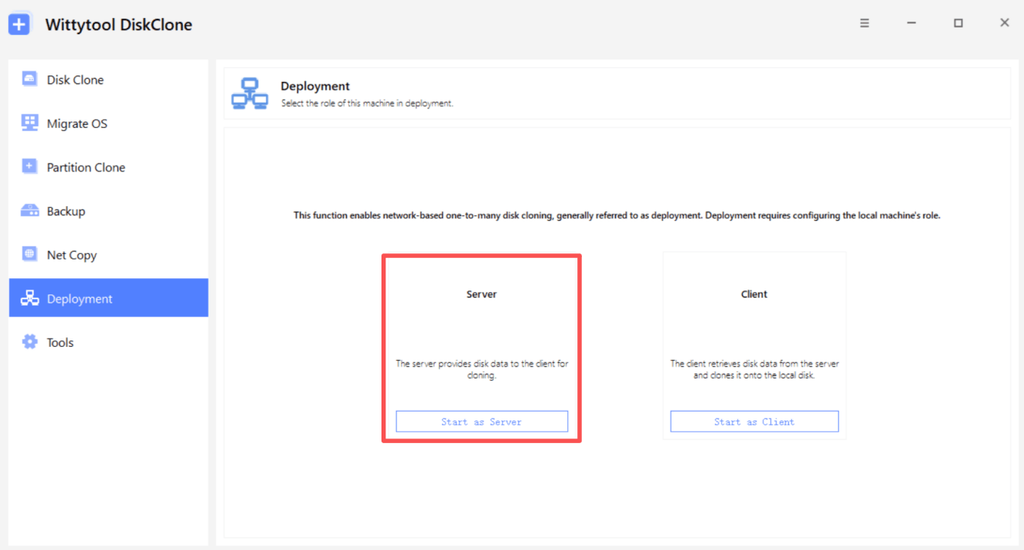
- Start the deployment server. Open Deployment > Start as Server, browse to the image, and use Restore OS to select the operating system partitions. The server is a software role; it does not mean the PC must run Windows Server.
- Set target identity and deployment behavior. Select Change Target Windows SID. in Target PC settings when new target SIDs are required. For a manual pilot, leave the server’s target disk number and automatic deployment option unset, then start the server.
- Connect the pilot client. Start Wittytool Disk Clone in the client’s WinPE environment. Open Deployment > Start as Client, enter the server IP and port, and select Connect. Choose the target disk and review its resulting layout before selecting Start.
- Verify the deployed PC. Monitor the task, boot the target into Windows, and check its machine SID, computer name, drivers, required applications, and network access before expanding the rollout.
You can use Microsoft PsGetSid to read a computer’s machine SID. Compare machine SIDs across the source and targets rather than checking only the signed-in user’s account SID. Keep domain enrollment and domain sign-in checks separate from the local SID check.
For the complete server/client procedure, follow the guide to deploying a Windows image to multiple computers.
Frequently asked questions
Can Wittytool Disk Clone change SIDs during image deployment?
Yes. Enable the target SID change option in Target PC settings to generate new local machine SIDs during deployment. The feature also changes local account SIDs derived from the machine SID; domain account SIDs are not changed.
Can Acronis Snap Deploy deploy Windows 11?
Yes. Acronis Snap Deploy 6 supports Windows 11 imaging and deployment. Its current documentation separately states that generating unique SIDs is not supported for Windows 10 and Windows 11.
Do both products support PXE boot?
Yes. Wittytool Disk Clone and Acronis Snap Deploy 6 both support PXE. Check the deployment boot environment and network configuration against your actual target hardware before a batch rollout.
Can Wittytool Disk Clone deploy an Acronis image?
Wittytool Disk Clone’s deployment feature supports disk or system image files generated by Wittytool Disk Clone. Create a compatible image with Wittytool Disk Clone before using its deployment workflow.
Will image deployment preserve files already on the target PC?
Do not expect target files to be preserved. Deployment writes the source image to the selected target disk and can delete existing partitions. Back up target data you need before starting or connecting an automatically configured client.
Is changing a computer name the same as changing its SID?
No. A computer name and a local machine SID are separate identifiers. Check both on the deployed PCs; a different computer name does not demonstrate that the machine SID changed.