


Quick Answer
Wittytool Disk Clone is the stronger fit if your priority is reusing a configured Windows environment without running Sysprep first and changing target Windows SIDs during deployment. You can capture the source system, retain its applications and accounts in the image, and configure target SID handling within the same product.
AOMEI Image Deploy is a practical choice if you already use AOMEI Backupper images and want deployment controls such as computer naming and IP preconfiguration.
Both products support batch deployment, PXE boot, central progress monitoring, and dissimilar hardware restoration. The useful comparison is how you prepare the image, configure the targets, and verify the deployed systems.
If you are planning your first rollout, this guide to deploying a Windows image to multiple computers explains the overall process.
Note
Before you deploy: Back up anything you need from each destination disk. Deploying the image replaces target disk contents. Preserving applications and accounts from the source image does not preserve files already on the target PCs.
AOMEI Image Deploy vs Wittytool Disk Clone: Quick Comparison
| Deployment consideration | AOMEI Image Deploy | Wittytool Disk Clone |
|---|---|---|
| Image source | System or disk backup created with AOMEI Backupper | System or disk image created with Wittytool Disk Clone |
| Backup and deployment workflow | Backupper creates the image; Image Deploy distributes it. Backupper Technician and Technician Plus integrate Image Deploy. | Backup and Deployment are available within Wittytool Disk Clone. |
| Windows SID handling | Documented preparation or reset work outside the image distribution steps | Optional target Windows SID change during deployment |
| PXE boot | Supported | Supported |
| Target configuration emphasis | Target disk, computer naming, and IP preconfiguration; IP settings depend on the edition | Target disk selection, automatic or manual deployment, and target SID option |
| Progress monitoring | Central deployment progress | Per-client MAC address, IP address, status, and progress percentage |
| Different hardware | Dissimilar hardware restore | Universal Restore |
| Existing target data | Overwritten during restoration | Target partitions are deleted and the image is written |
AOMEI Image Deploy vs Wittytool Disk Clone: Pros and Cons for Windows Batch Deployment
For Wittytool Disk Clone:
Key advantages
- ✅ No Sysprep preparation: Back up the configured Windows system directly.
- ✅ Target SID changes during deployment: Enable target Windows SID changes within the deployment settings.
- ✅ Preserve the source environment: Include applications, local accounts, settings, and Microsoft Store app content in the image.
- ✅ One product for the workflow: Create backups, deploy images, and configure target SID changes within Wittytool Disk Clone.
- ✅ Flexible batch control: Use manual deployment for a pilot, automatic deployment for a prepared batch, and per-client progress monitoring.
Practical limitations
- ⚠️ Requires its own images: Existing AOMEI Backupper images cannot be used directly. Create new backups with Wittytool Disk Clone.
For AOMEI Image Deploy:
Key advantages
- ✅ Fits an existing Backupper workflow: Deploy system or disk images already created with AOMEI Backupper.
- ✅ Computer naming and IP configuration: Configure computer names and use edition-dependent IP preconfiguration.
- ✅ Network deployment features: Supports PXE, central progress monitoring, and dissimilar hardware restoration.
- ✅ Backupper integration: Backupper Technician and Technician Plus integrate Image Deploy.
Practical limitations
- ⚠️ Requires Backupper images: Images created with other tools are not supported deployment inputs.
- ⚠️ SID work requires separate planning: Its documented workflow includes preparation before imaging or a separate reset afterward when target SID uniqueness is required.
Wittytool Disk Clone’s main advantage is the combined source-environment and target-SID workflow. If you already have the Windows setup you want to distribute, you can back it up without first running Sysprep and handle target SID changes during deployment. This makes it a strong choice for office refreshes, classroom images, and replacement-PC rollouts where retaining the configured environment is the priority. Both tools overwrite target data, so back up destination disks before either workflow.
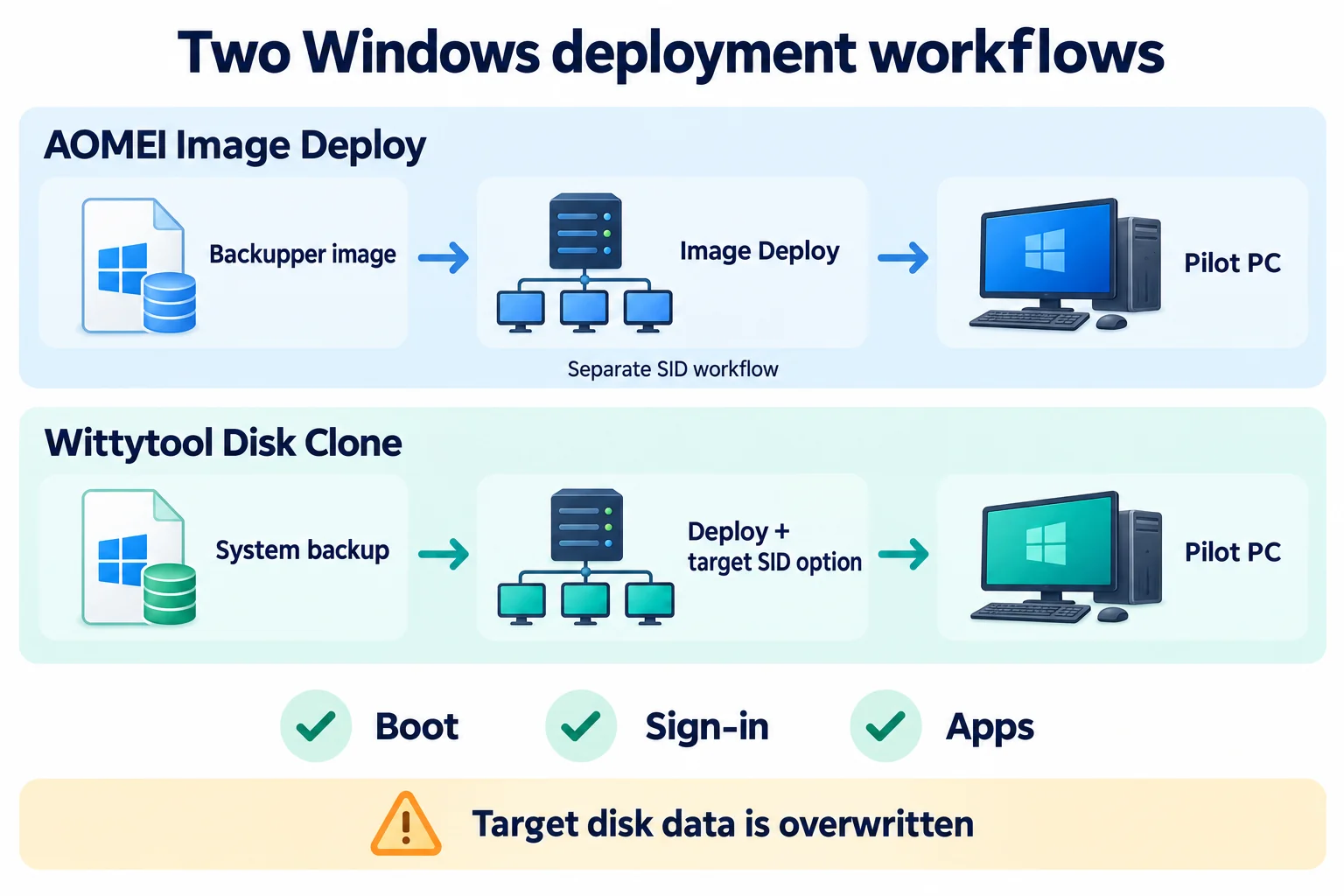
Image Preparation and Compatibility
Wittytool Disk Clone Creates Its Own Deployment Images
Wittytool Disk Clone’s Windows image deployment feature uses disk or system images generated by Wittytool Disk Clone. You can back up a configured source PC and use that image for a batch deployment.
The image can carry the source system’s applications, accounts, and settings. Select a source environment appropriate for all recipients: a production PC may contain personal files or configuration that should not be copied to every machine.
To evaluate this workflow with your existing Windows setup, download Wittytool Disk Clone and create a system backup for a pilot deployment. This lets you check the preserved environment and target SID option before preparing the rest of the PCs.
AOMEI Image Deploy Uses AOMEI Backupper Images
Its deployment input is an AOMEI Backupper backup, typically an .adi system or disk image. An existing Backupper image library therefore gives you a practical reason to stay with this workflow.
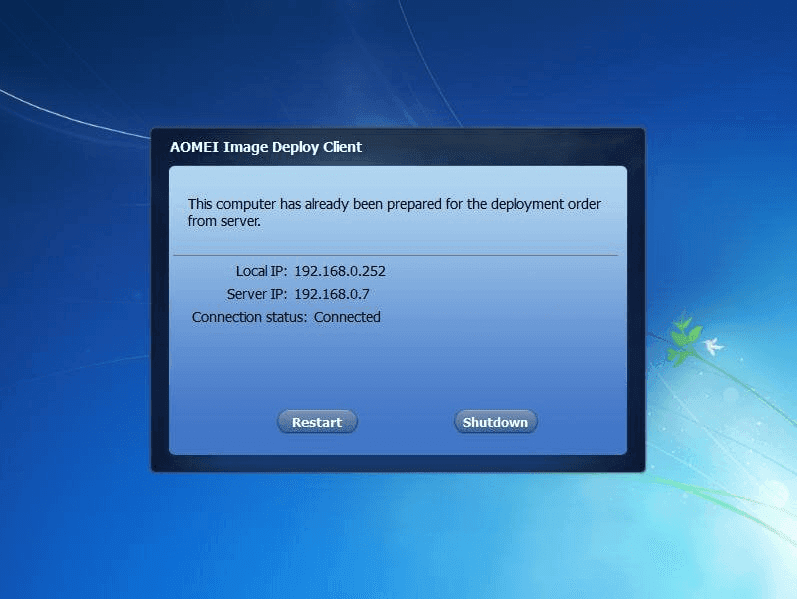
Backupper Technician and Technician Plus integrate Image Deploy, so you do not necessarily need two separately installed applications.
Switching Tools Means Planning a New Image
The documented deployment workflows use each vendor’s own backup images. An AOMEI Backupper .adi file is not a supported deployment input for Wittytool Disk Clone, and AOMEI Image Deploy does not list Wittytool Disk Clone images as supported inputs.
If you switch, create a new backup with the selected tool and test it. Renaming an image file does not convert its format.
SID Handling and the Existing Windows Environment
How the Documented SID Workflows Differ
AOMEI’s guidance treats SID preparation or resetting as work around deployment, including preparation before imaging or a separate reset afterward. Build that work into your rollout plan if it is required for your environment.
Wittytool Disk Clone supports backing up the current Windows system without running Sysprep first. When configuring deployment, you can enable Change Target Windows SID to change the SID on the deployed PCs.
This distinction matters if your source PC already has a working collection of applications and accounts that you want to include in the image. The deployment guide without Sysprep covers that workflow in more detail.
Use the Target SID Option for Target PCs
Wittytool Disk Clone also shows a Change Windows SID option when you select the image. Keep it distinct from Change Target Windows SID in the target settings. For changing deployed PCs’ SIDs, use the explicit target option.
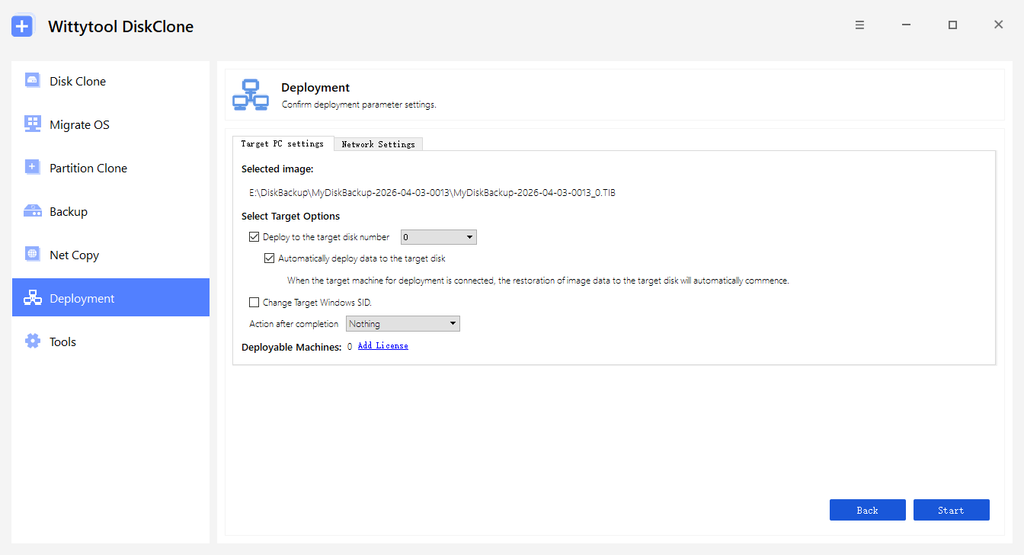
Changing the source PC’s SID once before imaging does not, by itself, give every copy a different SID. The target SID option is also separate from automatic deployment; selecting automatic mode does not mean SID modification is enabled.
The SID feature changes the local machine SID and the local account SIDs derived from it. It does not change domain-assigned account SIDs. A Windows SID change is therefore one part of deployment identity handling; you still need to check computer names, addresses, and domain access.
Microsoft documents authentication failures involving devices with duplicate SIDs on affected Windows versions and updates. Include shared-folder access and remote sign-in in your pilot checks. A completed image transfer alone does not establish that authentication works.
PXE Boot and Target PC Configuration
Both Products Support PXE
PXE starts a target PC from the network. It is distinct from selecting an image, choosing a destination disk, or changing a Windows SID.
Both products support PXE, so network boot alone is not a reason to choose one over the other. Test your actual firmware, network, and boot environment before scheduling a batch. Neither product’s use of a deployment “server” automatically means you need the Windows Server operating system; a compatible PC can provide that software role.
Compare the Settings You Will Use
AOMEI documents computer-name configuration and IP preconfiguration, with IP settings tied to its Technician edition. These controls are useful when target naming and addressing are part of the imaging task.
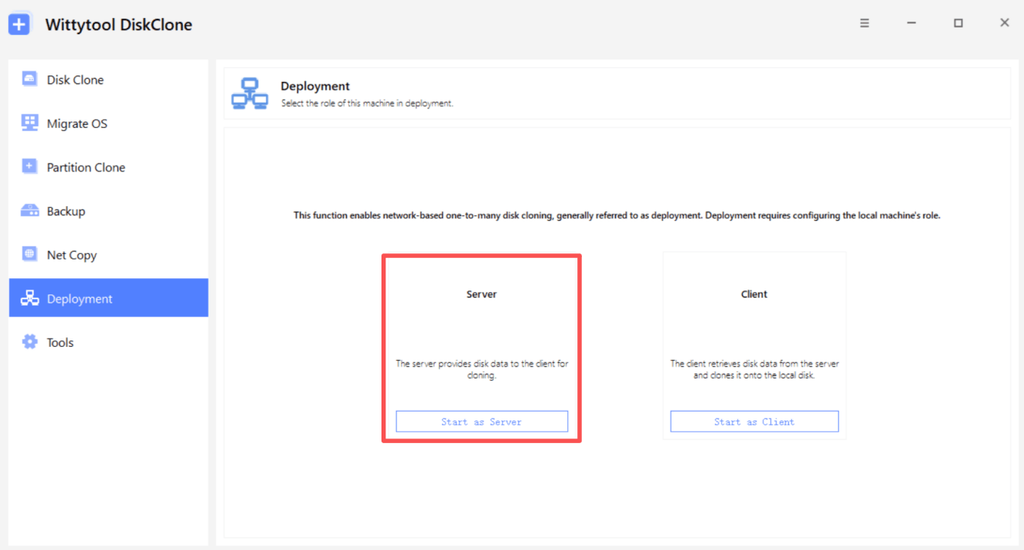
Wittytool Disk Clone provides automatic and manual deployment modes. In automatic mode, the server specifies the target disk and deployment behavior. In manual mode, the client connects to the server, selects its destination disk, and starts the restore.
Manual mode is useful for a pilot or a set of machines whose disk layouts need individual inspection. Automatic mode is useful after you have checked the destinations and established consistent settings.
Check before connecting clients in automatic mode: Wittytool Disk Clone may start writing the image as soon as a client connects. Confirm the destination disk number on every hardware group and back up required files first. Do not assume disk 0 represents the same physical drive on every PC.
Different Hardware and Deployment Verification
Separate Boot-Environment Drivers from Windows Drivers
Both products offer dissimilar hardware restoration. That capability does not guarantee that every storage controller, network adapter, or PC model will work with the same image.
Check two stages. First, the deployment environment must see the network and destination disk. Second, the restored Windows installation must boot and operate correctly on the target hardware.
Microsoft’s WinPE customization documentation explains that network and storage drivers can be added to a WinPE image. A network adapter that works in the source PC’s Windows installation may still need a driver in the deployment boot environment.
Verify a Pilot from Each Hardware Group
Before expanding the rollout, confirm that each representative target:
- Boots from its restored disk with the intended firmware settings.
- Has working storage and network devices.
- Allows the required local or domain sign-in.
- Opens the applications your users need.
- Can access required shares and remote services.
- Has the intended computer name, IP configuration, and SID settings.
Preserving an application in an image does not guarantee its activation, cloud session, or device-specific credentials will remain valid. Check these separately.
Use central progress monitoring to identify completed and failed transfers, then verify the restored systems. A progress display at 100% is not a substitute for boot and application testing. To compare performance, use the same image contents, network, storage, and batch size in your own pilot.
Which Tool Should You Choose?
Choose Wittytool Disk Clone for Direct Backup and Target SID Handling
Choose Wittytool Disk Clone when retaining your configured Windows environment and handling target SIDs in the deployment workflow are your main requirements. Its direct-backup approach lets you start from a working system without running Sysprep first, while the target SID option brings that identity task into deployment settings.
For a classroom, office refresh, or replacement-PC rollout, start with a representative target. Verify the restored environment, then expand using the automatic or manual mode appropriate for your disk layouts.
Choose AOMEI Image Deploy for an Existing Backupper Workflow
It is a practical fit when your image library already uses Backupper, your team knows the workflow, and its naming or IP controls match your deployment process. An established, verified workflow can matter more than adding another tool.
Base the choice on your image library, identity workflow, and tested target hardware. Those factors tell you more than a generic feature count.
Frequently Asked Questions
Does AOMEI Image Deploy Need AOMEI Backupper?
Yes. Its documented deployment workflow uses system or disk images created by AOMEI Backupper. Backupper Technician and Technician Plus integrate Image Deploy, so backup and deployment do not always require separate installations.
Can Wittytool Disk Clone Deploy an AOMEI Backupper Image?
No. Wittytool Disk Clone’s documented deployment input is a disk or system image generated by Wittytool Disk Clone. Create a new image with Wittytool Disk Clone rather than trying to use an AOMEI Backupper .adi file.
Do Both Tools Support PXE Boot?
Yes. AOMEI Image Deploy and Wittytool Disk Clone both support PXE. Verify the selected tool’s boot environment with your target firmware and network before deploying a batch.
Can Wittytool Disk Clone Deploy Windows Without Running Sysprep First?
Yes. You can back up the current Windows environment and deploy that image without running Sysprep first. Enable Change Target Windows SID in the target settings when you want SID modification during deployment, then verify the restored PCs.
Will Deployment Preserve Files Already on the Target PCs?
No. Deployment overwrites the destination disk contents. Applications and accounts preserved from the source image do not include existing target-disk files. Back up required target data and verify the destination disk before starting.