


Acronis Snap Deploy 6 supports Windows 11 image deployment, but its built-in unique SID generation has a separate limitation. In the official documentation checked on October 10, 2026, generating unique SIDs is not supported for machines running Windows 10 or Windows 11.
If you need each deployed PC to have a different local machine SID, verify the actual values on your targets. A completed deployment task does not establish that their SIDs changed.
Wittytool Disk Clone provides an alternative for that requirement. Its Windows SID change feature works on an existing Windows installation and can also change target SIDs during image deployment, while retaining the configured applications and local accounts. The appropriate path depends on whether your PCs are already deployed or you are preparing a new batch.

Does Acronis Snap Deploy 6 Generate Unique SIDs on Windows 11?
Windows 11 deployment support and SID generation are separate
Snap Deploy 6 supports creating and deploying Windows 11 master images. Its SID documentation separately excludes Windows 10 and Windows 11 from built-in unique SID generation support.
| Capability | Documented Windows 11 support |
|---|---|
| Creating and deploying master images | Supported |
| Generating unique target SIDs with the built-in option | Not supported |
This distinction matters when you reproduce one configured installation across several PCs. The ability to write its image to each target does not establish that every target receives a different machine SID.
A selected SID option does not verify the result
Treat the deployment template’s SID setting as a configuration choice, then check the resulting Windows installations. Neither a selected option nor a successful image transfer substitutes for reading the target machine SIDs.
Keep the results with your deployment records so you can distinguish image delivery from identity verification before extending the rollout.
What the SID Limitation Means for Your Windows 11 Rollout
Duplicate SIDs can affect authentication on applicable Windows builds
Microsoft documents authentication failures associated with duplicate SIDs on Windows 11 24H2, Windows 11 25H2, and Windows Server 2025 after applicable updates released from August 29, 2025 onward. Symptoms can include repeated credential prompts, inaccessible shared folders, and failed Remote Desktop connections. LSA Event ID 6167 can be relevant to the investigation.
A failed connection alone does not prove that two computers share a machine SID. Check the affected endpoints, Windows versions, actual SIDs, and authentication logs. If the SIDs differ, continue investigating the connection rather than changing identities solely because a password prompt appeared.
The release notes also flag a Windows Store application issue
Snap Deploy 6’s release notes list a known issue in which Windows Store applications cannot be updated or reinstalled after deployment when the template’s unique SID option is selected.
That entry does not identify every affected Windows version or application combination. It should not be interpreted as a claim that every Windows 11 deployment breaks Store apps. Include application updates and reinstallation in your pilot checks, and keep this documented issue separate from the SID generation support limit.
Verify Machine SIDs Before Choosing an Alternative
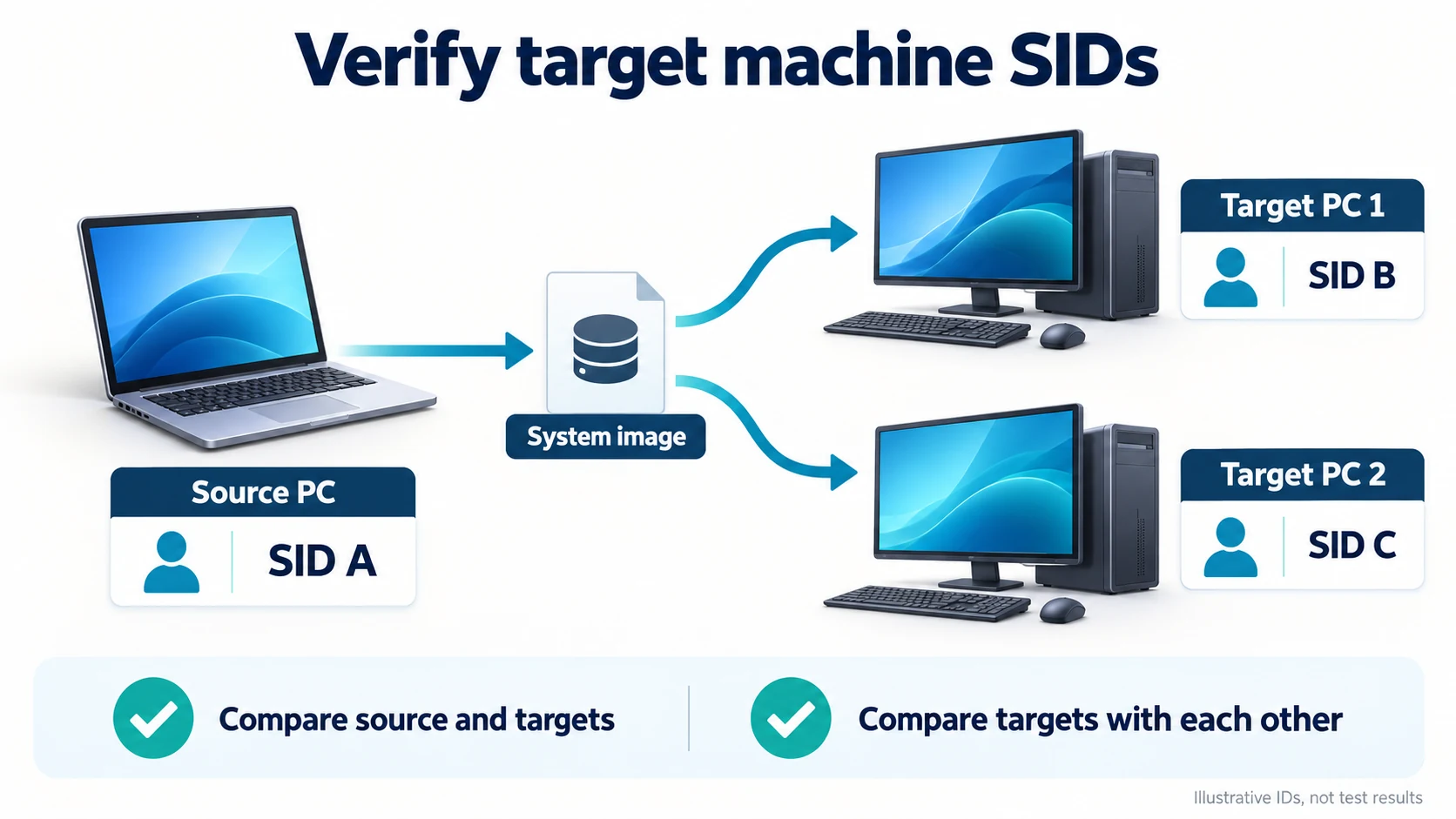
Compare the source and at least two pilot targets
Use Microsoft PsGetSid to read the machine SID. Download the PsTools package from that page, extract it, and open PowerShell in the folder containing the executable. Run the following locally on the source computer and each pilot target:
hostname
.\PsGetSid.exe
With no computer or account argument, PsGetSid queries the local computer. Record the complete returned SID alongside the computer name, an asset label, Windows version, and collection time. An asset label helps distinguish separate PCs if their cloned installations still have the same name.
Compare the source with each target, then compare the targets with each other. Two distinct, currently checked installations returning the same machine SID form a duplicate pair. A different value on one target does not establish that all remaining targets are different.
Start with two pilot targets so you can check both relationships before increasing the batch. Continue checking the actual rollout targets; the pilot is not a fleet-wide identity audit. If a query fails or returns no machine SID, keep that PC marked as unchecked.
The guide to checking duplicate machine SIDs across Windows PCs covers larger inventories and incomplete queries.
Keep machine, account, and domain identities separate
Do not add an account name to the PsGetSid command when you want the machine SID. An account argument changes the query to that account’s SID.
A local machine SID, a domain user SID, and an Active Directory computer account SID identify different objects. Likewise, a new computer name does not prove that the machine SID changed. Keep local SID checks separate from domain enrollment and sign-in checks.
Wittytool Disk Clone as a Windows 11 SID Alternative
Wittytool Disk Clone gives you two relevant workflows: change the SID on an already deployed Windows installation, or change target SIDs while deploying a new image. Its graphical workflow retains applications, local accounts, settings, and data, including Microsoft Store apps in the configured environment.
The SID change updates the local machine SID and the local account SIDs derived from it. It does not change domain account SIDs. Replacement SIDs are generated by the program; you cannot manually specify a particular value.
To evaluate a SID change while keeping your existing Windows setup, download Wittytool Disk Clone and start with a backed-up pilot PC. Check the new machine SID and the applications and access you depend on before applying the workflow to additional computers.
Change the SID on an already deployed Windows installation
If the target is already running Windows, you can use the standalone SID change function. You do not need to repeat the original image deployment simply to use this local function, including when another tool created the clone.
Before starting, make a recoverable system backup, protect important files, and record the current SID. Arrange working local sign-in access and a maintenance window for the restart. For a domain-joined PC, Wittytool’s technical guidance recommends leaving the domain, changing the SID, and then rejoining with access to the domain controller. Plan those actions with your administrator.
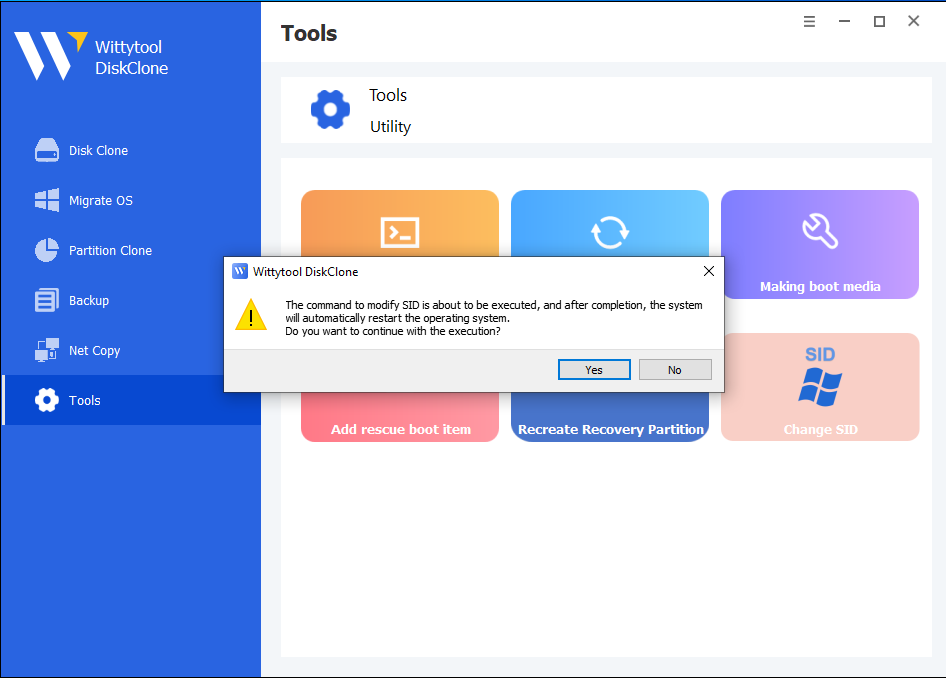
Step 1: Open the Change SID tool
Launch Wittytool Disk Clone, go to Tools, and select Change SID.
Step 2: Confirm your settings
Check the selected options, then click Start to begin changing the SID.
Choose whether to retain your current computer name or have the program generate a random one. If both computers will be connected to the same network, make sure they use different names.
Step 3: Allow the program to prepare your applications
Wittytool Disk Clone will uninstall applications that may encounter permission conflicts. Before removing them, it automatically backs up the applications and their associated data for restoration later.
Step 4: Wait for the automatic restart
Your computer will restart automatically to apply the new SID.
Step 5: Sign in and let restoration finish
After you log back in, Wittytool Disk Clone will automatically reinstall the removed applications and restore their data. The SID change is complete once this restoration finishes.
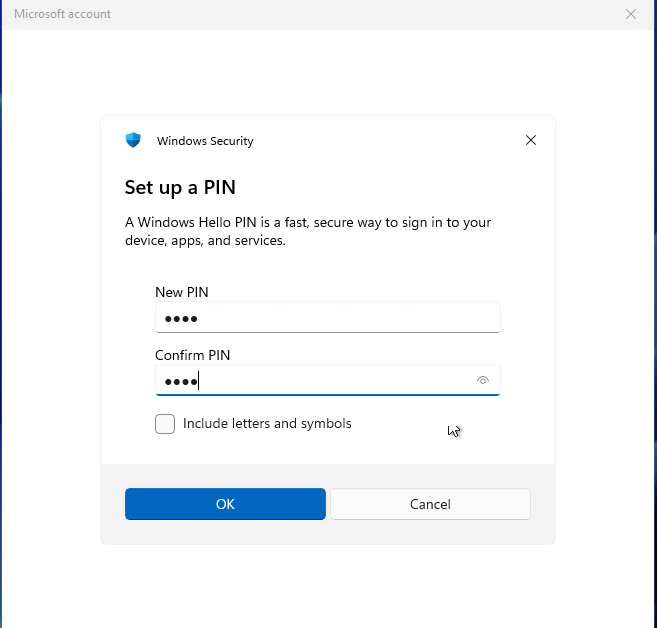
What to expect when you sign back in
- Local accounts: The SID change preserves your existing local accounts and their settings, but generates new SIDs for those accounts.
- Microsoft account users: You will need to reset your PIN the first time you sign in after the restart.
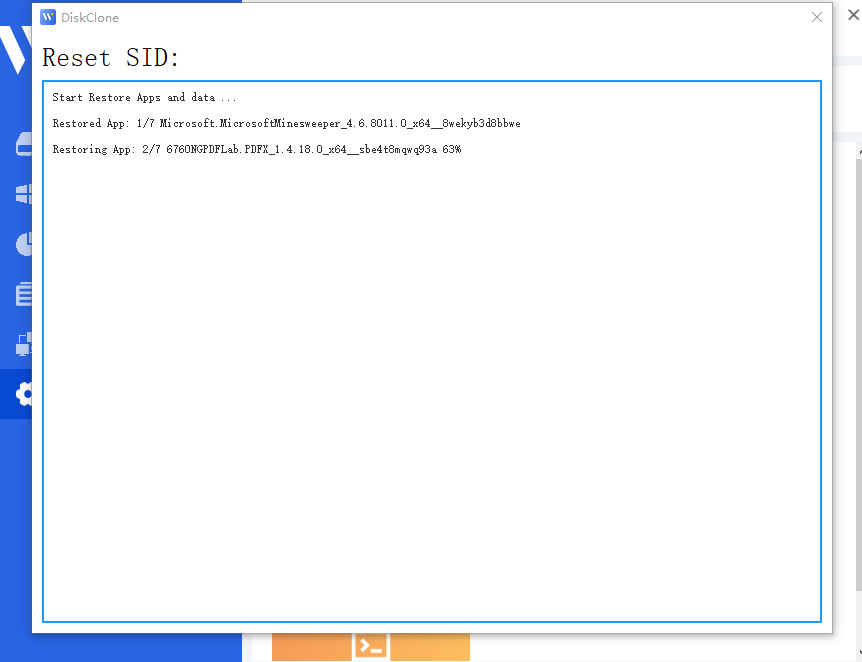
Video Walkthrough of SID changing via Wittytool Disk Clone
This path operates on the installed Windows system. It does not require Wittytool Disk Clone to open the Acronis backup archive that originally supplied the image.
Change target SIDs during a new batch deployment
For future rollouts, Wittytool Disk Clone’s Windows image deployment feature lets you back up the configured source system without first running Sysprep, then change target SIDs during deployment. Applications, local accounts, settings, and other content included in the source image can be carried to the targets.
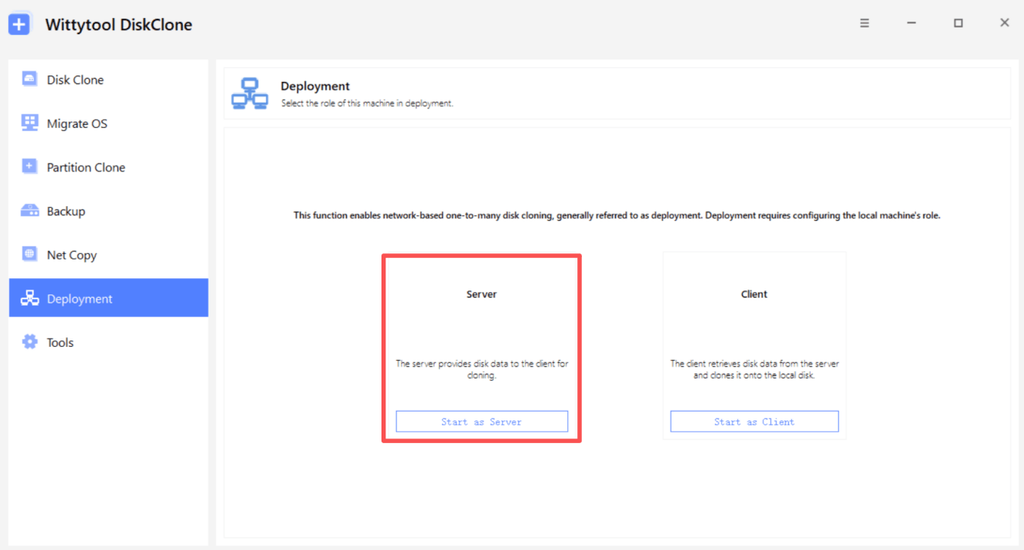
Back up the target disks before connecting clients. Deployment deletes partitions on the selected target disk and writes the image to it. In automatic mode, writing can begin when the client connects. Retaining the source environment does not preserve files already on the destination disk.
Use a disk or system image created by Wittytool Disk Clone for this workflow. Its deployment feature supports its own generated images, so create a compatible source image rather than selecting an Acronis TIB or TIBX archive.
Use the target-specific SID setting for target identity changes. Changing the source system’s SID once before capture does not establish that every copy receives a different SID.
For the full server and client procedure, follow the guide to deploying a Windows image to multiple computers.
Validate the applications and access you need to retain
After either workflow, read the machine SID again and retest the functions the PC must provide:
- Windows startup and the required storage and network drivers.
- Local account sign-in and access to the expected files.
- Microsoft Store application launch, updates, and reinstallation where required.
- Business application activation and any necessary cloud sign-ins.
- The shared folders, Remote Desktop connections, and managed access used in your environment.
Application preservation does not guarantee that every third-party activation or sign-in remains valid. Different local SIDs also do not establish that domain trust or every network problem has been resolved. Record the identity check and functional checks separately before accepting each target.
Frequently Asked Questions
Can Snap Deploy 6 deploy Windows 11 even with the SID limitation?
Yes. Acronis Snap Deploy 6 supports Windows 11 image creation and deployment. Its current documentation separately states that built-in unique SID generation is not supported for Windows 10 and Windows 11.
Why can Windows 11 targets still have matching SIDs after deployment?
Copies of the same installation can retain its machine SID if the deployment workflow does not change it. Snap Deploy 6’s documented Windows 10/11 SID generation limit means you should verify the actual target values rather than rely on the template setting or deployment completion status.
Can Wittytool Disk Clone change a SID after deployment with another tool?
Yes. You can use Wittytool Disk Clone’s standalone SID change function on the existing Windows installation, including a clone created with another tool. Back up the target, record its original SID, complete the change and restart, then verify the new SID and required applications.
Does changing the computer name also change the machine SID?
No. The computer name and local machine SID are separate identifiers. Wittytool Disk Clone lets you retain the current name or generate a new one during its SID change workflow, but you should verify names and SIDs separately.