


Understanding the various methods to transfer OS to another hard drive is crucial for effective system management. Cloning creates an exact replica of your drive, preserving all data and settings. Migrating, however, involves transferring essential files and applications to a new system. Each method offers unique benefits and challenges.
Recognizing the difference between disk clone and OS migration helps in choosing the right approach for your needs. Whether upgrading hardware or ensuring data safety, selecting the appropriate method impacts performance and reliability. Explore these key differences to make informed decisions and optimize your OS transfer process.
Definitions and Explanations of Clone and Migration
What is Disk Clone?
Disk clone involves creating an exact replica of a hard drive. This process copies every bit of data from the source disk to a target disk. The primary purpose of disk clone is to preserve all system files, applications, and settings. Users often choose cloning for complete system backups or hardware upgrades like cloning ssd to a larger ssd. Cloning ensures that the new drive functions identically to the original.
Users frequently employ disk cloning in several scenarios:
- System Upgrades: Cloning facilitates seamless transitions to larger or faster drives.
- Data Backup: Cloning provides a reliable method for creating full-system backups.
- Disaster Recovery: Cloning allows quick restoration of systems after failures.
What is OS Migration?
OS migration involves transferring essential files and applications to a new system. Unlike cloning, migration does not create an exact copy of the original drive. Migration focuses on moving user data and applications while leaving behind unnecessary files. This method suits users who wish to start fresh on a new system.
OS migration proves beneficial in various situations:
- New System Setup: Migration helps set up new systems without duplicating old clutter.
- Data Transfer: Migration efficiently moves user data between different operating systems.
- Registry Optimization: Migration reduces registry bloat by omitting outdated programs.
How to perform a Disk Clone and OS Migration freely
Is there a tool that allows users to perform system cloning and migration? As a free disk cloning and migration software, Wittytool Disk Clone is the solution you’re looking for.
It offers a user-friendly interface and powerful features. It ensures fast and secure cloning and migrating for Windows users. For example, perform a network clone disk. Meanwhile, it is the world’s first software to support recreating recovery partitions if your recovery partition was missing!
Download the software and follow this guide to easily complete these complex tasks step by step.
How to Clone an OS via this disk cloning software?
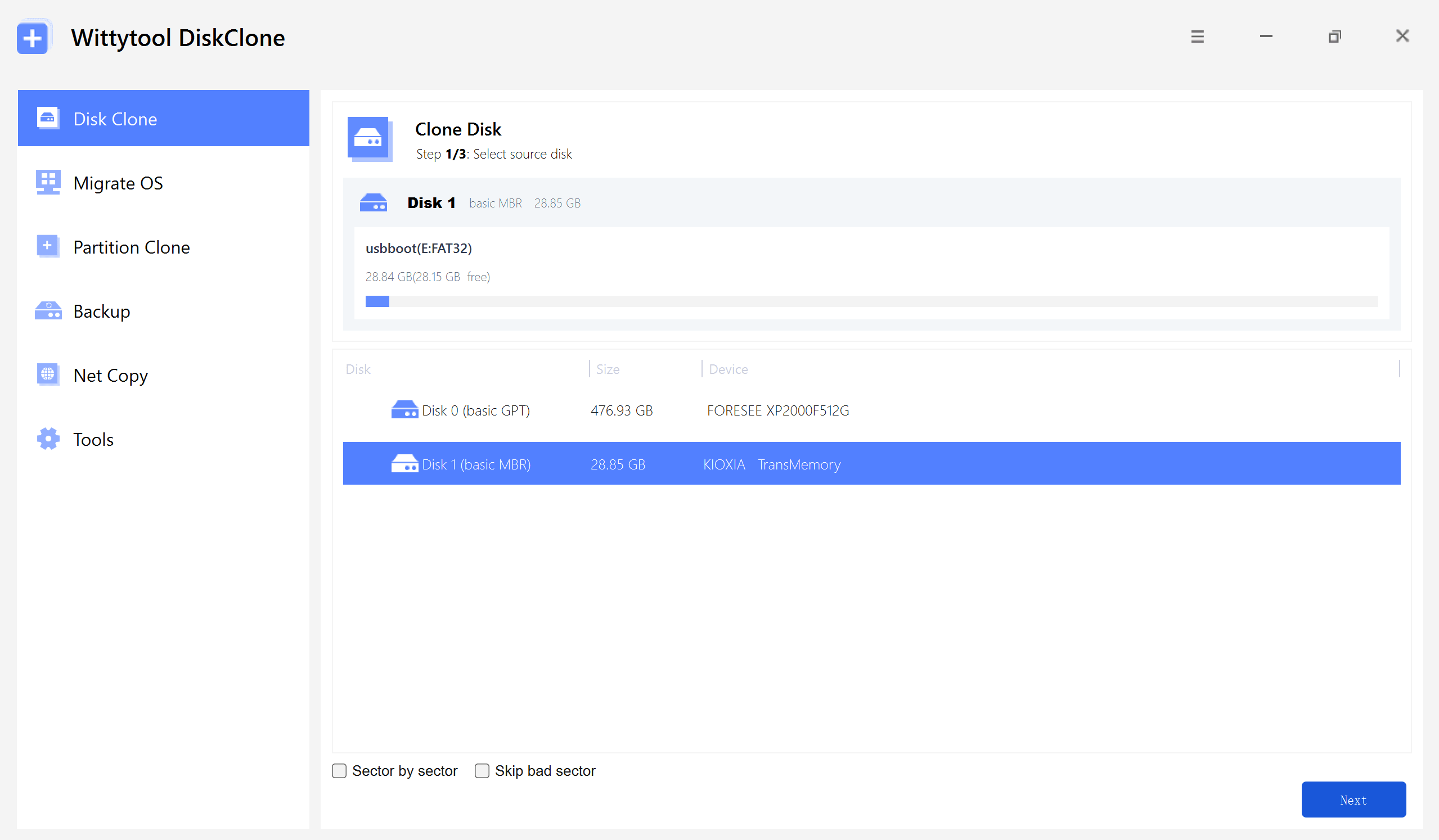
Step 1: Begin by selecting Disk Clone from the main menu, or choose Partition Clone for a nearly identical process. Once you have identified your source disk, click Next to move forward.
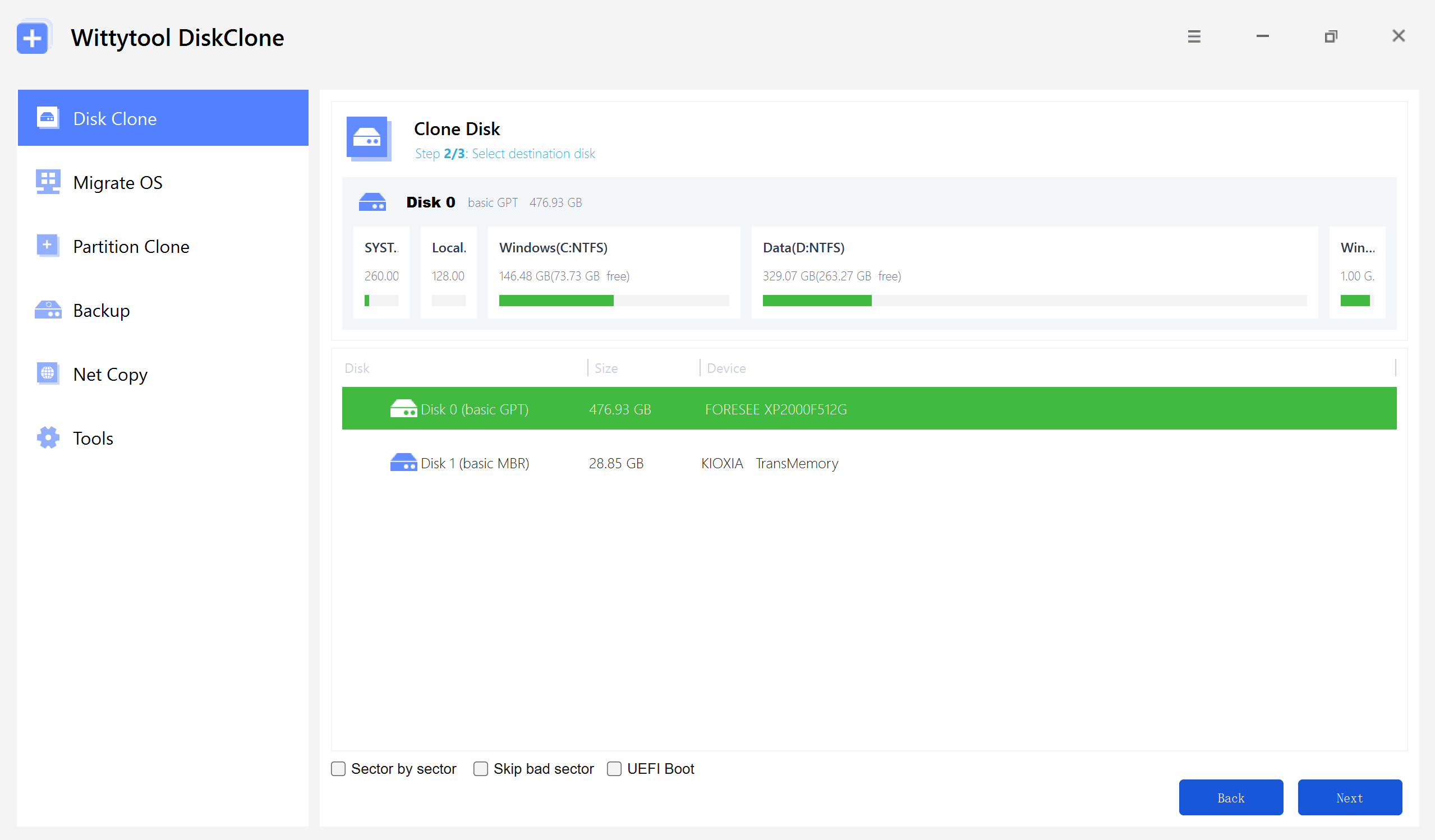
Step 2: Pick your destination disk and click Next to reach the configuration screen. From here, you can toggle sector-level cloning, opt to skip bad sectors, or enable the UEFI BOOT feature to ensure the drive is fully optimized for the UEFI standards of modern motherboards.
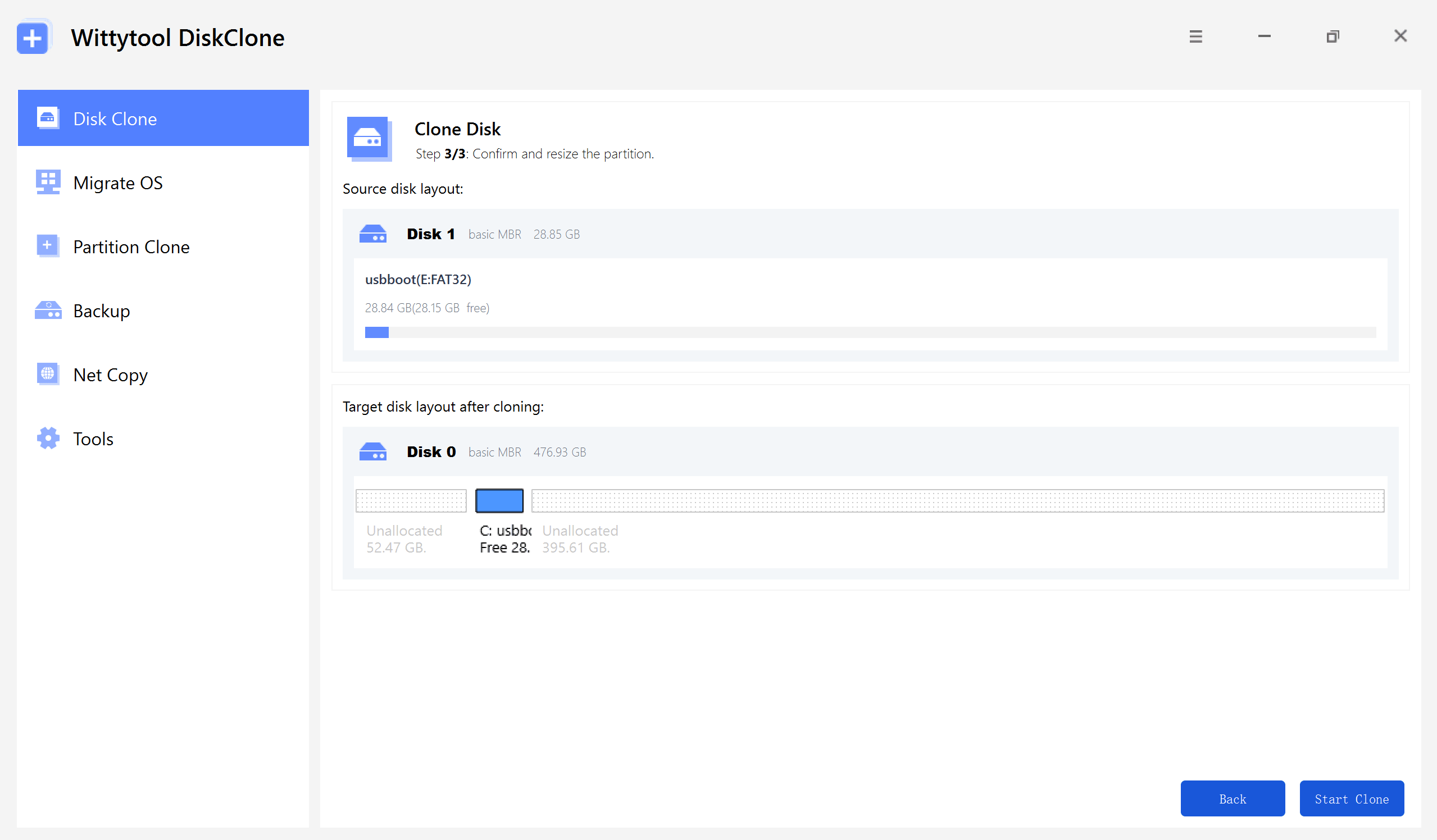
Step 3: Take a moment to resize the partitions on the target disk layout to suit your storage needs. When everything looks correct, click the “Start Clone” button to initiate the data transfer.
How to Migrate an OS via this OS Migration Software?
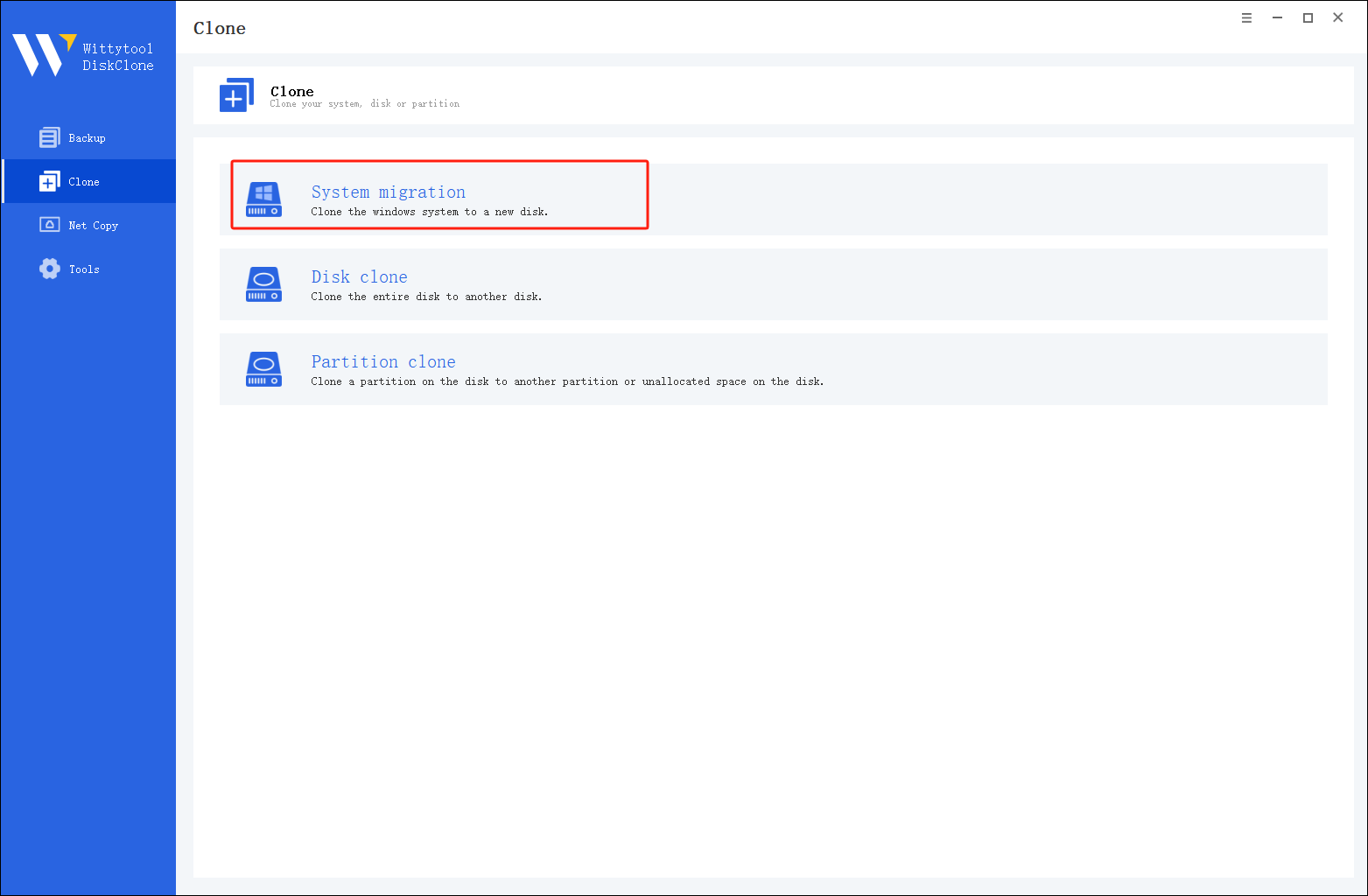
Step 1: Select Migrate OS in left pannel, then choose the destination disk from the list.
*Change Windows SID: When cloning multiple machines on the same network, select “Change Windows SID” to prevent SID duplicated issues related to network access. This direct approach allows you to change windows sid without sysprep, making large-scale cloning operations much quicker and more efficient.
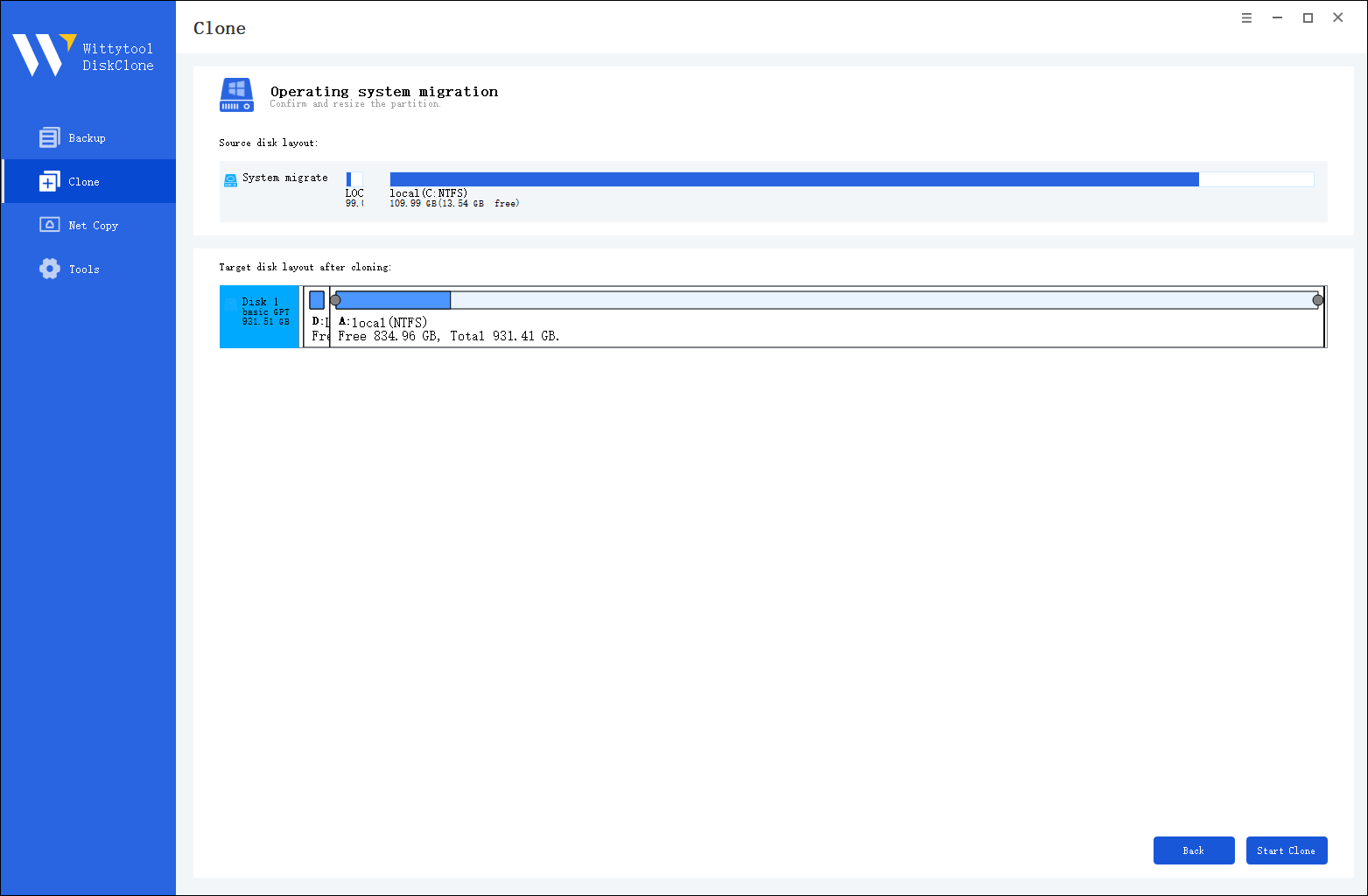
Step 2: Confirm Partition Size. Review and resize the partitions on the target disk as needed. Once ready, click the “Start Clone” button to begin the cloning process.
Once the cloning process is complete, you must tell your computer to load Windows from the new drive:
Step 3. Restart your PC and immediately press the BIOS key (usually F2, F12, or Del) repeatedly as the computer starts up.
Step 4. Navigate to the Boot menu or Boot Priority settings. Move your new disk to the top of the list to make it the primary boot device.
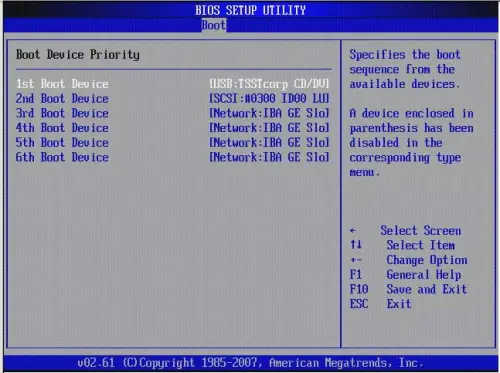
Step 5. Save your changes (often by pressing F10), exit the BIOS, and allow the PC to restart.
Watch this video guide to learn how to clone your system with Wittytool Disk Clone:
Pros and Cons Between Clone and System Migration
Advantages of Disk Clone
Disk clone is fast and efficient, allowing you to quickly create an exact replica of your drive. It’s ideal for upgrades, minimizing downtime by enabling immediate replacement of failed drives. Cloning ensures data integrity, preserving system files, applications, and settings, making it a reliable safeguard against data loss.
Also read: How to Clone Your Disk and Change Windows SID
Disadvantages of Disk Clone
Disk clone requires substantial storage, as the target disk must be equal to or larger than the source. This can be challenging for users with limited space, necessitating careful planning. Compatibility issues may also arise due to differing hardware configurations, so it’s important to verify that the new drive supports the cloned data to avoid potential problems.
Advantages of OS Migration
OS migration offers flexibility by allowing users to transfer only essential files and applications, leaving behind unnecessary data. It’s ideal for those wanting a fresh start. With extensive customization options, users can optimize the system registry, reduce bloat, and enhance performance. Migration also enables smooth transfers between different operating systems, resulting in tailored system setups.
Disadvantages of OS Migration
OS migration is a complex process requiring careful attention to detail at each step, especially when transferring files between different operating systems. Compatibility challenges often arise, making it difficult for users without technical expertise.
There is also a risk of errors during migration, which can result in incomplete transfers or data loss. The chance of mistakes increases with large data volumes, so post-migration checks are essential to ensure everything functions correctly. Errors can disrupt workflows, but proper planning and execution can minimize these risks.
Choosing Between Disk Clone and OS Migration
When to Choose Clone
Cloning suits scenarios requiring exact replicas. Users upgrading to larger drives benefit from cloning’s speed and efficiency. Cloning ensures complete data integrity, preserving system files and settings. This method proves ideal for disaster recovery and full-system backups.
When to Choose Migration
Migration fits situations where customization is key. Users setting up new systems without old clutter find migration beneficial. Migration allows selective transfer of essential files and applications. This method enhances performance by reducing registry bloat. Users seeking a fresh start often prefer migration.
Case Studies:
- Accenture Cloud Migration Journey: Successful migration requires careful planning. Accenture completed migrations on time and budget by addressing complexities.
- Thomson Reuters Migration Challenges: Collaboration is vital. Thomson Reuters realized the need for business and application teams to take ownership.
- Cloud Migration Strategies: Spotify and Betabrand highlight the importance of preparation. Advance planning led to successful cloud migrations.
Choosing between clone and migration depends on specific needs. Consider hardware compatibility and time constraints. Evaluate scenarios to select the most suitable method.
Conclusion
Understanding the key differences between disk clone and os migrating OS helps you make informed decisions. Cloning creates an exact replica of your system, while migration transfers essential files to a new environment. Your choice depends on your specific needs. Consider factors like hardware compatibility and time constraints. Evaluate practical steps for each method. Ensure data backup and post-implementation checks for success. Choose the right approach to optimize your system’s performance and reliability.
FAQ
What is a benefit of cloning a hard drive versus installing from installation media?
The primary benefit is immense time savings and convenience. Cloning transfers your entire existing system—including the operating system, all your installed applications, personal files, settings, and preferences—in one operation. After cloning, your new drive will be an exact replica of the old one, and you can resume work immediately. In contrast, installing from media requires a fresh OS installation, followed by reinstalling every single application, reconfiguring all your settings, and restoring your personal files from a backup, which can take hours or even days.
Is it better to clone to move your OS, or do a fresh install?
This depends on your goal:
- Choose Cloning if your priority is speed, convenience, and preserving your current workflow. It’s the best choice for directly upgrading your hard drive or quickly replacing a failing drive without any disruption.
- Choose a Fresh Install if your priority is system cleanliness and performance. A fresh install eliminates system clutter, residual files from old programs, and potential software conflicts that may have accumulated over time. It results in a clean, fast, and stable system, but requires significant time and effort to set up again.
In short: Clone for efficiency, Fresh Install for a pristine system.
DiskGenius system migration vs clone disk?
In DiskGenius, these two functions serve different purposes, aligning with the general definitions provided earlier:
“System Migration” (or “Migrate OS”) function is more intelligent and selective. It is designed specifically to move only the system-related partitions (OS, boot files, and installed applications) to a new drive, typically an SSD. Its key advantage is that it allows you to migrate your system to a smaller drive (as long as it has enough space for the system data), which the “Clone Disk” function cannot do if the source drive’s used capacity exceeds the target drive’s size.
“Clone Disk” function creates a sector-by-sector identical copy of the entire source disk to the target disk. This includes all partitions, data, and unused space. It is ideal for creating a full backup or replacing a drive with one of equal or larger capacity. It’s worth noting that while DiskGenius is a powerful option, users often explore a capable diskgenius free alternative for these tasks to meet different needs or budget constraints.