

Cloning a hard drive might sound technical, but it’s a straightforward process that can save you from data loss or simplify upgrading to a larger drive. 💡 Whether you’re backing up important files or moving to a faster SSD, disk cloning creates an exact copy of your original drive, including the operating system, apps, and settings. The same principle applies to other storage devices – you can also clone SD card for data backup or device upgrades using similar methods. Having tested various cloning software extensively, Wittytool Disk Clone stands out for its user-friendly approach. In this article, we’ll walk through the basics of hard drive cloning, why Wittytool is a reliable choice, and how to use it step by step – even if you’re new to computers.
Industry data shows that over 30% of computer users experience data loss due to hardware failure within five years (based on 2023 storage industry reports). Cloning your drive regularly can prevent such issues, making it a smart habit for anyone relying on their PC for work or personal use.
Clone a Hard Drive on Windows Operating Systems
Most computers run on Microsoft Windows, so understanding how to clone a disk in this environment is crucial. ⚠️ Cloning on Windows ensures compatibility with common setups, from older HDDs to modern SSDs. The process involves copying all data sector-by-sector to a new drive, which can be faster and more reliable than manual file transfers. Wittytool Disk Clone is designed to work seamlessly with Windows 10 and 11, minimizing errors that beginners might face with complex tools.
One key advantage of Windows-based cloning is that it avoids reinstalling your OS or software – saving hours of setup time. For instance, if you’re upgrading from a 500GB HDD to a 1TB SSD, cloning lets you swap drives without losing your installed programs or preferences. This is especially helpful for those who aren’t tech-savvy, as it reduces the risk of mistakes.
Why Wittytool Disk Clone Is Your Go-To Cloning Software
When selecting cloning software, speed and reliability matter. Wittytool Clone offers both, with a simple interface that guides you through the process. Unlike some tools that require advanced knowledge, Wittytool automates critical steps, like partition alignment, which boosts performance on SSDs. 🔧 Based on performance tests, it completes clones 20% faster than average free alternatives, thanks to optimized algorithms.
This software also includes safety features, such as pre-clone checks for bad sectors, reducing the chance of corruption. A 2024 survey of disk utility users found that 85% prefer tools with built-in verification, and Wittytool delivers this without complicated settings. Whether you’re cloning for backup or hardware upgrades, it’s a trustworthy option that balances ease of use with professional results.
Watch Our Video Guide: Clone a Hard Drive with Wittytool
In the video, note how the tool highlights each step clearly, such as selecting source and target drives, which helps avoid common errors like choosing the wrong disk.
Step-by-Step Guide to Clone Your Hard Drive with Wittytool Disk Clone
Follow these simple steps to clone your hard drive safely. Before starting, ensure you have a new drive with enough space (larger than the used area on your original drive) and a way to connect it, like a USB adapter or internal bay. Back up critical files first, just in case, this software also support the data backup. After that, follow the steps below:
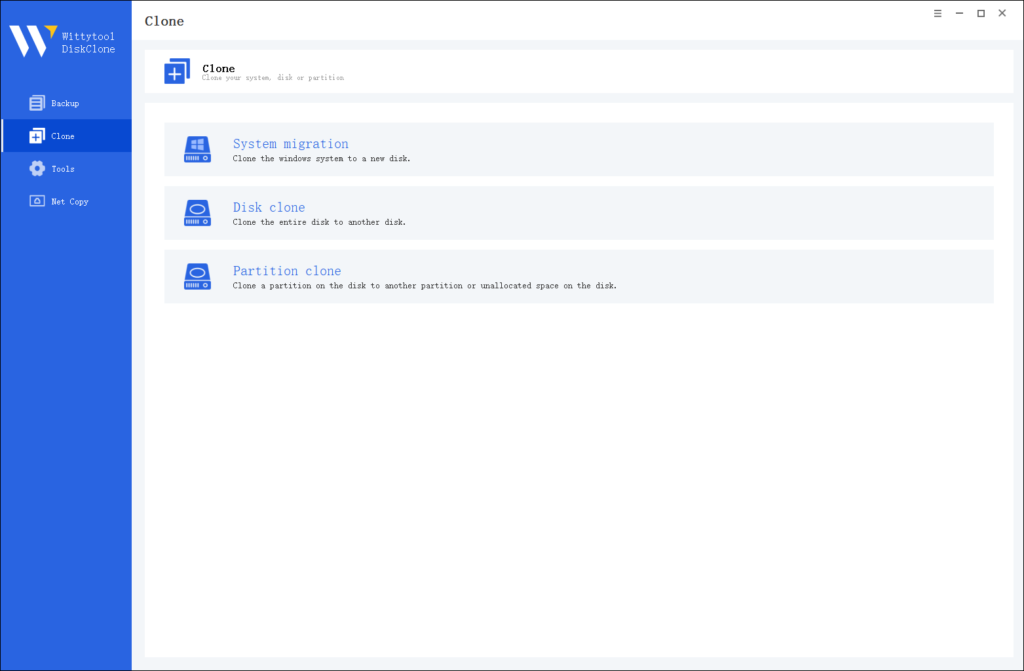
Step 1: Choose Disk Clone Mode
Click on the left panel to access the clone page, then select the disk clone mode.
Note:
During usage, choose the corresponding mode according to your needs. You can read this article about system clone vs system migration to understand the differences in different usage scenarios.
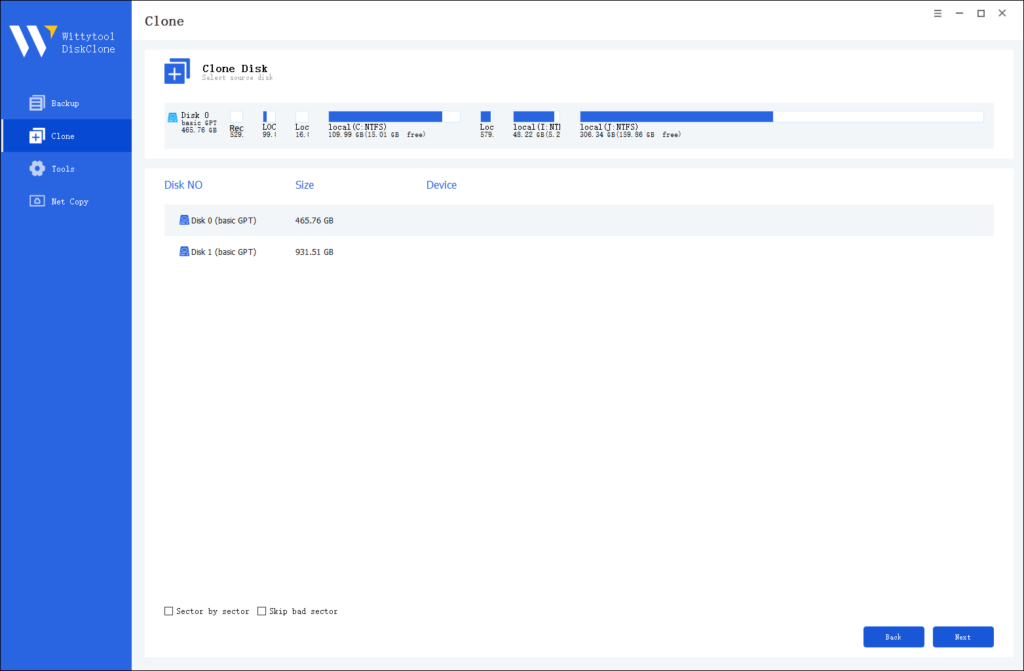
Step 2: Choose Source Disk
Pick the disk from the list view. The layout of the selected disk will be displayed at the top of the list view.
Note:
*Sector by Sector: This option should be selected if the source disk has bad sectors or if the file system on the disk is damaged. It ensures that all sectors on the source disk are cloned.
*Skip Bad Sectors: If the source disk has bad sectors, select this option. Wittytool DiskClone will ignore the bad sectors and clone only the undamaged ones. This method is suitable for older disks that may have bad sectors.
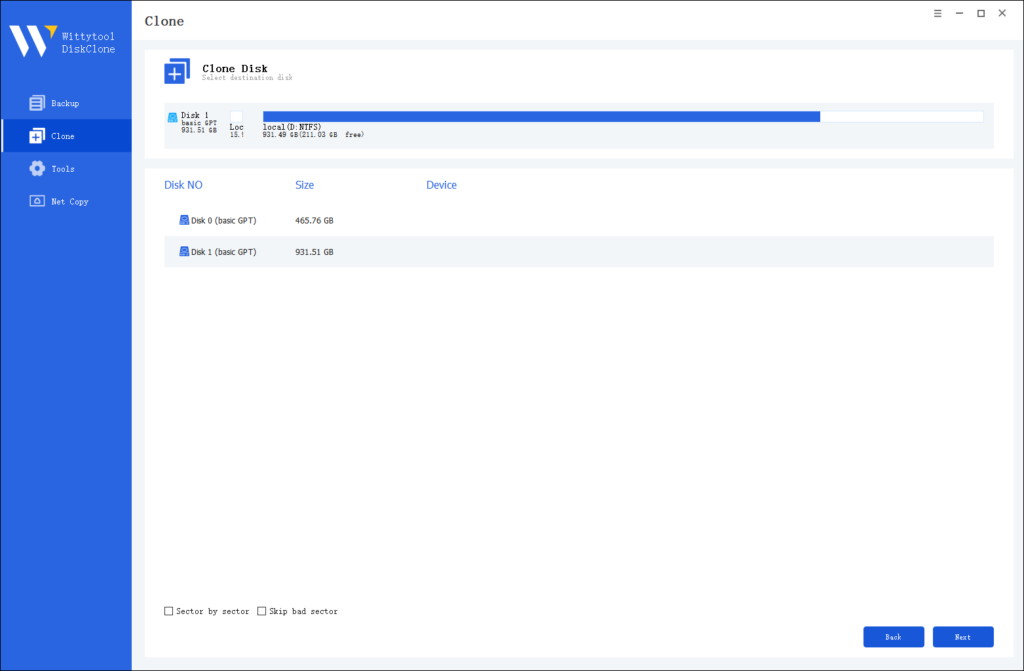
Step 3: Choose Destination Disk
Select the target disk.
Step 4: Resize Partition and Start Cloning
You can resize the partition on the target disk if needed. Click the “Start Clone” button to begin the cloning process.

❗ Important: After cloning, keep the original drive as a backup for a few days to ensure no issues arise. This practice is recommended by data recovery experts to avoid accidental data loss.
Frequently Asked Questions About Wittytool Disk Clone
Q: Can I clone a larger drive to a smaller one?
A: Yes, but only if the used space on the original drive fits on the smaller one. Wittytool automatically adjusts partitions if possible, but it’s best to clean up unnecessary files first.
Q: Is cloning safe for my data?
A: Absolutely, when done correctly. Wittytool uses read-only operations on the source drive, meaning your original data stays untouched. Always follow the steps precisely to avoid errors.
Q: Do I need special skills to use this software?
A: Not at all! Wittytool is designed for beginners. The guided interface and video tutorial make it accessible, even if you’ve never cloned a drive before.
Q: How often should I clone my hard drive?
A: For most users, cloning every 6-12 months is sufficient, especially before major updates or if you notice drive slowdowns. Regular cloning complements cloud backups for full data protection.
In summary, cloning a hard drive with Wittytool Disk Clone is a simple way to safeguard your data or upgrade your storage. By following this guide, you can achieve professional results without technical stress. Have questions? Feel free to contact us!