

 Wittytool Disk Clone
ENTERPRISE PC REFRESH
Refresh Office PCs with One Tested Windows Image
Windows cloning and image-deployment software for your office PC replacement project.
Reuse the approved office setup, test replacement hardware, and deploy to the group.
Download Wittytool Disk Clone See how it works Approved office image
Replacement PCs
Approved office image
Replacement PCs
Plan the enterprise PC refresh before swapping devices.
An enterprise PC refresh replaces existing office desktops and laptops while preparing employees to continue work on replacement devices.
Group the old PCs
List the users, PC models, and replacement devices.
Protect employee work
Back up required files and verify the saved copies.
Agree the changeover
Choose a maintenance window with each department.
Test the office build on replacement hardware.
Test a representative replacement PC for each relevant hardware group before the wider rollout.
- Boot and drivers
- Business apps
- Sign-in and activation

Deploy the approved office build to each PC group.
Use Wittytool Disk Clone for image deployment, while your IT team manages the device groups and employee changeover.
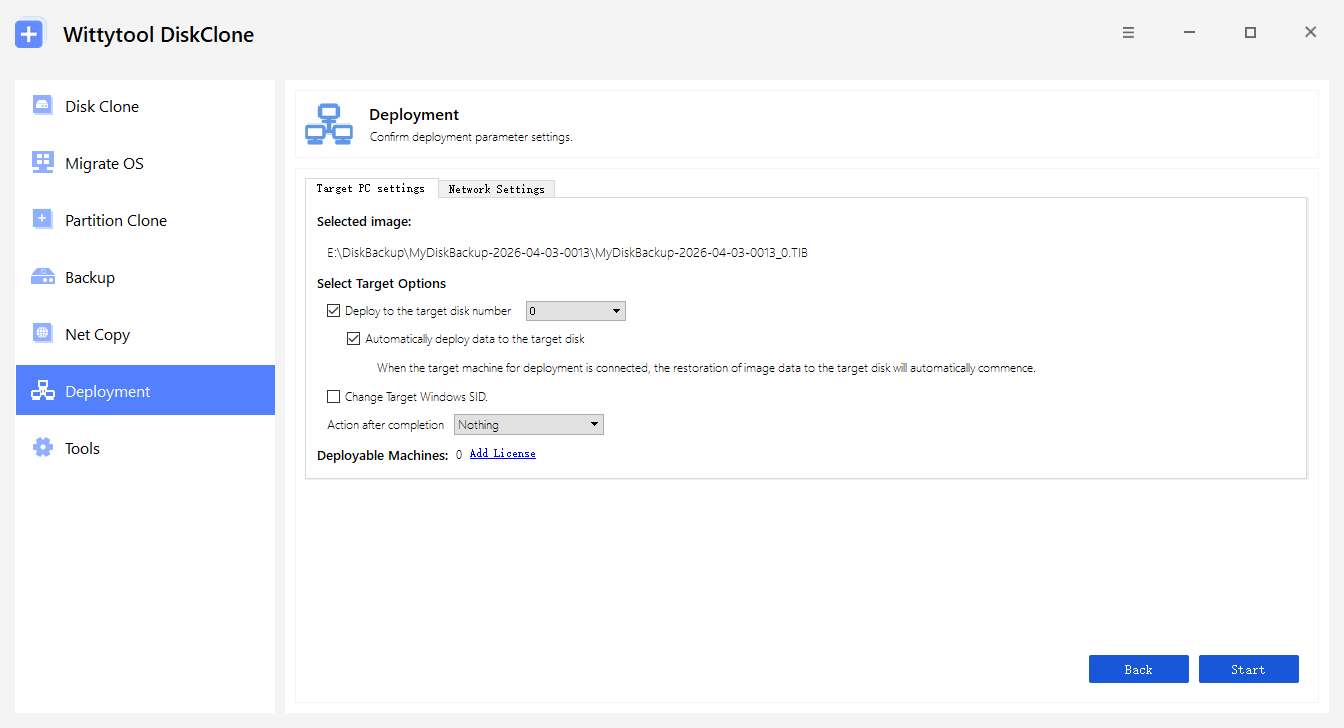
Confirm the target disks, choose deployment mode, and check client status before the next handover.
Finish the refresh at each employee's desk.
Check the replacement PC with its user. Keep the old PC available until the required files, apps, and access have been verified.
- Required employee files are available
- Work apps, devices, and sign-in work
- Exceptions are resolved or recorded
Enterprise PC refresh questions
What should IT prepare before replacing office PCs?
List the existing PCs, users, replacement models, and required office apps. Confirm the source environment, verified backups, a representative pilot PC, and a changeover window with each department. For the shared office build, see our reference image preparation guide .
How can departments switch to replacement PCs in groups?
Group the devices around the department's working needs and maintenance window. Validate a pilot, prepare the next group, and record any exceptions before handover. This is your team's rollout plan; Wittytool Disk Clone provides the image-deployment part of that process.
How should employee files be handled during the refresh?
Back up each employee's required files and verify the saved copies before deployment. A shared image contains its selected reference environment, not a separate copy of every user's PC. Check the files again on the replacement device before handover. Microsoft's File History guide describes one personal-file backup option.
What should we test on different replacement PC models?
Check Windows startup, required drivers and devices, business apps, network access, sign-in, and activation. Run a typical work task on representative hardware before extending the rollout to the wider PC group. Check Microsoft's guidance on Windows activation after hardware changes where applicable.
When can the old office PCs be taken out of service?
Keep the required recovery option available until the replacement PC passes employee handover checks and exceptions have been addressed. Follow your organization's separate retention and disposal process for the old devices.