


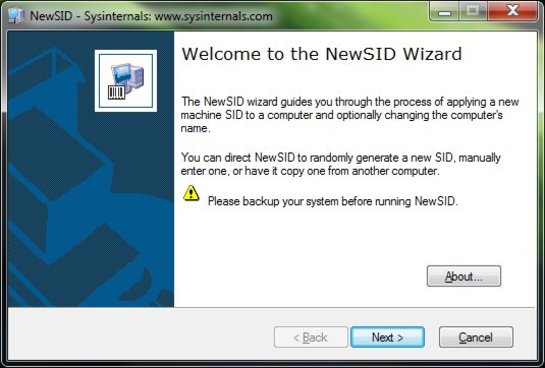
For over a decade, NewSID was the go-to utility for IT administrators worldwide. Developed by Mark Russinovich for Sysinternals, it provided a simple way to change a computer’s Security Identifier (SID) after cloning a disk or deploying a system image. However, NewSID has been “end-of-life” for years, and while the tool is dead, the need to manage unique SIDs in modern Windows environments is very much alive.
Whether you are upgrading hardware or deploying workstations, ensuring each machine has a unique identity is crucial for network health. To understand what makes a good alternative today, we first need to look at why Microsoft pulled the plug on the original tool.
Why Was Sysinternals NewSID Retired?
The retirement of NewSID in 2009 was sparked by a famous blog post from its creator titled “The Machine SID Duplication Myth.” In it, Russinovich revealed that Microsoft’s research found that duplicate machine SIDs do not actually compromise security in a workgroup environment as originally feared. Since the internal security architecture of Windows relies more on domain-level identifiers than local ones, Microsoft felt NewSID was no longer a technical necessity.
Consequently, the tool was removed from the Sysinternals suite, leaving many admins wondering if they could simply ignore duplicate SIDs forever. However, just because the original security myth was debunked doesn’t mean duplicate SIDs are harmless; in fact, in modern IT environments, they cause severe administrative headaches.
Do Duplicate SIDs Actually Matter Anymore? (The Modern Reality)
In today’s interconnected workplace, a duplicate SID is less of a security hole and more of a “logical” conflict. When multiple machines share the same identifier, cloud-based management tools and local network services often fail to distinguish between them.
The modern problems caused by duplicate SIDs include:
- WSUS (Windows Server Update Services): Cloned machines often overwrite each other in the management console, meaning only one machine receives updates.
- KMS (Key Management Service): Volume licensing activation frequently fails because the server counts multiple clones as a single machine.
- Active Directory Conflicts: You may encounter issues where the username or password is incorrect when joining a domain because of security token mismatches.
- Network Sharing Failures: Recent security hardening has made unique SIDs mandatory for local discovery. Many admins find they must fix Windows 11 KB5065426 sharing failures specifically caused by identical SIDs on a local network.
Because these network and deployment issues persist, system admins and everyday users still need a reliable way to generate new SIDs. Let’s look at the best tools available.
The Best NewSID Alternatives for Windows 10, 11, and Server
Finding a modern alternative requires tools that are compatible with Windows 11 and Windows Server 2025/2026. Here are the three most effective methods:
1. Microsoft Sysprep (System Preparation Tool)
Sysprep is the only officially supported method from Microsoft. It “generalizes” the Windows installation, removing unique info like the SID and hardware drivers.
- Quick Steps:
- Press Win + R, type sysprep, and hit Enter.
- Run sysprep.exe.
- Select Enter System Out-of-Box Experience (OOBE).
- Check the Generalize box.
- Select Shutdown and click OK.
- Pros/Cons: It is native and free, but it strips out user profiles and customized settings, making it tedious for simple drive upgrades.
For a more comprehensive look at this process, you can follow our detailed guide on how to change SID in Windows with Sysprep.
2. Wittytool Disk Clone (Professional Windows SID changer)
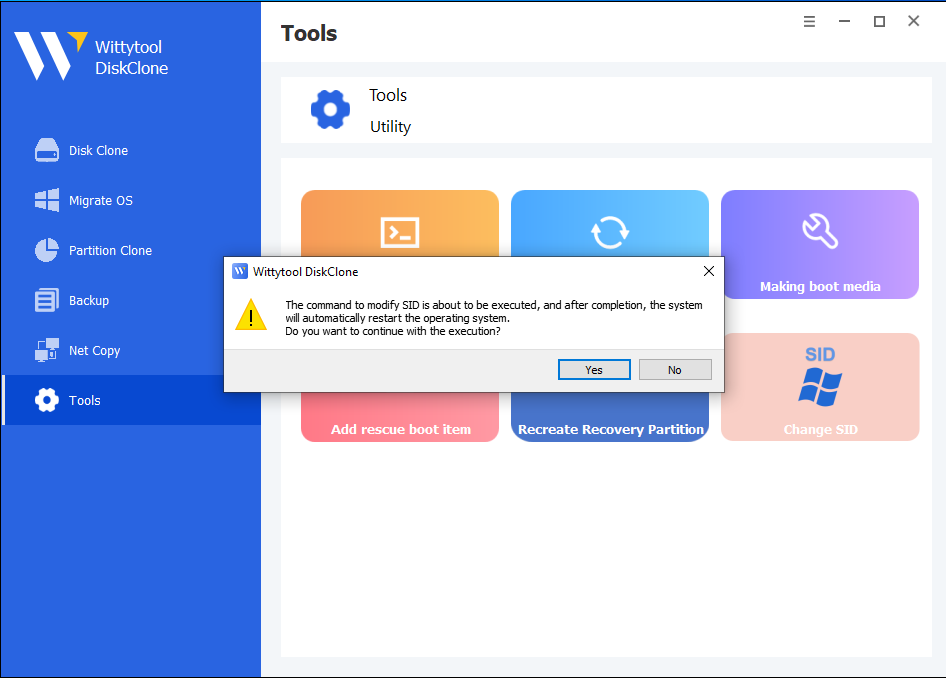
For users who want to avoid the complexity of Sysprep, Wittytool Disk Clone is the most practical NewSID alternative. It is specifically designed to handle the “SID problem” during the cloning process, allowing you to create a unique machine ID without losing your desktop settings or user data. Meanwhile, this Windows SID changer can also change SID on a drive that has already been cloned and is experiencing “duplicated SID” errors.
- Quick Steps:
- Step 1: Initiation – Open Wittytool Disk Clone, navigate to the Change SID utility, and click Start.
- Step 2: Automated Preparation – The tool temporarily uninstalls specific apps that may trigger permission conflicts (don’t worry, all data and apps are automatically backed up first).
- Step 3: System Restart – The system will automatically reboot to apply the new Security Identifier to the Windows kernel.
- Step 4: Automatic Restoration – Upon login, Wittytool restores your programs and data automatically. Once the progress bar finishes, the modification is complete.
- Expert Tip: You can find a detailed guide on how to change Windows SID without Sysprep using this streamlined method.
3. PowerShell & Command Line Workarounds
While not true “SID changers,” scripts can fix the symptoms of duplicate SIDs, such as resetting the AccountDomainSid or the WSUS Client ID.
- Quick Steps:
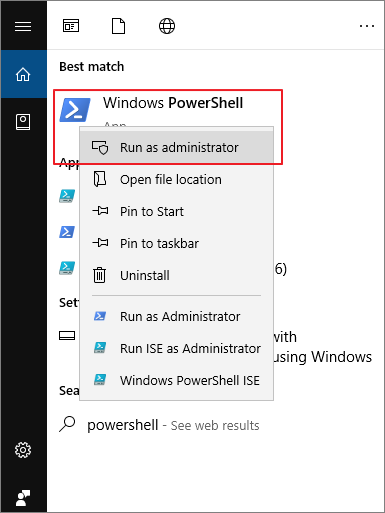
- Open PowerShell as Admin.
- Use commands like reg delete HKLM\SOFTWARE\Microsoft\Windows\CurrentVersion\WindowsUpdate /v SusClientId to force a new WSUS ID.
- Restart the Windows Update service.
- Pros/Cons: These are “band-aids” and do not change the actual machine SID, making them unsuitable for full system deployments.
With these options on the table, how do you decide which route to take for your specific deployment?
Sysprep vs. Disk Cloning Utilities vs. PowerShell: Which Should You Choose?
Sysprep vs. Disk Cloning Utilities vs. PowerShell: Which Should You Choose?
Selecting the right method depends on your technical comfort level and the scale of your project. While Sysprep is the “official” route, modern utilities offer a much higher level of automation.
| Feature | Microsoft Sysprep | Wittytool Disk Clone | PowerShell Scripts |
| User Data | Often resets/removes profiles | Preserves all data & settings | No impact on profiles |
| Complexity | Technical (Manual GUI) | One-Click (Automated) | High (Script-based) |
| Speed | Slow (Re-runs OOBE) | Fast (Immediate) | Fast (Targeted fix) |
| Changes Machine SID? | Yes | Yes | No (Fixes symptoms) |
| Best For | Golden Images | 1-to-1 upgrades & SMBs | Quick network fixes |
If you find that Sysprep’s limitations – such as the “rearm” limit or the loss of user customizations—are hindering your workflow, looking for a dedicated Sysprep alternative is often the smartest move for efficiency.
Once you’ve chosen your tool, executing the change safely is critical to avoid bricking your Windows installation.
Step-by-Step: Best Practices Before Changing SID
Changing a SID is a deep-level system operation. To ensure a smooth transition and maintain E-E-A-T standards of reliability, follow these expert-vetted safety steps:
- Perform a Backup: Always have a full image of your drive or create a system restore point before modifying system identifiers.
- Suspend BitLocker: Encryption and SID changes do not mix well. Always suspend BitLocker protection before initiating a change.
- Handle Server Environments with Care: If you are working in a data center, the stakes are higher. Be sure to follow the correct protocol to change SID on Windows Server to prevent domain trust relationship failures.
- Disconnect from the Domain: If the machine is part of an Active Directory domain, move it to a workgroup first, change the SID, and then rejoin the domain.
Wrapping things up, replacing NewSID doesn’t have to be a complicated or risky process if you use the right modern tools.
Conclusion
While the era of NewSID has passed, the necessity for unique machine identifiers remains a pillar of healthy Windows networking. Whether you choose the official route of Sysprep or the user-friendly path of professional Windows SID changer software like Wittytool Disk Clone, ensuring your machines have unique SIDs will save you from a myriad of “ghost” network errors and activation failures.
Frequently Asked Questions
Can I change a Windows 11 SID without Sysprep?
Yes. Wittytool Disk Clone built-in SID Changer function can inject a new SID during the imaging process without requiring a full Sysprep generalization, preserving your user profiles in the process.
Does changing the computer name change the SID?
No. The Computer Name and the Machine SID are entirely different identifiers. Changing the name will not resolve duplicate SID conflicts in WSUS or KMS.
How do I check my current Windows machine SID?
Open Command Prompt (CMD) as an administrator and type whoami /user. The string of numbers following the last dash in the “User SID” column represents the unique identifier of that specific user/machine relationship.