


After cloning or migrating Windows to another computer, the original system and its clone may retain the same machine Security Identifier (SID). If both computers operate on the same network, duplicate SIDs can contribute to authentication failures, repeated credential prompts, inaccessible shared folders, and Remote Desktop connection problems.
Microsoft’s standard solution is to run Sysprep with /generalize. However, Sysprep is primarily designed to prepare a Windows reference image before deployment. It removes computer-specific information and commonly returns Windows to the Out-of-Box Experience (OOBE).
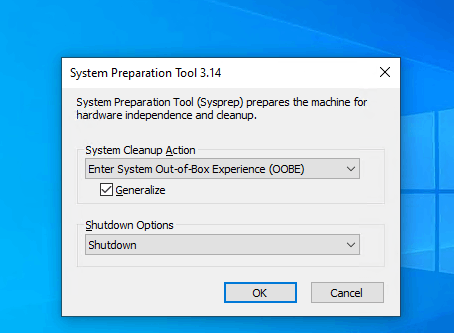
That can be excessive when the cloned computer is already configured and you only want to assign it a new SID.
For this post-clone scenario, Wittytool Disk Clone is the most complete Sysprep alternative in this comparison. It can:
- Change the SID on an existing Windows clone without running the Sysprep OOBE workflow.
- Fix duplicate SIDs created by other cloning or migration software.
- Change the SID during a new disk-cloning or system-migration task.
- Combine SID changing with network cloning and batch PC deployment.
SIDCHG is another option, but it is primarily a command-line SID-changing utility and does not provide disk cloning or batch deployment.
Quick Answer: Which SID-Changing Method Should You Use?
| Your situation | Recommended option | Why |
|---|---|---|
| You already cloned Windows and found a duplicate SID | Wittytool Disk Clone | Changes the SID on the existing clone without requiring another cloning operation |
| You used another cloning tool and now need to fix its duplicate SID | Wittytool Disk Clone | Its built-in Change SID feature can be used separately after cloning |
| You want to clone or migrate Windows and handle the SID in one workflow | Wittytool Disk Clone | Combines cloning, system migration, SID changing, and deployment |
| You need a command-line SID utility | SIDCHG | Designed for scripted, stand-alone SID changes |
| You are preparing a new reusable Windows image through Microsoft’s deployment process | Sysprep | Microsoft’s standard Windows image-generalization method |
| You want to deploy many new business PCs without building or duplicating any custom image at all | Windows Autopilot + Intune | Provisions each device from its own OEM Windows installation using cloud-based policies, so there is no shared image and no duplicate-SID risk to begin with |
Important: Microsoft identifies Sysprep with
/generalizeas its supported method for duplicating Windows installations. Third-party SID changers offer a more focused post-clone workflow, but they are not Microsoft’s supported replacement for the complete Windows image-generalization process.
Why Duplicate SIDs Can Appear After Windows Cloning
A disk clone copies the existing Windows installation, including much of its system configuration. If Windows was cloned to another computer without first being generalized, both installations may retain the same machine SID.
This matters mainly when the original and cloned systems operate as separate computers.
Microsoft has documented Kerberos and NTLM authentication failures involving duplicate SIDs on Windows 11 24H2, Windows 11 25H2, and Windows Server 2025 after updates released on or after August 29, 2025. Reported symptoms include:
- Repeated credential prompts
- Failed authentication despite correct credentials
- Shared folders becoming inaccessible
- Remote Desktop connection failures
- Event ID 6167 and partial machine-ID mismatch errors
See the applicable versions and conditions in Microsoft’s duplicate SID advisory.
If you migrated Windows to a new SSD in the same computer and the original installation will no longer run as a separate system, you may not have two active computers with duplicate identities. Verify the SID and your deployment scenario before changing anything.
Why Sysprep May Be Too Disruptive After Cloning
Sysprep is not simply a SID changer. Running Sysprep with /generalize prepares the entire Windows installation for imaging and deployment.
According to Microsoft, Sysprep can:
- Remove the machine SID and other computer-specific information
- Clear system restore points and event logs
- Generalize configured devices
- Remove a computer from its domain
- Prepare Windows to start in OOBE or Audit Mode
A typical command for preparing an image is:
%WINDIR%\System32\Sysprep\Sysprep.exe /generalize /oobe /shutdownOn the next startup, Windows enters OOBE so that the user can complete first-run configuration.
Sysprep should not be described as automatically deleting every personal file. However, it changes much more than the SID and may disrupt the existing setup, device state, domain membership, accounts, or encrypted information. Microsoft also states that using Sysprep to reconfigure an already deployed Windows installation is unsupported.
You can review the full behavior in Microsoft’s Sysprep overview and command-line documentation.
For a newly prepared reference image, Sysprep remains an appropriate choice. For an existing clone that only needs a different SID, a focused SID-changing tool may provide a more direct workflow.
Option 1: Change SID Without Sysprep Using Wittytool Disk Clone
Wittytool Disk Clone combines Windows disk cloning, system migration, batch deployment, and SID management in one product.
Its built-in Change SID feature can be used in two ways:
- Change the SID during a Wittytool cloning or deployment workflow.
- Change the SID separately on an existing cloned computer.
The second option is especially useful if you previously cloned or migrated Windows with another product and discovered that the original computer and clone have duplicate SIDs. You do not need to repeat the cloning task simply to access Wittytool’s SID-changing function.
Unlike a full Sysprep generalization, this workflow focuses on changing the cloned system’s identity without intentionally sending Windows through OOBE.
Before You Change the SID
Changing a Windows SID affects security-related system information. Before starting:
- Create and verify an independent backup of the affected computer.
- Make sure Windows Update is not installing or waiting to complete an update.
- Close running programs and confirm that no other user is signed in.
- Keep the computer connected to reliable power.
- If the computer uses BitLocker, EFS, third-party encryption, or business-critical applications, confirm the supported procedure before continuing.
- If the computer belongs to a domain, coordinate the change with your administrator and be prepared to verify or restore its domain relationship.
- Perform the operation on the cloned computer, not accidentally on the original source computer.
How to Change the SID on an Existing Clone
Step 1: Navigate to Tools and Click “Change SID“.

Important: Choose whether to keep the current computer name or let the program generate a new random name. If both computers will remain on the same network, avoid leaving them with the same computer name.
Step 2. Review the selected options and click Start when you are ready.
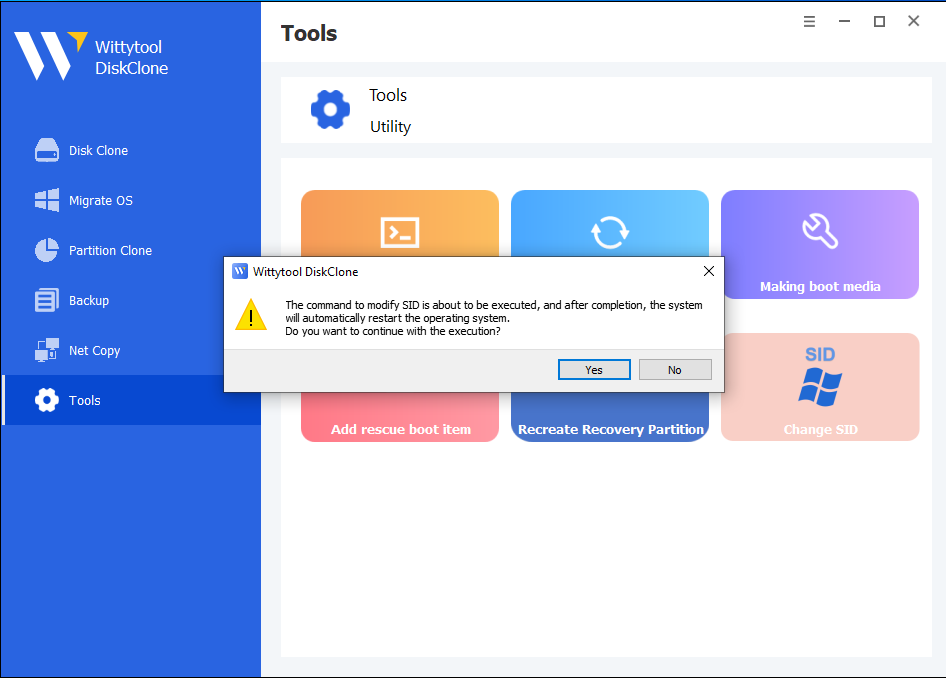
Step 3: The program will uninstall applications that may have permission conflicts.
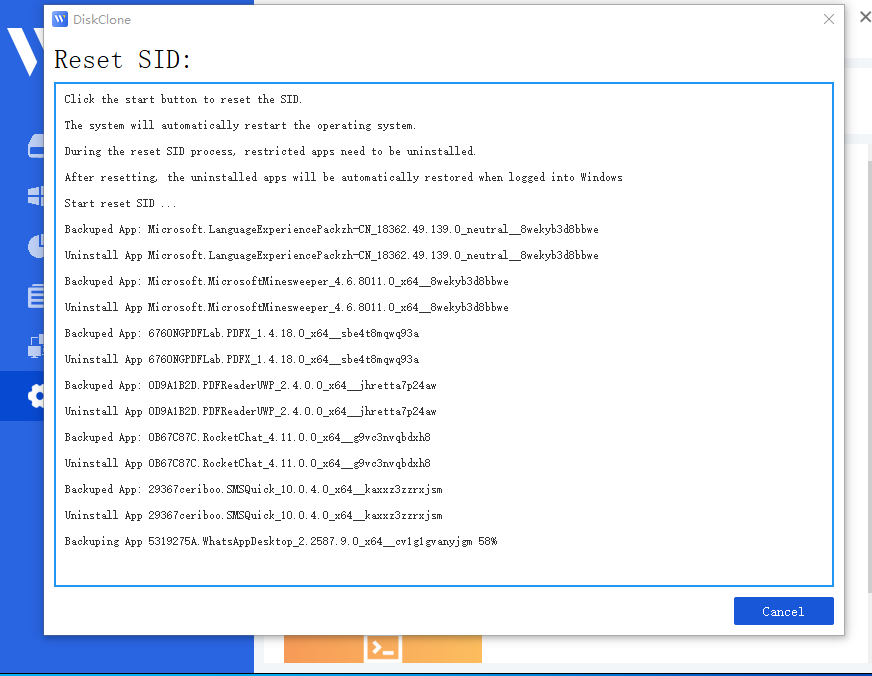
Note: All apps and data are backed up automatically before uninstallation.
Step 4: The system will automatically restart to apply the new SID.

Step 5: Upon logging back in, Wittytool Disk Clone will automatically restore the uninstalled programs and their associated data. Once the restoration is finished, the SID modification process is complete.
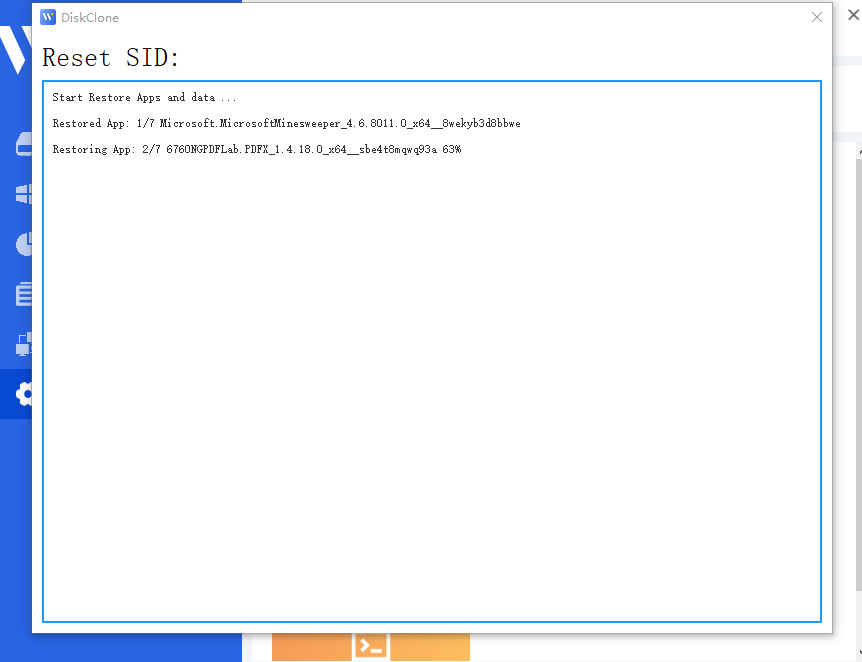
Important Post-Process Notes:
*Local accounts: Your existing local accounts and their settings are preserved. Their SIDs are regenerated as part of the machine SID change.

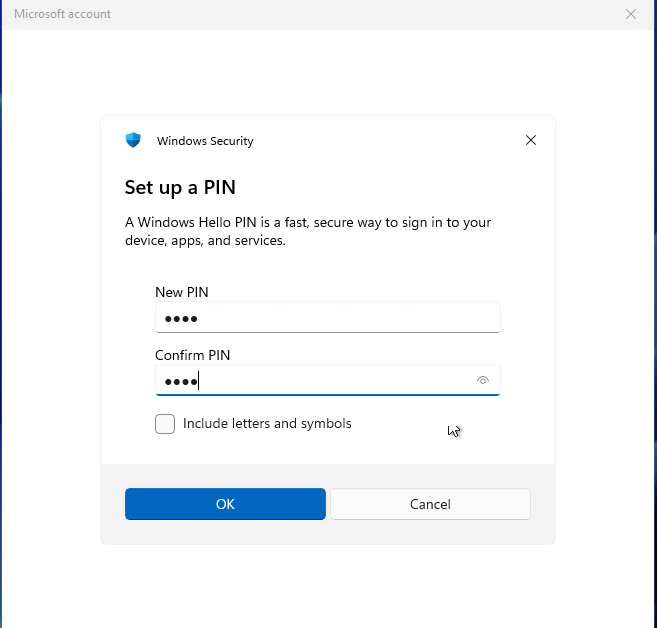
*Microsoft Accounts: If you use a Microsoft account, you will be required to reset your PIN upon your first login after the restart.
Video guide – How to change Windows SID via Wittytool Disk Clone (Full Walkthrough)
The exact interface wording may differ between product releases, so the screenshots and labels should match the current Wittytool Disk Clone build used for publication.
How to Verify That the SID Changed
Microsoft Sysinternals provides PsGetSid for displaying the SID of a local or remote computer.
Run PsGetSid on the original computer and the clone:
psgetsid COMPUTER-NAMEThe two computers should display different machine SIDs. You can download the utility and review its syntax on the official Microsoft PsGetSid page.
Do not rely only on the computer name. Changing a hostname and changing a machine SID are separate operations.
Prevent Duplicate SIDs During Future Cloning
If you are preparing another clone or deploying Windows to multiple computers, Wittytool Disk Clone can include SID changing as part of the cloning or deployment process.
This gives you one workflow for:
- Disk or system cloning
- Windows migration
- Multi-PC deployment
- SID changing during deployment
See the complete disk-cloning and SID-changing workflow when preparing new systems.
For an existing duplicate SID, use the separate Windows SID Changer feature instead of cloning the computer again.
Option 2: Use SIDCHG as a Command-Line SID Changer
SIDCHG is a third-party command-line utility that changes the local machine SID and can also change the computer name.
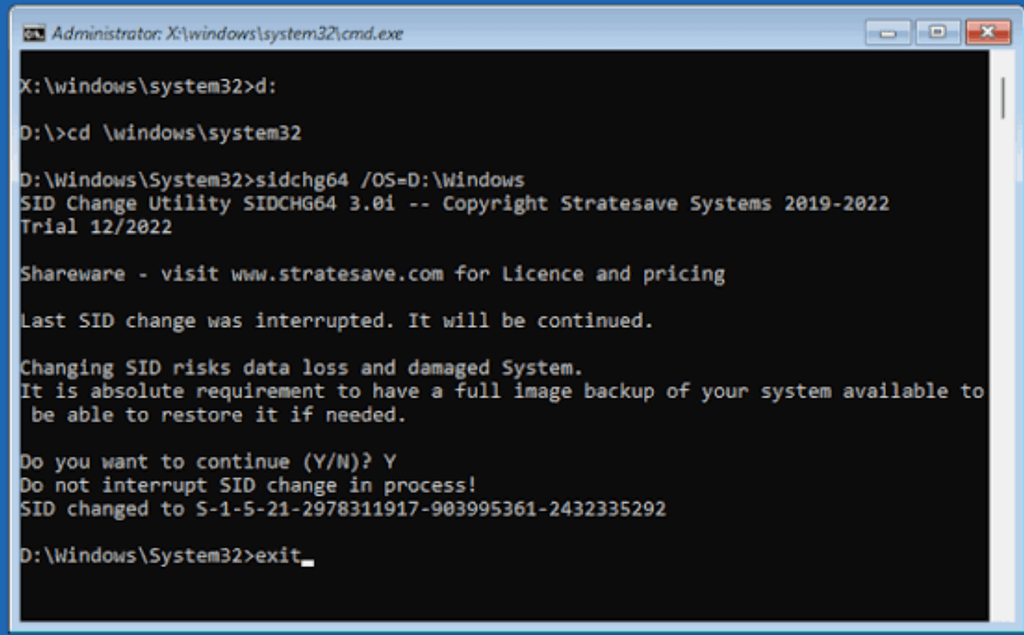
It can be used after cloning without entering the Sysprep OOBE workflow. However, it is focused on SID modification and does not provide:
- Disk or system cloning
- Windows migration
- Network cloning
- Integrated batch deployment
SIDCHG is better suited to administrators who specifically want a scriptable command-line tool.
Its publisher also lists substantial preparation requirements. Depending on the selected workflow, these can include managing antivirus protection, checking pending updates, decrypting BitLocker volumes, backing up stored credentials, and preparing for application or domain-related changes. Interrupting the SID-changing process can leave the system in an incomplete state.
Option 3: Use Sysprep for a New Reference Image
Sysprep remains the appropriate choice when you are creating a reusable Windows image from the beginning and need Microsoft’s supported image-generalization process.
Use Sysprep when you need to:
- Prepare a new Windows reference image
- Remove computer-specific information before capturing the image
- Configure OOBE, Audit Mode, or answer files
- Follow Microsoft’s supported OS-duplication workflow
Sysprep is less suitable when a clone has already been deployed and configured and your only goal is to change its SID without repeating first-run setup.
For that workflow, see the separate guide to changing a Windows SID with Sysprep.
Can You Still Use NewSID?
No. NewSID is a retired Sysinternals utility and is no longer available from Microsoft for modern Windows deployment.
It should not be recommended for Windows 10 or Windows 11. Microsoft’s archived NewSID page confirms that the utility was retired and removed from download.
Wittytool Disk Clone vs. SIDCHG vs. Sysprep
| Capability | Wittytool Disk Clone | SIDCHG | Sysprep |
|---|---|---|---|
| Change SID after cloning | Yes | Yes | Uses full generalization |
| Avoid the OOBE workflow | Yes | Yes | Not in the standard /generalize /oobe workflow |
| Fix a clone created by another tool | Yes | Yes | Not designed for reconfiguring deployed Windows |
| Disk and system cloning | Yes | No | Requires a separate imaging tool |
| Batch PC deployment | Yes | No | Requires a separate deployment tool |
| Change SID during cloning | Yes | No | SID is regenerated through generalization |
| Typical interface | Integrated graphical workflow | Command line | Command line and answer files |
| Best fit | Post-clone repair, future cloning, and batch deployment | Stand-alone scripted SID changes | Microsoft Windows image preparation |
Wittytool Disk Clone provides the broadest workflow in this comparison because it handles both sides of the problem: it can fix an SID after cloning and help prevent duplicate SIDs during future cloning or batch deployment.
Which Sysprep Alternative Should You Choose?
Choose Wittytool Disk Clone if:
- Windows has already been cloned or migrated.
- You only need to fix the duplicate SID without entering OOBE.
- The clone was created with another cloning product.
- You also need disk cloning, system migration, or multi-PC deployment.
- You prefer an integrated graphical workflow.
Choose SIDCHG if:
- You only need a stand-alone SID-changing utility.
- You specifically want command-line operation.
- You are prepared to follow its technical prerequisites and recovery instructions.
Choose Sysprep if:
- You are building a new reusable Windows reference image.
- You require Microsoft’s supported Windows duplication process.
- You need OOBE, Audit Mode, answer files, or complete Windows generalization.
Frequently Asked Questions
Does Sysprep delete user data?
Sysprep should not be described as automatically deleting every personal file. However, /generalize removes computer-specific information, resets the SID, clears restore points and event logs, changes configured system state, and can return Windows to OOBE. Back up important data before using it.
Can I change a Windows SID without Sysprep?
Yes. Third-party tools such as Wittytool Disk Clone and SIDCHG can change the SID without running the standard Sysprep OOBE workflow. These tools are alternatives for focused SID management, not Microsoft-supported replacements for every Sysprep deployment function.
Can Wittytool Disk Clone fix a duplicate SID created by another cloning tool?
Yes. Its built-in Change SID feature can be used separately on an existing Windows clone, including a clone created with another cloning or migration product. The disk does not need to be cloned again simply to use the SID-changing function.
What is the difference between Wittytool Disk Clone and SIDCHG?
Wittytool Disk Clone combines disk cloning, system migration, batch deployment, and SID changing. SIDCHG is primarily a command-line utility for changing the local computer SID and related identifiers.
Do I need to change the SID after migrating Windows to a new SSD?
Not always. If the new SSD replaces the old drive in the same computer and the original installation will not operate as a separate system, there may be no second active computer with the same SID. SID uniqueness becomes more important when the original and cloned installations run on different computers.
Conclusion
Sysprep is designed to generalize Windows for image creation and deployment. It can generate a new SID, but it also changes broader system state and may return the computer to OOBE.
When Windows has already been cloned or migrated and the user only wants to fix a duplicate SID, a focused Sysprep alternative is more convenient.
Wittytool Disk Clone is the most versatile option for this scenario because it can:
- Change the SID on an existing clone.
- Fix duplicate SIDs left by other cloning software.
- Change the SID during future cloning.
- Support system migration and batch PC deployment in the same product.
SIDCHG remains an option for administrators who specifically need a stand-alone command-line SID utility. For newly prepared reference images that must follow Microsoft’s supported deployment process, continue using Sysprep.