


Understanding the KB5065426 Update Crisis
The Windows 11 KB5065426 update (September 2025) has triggered a widespread “identity crisis” for local networks, particularly on version 24H2. While designed to tighten kernel-level security, this update has left millions with SMB sharing broken and network printers unresponsive.
If you are suddenly stuck in a network credentials prompt loop or facing RDP timeouts, Microsoft’s new security hardening is likely the culprit. The update now strictly rejects connections it deems “ambiguous,” hitting cloned machines and legacy setups the hardest.
Common symptoms of this update include:
Duplicated SID: Failed handshakes caused by machines sharing the same SID.
SMB Sharing Broken: Folders become inaccessible with “Network path not found” errors.
File and printer sharing not working: Network-connected printers show as unreachable, and shared folders disappear from the network map.
Key Takeaways
If your network is down, you need answers fast. Here are the 7 proven methods to restore your connectivity:
- Solution 1 (The Root Fix): Change the Machine SID to resolve identity conflicts in cloned systems.
- Solution 2 (The Quick Check): Manually reset your network profile from “Public” back to “Private.”
- Solution 3 (The Connection Bypass): Use IP addresses instead of hostnames to bypass DNS/NetBIOS resolution errors.
- Solution 4 (Registry Override): Re-enable “Insecure Guest Logons” for legacy NAS and older network shares.
- Solution 5 (Credential Flush): Clear the Windows Credential Manager to break the “Invalid Password” loop.
- Solution 6 (System Repair): Use the “Fix problems using Windows Update” feature to repair corrupted system files.
- Solution 7 (Uninstall KB5065426): Uninstall KB5065426 and pause updates to restore immediate functionality.
Solution 1: Change the Windows SID (The Definitive Fix for Cloned PCs)
If your PCs were deployed via disk cloning, the KB5065426 update has likely triggered a Duplicate SID (Security Identifier) conflict. Windows 11 24H2 now strictly prohibits SMB and RDP connections between machines sharing the same security “fingerprint,” viewing them as potential NTLM relay attacks. While many attempt to use Sysprep to resolve this, it frequently fails with “Fatal Errors” due to modern UWP apps and licensing ties. For a non-destructive, reliable duplicate SID fix, using a professional Windows SID Changer is the most efficient path forward.
Here, we recommend Wittytool Disk Clone, a one click software to reset SID. It is specifically designed to:
- Regenerate Machine SIDs: Instantly creates a unique identity for cloned systems without requiring a full Windows reinstallation.
- Fix Credential Loops: By giving each PC a unique SID, the KB5065426 security check passes, effectively ending the network credentials prompt loop.
- Non-Destructive Execution: Changes the identity at the kernel level while keeping your desktop settings, installed apps, and user profiles perfectly intact.
Pro Tip: If you are managing an enterprise network, ensure you also change the SID on Windows Server to prevent RDP and server-to-server SMB sharing failures.
Now download and follow the steps to change Windows SID:
Step 1: Navigate to Tools and Click “Change SID“.

Important: Choose whether to keep the current computer name or let the program generate a new random name. If both computers will remain on the same network, avoid leaving them with the same computer name.
Step 2. Review the selected options and click Start when you are ready.
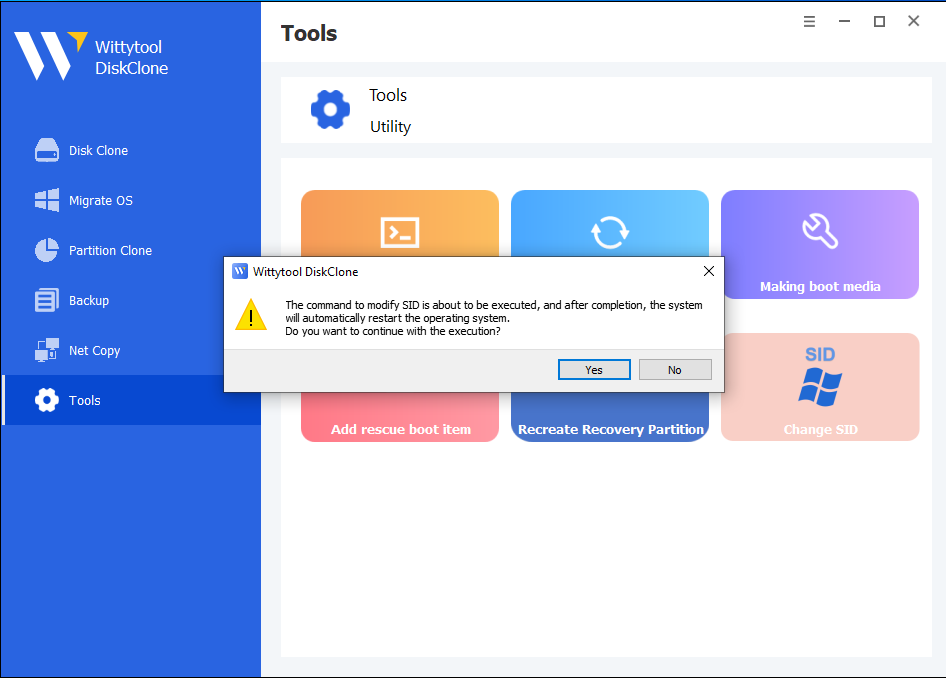
Step 3: The program will uninstall applications that may have permission conflicts.
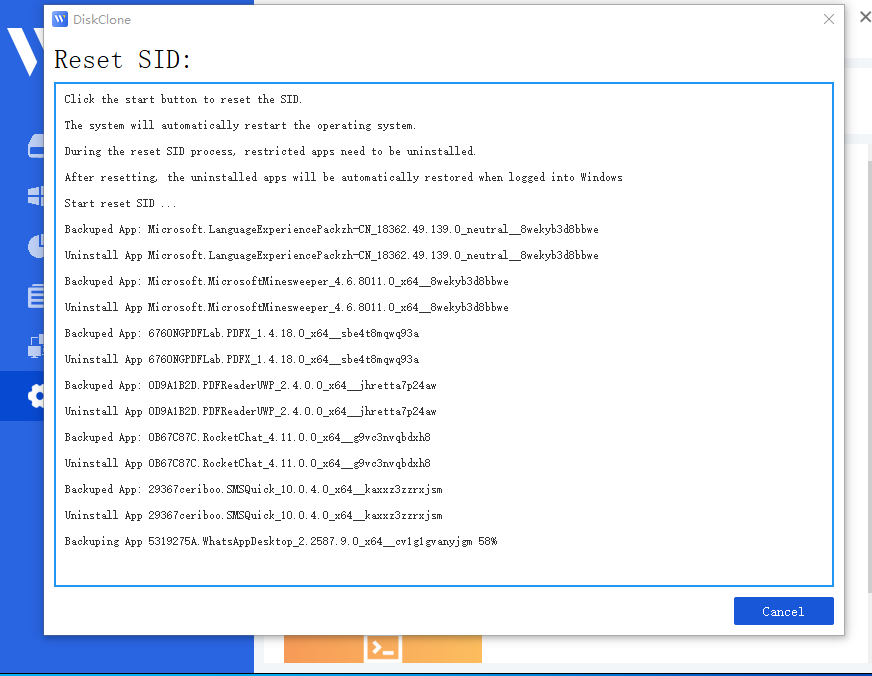
Note: All apps and data are backed up automatically before uninstallation.
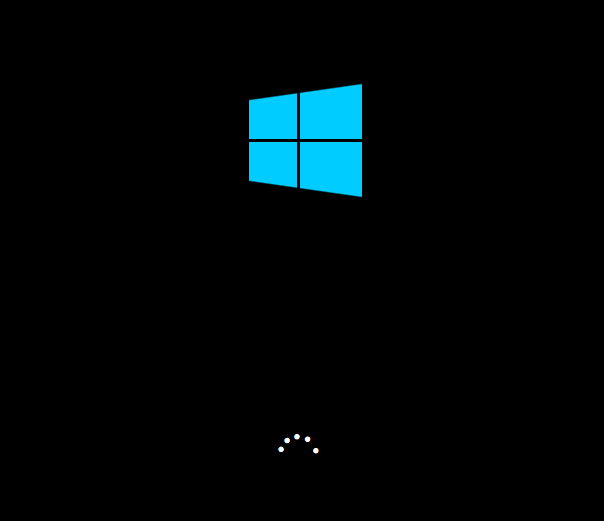
Step 4: The system will automatically restart to apply the new SID.
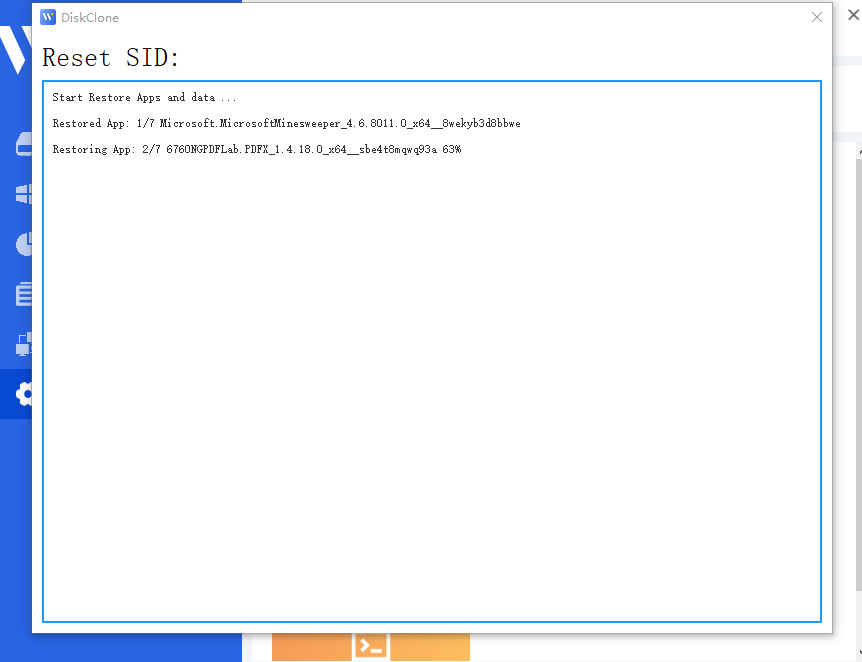
Step 5: Upon logging back in, Wittytool Disk Clone will automatically restore the uninstalled programs and their associated data. Once the restoration is finished, the SID modification process is complete.
Important Post-Process Notes:
*Local accounts: Your existing local accounts and their settings are preserved. Their SIDs are regenerated as part of the machine SID change.
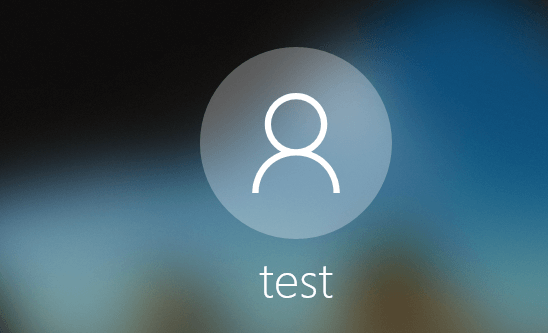
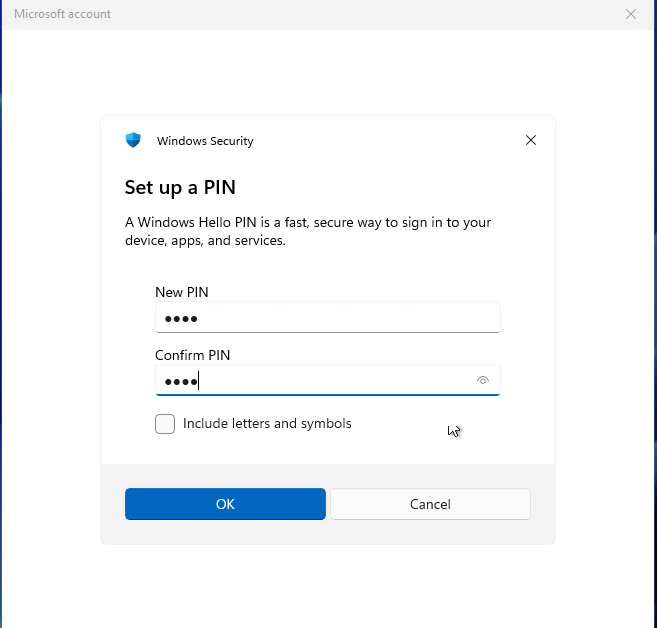
*Microsoft Accounts: If you use a Microsoft account, you will be required to reset your PIN upon your first login after the restart.
Video guide – How to change Windows SID via Wittytool Disk Clone (Full Walkthrough)
More product review by the computer expert: How to Fix Windows 11 KB5065426 Sharing Failures: A Wittytool Disk Clone Review
Solution 2: Reset Network Profile to Private
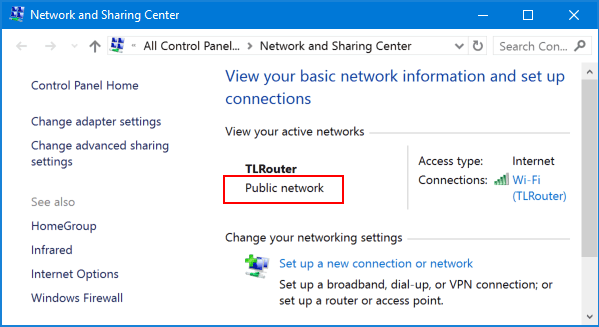
KB5065426 frequently “flips” your active network profile to Public. In this mode, the Windows Defender Firewall blocks Port 445, immediately resulting in file and printer sharing not working.
If your machines cannot even see each other in the Network Explorer, check this setting first:
- Click the Start button and navigate to Settings.
- Select Network & Internet from the left-hand menu.
- Click on Properties for your active connection (Wi-Fi or Ethernet).
- Under the “Network profile type” section, ensure the radio button is set to Private.
- Finally, go to Advanced network settings > Advanced sharing settings and verify that “Network discovery” and “File and printer sharing” are both toggled On.
Solution 3: Access Shares via IP Address Instead of Hostname
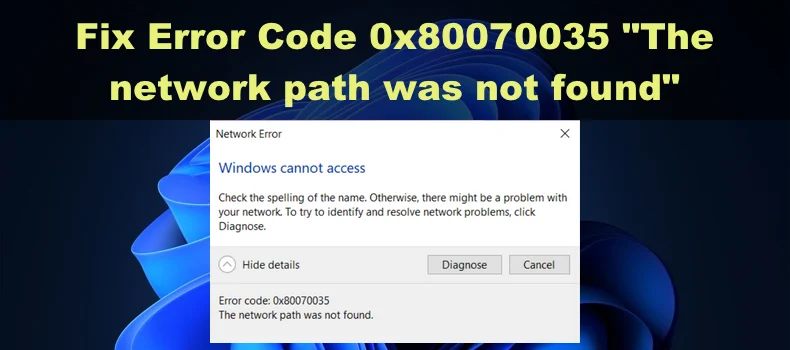
If you are receiving a “Network path not found” (Error 0x80070035) message, the cumulative update may have interrupted your local NetBIOS or mDNS name resolution protocols. When this happens, typing the computer’s name into the address bar simply times out.
A highly effective workaround is to bypass the failing name resolution entirely by using the direct IPv4 address of the host machine.
- Instead of accessing the share via \\OFFICE-PC\SharedFolder
- Press Win + R, type the IP address directly: \\192.168.1.50\SharedFolder and press Enter.
If this works, it confirms that your SMB service is running properly, but your local DNS or NetBIOS routing has been corrupted by the update.
Solution 4: Re-enable Insecure Guest Logons for Legacy Devices
Security is a double-edged sword. To protect against modern ransomware threats, Windows 11 24H2 and the KB5065426 update enforce a strict “Block” policy against unauthenticated or “Guest” SMB access. If you are trying to access an older Network Attached Storage (NAS) drive, a router-attached USB drive, or a shared folder configured without password protection, Windows will now silently block the connection.
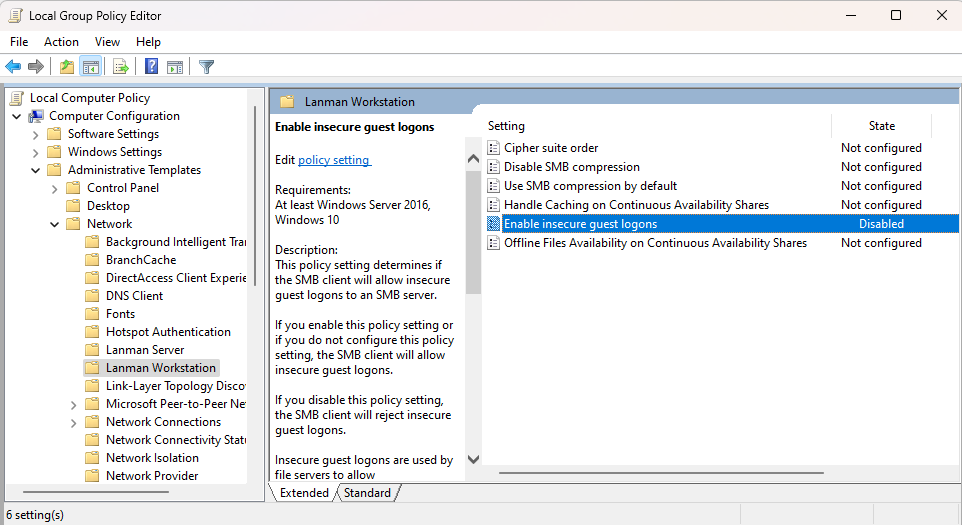
To restore access to these legacy devices, you must manually override the security policy via the Registry Editor:
- Press Win + R, type
regedit, and hit Enter. - Navigate to the following path: Computer\HKEY_LOCAL_MACHINE\SYSTEM\CurrentControlSet\Services\LanmanWorkstation\Parameters
- Right-click in the empty space on the right pane, select New > DWORD (32-bit) Value.
- Name the new value AllowInsecureGuestAuth.
- Double-click it and set the Value data to 1.
- Restart your computer to apply the changes.
Solution 5: Clear and Rebuild the Windows Credential Manager
One of the most maddening symptoms of this update is the relentless network credentials prompt loop. You try to map a network drive, Windows asks for your username and password, you enter the 100% correct information, and Windows instantly rejects it, asking again.
If you are stuck in a cycle where the username or password is incorrect despite knowing your login details are valid, the update has likely invalidated your locally cached NTLM tokens. The host machine is rejecting the outdated token structure sent by your PC.
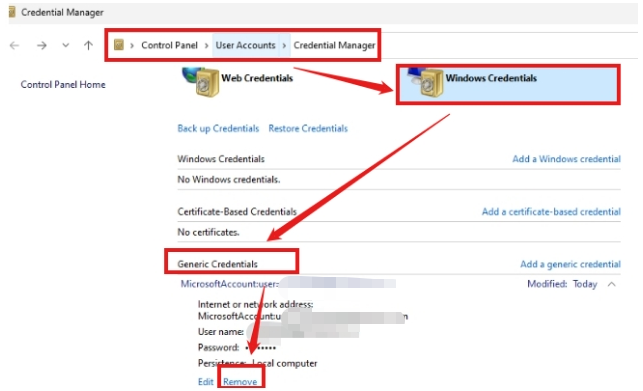
To break this loop, you must flush the stale credentials:
- Open the Start Menu, type Control Panel, and open it.
- Change the view to “Large icons” and click on Credential Manager.
- Select Windows Credentials.
- Look down the list under “Windows Credentials” and “Generic Credentials.” Expand any entries associated with the IP address or hostname of the machine you are trying to reach.
- Click Remove on all related entries.
- Reboot your PC, attempt to access the network share again, and enter your credentials manually to generate a fresh, KB5065426-compliant security handshake.
Solution 6: Use “Fix problems using Windows Update”
If you have tried the above steps and are still facing a severe KB5065426 printer error (such as “Operation could not be completed” or Spooler crashes) alongside your file sharing woes, the update installation itself might be partially corrupted.
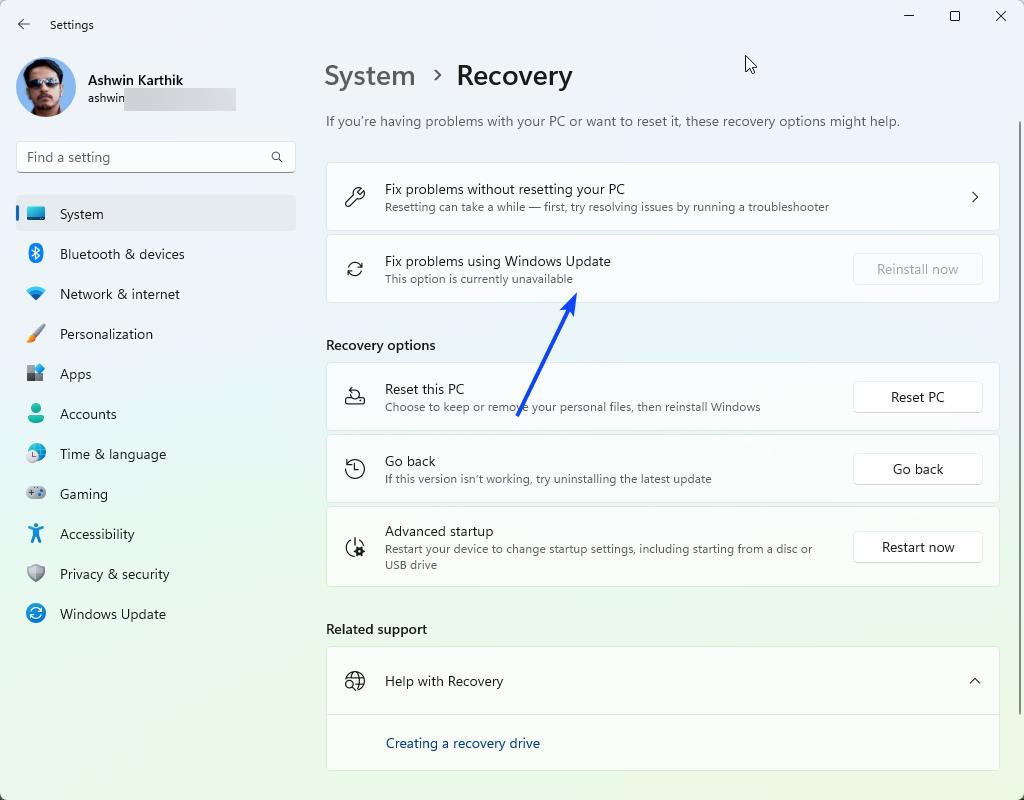
When system binaries related to the Print Spooler or the SMB server service are damaged during the patching process, registry edits won’t help. Fortunately, Windows 11 24H2 includes a powerful, non-destructive recovery feature designed specifically for botched updates.
- Navigate to Settings > System > Recovery.
- Look for the option labeled Fix problems using Windows Update and click Reinstall now.
- Windows will download the latest healthy version of your current OS build and reinstall the core system files in the background.
This process keeps all your personal files, installed apps, and settings intact while effectively “resetting” the network stack and repairing corrupted system binaries to a known good state.
Solution 7: Uninstall KB5065426 and Pause Updates (The Last Resort)
If your business operations are completely halted, invoices cannot be printed, and files cannot be accessed, you may have no choice but to remove the offending update entirely.
However, we strongly classify this as a last resort. KB5065426 contains critical security patches. Removing it leaves your network vulnerable to known exploits.
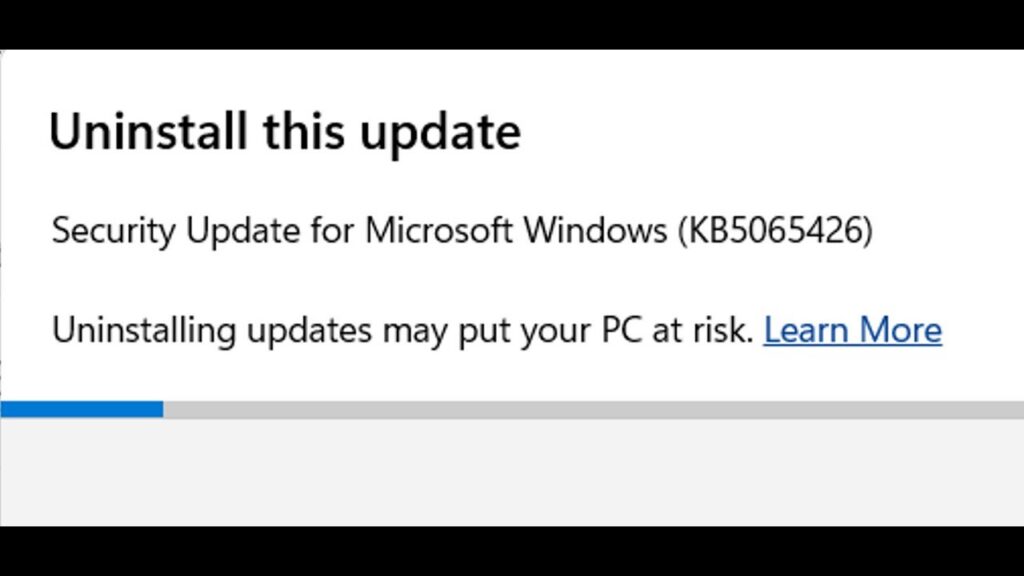
If you must roll back to restore immediate functionality:
- Go to Settings > Windows Update > Update history.
- Scroll down and click Uninstall updates.
- Locate KB5065426 in the list and click Uninstall.
- Crucial Step: Once the PC reboots and sharing is restored, go back to the main Windows Update screen and click Pause updates for at least 2 to 4 weeks. If you skip this step, Windows will silently download and reinstall the exact same problematic patch during your next idle period, breaking your network all over again.
Prevention: Future-Proofing Your Network for Windows 11 24H2
The chaos caused by the KB5065426 update highlights a major, industry-wide flaw in how many IT professionals handle system deployments. Moving forward, traditional “sector-by-sector” disk cloning is a liability.
When you migrate a system to a new SSD or deploy an image across an office, simply copying the data is no longer sufficient. You must ensure that every new system possesses a unique cryptographic identity. To avoid future network sharing disasters, IT teams should adopt deployment strategies that prioritize identity uniqueness from day one.
Understanding how to clone your disk and change Windows SID simultaneously using intelligent, purpose-built utilities is the only guaranteed way to ensure that your network remains robust, stable, and fully compliant with Microsoft’s aggressively evolving security standards.
FAQ: Troubleshooting KB5065426
Why is my file and printer sharing not working even after a reboot?
This update changes security policies (like blocking Guest access and enforcing SID uniqueness) that persist across reboots. A simple restart won’t revert these hardened security rules.
Does changing the SID delete my files?
If you use a non-destructive SID changer, your profiles and files remain intact. However, always back up critical data before performing kernel-level identity changes.
Is it safe to stay on an uninstalled version indefinitely?
No, this is highly dangerous in the long term. Unpatched SMB vulnerabilities are the primary entry points for catastrophic ransomware attacks. You should aim to apply one of the structural fixes (such as resolving the duplicate SID conflict) so you can safely re-install the cumulative update and benefit from its security enhancements.
Does the IP access method fix the underlying bug?
No, accessing a share via \\192.168.x.x is strictly a workaround for DNS/NetBIOS name resolution failures. If your core issue is a duplicate SID or disabled guest access, attempting to connect via the IP address will still result in an “Access Denied” or “Invalid Password” error.