


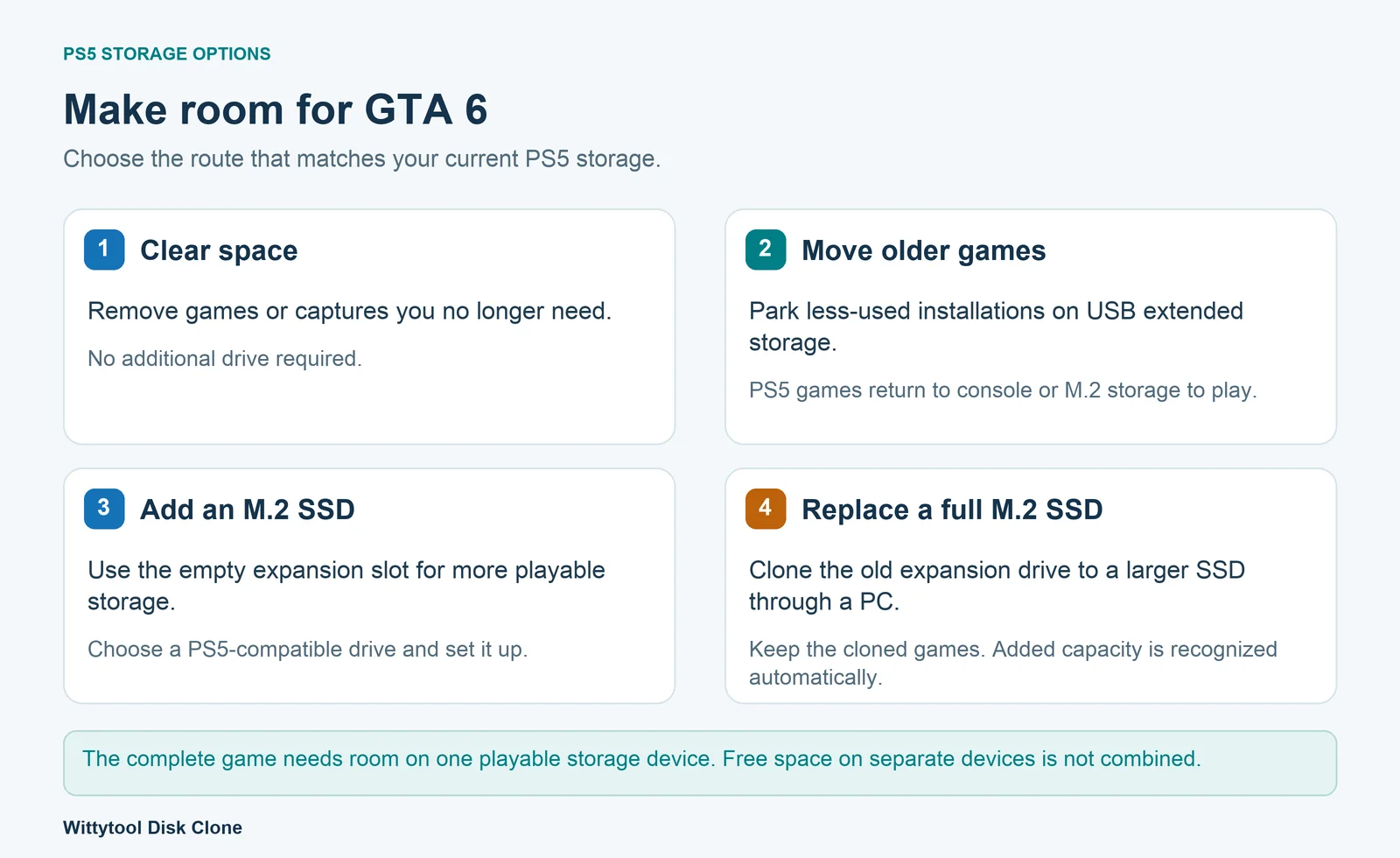
If your PS5 does not have enough space for GTA 6, start by checking the storage device where you plan to install it. You can remove content you no longer need, move older games to USB extended storage, or add a compatible M.2 SSD. If an existing M.2 expansion SSD is already full, you can replace it with a larger SSD and clone its contents through a computer using Wittytool Disk Clone.
The best option depends on whether you need room for one download or a larger library you can keep installed.
Quick Answer: Choose the Solution That Matches Your PS5
| Your situation | What to do | What you gain |
|---|---|---|
| You have games or recordings you no longer need | Delete selected installations, add-ons, or captures | Free space without another purchase |
| You want to keep older games but are not playing them now | Move them to compatible USB extended storage | Room on playable storage while retaining the installations elsewhere |
| Your PS5 does not have an expansion SSD | Add a compatible M.2 NVMe SSD | Another location that can install and run PS5 games |
| Your existing M.2 SSD is too small | Replace it with a larger compatible SSD | More capacity in the expansion slot; cloning can transfer the old SSD’s contents |
You do not need another SSD simply because GTA 6 is a large game. If you can make sufficient room on your current playable storage, you can use that space.
How Much Space Does GTA 6 Need on PS5?
PlayStation currently tells PS5 players to have 212 GB of storage available for GTA 6. Use the installation requirement shown for your download when choosing its destination. Official GTA VI storage guidance.
Check the drive that will hold the game
Open Settings → Storage on your PS5 and inspect the intended installation device. Your console storage and M.2 SSD are separate destinations.
For example, free space scattered across two devices is not one combined installation area. A single PS5 game must be stored in one location, so the destination you choose needs enough room for that installation.
Account for future downloads and updates
Keep some room for other downloads and subsequent updates. Use the space requirement shown for the particular download or update when deciding how much more room to clear.
Option 1: Clear Space Without Buying Another Drive
This is the simplest route when you have finished several games and do not mind downloading them again later.
Remove installations you no longer need
Go to Settings → Storage → Console Storage → Games and Apps. Review the installed titles, select the content you want to remove, and choose Delete. Some games let you manage individual components, so an unused add-on or completed component may be enough to clear the shortage. Your purchased digital games remain accessible through your library for later downloading. Sony storage-management instructions.
Review screenshots and video clips
Captures can also occupy space. Review your media before deleting it, and copy recordings you want to keep to suitable USB storage. Removing a few large videos may be preferable to removing a game you still play.
Keep game installations and saved progress separate
An installation is the game software; saved progress is a different data category. Manage each deliberately. PlayStation Plus cloud storage is for supported saved data, so it does not provide somewhere to install GTA 6 itself.
Option 2: Move Older Games to USB Extended Storage
A compatible USB hard drive or SSD can hold games you want to retain without leaving them on your active PS5 storage. This is useful if your download connection is slow or you regularly rotate through a large library.
In Game Library, highlight a game, open its options, and select Move Games and Apps. Select the content to relocate and complete the move before disconnecting the device. A USB drive being set up as extended storage will be formatted, which erases its existing contents. Sony USB extended-storage guide.
Understand what USB storage can do
PS5 games cannot run directly from USB extended storage. Move them back to console storage or an installed M.2 SSD when you want to play them. PS4 games can run from compatible USB extended storage.
For GTA 6, that makes a USB drive useful for parking other games and freeing playable storage. Buying a fast USB SSD does not turn it into a PS5 M.2 expansion SSD.
Option 3: Add a Compatible M.2 SSD to Your PS5
If you want more games to remain installed and ready to play, an M.2 expansion SSD provides additional playable storage.
Check compatibility before choosing a drive
Use a drive that meets Sony’s current requirements for the interface, supported capacity, physical dimensions, and cooling. The PS5 uses a compatible PCIe Gen4 x4 M.2 NVMe SSD, and the installed drive needs an effective heat-dissipation solution. Check the complete specification and the instructions for your console model rather than buying on capacity alone. Sony M.2 SSD requirements.
Choose capacity around the games you want to keep installed at the same time. A larger library calls for more space than a setup where you finish a game and remove it. Your existing collection and budget matter more than selecting a particular capacity just because GTA 6 is launching.
Install and set up the expansion SSD
Fully shut down and unplug the console, then follow Sony’s model-specific installation instructions. For a new, uncloned SSD being used with the PS5 for the first time, the console’s setup includes formatting.
After setup, choose M.2 SSD storage as the installation destination, or move games there through the console’s storage controls. This can leave the onboard storage available for GTA 6 or let you install the game on the expansion SSD itself.
Option 4: Replace an Existing M.2 SSD with a Larger SSD
If you already added an M.2 SSD and it is full, the upgrade changes: you are replacing the drive occupying the expansion slot.
You have two practical transfer routes:
- Use the console to relocate games temporarily. Move the old SSD’s games to available console storage or USB extended storage, install and set up the replacement, then transfer the games back.
- Clone the old expansion SSD through a computer. Connect both SSDs to a PC and copy the old drive to its replacement.
Our PC clone route uses Wittytool Disk Clone to transfer the existing expansion-drive contents as one disk-copying task. This fits when you want to retain the installed library while replacing the drive in the same expansion slot. Review the SSD connection and compatibility checks when preparing the old and new drives.
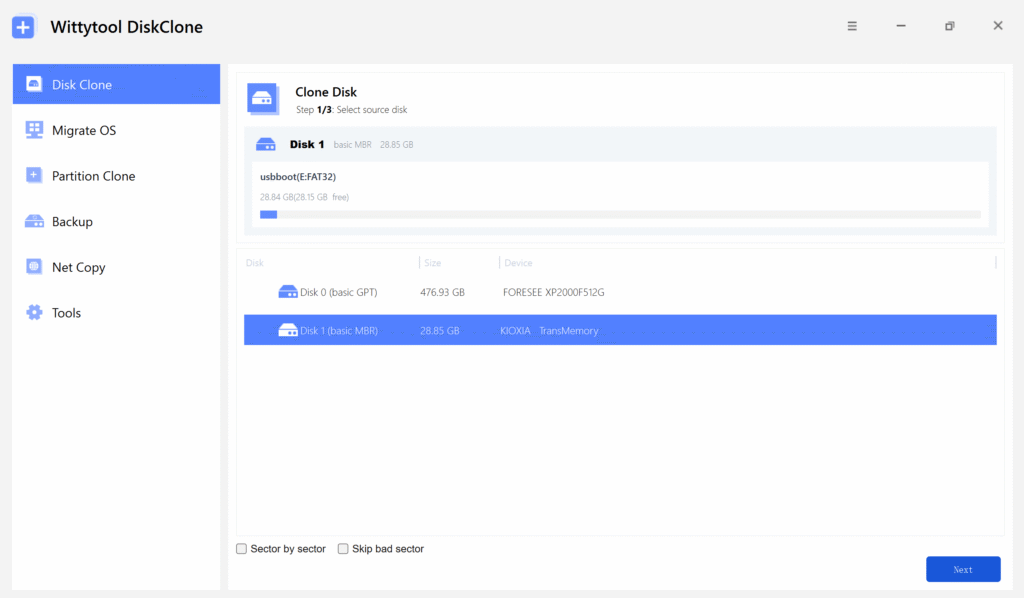
Download Wittytool Disk Clone to transfer your existing expansion SSD to its replacement.
Choose the old SSD as the source and the new SSD as the destination, then review the copy before starting. Our source-and-destination cloning walkthrough explains those stages. The cloned replacement does not need formatting after it goes back into the PS5. It already contains the copied games, and formatting would erase them. The larger SSD’s additional capacity is recognized automatically. Check the displayed capacity and your games after installation.
This applies to the removable expansion SSD you added to the console. It is a different job from replacing the PS5’s onboard storage.
Check Storage Again Before Starting the Download
Once you have cleared or expanded storage, reopen Settings → Storage and confirm the destination has sufficient available space. Then check the destination selected for the installation.
If a space warning remains, read the exact message and compare it with the free space on that device. If enough space is available and the download still fails, investigate the download problem separately instead of continuing to delete content. PlayStation provides a GTA VI troubleshooting guide for download and launch issues.
Frequently Asked Questions
Can I play GTA 6 directly from a USB SSD on PS5?
PS5 games cannot run from USB extended storage. Use console storage or a compatible installed M.2 SSD as the active installation location. A USB SSD can help by holding other games temporarily.
Do I need another SSD if GTA 6 already fits?
No. Another SSD is a capacity upgrade. If your current installation location has sufficient free space, you can use it.
Can I make room without deleting my existing games?
Yes. Relocate less-used games to compatible extended storage, or add playable M.2 storage. If an existing expansion SSD is too small, you can replace it and transfer or clone its contents.
Can I combine console storage and M.2 free space for one installation?
No. Select a destination that can hold the complete game. Available space on the other device does not make up the difference.
Does PlayStation Plus cloud storage solve the installation-space problem?
Cloud saved-data storage does not hold the game installation. It can protect supported progress, but you still need adequate local playable storage for GTA 6.