


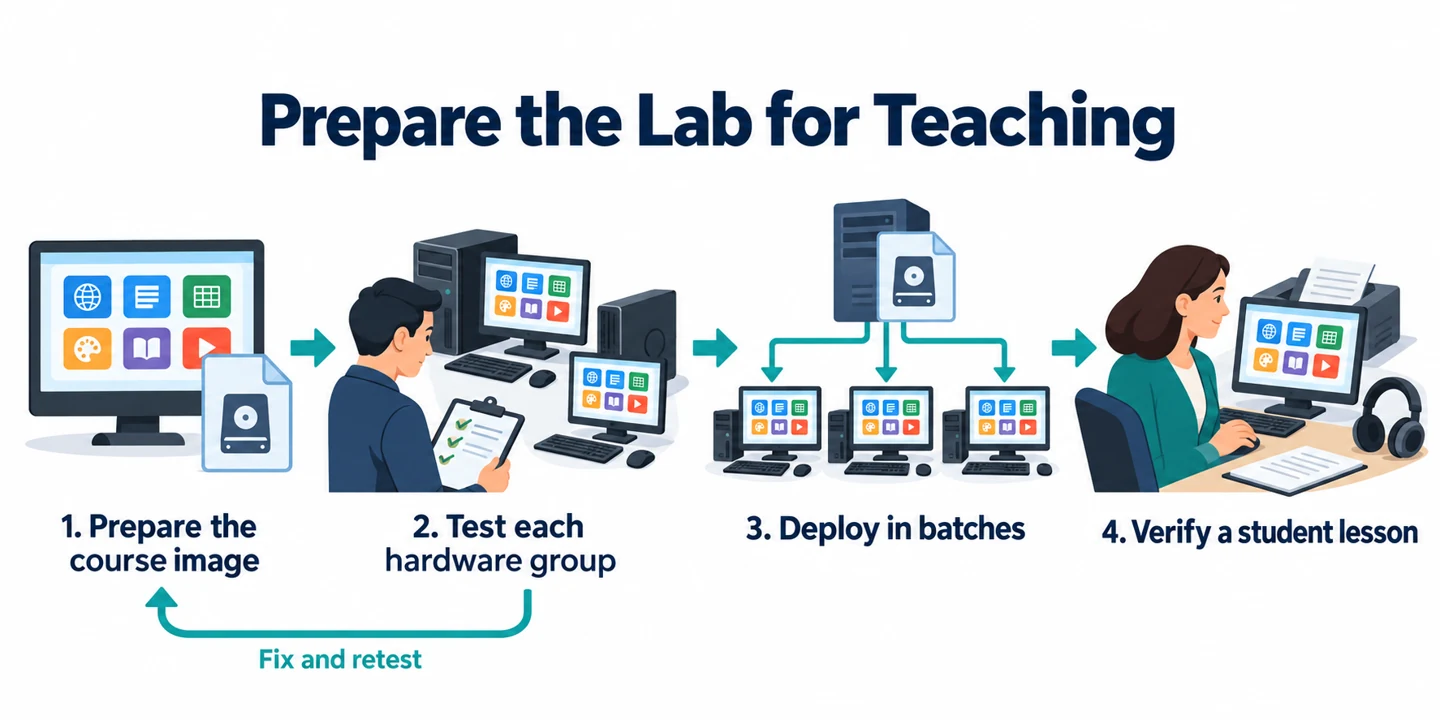
To deploy Windows images to a school computer lab, prepare a reference PC with the course applications and settings the class needs, capture that environment, and test the image on representative lab hardware. Deploy the tested image to the remaining PCs, then verify student sign-in, teaching applications, and classroom devices before lessons begin.
Our classroom computer imaging solution supports new lab setups, term refreshes, and course updates. This guide takes you through the school-specific preparation and acceptance checks, from the teacher’s software list to the first lesson on the deployed PCs.
Plan Your School Computer Lab Deployment
Confirm the Teaching Applications and Classroom Settings
Ask the teachers who use the room to confirm what their students must be able to do. A list of application names is only a starting point: a course may require a specific version, browser extension, font, programming package, or file format.
Turn those requirements into a short test plan:
| Course requirement | What to record | Classroom test |
|---|---|---|
| Teaching applications | Required versions, plugins, and dependencies | Open a representative lesson or project. |
| Student work | Approved save location and file types | Save, close, and reopen a sample file. |
| Connected devices | Printers, headsets, displays, or specialist equipment | Complete the task students will perform. |
| School services | Required websites, shared folders, or learning platforms | Access them using the intended student account. |
Agree who will approve the result. For specialist courses, have the teacher review a representative lesson before you deploy across the room.
Group Lab PCs by Hardware and Course Requirements
Check whether the lab has one hardware model or several. Relevant differences include storage controllers, network adapters, graphics hardware, and attached teaching devices. Choose a pilot PC from each materially different group.
Course requirements can also justify separate images. A writing lab and a design lab may need different applications even if their PCs are identical. Prepare the shared environment for each intended group rather than adding every school’s application to one image.
Keep a target list with each PC’s asset ID, hardware group, MAC address, intended computer name, and destination disk details. Do not assume the same disk number identifies the correct drive on every machine.
Back Up Student Work and Set a Deployment Window
Find out where students and teachers have actually saved files. Work may be on the local desktop, in Documents, or inside an application’s project folder even when the school normally uses network storage.
Copy required files away from the disk that will be overwritten and open representative saved copies. Confirm who will restore those files and where they belong after deployment.
Schedule the rollout outside teaching hours, with time for the pilot, failures, and classroom testing. Keep a recovery option available until the lab passes acceptance; the image-writing stage is only part of the maintenance window.
Prepare a Classroom Windows Image
Test the Reference PC with a Student Account
Prepare a reference PC with the intended Windows environment, approved updates, course applications, and shared settings. Finish pending restarts before testing.
Use a school-approved student test account to run a lesson. Check that applications open without administrator rights where that is the intended classroom setup. Open a course file, use the required plugins, and save the result in the approved location.
A program that launches successfully for an administrator may still fail for students because of permissions, missing settings, or access to a required service. Resolve those differences before capturing the image.
Remove Personal Content and Review Shared-PC Behavior
Review documents, browser profiles, saved sign-ins, and temporary course files. Keep the material intended for every PC, and remove personal content that should not be distributed across the lab.
Decide how the shared devices should handle student profiles and local storage. Microsoft’s Shared PC configuration guidance describes account-management and maintenance settings for shared Windows devices. Apply the school’s chosen configuration through your normal management process and test the resulting sign-in and sign-out behavior.
Preserving local accounts from a source image does not mean copying previous students’ work or saved sessions into the classroom baseline.
Record the Image Version and Prepare Client Connectivity
Record the course or lab name, Windows edition and build, application versions, capture date, and image revision. A label such as ScienceLab-Win11-202610-r01 is an example you can adapt.
For a Windows 11 source, our reference-image preparation guide explains how to capture and maintain the baseline in more detail.
Prepare the target boot environment before the rollout. Wittytool Disk Clone supports PXE, and you can also start the client from prepared WinPE boot media. Confirm that the environment detects the intended disk and network adapter and can reach the deployment server.
Use a wired connection for the WinPE workflow covered here. Microsoft’s WinPE networking documentation explains network-driver initialization and notes that general wireless networking is not supported in WinPE. Working network access inside the installed Windows system does not establish that the boot environment has the drivers and access it needs.
Deploy Windows Images with Wittytool Disk Clone
Wittytool Disk Clone combines system-image creation with network deployment, optional target Windows SID changes, and centralized progress monitoring. You can capture the configured classroom environment without running Sysprep first and retain the applications and local accounts included in that image. Our software also supports Universal Restore for dissimilar hardware; validate each intended hardware group before expanding the rollout.
The Windows image deployment feature provides manual and automatic server/client workflows. Only system or disk images created by Wittytool Disk Clone are supported inputs for this deployment process.
Download Wittytool Disk Clone to capture the teaching setup you have prepared and test it on a representative lab PC. Once the pilot passes your classroom checks, use the same application to deploy that tested image and track the remaining clients.
Step 1: Create the Classroom System Image
On the prepared reference PC, open Backup and select Add Backup. Select Backup System and review the Windows-related partitions.
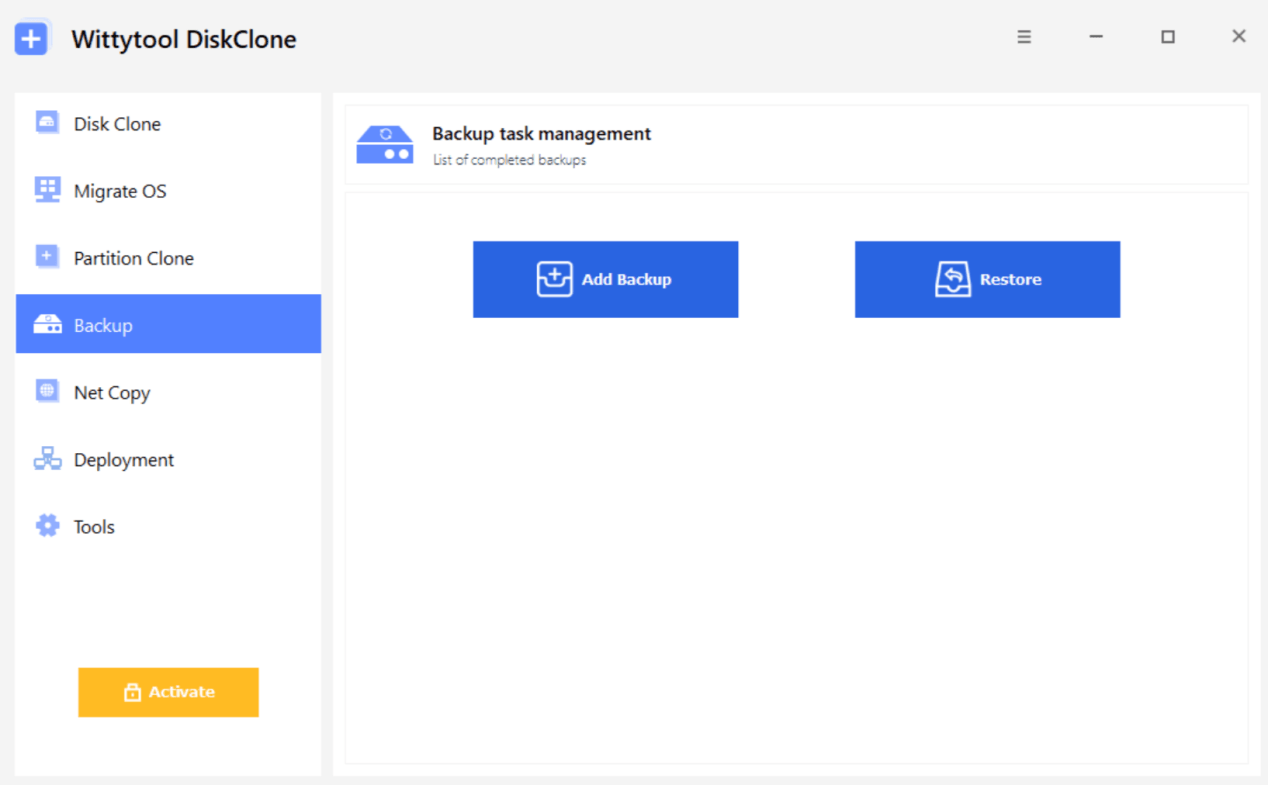
Enter a clear backup name and choose an image storage path the deployment server can access. Select Start Backup and wait for the task to finish. Associate the completed image with its course, revision, and preparation record.
Step 2: Configure the Server and Target Settings
On the PC serving the image, open Deployment and select Start as Server. The server is a software role; a compatible PC running Wittytool Disk Clone can perform it.
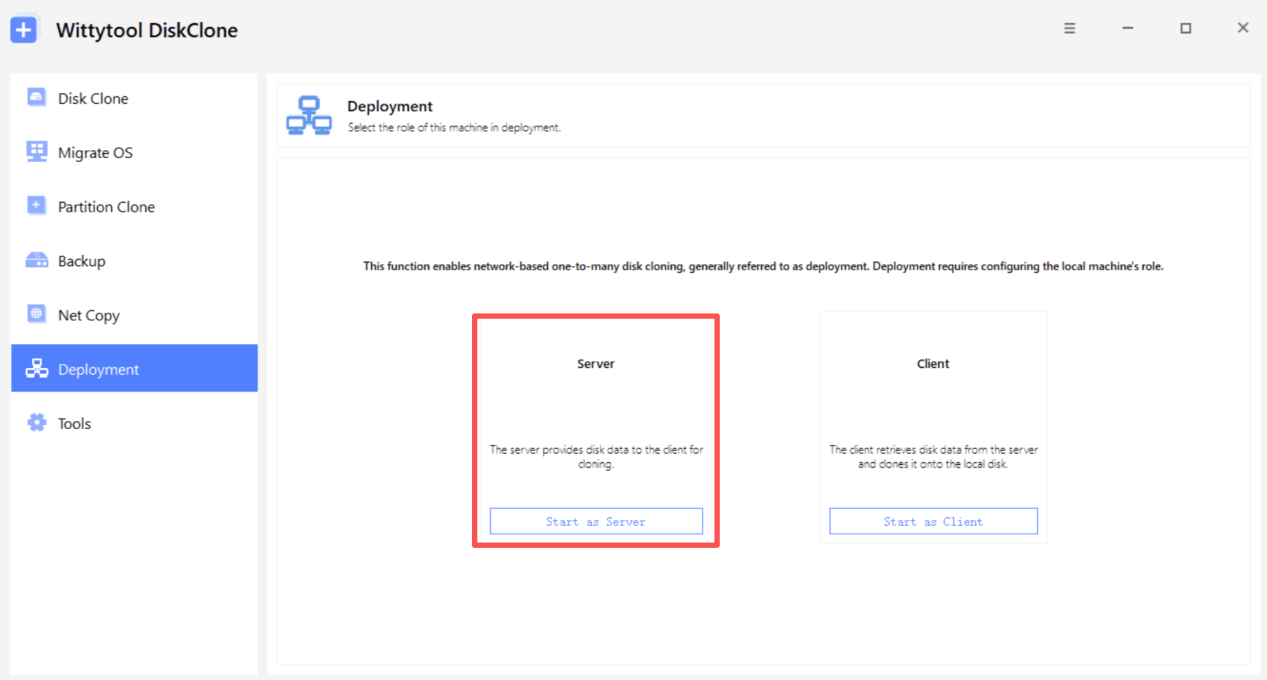
Use Browse to select the classroom image. Review Restore OS and the selected OS-related partitions, then review Target PC settings:
- Destination disk: For the manual pilot, leave automatic target-disk deployment disabled so you can select and inspect the destination on the client.
- Target SID: Enable Change Target Windows SID when the rollout calls for changing the target machine SID. This is the option in the target PC settings.
- Start behavior: Keep the first deployment manual. Consider automatic deployment for the remaining targets only after the pilot passes and each target’s disk mapping is confirmed.
Review the settings, then select Start to run the deployment service. For the detailed interface sequence, see our server and client setup instructions.
Step 3: Deploy to a Pilot PC in Each Hardware Group
Start the prepared WinPE environment on the pilot PC and open Wittytool Disk Clone. Select Deployment, choose Start as Client, and connect using the actual Server IP and Port configured for your environment.
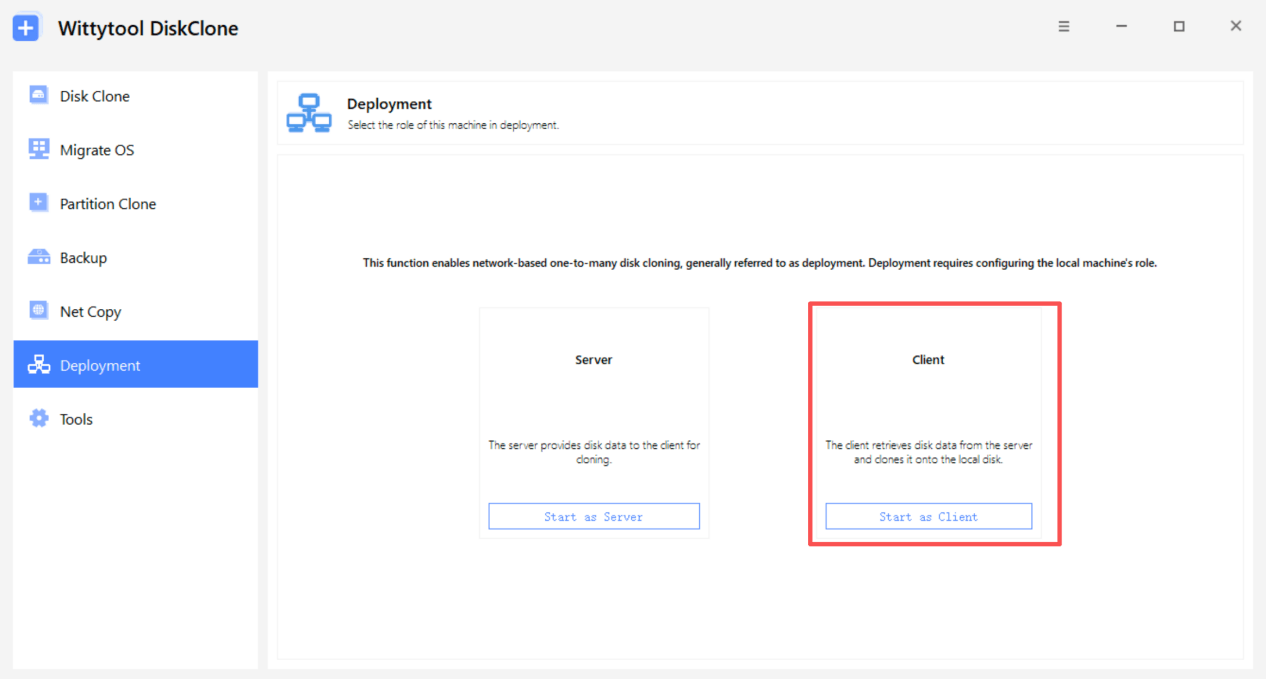
Choose the destination disk. Review Selected target disk and Target disk result layout against your target record. Confirm the required backup before selecting Start, because deployment deletes the selected disk’s partitions.
After image application finishes, start the deployed Windows installation and perform the classroom checks in the next section. Repeat the pilot for each relevant hardware group. If a required application or device fails, resolve the problem and retest that group before deploying more PCs.
Step 4: Check the Pilot, Then Deploy the Remaining PCs
Use the image version and settings that passed the pilot. Expand the rollout in groups you can monitor and verify within the available maintenance window.
If you choose automatic deployment, configure Deploy to the target disk number and Automatically deploy data to the target disk on the server. Verify the selected disk number against every intended target before connecting it. An automatic client connection can trigger deployment immediately.
Start the prepared clients, connect them to the server, and reconcile the displayed MAC and IP details with your target list. Monitor client status and progress from Wittytool Disk Clone. Record failed tasks against the affected PCs, investigate, and verify those devices again after corrective work.
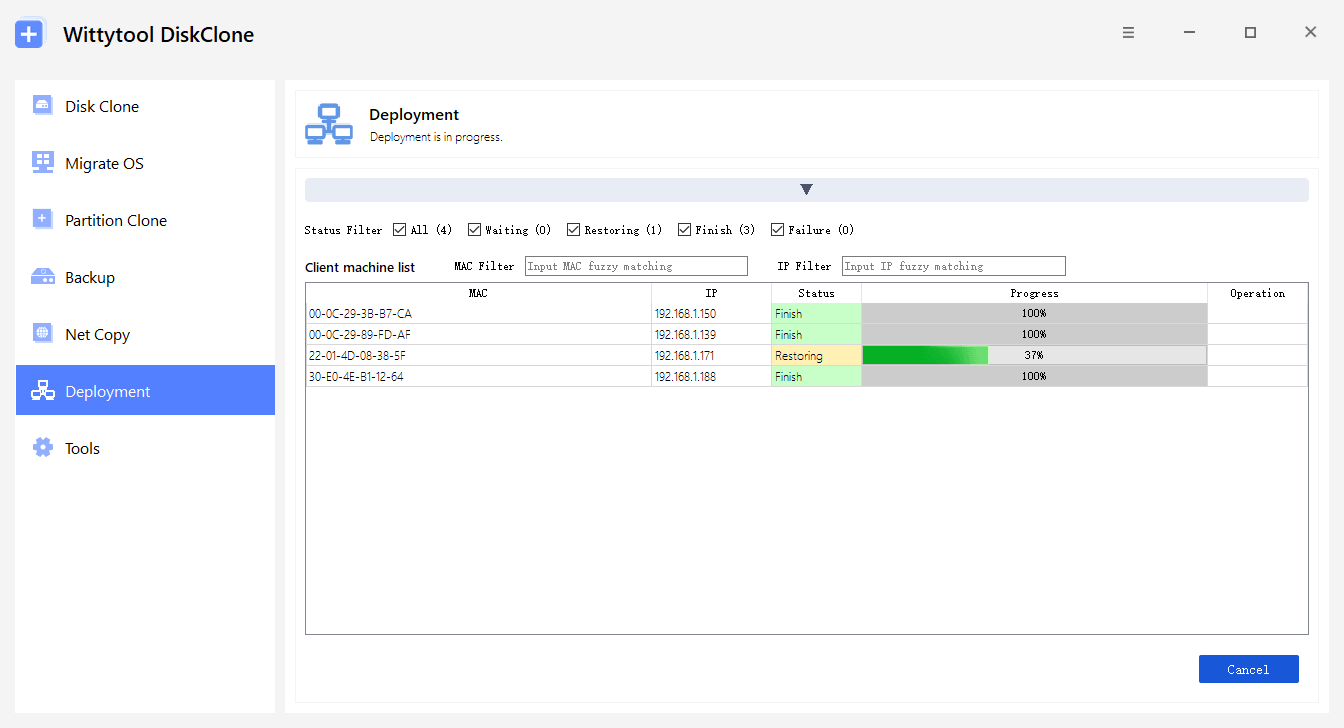
A finished deployment percentage means the image-writing task has completed. Keep the PCs in the deployment record until their classroom checks are complete.
Verify the Lab Before Students Return
Check Startup, Student Sign-In, and Device Identity
Boot each PC from the intended local disk and complete another restart. Confirm the expected Windows environment and check that required storage and network devices work.
Verify computer names against the room’s asset list. Where you selected target SID changes, include machine SID verification in your identity checks. Check domain access or device-management registration separately through your school’s normal process.
Sign in using the intended student account type. Confirm that students receive the expected permissions and can reach the resources required for lessons.
Run a Lesson Task and Test Classroom Devices
Have a teacher or technician complete a representative lesson on each relevant hardware and course group. Test the actual project files, required plugins, and save locations.
Include application activation and sign-in where required. The presence of an installed application does not establish that a subscription sign-in, activation, or school service connection is ready on the target.
Test the devices the course uses: printing for a writing lab, audio and headsets for language teaching, or the relevant equipment for a specialist class. Where students save work to school storage, close and reopen a sample file from that location.
Record Exceptions and Approve the Lab for Teaching
Use a short acceptance record for each PC, with Pass, Fail, or Not applicable results. Explain exceptions rather than leaving a blank that could be mistaken for a pass.
| Check | Acceptance result |
|---|---|
| Startup | The PC boots from its deployed local disk and restarts successfully. |
| Student access | The intended student account signs in with the expected permissions. |
| Course software | Required applications open and the representative classroom task succeeds. |
| Files and services | Students can access required school resources and save and reopen their work. |
| Classroom devices | Required printing, audio, display, and specialist devices work. |
| Deployment record | Asset ID, image version, identity checks, and unresolved issues are recorded. |
Complete basic checks on every PC and the fuller lesson tests across the relevant course and hardware groups. Keep devices with unresolved teaching-critical failures out of normal classroom use until they pass a repeat check.
Keep the Lab Image Ready for the Next Term
Keep an Approved Image and a Change Record
Store the tested image with the application list, supported lab groups, test results, and responsible owner. Keep a previous tested version when required by the school’s recovery process, together with the records needed to identify it.
These records belong to your team’s maintenance process. Make the approved image clear to whoever performs the next deployment so an older course version is not selected accidentally.
Update the Image When Classroom Requirements Change
When a course adopts a different application version, plugin, or Windows baseline, update the reference environment, capture a new revision, and repeat the relevant classroom tests.
Maintain deployed PCs through the school’s normal update process between imaging cycles. Updating the stored image changes the source for future deployments; it does not update PCs already in use. A small application update does not automatically require reimaging the entire lab.
Before each new term, confirm the teacher’s current requirements and review the last deployment’s exceptions. Reuse the baseline that has passed those checks, and retain the record of what the classroom received.
School Computer Lab Deployment FAQ
Can I deploy one Windows image to every PC in a school lab?
You can reuse one image for PCs that need the same classroom environment and pass deployment testing. Wittytool Disk Clone supports Universal Restore for dissimilar hardware, but you should test representative hardware groups and confirm course applications, drivers, and devices before using one image across the lab.
Will image deployment erase files already stored on lab computers?
Yes. In the Wittytool Disk Clone workflow, deployment deletes partitions on the selected target disk and writes the image to it. Back up required student and teacher files away from that disk and verify the copies before connecting clients to automatic deployment or starting a manual deployment.
Can I keep teaching applications and local accounts in the image?
Yes. Wittytool Disk Clone can preserve the applications and local accounts included in the source image. Review personal content before capture, and verify application activation, required sign-ins, and student permissions on the deployed PCs.
Can lab PCs use PXE to start the deployment environment?
Yes. Wittytool Disk Clone supports PXE. Prepare the school’s network boot environment and test that a representative target can start the client environment, detect its destination disk, and connect to the deployment server before expanding the rollout.
What should I test before students use the deployed PCs?
Check local-disk startup, student sign-in, required applications, file access, activation where needed, and classroom devices. Complete a representative lesson task for each relevant course and hardware group, record exceptions, and resolve teaching-critical failures before handover.