


Wittytool Disk Clone

NEW OFFICE PC SETUP

Set Up New Office PCs with a Standard Windows Image

Windows cloning and image-deployment software for new office PCs.
Prepare a shared setup of apps and settings.

For IT teams preparing new office laptops and desktops for new hires, team expansion or a new PC purchase.

Download Wittytool Disk Clone See the setup workflow ↓ A standard office setup deployed to new PCs A prepared source computer and system image connect to a group of new office computers.

Define the standard for every new PC.

In the standard image

  • Windows version and updates
  • Approved business apps
  • Language and office defaults

Finish for each employee

  • Work-account sign-in
  • Role-specific access
  • Personal preferences

The image supplies the common starting environment. IT completes employee sign-in, role access and any required device-management setup after deployment.

Match the image to the team's work.

Use a common baseline where the shared setup is the same. Prepare a separate image when a PC group needs a substantially different app set.

General office PCs

Shared office apps

Office applications, browsers, PDF tools and standard utilities shared by the group.

A standard image for general office PCs A separately prepared image containing shared office applications is deployed to its intended group of new PCs.

Specialist PCs

Required specialist apps

Finance or design PCs may need a dedicated app set. IT can finish smaller role-specific additions after deployment.

A separate image for specialist PCs A separately prepared image containing required specialist applications is deployed to the PC group that needs those applications.

Build the setup your new PCs will share.
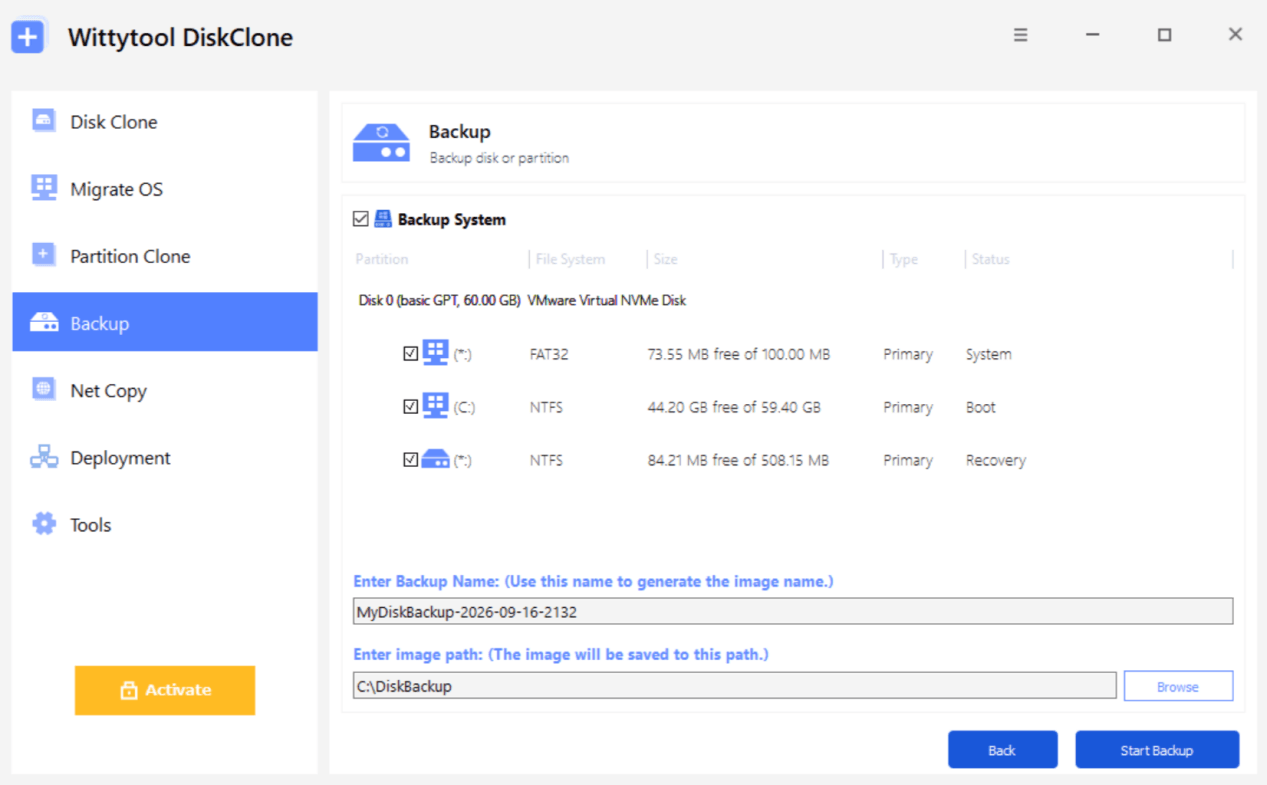
Wittytool Disk Clone Backup System screen for capturing the prepared source Windows environment

Capture the tested Windows setup, shared apps and settings with Wittytool Disk Clone.

Keep employee files out of the shared image. Review accounts, browser profiles and saved sign-ins before capture.

Our network image deployment uses disk or system images created by Wittytool Disk Clone.

Prepare a standard Windows image →

Capture the reference PC

  1. Open Backup → Add Backup.
  2. Select Backup System and the Windows partitions.
  3. Name the image, choose its storage path and select Start Backup. Wait for the backup to finish.

Keep the approved image version, capture date and tested PC models with your new-PC rollout record. Review the baseline before preparing the next batch.

Deploy the standard image to your new PCs.

Test the image on representative new hardware first.

Deployment deletes partitions on the selected target disk and writes the image. Back up required files and confirm the disk before connecting clients. Automatic deployment can begin when a client connects.

Before connecting new PCs

Deployment server A compatible PC running Wittytool Disk Clone, with access to the tested image.

New PCs A working network connection to the server and a prepared WinPE environment that can run Wittytool Disk Clone.

  1. 1

    Select the image

    Open Deployment → Start as Server. Use Browse to select your Wittytool Disk Clone image and select Restore OS for the Windows partitions.

  2. 2

    Set the targets

    Choose automatic or manual deployment. For automatic mode, set the target disk number. Enable Change Target Windows SID. if needed, then select Start.

  3. 3

    Connect new PCs

    Boot the new PCs into the prepared WinPE environment and open Wittytool Disk Clone. Choose Deployment → Start as Client, enter Server IP and Port, then select Connect.

  4. 4

    Monitor progress

    In manual mode, select and confirm the client target disk, then select Start. Automatic mode follows the server settings after connection. Review each client's status and progress on the server.
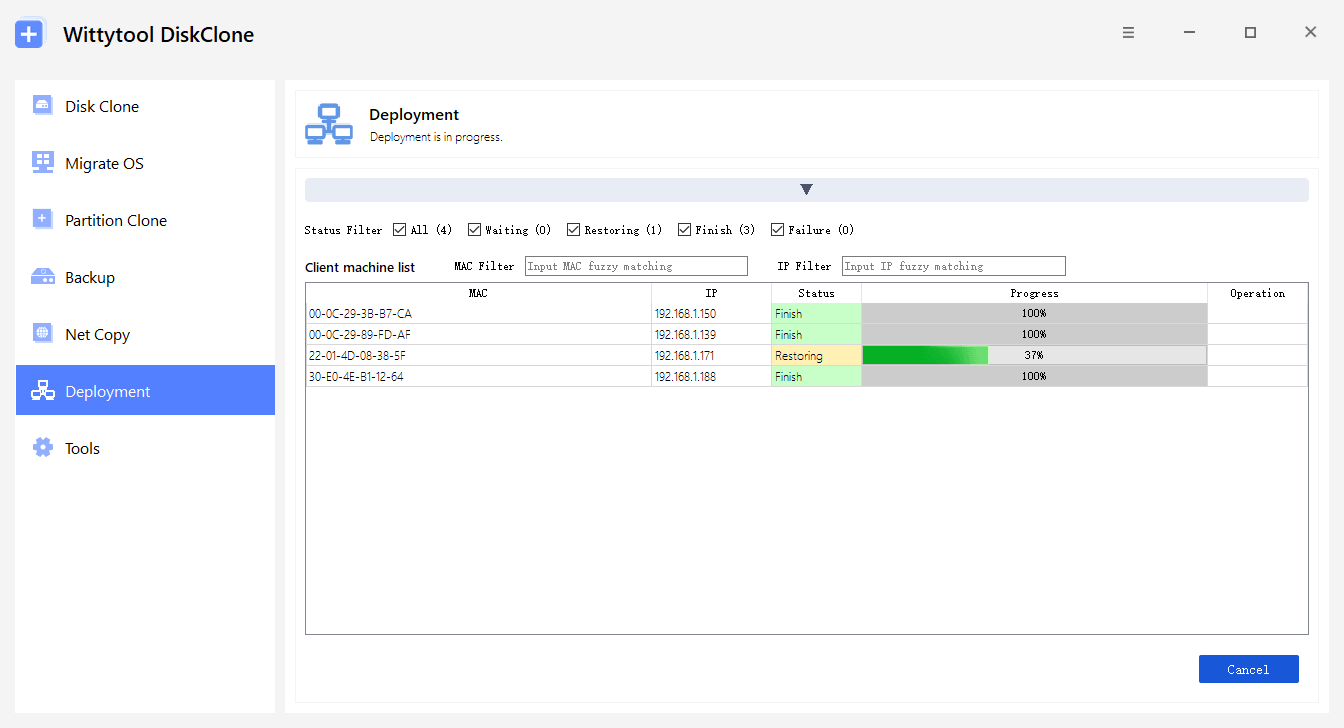
Wittytool Disk Clone deployment monitor showing client MAC addresses, IP addresses, status and progress View the multi-PC deployment guide →

Check each new PC before you issue it.

Complete employee-specific configuration and confirm each new PC is ready for work.

  • Windows startup and storage/network drivers
  • Assigned employee and device ID
  • Work sign-in and role access
  • Required apps and activation
  • Network and desk devices
  • Image version recorded
  • Required security settings and device-management enrollment
A new office PC and employee handover checks A configured laptop is shown with an employee assignment card and a checked issue sheet.

New office PC setup questions

What belongs in the standard office PC image?
Include the Windows environment, approved business applications and office defaults needed by the intended PC group. Prepare and test the source PC before capturing its image with Wittytool Disk Clone. Keep employee files and personal sign-ins out of the shared build. Use a common baseline for shared requirements; prepare a separate image when a group needs a substantially different app set.
Can one image be used across different PC models?
Wittytool Disk Clone supports deployment to dissimilar hardware, but representative hardware still needs a pilot. Verify startup, storage and network drivers, required apps and connected devices before preparing the wider group. For a Windows 11 image, check that the new PCs meet the applicable Windows 11 system requirements.
What remains after image deployment?
Complete employee-specific sign-in and access, verify apps and activation, and test the network and desk devices. Check the computer name and required machine SID handling separately, then record the assigned employee, device ID and image version through your IT process. Complete any required security configuration and device-management enrollment. A completed deployment does not itself complete employee onboarding or organization enrollment.
How is this different from a PC refresh?
New-PC setup focuses on the first standard configuration and issue of newly acquired computers. A PC refresh also plans the transition from existing PCs, including required employee files, the changeover and when old devices can be taken out of service.
How do I deploy an image to a new PC without Windows installed?
Boot the new PC into a prepared WinPE environment that can run Wittytool Disk Clone. Open Deployment, select Start as Client, and connect to the deployment server. Prepare and test the startup environment and network connection before the rollout. Confirm the target disk before connecting, because automatic deployment can start when the client connects.
Can I use this workflow on a new PC with Windows already installed?
Yes, when you intend to replace the selected target disk with your standard image. Deployment deletes the existing partitions on that disk and writes the image, so back up any required files first. After deployment, verify Windows startup, drivers, application activation and employee-specific settings before issuing the PC.