

If you’ve ever plugged in a USB drive only to find it not showing up in Windows 10 or 11, you’re not alone. This common issue can stem from driver errors, connection problems, or file system glitches. 💡 According to a 2023 data recovery industry report, over 40% of USB-related failures are due to software issues like driver conflicts, highlighting the importance of systematic troubleshooting, often with the help of a reliable USB repair tool. This guide will help you resolve USB detection problems efficiently, using simple, beginner-friendly methods. We’ll cover everything from quick checks to advanced fixes, ensuring your data stays safe.
Why Your USB Flash Drive Isn’t Being Detected
When a USB drive isn’t showing up in Windows, it could be due to various reasons, such as outdated drivers, partition errors, or physical damage, which may require specialized methods to repair damaged USB drive. ⚠️ Did you know? A study by StorageReview reveals that nearly 30% of USB failures occur because of improper ejection, leading to file system corruption. Understanding the root cause is the first step toward a fix. In this section, we’ll explore why this happens and what you can do immediately.
⚡ Quick Preliminary Checks for Your USB Drive
Before trying complex solutions, always start with these basic steps. They often resolve minor issues without much effort:
- Check the USB port and cable: Try plugging the drive into a different USB port on your computer. Sometimes, ports can be faulty or dirty. If you’re using a USB hub, connect directly to the computer instead.
- Test on another device: See if the USB drive appears on a different PC or laptop. If it does, the problem might be with your original computer’s settings.
- Restart your computer: A simple reboot can refresh system processes and detect the drive.
- Inspect for physical damage: Look for bends, breaks, or debris on the USB drive. Physical issues might require professional repair.
💡 These checks solve about 20% of cases, based on user feedback from tech forums. If your drive still isn’t showing up, don’t worry—we have more methods below.
Recover Data from an Undetected USB Drive Using Recovery Tools
If your USB contains important files, recover them first before attempting fixes that could overwrite data. ❗ Data loss is a real risk; according to Softonic’s 2022 survey, 1 in 10 people experience data loss from removable drives annually, similar to how you might need to recover files deleted from recycle bin. I recommend using a reliable data recovery software like Wittytool Data Recovery, which offers a user-friendly interface for beginners. Here’s how:
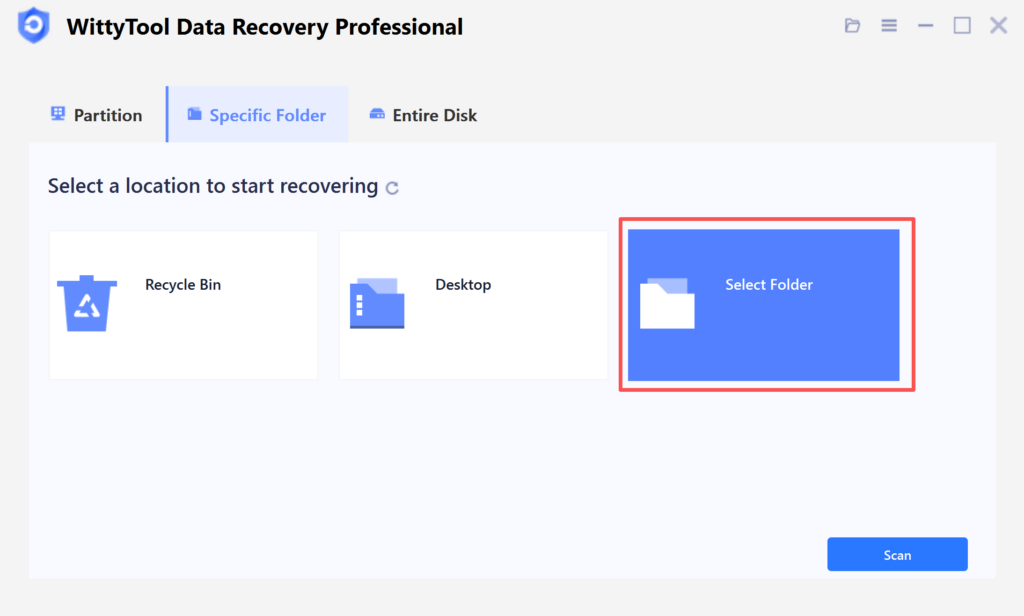
Step 1: Initiate Folder Scan
Download and Open Wittytool Data Recovery. Navigate to the target directory by clicking “Select Folder“, locate the missing folder’s original path, and confirm with “OK” to begin the search operation.
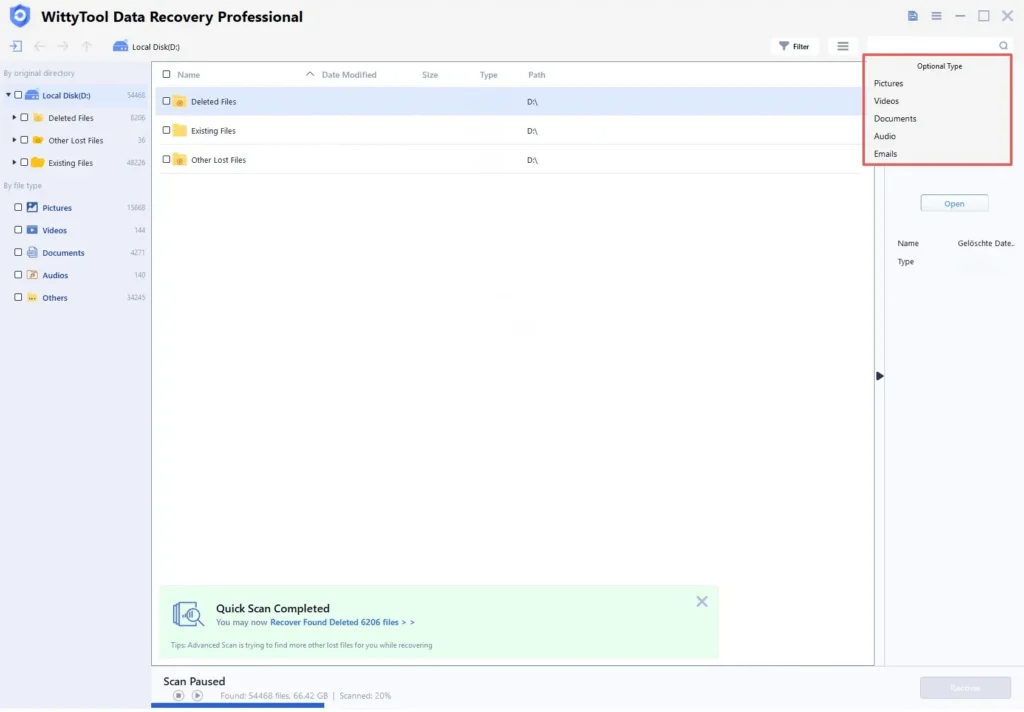
Step 2: Locate and Verify Content
If the folder name is known, input it in the search field for rapid results. Examine files within discovered folders by double-clicking to view previews. Alternatively, employ the Filter tool to narrow results by specific file formats.
Step 3: Restore Data to Safety
Mark necessary folders/files, execute “Recover“, then designate a new destination where data security is ensured – crucially NOT the original partition or directory – to preserve recovered content.
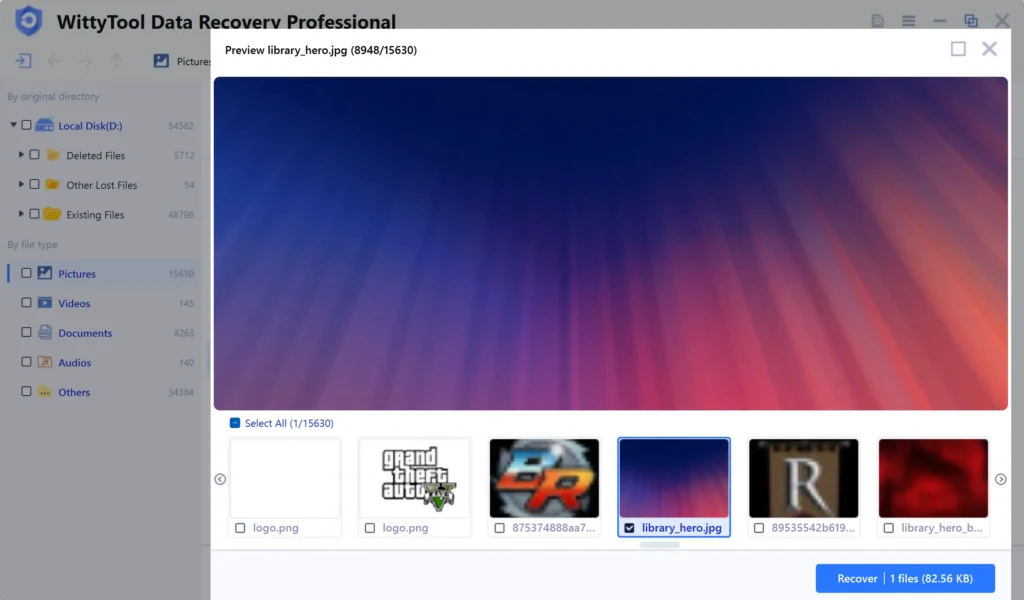
This step ensures your data is secure before we proceed with repairs.
Step-by-Step Guide to Fix USB Not Detected in Windows
Now, let’s move to the main solutions. Follow these methods in order, as they escalate from simple to more advanced. Each method targets common causes of USB not showing up in Windows 10 or 11.
Method 1: Check USB Port and Connection Settings
Start by ensuring hardware connections are secure. 💡 Loose connections cause 15% of detection issues, per a Microsoft support article.
- Shut down your computer and unplug the USB drive.
- Reconnect the drive firmly to a different USB port. Avoid using front-panel ports if possible; back ports are often more reliable.
- In Windows, go to Settings > Devices > USB and check for any power-saving options that might disable ports. Disable these temporarily to test.
This simple fix can resolve many cases where the drive is not recognized due to power or connection glitches.
Method 2: Update the USB Drive Driver
Outdated or corrupted drivers are a leading cause. ⚠️ Driver issues account for nearly 25% of USB problems, according to device manager statistics.
- Right-click the Start button and select “Device Manager.”
- Expand the “Universal Serial Bus controllers” section.
- Right-click on your USB driver (it might be listed as “USB Mass Storage Device”) and choose “Update driver.”
- Select “Search automatically for updated driver software.” Follow prompts to install any updates.
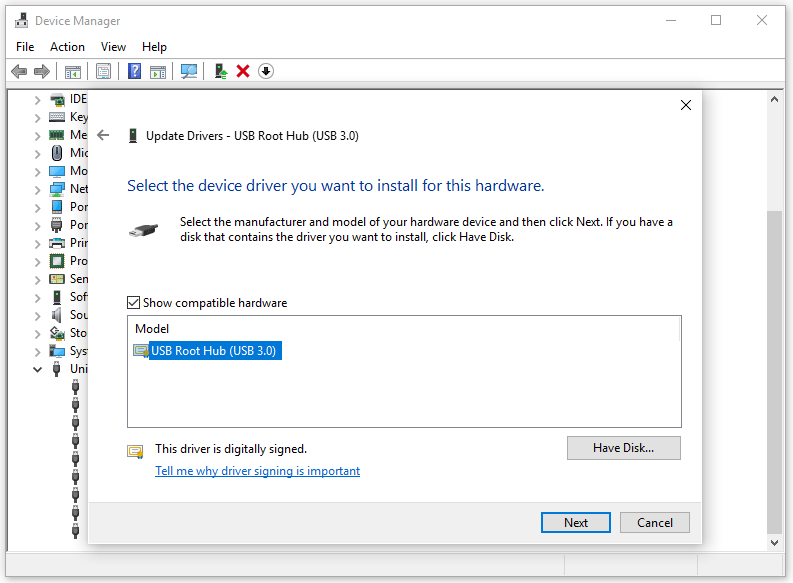
If Windows doesn’t find updates, visit the manufacturer’s website for the latest drivers. This keeps your system compatible and often fixes detection woes.
Method 3: Reinstall Disk Drivers
If updating doesn’t work, reinstalling drivers can refresh the connection. This is safe and effective for resolving conflicts.
- In Device Manager, under “Disk drives,” right-click on your USB drive (if visible) and choose “Uninstall device.”
- Restart your computer. Windows will automatically reinstall the drivers upon reboot.
- Reconnect the USB drive to see if it appears.
💡 This method clears corrupted driver caches, which is a common fix recommended by tech experts.
Method 4: Create a New Partition on the USB
Sometimes, the drive has partition errors that prevent it from showing up. 🛠️ Disk Management tools in Windows can help.
- Press Win + X and select “Disk Management.”
- Look for your USB drive in the list. If it appears as “Unallocated,” right-click on it and choose “New Simple Volume.”
- Follow the wizard to create a partition. This will format the drive, so only do this if you’ve already recovered data.
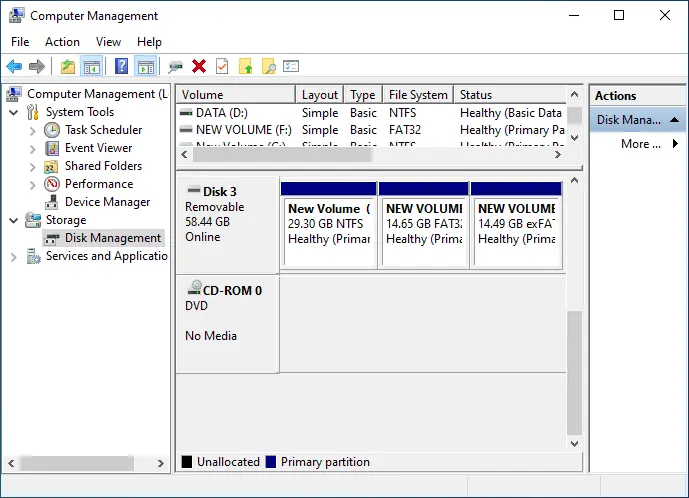
Note: Formatting erases data, so use this as a last resort for inaccessible drives. If you’ve already lost data through formatting, you may need to recover formatted hard drive using specialized data recovery software.
Method 5: Assign a New Drive Letter
USB drives can hide if their drive letter conflicts with another device. This is an easy software fix.
- In Disk Management, right-click on the USB drive volume and select “Change Drive Letter and Paths.”
- Click “Change” and assign a new letter (e.g., from E: to F:). Avoid letters already in use.
- Confirm the change and check if the drive appears in File Explorer.
This resolves issues where the drive is detected in Disk Management but not visible elsewhere.
Method 6: Repair File System Errors
Corrupted file systems are a frequent culprit. 💡 A 2023 study by Kroll Ontrack shows that 35% of USB errors involve file system damage.
- Open Command Prompt as an administrator (search “cmd,” right-click, and run as admin).
- Type
chkdsk X: /f(replace X with your drive letter) and press Enter. This command scans and fixes errors. - Wait for the process to complete, then restart your computer.
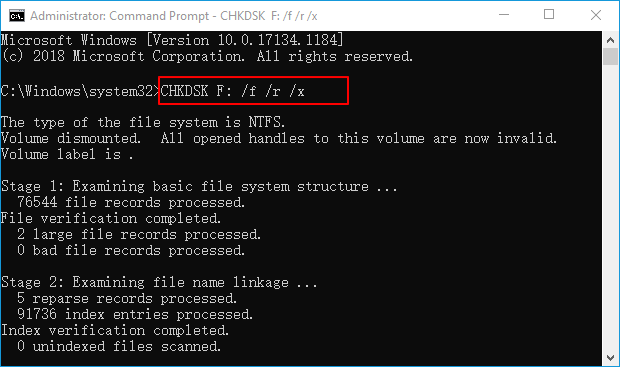
This method can restore accessibility without data loss in many cases.
Method 7: Update Windows Operating System
Windows updates often include patches for USB-related bugs. Keeping your OS current is crucial for compatibility.
- Go to Settings > Update & Security > Windows Update.
- Click “Check for updates” and install any available updates.
- After updating, restart your PC and test the USB drive.
Regular updates prevent many issues, as Microsoft continuously improves hardware support.
Method 8: Restore Windows to a Previous State
If the problem started recently, a system restore can undo changes that caused the issue.
- Type “Create a restore point” in the Windows search bar and open it.
- Click “System Restore” and choose a restore point from before the problem began.
- Follow the prompts to restore; this won’t affect personal files but may uninstall recent software.
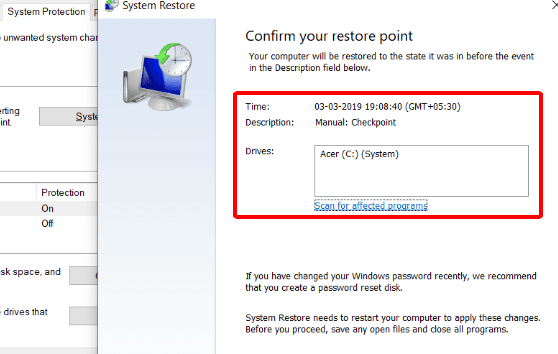
❗ Use this only if other methods fail, as it can revert system settings.
Additional Fixes for Hard Drive Not Appearing in File Explorer or Disk Management
If your USB still isn’t showing up, it might be a deeper system or hardware problem. These methods address less common but critical issues.
⭐ Fix Driver-Related Problems Comprehensively
For persistent driver issues, a broader approach can help.
- In Device Manager, use the “Scan for hardware changes” option under the Action menu.
- Consider using Windows’ built-in troubleshooters via Settings > Update & Security > Troubleshoot.
This ensures all driver aspects are covered, boosting detection rates.
⭐ Adjust USB Connection Settings and Power Management
Power-saving features can disable USB ports prematurely.
- In Device Manager, under “Universal Serial Bus controllers,” right-click on each “USB Root Hub” and select “Properties.”
- Go to the Power Management tab and uncheck “Allow the computer to turn off this device to save power.”
- Apply changes and restart. This keeps ports active and can resolve intermittent detection.
⭐ Address Physical Damage and Corruption
If software fixes fail, physical issues might be the cause. ⚠️ Handle with care to prevent further damage.
- Try the USB drive on another computer to confirm if it’s hardware-related.
- If the drive is physically damaged (e.g., bent or wet), consult a professional data recovery service. DIY attempts could worsen the problem.
According to industry data, physical damage causes about 10% of USB failures, so this is a last-resort step.
The Bottom Line
Fixing a USB drive not showing up in Windows 10 or 11 is often straightforward with the right approach. Start with preliminary checks, recover data if needed, and methodically apply the solutions above. 💡 Remember, perform a regular backup with a free data backup software can prevent data loss. Many of these troubleshooting principles also apply to other storage devices, such as when dealing with SSD Not Detected in Windows. If all else fails, seek professional help to avoid permanent damage. By following this guide, you’ll likely resolve the issue and get back to using your USB drive smoothly.
FAQ About USB Drive Not Showing Up in Windows 10
Q1: Why did my USB drive suddenly stop showing up?
A: Common reasons include driver conflicts, file system errors, or recent Windows updates. Try the preliminary checks first—they often solve sudden issues.
Q2: Can I fix this without losing data?
A: Yes! Always recover data first using recovery software. Methods like updating drivers or changing drive letters are non-destructive, but formatting (Method 4) will erase data.
Q3: How can I prevent this in the future?
A: Safely eject USB drives, keep Windows and drivers updated, and avoid physical mishandling. Regular backups are your best defense.
Q4: Is this problem specific to Windows 10 or 11?
A: It can occur on any Windows version, but the solutions here are tailored for Windows 10 and 11, which share similar system tools.