


We’ve all been there. An essential Excel file, crucial for a report or presentation, is suddenly locked away because a password has been forgotten. This common frustration can bring your work to a halt. The good news is that you don’t need to be a tech expert to regain access. Several web-based services can help you unlock Excel password online free of charge. This guide explores the most effective and secure free Excel password remover online options, providing a clear comparison to help you choose the right tool for your situation. We will also touch on a critical first step: ensuring your file isn’t corrupted or lost before you begin.
Before You Start: Recover a Lost or Corrupt Excel File
💡 Important: Before attempting to remove a password, confirm that the file itself is accessible. If your Excel workbook is missing, deleted, or corrupted, password recovery tools won’t work. Your first step should always be to restore a healthy version of the file.
Data loss is more common than many realize. A 2023 survey by the data protection community indicated that approximately 30% of PC users have experienced accidental file deletion in the last year. If you find yourself in this situation, using a dedicated file recovery software is your best bet. Tools like Wittytool Data Recovery are designed for this exact purpose. They can scan your hard drive for deleted files or restore data from corrupted storage media.
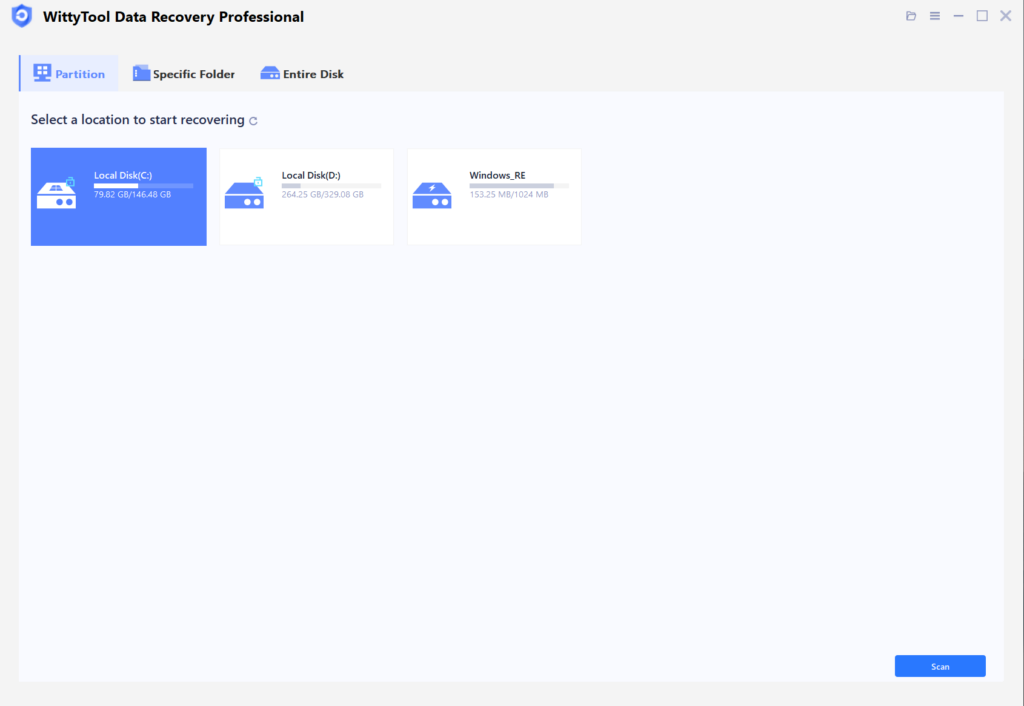
Step 1: Select Location and Initiate Scan
Launch Wittytool Data Recovery. Select the partition or drive where your deleted files were originally stored. Click “Scan” to begin searching for lost files.
Step 2: Identify Files for Recovery
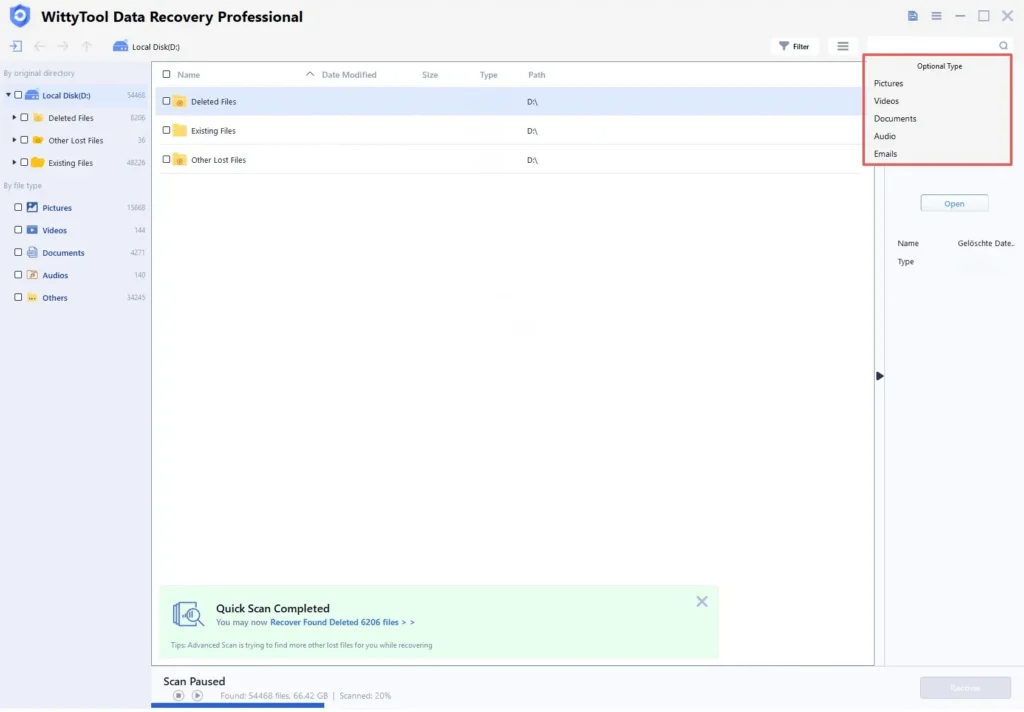
Once the scan completes, browse the results and select files you wish to recover. Utilize these options to locate files efficiently:
- Search by filename using the search box for fastest results
- Click the filter icon to display specific file types
Step 3: Preview and recover your files
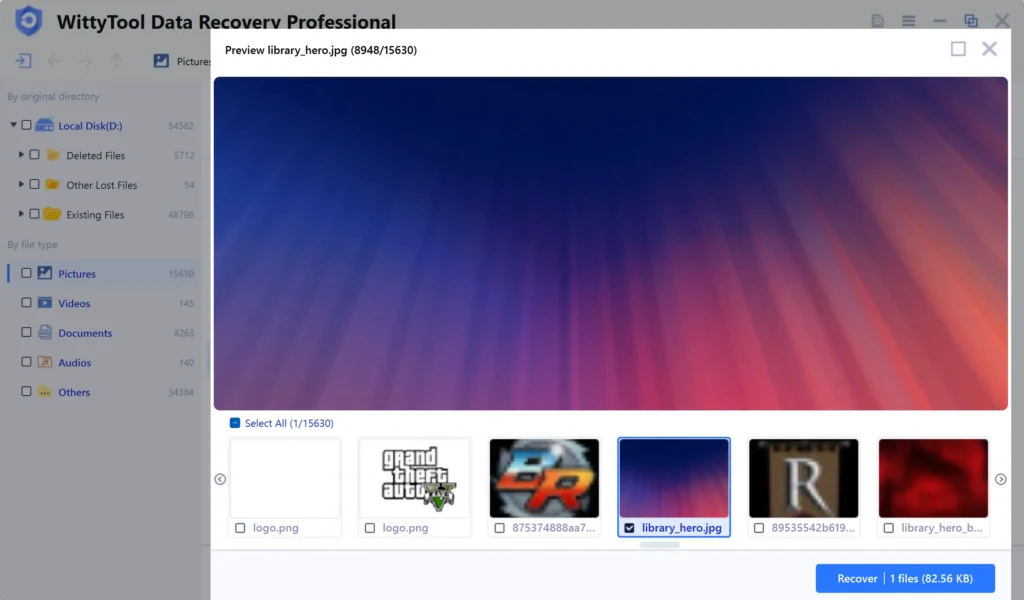
After previewing your recoverable files to verify content, select the target files and click “Recover”. Immediately choose a new storage location for saving recovered files.
CRITICAL: DO NOT select the original drive where data loss occurred to prevent overwriting – then click “Save” to complete the restoration.
Once you have successfully recovered your .xlsx or .xls file, you can then proceed to address any password protection issues using the online services listed below.
Comprehensive Review: 10 Free Online Excel Password Unlockers
To save you time and effort, we have tested and compiled a list of ten prominent online services. The table below provides a quick overview of their key features, limitations, and supported Excel versions. This should help you make an informed decision quickly.
| Tool Name | Best For | Free Limitations/Supported Encryption | Supported Formats | Ease of Use (1-5) | Processing Speed |
|---|---|---|---|---|---|
| 1. LostMyPass | Simple, open password recovery | Removes “Open” password only; basic encryption | .xlsx, .xls | 5 | Fast |
| 2. Password-Online | Quick sheet protection removal | Removes “Sheet” protection only | .xlsx | 4 | Fast |
| 3. Password-Find | Balancing features and simplicity | Removes “Open” & “Sheet” passwords | .xlsx, .xls | 4 | Medium |
| 4. Straxx Excel Password Remover | Handling older .xls files | Free trial; paid for full recovery | .xls, .xlsx | 3 | Medium |
| 5. Remove Password Online Recovery | Direct sheet unprotection | Primarily for “Sheet” protection | .xlsx | 4 | Fast |
| 6. SmartKey Excel Password Recovery | User-friendly interface | Limited free attempts | .xlsx | 5 | Medium |
| 7. SysTools Excel Password Recovery | Advanced recovery options | Free scan; paid to unlock | .xlsx, .xls | 3 | Varies |
| 8. iSumsoft Excel Password Refixer | Forgotten open passwords | Free preview; paid to save | .xlsx, .xls | 4 | Medium |
| 9. iSunshare Excel Password Remover | Comprehensive password types | Demo version; paid full version | .xlsx, .xls | 4 | Fast |
| 10. Accent Excel Password Recovery | Stronger password recovery | Free for short passwords | .xlsx | 3 | Slow for complex |
1. LostMyPass
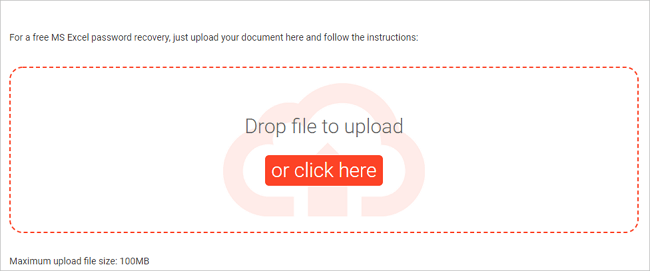
This tool is incredibly straightforward. It specializes in removing the password that prevents you from opening the Excel file entirely. You simply upload your file, the server processes it, and provides a download link for the unlocked version. It’s very effective for standard protection but may not work on files with robust, modern encryption.
My Take: LostMyPass has a strong reputation largely due to its effective marketing and straightforward interface. In my testing, it works reasonably well for older .xls format files, which use weaker encryption. However, for modern .xlsx files protected with AES-256 encryption, its success rate with the free service is minimal. The biggest caveat remains: you are entrusting a potentially sensitive file to their servers. While they claim files are deleted after a short period, this requires a significant level of trust from the user.
2. Password-Online
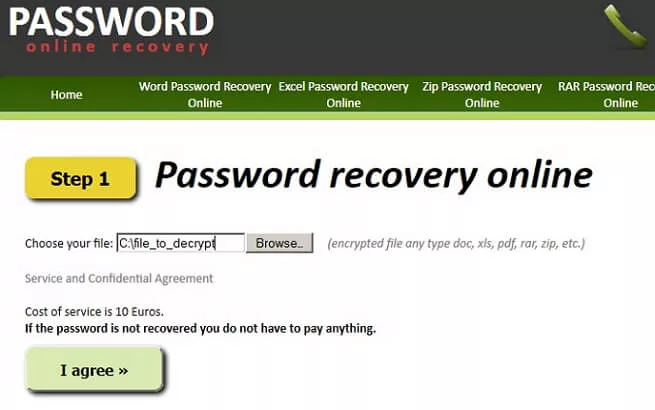
If you can open the file but cannot edit a specific sheet because it’s protected, Password-Online is ideal. It focuses solely on removing worksheet/workbook modification restrictions. The process is usually very fast, making it a great choice for this specific scenario.
My Take: The additional options are a nice touch for more advanced users, but for a beginner, they might add confusion. My primary observation with this service is its inconsistency. During peak hours, the free queue can be very long, resulting in wait times of several hours. This unpredictability makes it less reliable for an urgent task. As always, the 24-hour deletion policy is a claim that users must accept on faith.
3. Password-Find
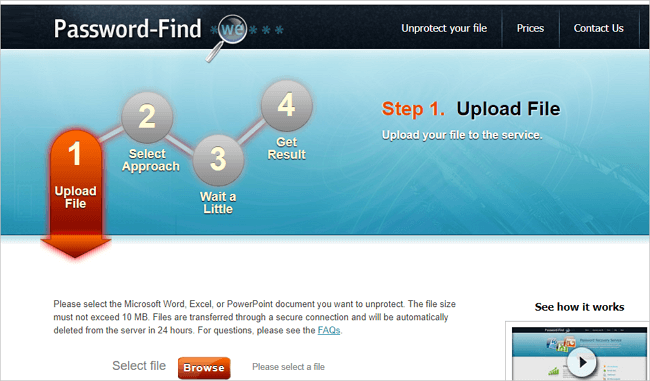
Password-Find offers a broader range of services, tackling both “Open” and “Sheet” passwords. Its interface is clean, guiding you through the upload and recovery process step-by-step. It’s a solid all-rounder for basic to moderately protected files.
My Take: Password-Find’s simplicity is its greatest strength and weakness. It’s easy to use, but this simplicity masks its technical limitations. My tests confirmed that it can only handle very basic, short passwords. Any password with moderate complexity (e.g., over 6 characters with mixed cases and numbers) will almost certainly fail on the free tier. I view this as a tool for absolute last resorts on files with truly trivial protection.
4. Straxx Excel Password Remover
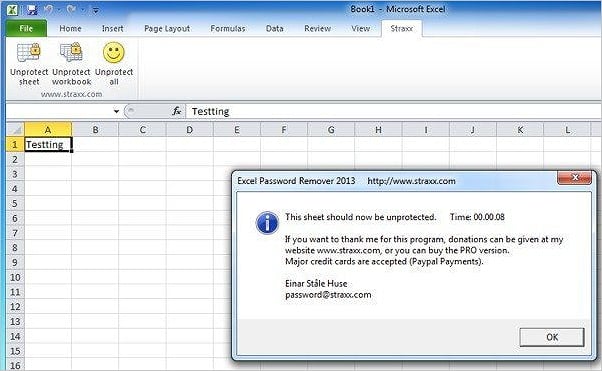
Straxx provides a software solution with a free online component. It has a good reputation for handling older .xlsformat files effectively. The free version often shows you that the password can be removed, but requires purchasing the software to complete the action.
My Take: I would be very cautious about recommending Straxx to a non-technical user in 2024. While it might be effective for someone digging up a very old Excel 97-2003 file, its compatibility with modern .xlsxfiles is poor. Furthermore, the requirement to run an obscure .exefile in your browser can trigger security warnings from your antivirus software. For most users, it’s best to avoid this outdated tool.
5. Remove Password Online Recovery
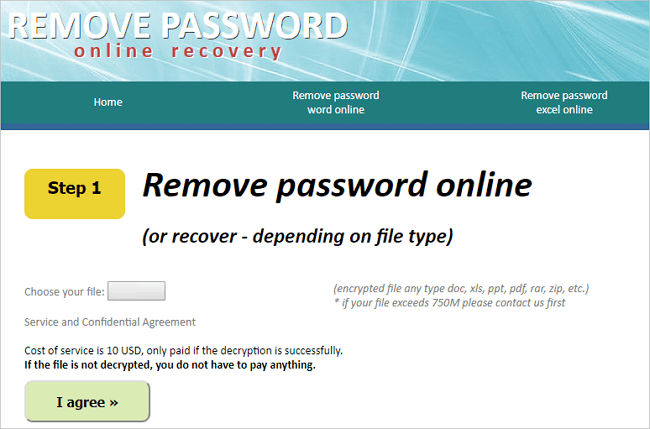
As the name implies, this web service is designed for speed when dealing with sheet protection. It’s a no-frills tool that does one job and does it well. Upload your protected sheet, and in most cases, you’ll get an unlocked file back promptly.
My Take: This service worked adequately for removing simple sheet protection in my tests. However, the vague “reasonable size” limitation is a red flag for clarity. You might upload a file only to find it fails because it’s a few megabytes too large. This lack of transparency can be frustrating. It’s a functional option, but the experience feels less polished than the top-tier services.
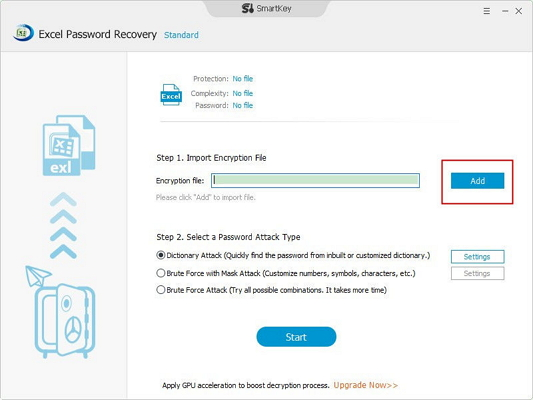
6. SmartKey Excel Password Recovery
SmartKey boasts a very user-friendly interface that is excellent for beginners. The website clearly explains the difference between open and sheet passwords, helping you choose the correct recovery path. Its free usage is often limited to a few tries per day.
My Take: SmartKey’s online tool is essentially a capable demo for its paid desktop software. It will successfully remove weak protection to prove that the technology works, but for any password with modern encryption, you will hit a paywall. The website is professional, which adds a layer of credibility, but the core business model is to upsell you. It’s a good way to test the waters, but don’t expect a free lunch for complex tasks.
7. SysTools Excel Password Recovery
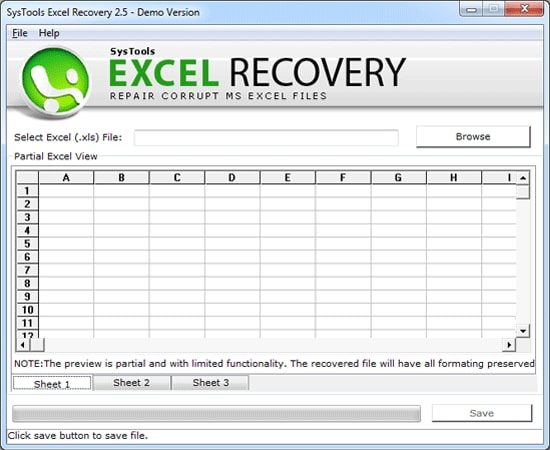
SysTools is a more advanced player in the data recovery space. Their online tool offers a free scan to assess the likelihood of recovery. This is useful for determining if your file can be handled by an online service before you commit to a paid solution.
My Take: This is the most common “gotcha” with services from reputable software companies. The online tool is not truly free; it’s a free diagnostic. The advantage is that you have confidence the file can be unlocked before spending money. The disadvantage is that it’s not an immediate solution. For a business-critical file, this diagnostic step can be valuable. For a casual user, it can be a dead end.
8. iSumsoft Excel Password Refixer
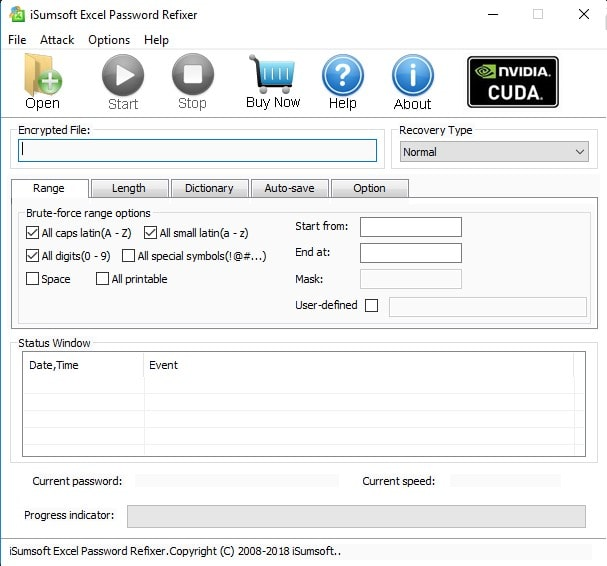
iSumsoft’s approach is to let you see the result before you pay. The service will often unlock the file and allow you to preview the contents for free. To actually save the unlocked file to your computer, you need to purchase a license key.
My Take: iSumsoft is relatively transparent about what their online tool can and cannot do, which I appreciate. They are honest that complex passwords require their offline software. This transparency builds trust compared to services that make grand promises. The online tool is useful for handling simple worksheet protection quickly, and it effectively funnels users who need more power toward a more secure (though paid) offline solution.
9. iSunshare Excel Password Remover
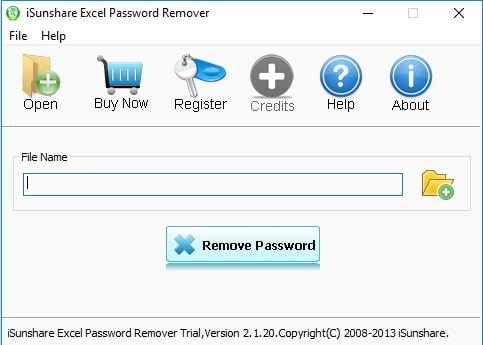
iSunshare provides a comprehensive toolkit for Excel passwords. Its online demo is effective for demonstrating its capability. For full functionality, including recovering complex passwords, you need to upgrade to the paid software version.
My Take: For a computer novice, iSunshare’s tool is one of the least intimidating to use. The interface is clear and reassuring. However, this user-friendly experience masks the same limitations as its competitors. It’s excellent for removing the “Modify” restriction from a file you can already open. For “Open” passwords, its free capabilities are minimal. It’s a good choice for absolute beginners with simple tasks.
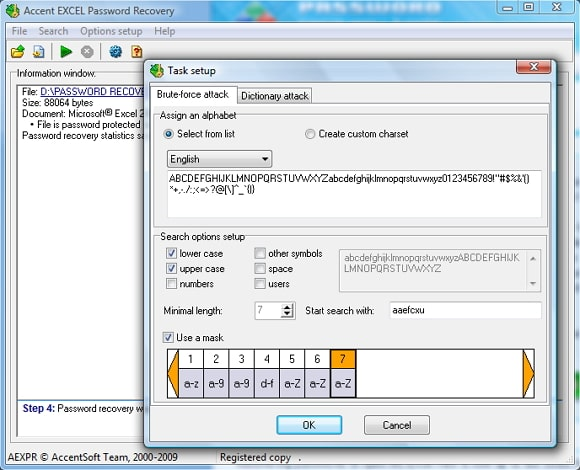
10. Accent Excel Password Recovery
This tool uses a more advanced recovery algorithm, which can be effective against stronger passwords. The free version is typically limited by password length or complexity. It’s a good option to try if simpler tools have failed, but the process may take longer.
My Take: Accent’s tool is a basic, no-nonsense option. It doesn’t stand out in any particular way—neither exceptionally good nor exceptionally bad. In my testing, it performed similarly to the middle-of-the-pack tools. Its success is highly dependent on the specific file and password strength. It’s a viable alternative if the more popular services are experiencing high traffic or technical issues.
Final Thoughts on Choosing an Online Excel Password Unlocker
❗ A crucial reminder: Always consider security. Uploading a file containing sensitive financial or personal data to an unknown website carries inherent risks. Only use these services for files that do not contain confidential information.
Based on my decade of experience in data recovery, here is my perspective: For quick removal of simple sheet protection, Password-Onlineor Remove Password Online Recovery are excellent choices. If you’ve forgotten the password to open the file and it’s not highly sensitive, LostMyPass is remarkably efficient. However, for any file with valuable data, I strongly recommend using the free trials of tools like SysTools or iSumsoft to assess recoverability first. Their “preview” feature is a safer way to gauge effectiveness without immediately paying.
⚠️ Remember, no online tool can guarantee 100% success, especially with strong passwords set by modern versions of Excel. The strength of the encryption has increased significantly over the years. If these free online options don’t work, your next step would be to consider more powerful, paid desktop software that can perform brute-force attacks over a longer period.
Frequently Asked Questions (FAQs)
Q1: Is it safe to use a free online Excel password remover?
Safety depends on the tool’s reputation and the sensitivity of your file. Reputable services claim they delete your upload after processing. However, for files with confidential data, it is always safer to use an offline, installed software solution to keep the file on your computer.
Q2: What’s the difference between an “Open” password and a “Sheet” password?
An “Open” password encrypts the entire file and is required to even view the contents. A “Sheet” or “Workbook” protection password only restricts modifying specific worksheets or the workbook’s structure; you can still open and view the file.
Q3: Why didn’t the online tool work on my Excel file?
The most common reasons are: 1) The password is too long or complex (strong encryption). 2) The file is in an older format (.xls) that the tool doesn’t support well. 3) The file itself is corrupted. 4) The online service’s free tier is not powerful enough for your specific case.
Q4: How long does it typically take to remove a password?
For simple sheet protection, it’s almost instantaneous. For “Open” passwords, it can take from a few seconds to several hours, depending on the password’s complexity and the tool’s capabilities.