


The right MDT alternative depends on how you deploy Windows. You might need to keep task sequences, distribute a configured Windows image, or use cloud services to prepare devices that already have Windows installed. Those requirements lead to different migration paths.
Microsoft retired the Microsoft Deployment Toolkit (MDT) in January 2026. Existing installations can continue running, but updates and support have ended. For your next deployment platform, start by identifying the work MDT currently handles, then choose tools that can take over those responsibilities.
Quick Answer: Which MDT Alternative Fits Your Workflow?
If you already use Configuration Manager, assess its native operating system deployment (OSD) capabilities first. If you want to retain an MDT-style task sequence workflow, consider DeployR. For PXE, WinPE, and deployment of a configured Windows environment, evaluate Wittytool Disk Clone. Autopilot and Intune address cloud provisioning on devices with Windows already installed.
Use this table to narrow your shortlist:
| MDT alternative | Suitable starting point | Main migration consideration |
|---|---|---|
| Configuration Manager OSD | Existing ConfigMgr environments | Replace MDT-dependent steps with a supported workflow |
| Windows Autopilot + Intune | Cloud provisioning and device enrollment | Plan a separate OS installation path where needed |
| DeployR | Task sequence-based OS deployment | Rebuild workflows and choose the appropriate support model |
| Wittytool Disk Clone | PXE, WinPE, and configured Windows image deployment | Create images in its supported backup format |
| SmartDeploy | Imaging across different hardware models | Match devices to the driver and image workflow |
| ManageEngine OS Deployer | Centralized imaging and deployment configuration | Plan templates, drivers, and deployment infrastructure |
| AOMEI Image Deploy | LAN deployment using Backupper images | Prepare compatible images and select the appropriate edition |
| FOG / Clonezilla | Open-source network imaging or batch cloning | Maintain the imaging and boot environment |
| OSDCloud | PowerShell-based Windows deployment | Maintain scripts, boot media, and deployment content |
What MDT Retirement Means for Windows Deployment
Existing Deployments Can Run, but Microsoft Support Has Ended
Microsoft’s MDT retirement notice ends updates, fixes, support, and future Windows compatibility updates. It also says existing installations will continue functioning as they are.
You therefore have time to plan around a working environment, but responsibility for keeping that environment operational has changed. A successful deployment today does not establish compatibility with your next Windows release, ADK update, or hardware purchase. Schedule migration work alongside those changes so you can test the replacement before relying on it.
Standalone MDT and Configuration Manager Integration Are Both Affected
Retirement covers standalone MDT and its Configuration Manager integration. Configuration Manager OSD itself remains a supported route for organizations with the relevant infrastructure.
Determine which setup you have. Replacing a standalone deployment share requires a different plan from removing MDT extensions inside ConfigMgr. Inventory the actual steps and services involved before changing either environment.
If your deployment process also uses Windows Deployment Services for network boot, include that dependency in the review. The WDS alternatives guide covers the network boot and WDS migration questions in more detail.
What Did MDT Actually Do?
MDT connected deployment content with an automated sequence of actions. A deployment share could hold operating systems, applications, drivers, and scripts, while task sequences controlled how those resources were used. Microsoft’s MDT documentation describes these responsibilities.
Use this map to identify what your new workflow must provide:
| MDT capability | What the new workflow needs |
|---|---|
| Task sequences | An orchestration engine, such as ConfigMgr OSD or DeployR |
| Deployment share | A repository for images, applications, drivers, and scripts |
| WinPE integration | A way to create, maintain, and boot the deployment environment |
| OS images | Image capture, storage, and deployment in supported formats |
| Drivers | Boot and operating system driver management or injection |
| Applications | Application installation and configuration, or prepared image content |
| Scripts | PowerShell or platform automation for custom actions |
| User state | USMT or another method for migrating user data and settings |
PXE belongs to the surrounding network boot process, often supplied by WDS in an MDT setup. WinPE can remain part of your new environment. The practical question is which component will build and boot it, and what happens after the target computer starts.
MDT Alternatives by Deployment Workflow
Microsoft Configuration Manager OSD for Existing ConfigMgr Environments
Configuration Manager OSD is a logical first option when you already manage deployment content, distribution points, and devices through ConfigMgr. It provides task sequences, boot images, OS images, driver management, and deployment monitoring within that platform.
You can use it to preserve a controlled build process: start the device, apply Windows, install the required content, and complete configuration through a defined sequence. Microsoft’s OSD overview documents network, media, and other deployment methods.
The migration work is identifying which parts of your current sequence depend on MDT. A task sequence that appears in the ConfigMgr console can still contain MDT-specific steps, scripts, or packages. Those dependencies need replacement before you remove the integration.
The main tradeoff is the platform commitment. If your team already operates ConfigMgr, existing knowledge and infrastructure can help. If you only run a small standalone MDT server, evaluate the licensing, infrastructure, and administration involved before adopting a full management platform for imaging alone.
Windows Autopilot and Intune for Cloud-Based Provisioning
Windows Autopilot and Intune fit organizations that want to configure devices through cloud identity, applications, and policies. In the typical new-device workflow, Autopilot starts with the OEM-installed Windows environment and helps turn it into an organization-managed computer.
This can change how you prepare employee laptops. Instead of maintaining every application inside a reference image, you assign software and settings through management services. The approach is particularly relevant when devices go directly to users and can reach the required services over the internet.
Its main limitation for an MDT imaging workflow is the OS installation stage. A device with an empty replacement drive still needs Windows installed. Microsoft also provides an Autopilot for existing devices scenario that uses a native Configuration Manager task sequence for reimaging and provisioning.
Evaluate that complete process, including identity, enrollment, application delivery, network access, and licensing. Autopilot can become your primary provisioning path while another deployment method handles machines that need an OS reinstallation.
DeployR for Task Sequence-Based Deployment
DeployR is a direct candidate when your main requirement is to keep building computers through task sequences. Its deployment model includes bare-metal provisioning, Windows image deployment, drivers, and application installation.
DeployR Community provides a free, community-supported route with user-initiated task sequences, PXE capabilities, and USB or offline media. That combination makes it relevant to administrators who want a familiar style of deployment orchestration after standalone MDT retirement. Enterprise is a separate option for organizations evaluating vendor support and additional requirements.
The key limitation is migration effort. Familiar concepts do not establish compatibility with your existing task sequence files, rules, or scripts. Inventory what each MDT step does, then map that behavior into the new platform and test the result.
Choose this type of solution when conditional steps and application installation logic are central to your builds. If your primary task is deploying the same configured Windows environment through PXE and WinPE, the image-based path below may better match the work you need to carry forward.
Wittytool Disk Clone for PXE, WinPE, and Configured Windows Image Deployment
Wittytool Disk Clone is relevant when you want to retain a deployment process built around PXE boot, WinPE, and a configured Windows image. This can suit an office rollout, classroom, or lab where multiple PCs need the applications, accounts, and settings prepared on a source computer.
The product supports PXE boot, creating a WinPE environment, and centralized Windows image deployment. Together, these address three practical stages: starting target devices over the network, running the deployment tools in WinPE, and applying the prepared Windows environment to their disks.
Its image deployment workflow supports backing up the source system without running Sysprep first. Applications and accounts included in that image can be carried into the deployed environment, with an option to change each target computer’s Windows SID during deployment.
Before deploying, back up any data you need from the target computers. Deployment deletes the selected target disk’s partitions and writes the image to that disk. Preserving the source image’s contents does not preserve the target disk’s previous contents.
A practical rollout follows these stages:
- Prepare the source environment. Install and configure the software and accounts that the target machines require, then create a system or disk backup with Wittytool Disk Clone.
- Prepare the startup environment. Create the WinPE environment and arrange the PXE boot workflow for your target network and hardware.
- Configure the deployment server. Select the backup image, review the target disk settings, and choose automatic or manual deployment. Enable the target Windows SID option when required.
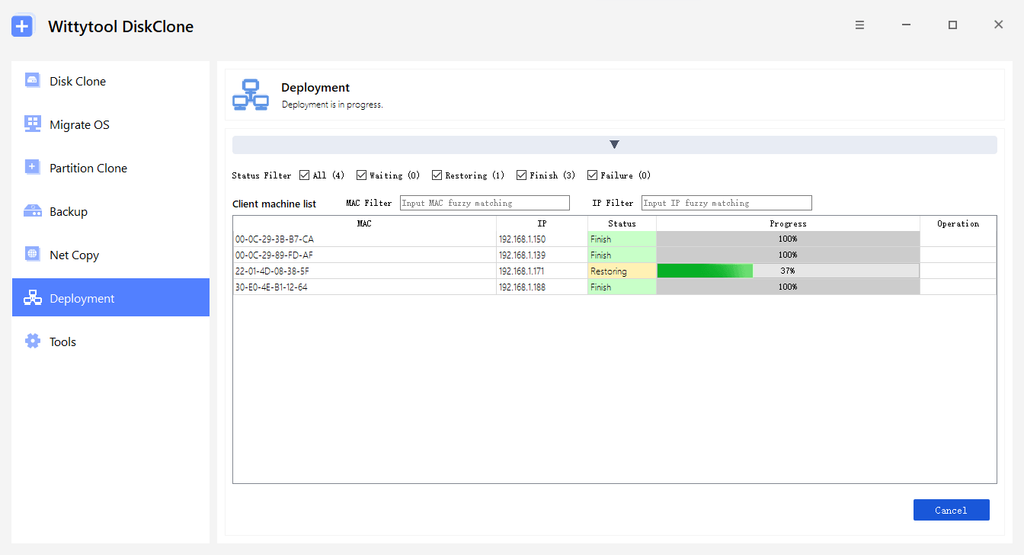
- Deploy and monitor. Connect target computers to the deployment server and track their status and progress centrally.
- Validate the result. Start Windows on representative targets and check applications, drivers, computer identity, and access to required resources before expanding the rollout.
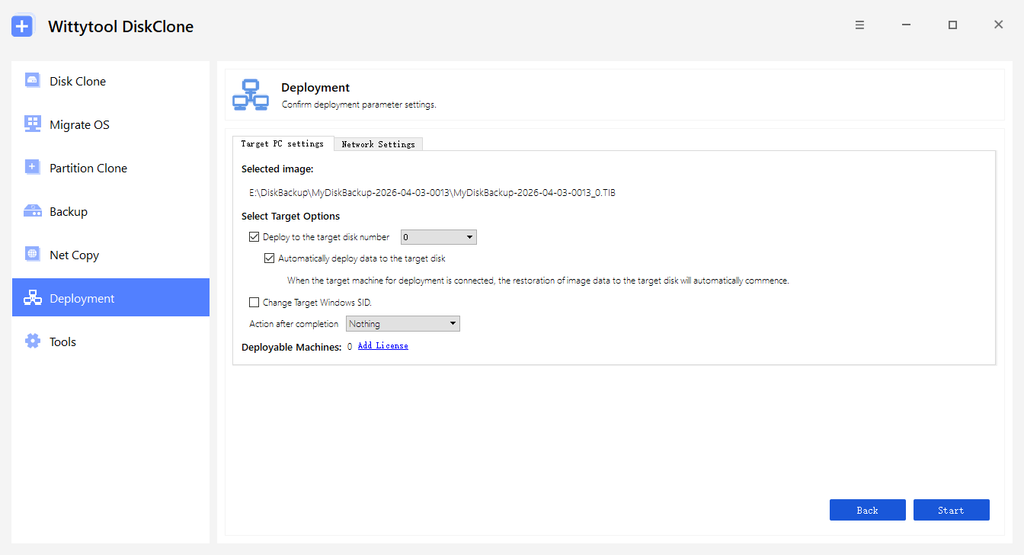
Automatic and manual modes let you organize repeatable batches or select the target disk during a client session. Real-time monitoring helps you identify machines that are waiting, restoring, finished, or require attention. Universal Restore supports deployment across different hardware configurations; include your actual device models in the pilot.
The main migration condition is image format: Wittytool Disk Clone supports disk or system images generated by its own backup workflow. Plan to create a compatible image rather than importing an existing MDT WIM directly. Any custom task sequence logic also needs its own migration plan.
The product’s SID option addresses machine identity within this workflow. Microsoft’s Sysprep generalization requirements remain separate from that capability.
See the Windows image deployment workflow for the server and client process.
SmartDeploy for Imaging Across Different Hardware Models
SmartDeploy is relevant when maintaining drivers across your Windows hardware fleet takes a substantial part of your deployment time. It separates the operating system image from drivers and other deployment content, using Platform Packs for hardware-specific driver requirements.
That approach addresses the imaging and driver portions of an MDT workflow. You can evaluate a reference environment alongside the supported packs for your device models, then choose the deployment method that fits the location. SmartDeploy offers server, USB, and cloud storage-based delivery options.
The main selection condition is how well its image and content model matches your fleet. Check the exact hardware models, required applications, and delivery locations before assuming one design will cover every device. A successful test on one laptop is only a starting point for a mixed fleet.
For migration planning, document the tasks currently performed before and after imaging. Determine where each task belongs in the new process, especially custom scripts and application configuration. This keeps the comparison focused on the work your team needs to complete.
ManageEngine OS Deployer for Centralized Deployment Management
ManageEngine OS Deployer suits teams looking for a centralized way to capture images, manage drivers, and configure deployments across their organization. Its deployment templates and post-deployment settings address several tasks that administrators may previously have assembled through MDT.
This is a useful category to evaluate when your requirements extend beyond applying an image. For example, you may need a repeatable combination of operating system deployment, machine settings, and application installation, with administrators managing those tasks from one console.
The main condition is choosing and designing the appropriate deployment architecture. Establish where content will be stored, how target machines will boot, and which capabilities belong to the edition or product configuration you are considering. Treat office, branch, and internet-connected remote devices as separate deployment scenarios during evaluation.
Bring a representative MDT build into the pilot and map each required action to the new template or process. This exposes gaps early, including scripts that assume MDT folders or variables. The resulting workflow should be documented before you apply it to production machines.
AOMEI Image Deploy for Backupper-Based LAN Deployment
AOMEI Image Deploy is an option for deploying a prepared system or disk image to multiple computers over a local network. It uses images created by AOMEI Backupper, with Free and Technician options available for different requirements.
The workflow is relevant when your main MDT requirement is distributing a common Windows environment. You prepare the source image, establish the deployment server and network boot process, then select the target computers and disks for deployment. This makes image preparation and compatibility central to the migration decision.
Its main limitation for existing MDT assets is the required image format. Plan around the supported Backupper image workflow instead of assuming that your current deployment WIM can be selected directly. Edition differences also matter when deciding which functions and support arrangements you need.
Before switching, identify any MDT work that happens after the image is applied. Application changes, computer identity, and organization-specific scripts still need an assigned place in the new process. Test those outcomes alongside the image deployment itself.
FOG and Clonezilla for Open-Source Imaging
FOG and Clonezilla are separate open-source options for teams willing to manage their own imaging environment.
FOG provides a network imaging and management platform with a Linux-based server. It is relevant when you want centralized capture and deployment and have the skills to maintain the server, boot configuration, and image preparation process.
Clonezilla focuses on disk imaging and cloning. Its Lite Server and Server Edition provide batch deployment paths, so select the appropriate workflow when evaluating it for multiple machines.
These tools can address the image distribution part of your MDT process. You still need to plan application configuration, driver preparation, user data handling, and custom automation around the chosen solution.
Their main tradeoff is the operational responsibility your team accepts. Include documentation, update testing, troubleshooting, and support coverage in the decision. Free software licensing can reduce acquisition costs, while a repeatable deployment still requires a maintained process.
OSDCloud for PowerShell-Based Windows Deployment
OSDCloud is relevant if your administrators prefer maintaining a PowerShell-based deployment process. It runs from WinPE and can deploy Windows using internet sources or a USB cache.
This path lets you build a scripted installation workflow and add the configuration steps your organization requires. It is useful to evaluate when you want control over deployment logic and can maintain that logic as modules, Windows releases, and hardware change.
The main commitment is ownership of the scripts and their dependencies. Keep tested versions, boot media, content sources, and recovery procedures documented. Treat migration as rebuilding the required behavior, with each former MDT step accounted for in the resulting process.
What to Compare Before Choosing an MDT Replacement
Task Sequences, Fixed Images, or Cloud Provisioning
Start with the required result. If different roles need different applications and scripts, assess task sequence or platform automation. If machines need the same prepared environment, assess image deployment. If Windows is already installed and applications can arrive through management services, assess cloud provisioning.
You can combine these approaches. A business might use Autopilot for employee laptops and imaging for a lab. Assign each device group a defined workflow instead of forcing every scenario into one tool.
Drivers, Boot Methods, and Remote or Offline Sites
Check both stages of driver readiness: the deployment environment must see the network and storage, and the installed Windows system must have the drivers it needs.
Validate your actual firmware settings, hardware models, network segments, and content locations. For offline sites, identify everything required locally. For remote users, determine how OS installation begins if Windows cannot start. A feature list alone will not answer those implementation questions.
Licensing, Support, and Ongoing Maintenance
Compare the complete operating cost: deployment licenses, server and storage resources, image maintenance, script ownership, and support.
A free community edition, an open-source project, and a time-limited trial have different implications. For Wittytool Disk Clone, image deployment belongs to the paid plans shown on the product page. Use the plan that covers your intended devices and deployment requirements.
How to Plan Your Migration from MDT
Inventory Your Deployment Share and Reusable Assets
Back up the deployment share and export or document the configuration before changing it. Record what each build actually does, including actions added years ago that may only be understood by one administrator.
Review these assets:
- Task sequences and their conditions, variables, and dependencies.
CustomSettings.ini,Bootstrap.ini, andunattend.xmlsettings.- Application installers, configuration files, and installation commands.
- Driver packages, boot images, and custom WinPE components.
- OS images, scripts, and user state migration requirements.
Mark each item as reusable content, logic to rewrite, or a dependency to remove. An application installer may remain useful even when the MDT step that launches it must change. A WIM may be usable in one target platform but require recapture in another.
Rebuild the Workflow and Pilot Representative Devices
Before any pilot that writes an OS image, back up required user data and confirm the target disks. Test with devices that represent your hardware and deployment locations.
Define acceptance criteria before starting: Windows boots, required applications work, drivers are present, devices have the intended identity, and management agents register correctly. Include application activation, domain or cloud enrollment, and access to business resources where those are part of the build.
For cloned environments, validate machine identity separately from domain membership and management enrollment. A Windows SID change addresses a specific identity requirement; your pilot should verify the complete device configuration.
Then test a small batch. Record failures, recovery steps, and the effect on network and storage resources. Assign someone to maintain the image, boot environment, and documentation after migration.
Remove MDT Dependencies from Configuration Manager Safely
If you use MDT integration with ConfigMgr, plan the removal after documenting and rebuilding the required behavior in a test workflow.
Microsoft’s current MDT guidance specifies the sequence: remove all MDT task sequence steps, then remove MDT integration. It gives this order to prevent task sequence corruption and modification failures.
Keep backups and validated replacement steps ready before making those changes. Afterwards, verify that administrators can edit the task sequences and that representative deployments complete correctly. Standalone MDT environments need their own staged cutover, including replacement boot media, content access, and a documented recovery process.
Frequently Asked Questions
Is MDT Still Supported After Retirement?
No. Microsoft has retired MDT, including standalone use and Configuration Manager integration. Existing installations may continue running, but Microsoft no longer provides updates, fixes, support, or future Windows compatibility updates. Plan migration around a tested replacement workflow.
Which MDT Alternatives Are Free?
DeployR Community provides a free, community-supported deployment option. FOG and Clonezilla are open-source imaging choices, while AOMEI Image Deploy has a Free edition with its own feature and usage limits. Compare the required functions, support arrangements, and maintenance work. A commercial trial is different from an ongoing free license.
Can I Reuse My MDT Task Sequences and WIM Images?
Reuse depends on the destination platform. Installers, scripts, and drivers may remain useful, while task sequence logic needs mapping to the new tool. WIM compatibility also varies. Wittytool Disk Clone requires disk or system images created through its own backup workflow, so plan to create a compatible image instead of importing the MDT WIM directly.
Can Windows Autopilot Replace MDT for Existing Devices?
Autopilot can be part of a replacement strategy for existing devices. Microsoft’s Autopilot for existing devices workflow uses a native Configuration Manager task sequence to reimage the device and prepare it for provisioning. Account for both the Windows installation stage and the cloud enrollment, application, and policy stages when designing your migration.
Can I Deploy a Configured Windows Environment Without Sysprep?
Wittytool Disk Clone supports a deployment workflow without running Sysprep first, with optional target Windows SID changes. It preserves the environment stored in its image while overwriting the selected target disk. This product capability does not establish equivalence to Microsoft’s full Sysprep generalization process. Validate the deployment against your hardware, identity, application, and support requirements.
Choose your MDT replacement around the work your team needs to continue. Start with native OSD for an existing ConfigMgr environment, assess task sequence platforms for complex builds, and use cloud provisioning where it fits the device lifecycle. For a workflow centered on PXE, WinPE, and configured Windows images, review Wittytool Disk Clone image deployment and build a representative pilot before rolling it out more widely.