


When Sysprep error 0x80073cf2 appears alongside a Microsoft Store app package in the logs, start by identifying that package and the user account where it is installed. Then check its provisioning state, make the necessary targeted changes, and retry the operation. Removing every Store app is not the first step.
This guide covers Windows 11 and Windows 10 installations whose current Sysprep logs identify an Appx package problem. Before changing packages, save a recoverable copy of the reference environment and any application data you need. Our Windows clone and deployment software can create a system image if you need to preserve the current setup before troubleshooting.
Confirm the Store App Error in Your Sysprep Logs
Read setupact.log and setuperr.log from the Latest Attempt
Open the following folder on the reference computer:
%WINDIR%\System32\Sysprep\Panther\
Review setupact.log and setuperr.log around the time of the latest failure. Look for 0x80073cf2, 0x3cf2, an Appx-related failure, and a package identifier. A particularly useful phrase is:
was installed for a user, but not provisioned for all users
Copy the full package identifier from that attempt, including its version and architecture. Save the logs separately before retrying. An old package name from a previous failure may no longer identify the current blocker.
If the latest entries point to a different component or error, investigate that cause. A generic validation-failed dialog alone does not establish that the Store app fix applies.
Identify the Package and the Affected User Accounts
Open Windows PowerShell as administrator for the following inspection. Replace the uppercase placeholder with the complete package name copied from the log:
$packageFullName = 'PASTE_EXACT_PACKAGE_FULL_NAME_FROM_LOG'

Get-AppxPackage -AllUsers -PackageTypeFilter Main,Framework,Resource,Bundle |
    Where-Object { $_.PackageFullName -eq $packageFullName } |
    Format-List Name,PackageFullName,PackageUserInformation
This is a read-only query. Check PackageUserInformation to see which accounts have the package installed. Record the Name field as well; you will use that shorter identity to inspect provisioning later.
Get-AppxPackage -AllUsers lists package information across accounts. It does not uninstall anything. Adding -AllUsers to a removal command has a different, wider effect, so do not transfer the switch automatically from inspection to cleanup.
Why Store Apps Can Trigger Sysprep Error 0x80073cf2
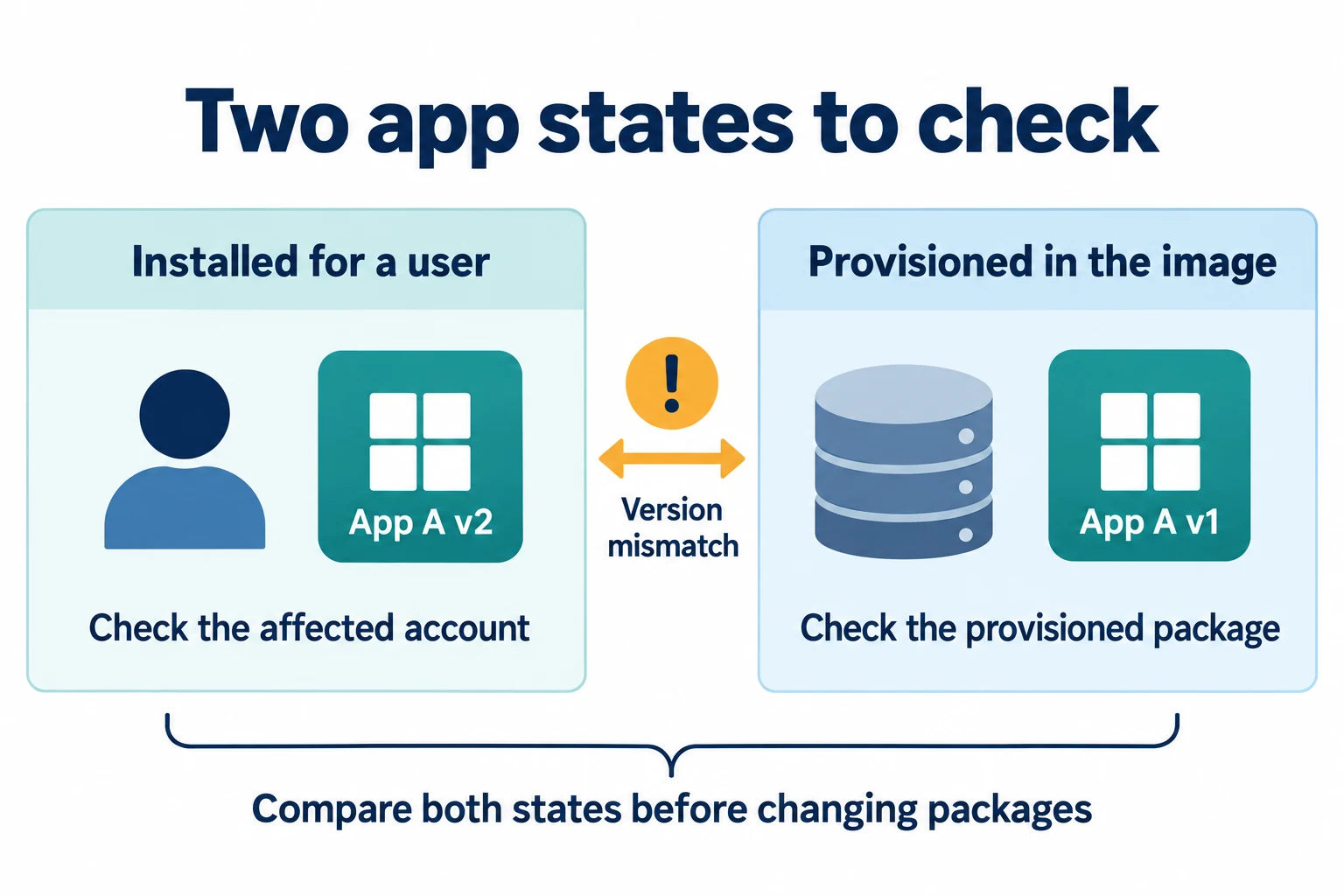
Installed Apps and Provisioned Apps Are Different States
A Store app can have an installation associated with an existing user and a provisioned package in the Windows image. These are related records with different purposes:
| State | What you are checking | PowerShell inspection |
|---|---|---|
| Installed for a user | The app package registered in an existing user profile | Get-AppxPackage |
| Provisioned in the image | The package prepared for installation when new users are created | Get-AppxProvisionedPackage -Online |
An app opening successfully in your account does not confirm that both states are consistent. In these DISM commands, -Online means the running Windows installation, not an internet service.
Updates and Partial Removal Can Leave the States Out of Sync
For example, a user might update an app while the image retains a different provisioned version. Another possibility is removing its provisioning while leaving a user’s installation behind. Microsoft’s Store app troubleshooting guidance describes how these situations can interrupt Sysprep’s Appx processing.
The useful question is which package states conflict on this reference computer. Avoid assuming that every per-user app is invalid or that one named inbox app causes every 0x80073cf2 failure.
Fix Sysprep Error 0x80073cf2 Without Removing Every App
Preserve the Reference Environment Before Changing Packages
Uninstalling an app changes the source environment and can affect its data. Confirm that you have a usable backup and know how to restore any required application before proceeding. Use a snapshot only where your reference-machine workflow supports it.
Record the failing package, affected accounts, Windows build, and changes already made. During this capture window, keep Store downloads and updates from introducing new package versions. A temporary internet disconnection on the reference machine may suit your workflow; it is not a recommendation to leave deployed computers without updates.
Remove Only the Identified Package from the Affected Account
Use the account information from your inspection. For a targeted per-user removal, sign in to the affected account and open Windows PowerShell in that account’s context. Running PowerShell using a different administrator’s credentials changes which account a current-user operation addresses.
Set the exact package name again if you opened a new session. Confirm the current identity and inspect the matching installation:
whoami
$packageFullName = 'PASTE_EXACT_PACKAGE_FULL_NAME_FROM_LOG'

Get-AppxPackage -PackageTypeFilter Main,Framework,Resource,Bundle |
    Where-Object { $_.PackageFullName -eq $packageFullName } |
    Format-List Name,PackageFullName
If the intended package is present and you have confirmed that it can be removed, run:
Remove-AppxPackage -Package $packageFullName -Confirm
For several affected accounts, address the installations identified by the query. Do not delete user accounts as a routine shortcut. An administrator choosing a broader removal must first account for every user it will affect.
If removal fails, retain the complete error and use the relevant branch below. Do not compensate by deleting the app’s files manually.
Check Image Provisioning Before Removing Its Matching Entry
Return to an administrator Windows PowerShell session. Substitute the Name you recorded from the installed-package listing:
$appName = 'PASTE_NAME_FROM_INSTALLED_PACKAGE_LIST'

Get-AppxProvisionedPackage -Online |
    Where-Object { $_.DisplayName -eq $appName } |
    Select-Object DisplayName,PackageName
Inspect the output before making another change. If a matching provisioned entry exists and removing it is part of your chosen repair, copy its actual PackageName into this command:
Remove-AppxProvisionedPackage -Online -PackageName 'PASTE_EXACT_PROVISIONED_PACKAGE_NAME'
Use the identifier returned by the provisioned-package query. Its version can differ from the user’s installed package, so the two removal commands may need different strings. If the display names do not match directly, inspect the full provisioned list and verify the application identity before selecting anything.
Microsoft’s Remove-AppxProvisionedPackage reference explains that removing provisioning prevents that package from being installed for new accounts; it does not substitute for uninstalling the app from existing accounts.
If no matching provisioned package exists, there is no corresponding entry to remove through that command. Continue investigating the remaining user installation and the latest log rather than widening the filter until it matches unrelated packages.
If the application is required in the final image, plan its supported reinstallation or reprovisioning and validate the result before capture. Do not hand over an image with a required application silently missing.
Retry and Read the New Log Before Making Another Change
After completing the targeted changes, retry your Sysprep or image-capture operation. Read the new log to determine the outcome:
- The original package error is gone: check whether the operation completes.
- A different package is identified: inspect that package and its users separately.
- The same package remains: recheck its installed accounts, version, and provisioning state.
- A different component fails: follow that error instead of repeating Appx removal.
When the preparation succeeds, capture a fresh image from the resulting state and validate it on a test computer. A previously captured image does not gain the changes you just made to the reference system.
If the Package Is Missing or Cannot Be Removed
Use the observed state to decide the next check. Keep changes limited to evidence from the current failure.
| What you find | What to check next |
|---|---|
| The current-user query is empty, but the all-user query finds the package | Check the listed account and the identity running PowerShell. |
| The exact query returns nothing | Compare the complete identifier with the latest log, including version and architecture. Review the available package types and entries before removing anything. |
| No matching provisioned entry appears | Check existing user installations. An already deprovisioned app can still have a user installation. |
| Several versions or package records appear | Match each record to its actual identity and account. Do not treat similar names as interchangeable. |
| Windows reports that the package cannot be removed | Save that error and investigate the component and Windows build. Restore the reference environment if further changes would damage required functionality. |
| Another package blocks the next attempt | Repeat identification for the new package instead of deleting the remaining apps in bulk. |
Avoid taking ownership of WindowsApps, deleting package databases, or editing Sysprep state records to force a pass. Those actions bypass the package-state checks you need to understand and make the resulting environment harder to assess.
Keep Store App Changes Out of the Capture Window
Once you have a working reference environment, keep the interval between final checks and capture controlled. Finish intended application changes, record the required packages, and avoid opening Store sessions or creating extra test profiles during that interval.
Separate image preparation from normal endpoint maintenance. Temporary control of Store activity during capture should not become a permanent policy of leaving deployed applications unpatched.
Keep a short change record with the reference image: Windows build, required apps, package changes, capture date, and test outcome. If the same problem returns after a refresh, that record helps you identify what changed.
On a representative target, sign in with the intended account and launch the required applications. A successful capture is one checkpoint; the target’s usable application environment is another.
Need to Deploy the Existing Windows Setup with Its Apps?
If your priority is reproducing a Windows environment that already contains the applications and accounts you need, Wittytool Disk Clone provides a deployment route without running Sysprep first. You can back up the configured source system and deploy that image to multiple PCs, with optional target Windows SID changes.
Our deployment process can carry the source image’s applications, local accounts, settings, and Microsoft Store app content. Application activation, cloud sign-ins, and device registrations still need separate checks on the targets. This route reproduces the captured environment; it does not repair an app that was already malfunctioning on the source.
To keep the configuration you have already built, download Wittytool Disk Clone and create a source-system backup before preparing the next batch of PCs. You can then evaluate the captured environment and target SID settings on a small test deployment.
Before connecting targets for deployment, back up their required files and verify the destination disk. Deployment deletes the selected target disk’s existing partitions and writes the image. Preserving applications from the source does not preserve files already on that target disk.
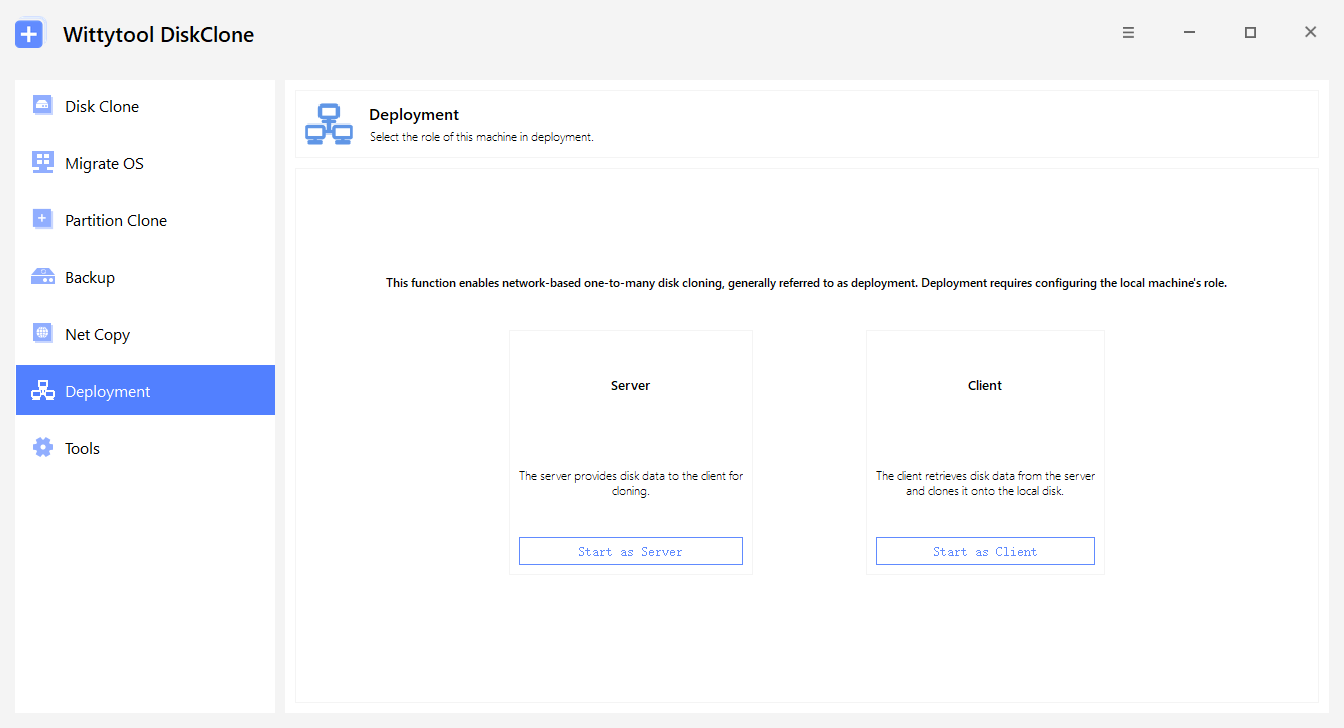
The short workflow is to create a Wittytool Disk Clone system image, configure the deployment server, connect the clients, confirm target settings, and validate the restored systems. Use an image generated by Wittytool Disk Clone. Our guide to deploying the configured Windows environment without Sysprep covers the complete procedure.
Frequently Asked Questions
What causes Sysprep error 0x80073cf2?
When the latest Sysprep log identifies an Appx package, the error can reflect a mismatch between a user’s installed app and the image’s provisioning state. Check the exact package and affected accounts before choosing a repair.
Do I have to remove every Microsoft Store app?
No. Start with the package identified in the current log. Inspect its installed users and provisioning, then make targeted changes. Removing unrelated apps can change the reference environment without addressing the actual blocker.
Why is the app missing from Get-AppxProvisionedPackage?
An app can remain installed for an existing user after its image provisioning has been removed. Also check that you are comparing the correct name and version. A missing provisioned entry does not prove the user’s installation is gone.
Why does Sysprep fail again after I remove one package?
Another package may be blocking the next attempt, or the original package may still exist for another account. Read the latest log and compare the actual package records before making another change.
Can I deploy the current Windows environment without removing its apps first?
Wittytool Disk Clone can create an image of the configured system and deploy it without running Sysprep first, retaining the source environment’s apps and accounts. Back up target data before deployment and verify application operation, activation, and sign-ins on the restored computers.