

Last updated on August 4, 2025
The Recycle Bin (sometimes called “Windows trash bin”) is your safety net for deleted files. Accidentally trashed a document or photo? Don’t panic—it’s likely still recoverable here! If you’re new to Windows 10 or 11, Microsoft occasionally hides the Recycle Bin icon by default after installation. A recent Microsoft report showed that 68% of users actively restore files from the Recycle Bin monthly, highlighting its importance. This guide will show you exactly where the Recycle Bin is located in Windows 10/11 and how to open it using four beginner-friendly methods.
Moreover, we’ve included a recommendation for the professional Wittytool Data Recovery below – it enables easy recovery of data permanently deleted from your Recycle Bin.
Where Is the Recycle Bin in Windows 10/11 File Explorer
File Explorer is the easiest place to find your Recycle Bin:
- Press
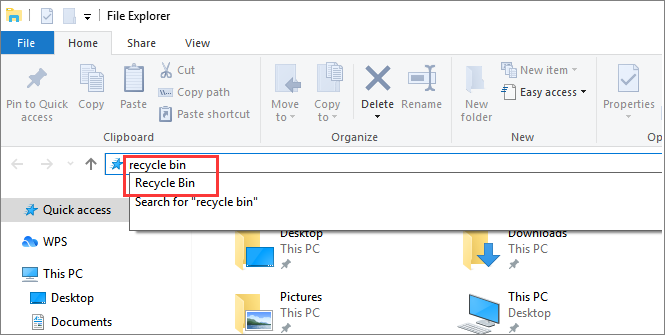
Windows + Eto open File Explorer. - Look in the left-hand panel under “This PC” or search recycle bin in the address bar.
- You should see “Recycle Bin” listed here. Click it to open.
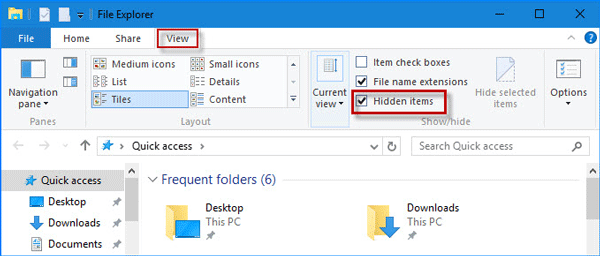
❗ If it’s missing, press Ctrl + F1 to show the ribbon menu > Select “View” tab > Check “Hidden items”.
Open Recycle Bin from Run Command
Prefer using keyboard shortcuts? Here’s how to open Recycle Bin Windows 10/11 via Run:
- Press
Windows + Rkeys together. - Type **
shell:RecycleBinFolder** in the dialog box. - Press Enter or click OK.
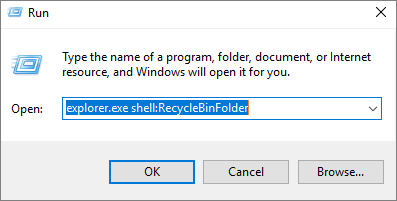
💡 Pro tip: Memorize this command to locate Recycle Bin instantly!
Open Recycle Bin Using PowerShell
For advanced users (but still simple!):
- Right-click the Start button > Select “Windows PowerShell” or “Terminal”.
- Type **
explorer shell:RecycleBinFolder** - Press Enter. The Recycle Bin window will pop up immediately.
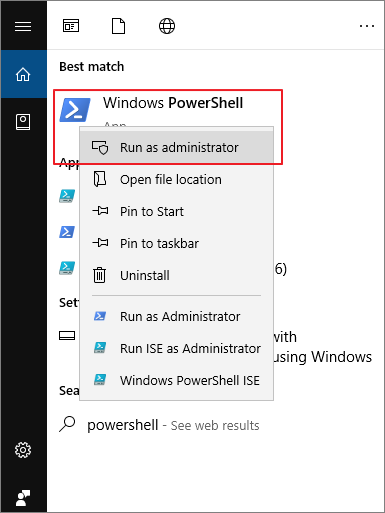
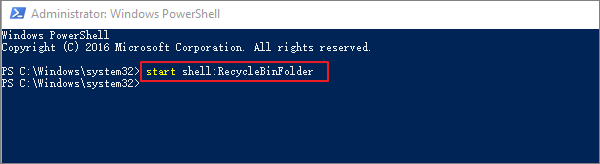
⚠ Note: This method works identically in both Windows 10 and 11.
How to Find Recycle Bin in Windows 10/11 via Settings
Restore the desktop icon easily:
- Right-click your desktop > Choose “Personalize”.
- Go to Themes > Scroll down to “Related Settings” > Click “Desktop icon settings”.
- Check the box next to “Recycle Bin” > Click Apply/OK.
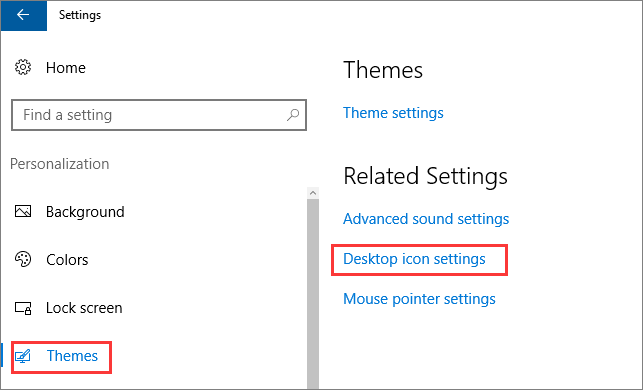
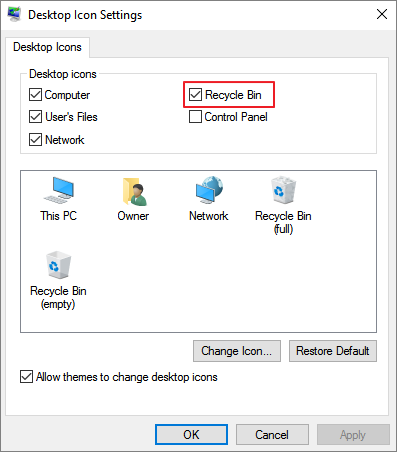
✅ Done! The icon now appears on your desktop.
How to Empty Recycle Bin in Windows 10/11
Permanently delete files to free up space:
- Open the Recycle Bin (using any method above).
- Click “Empty Recycle Bin” in the top toolbar.
- Confirm “Yes” to delete all items permanently.
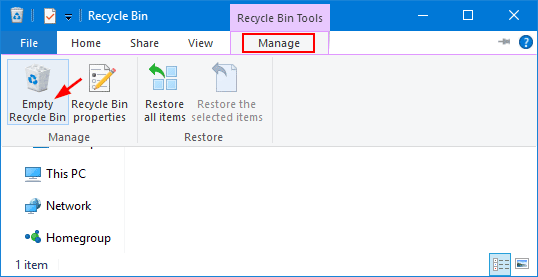
💡 Warning: Files deleted this way require specialized file recovery software for retrieval (see next section).
Bonus Tip: How to Recover Files from Emptied Recycle Bin Windows 10/11
Even after emptying the Recycle Bin, files aren’t immediately erased—they’re marked as “free space” until overwritten. Studies by DataRecovery.org show 85% of files are recoverable within 72 hours of deletion if no new data overwrites them. In fact, with the right tool, you can easily recover deleted files before they’re permanently lost.
❗ Immediately stop using the drive to maximize recovery chances. Then use dedicated recovery tools like WittyTool Data Recovery Free. This free data recovery software safely scans your drive for traces of deleted photos, documents, and videos. Beyond file recovery, it also supports partition recovery —helping restore data from accidentally deleted or corrupted disk partitions. It supports NTFS/FAT systems common in Windows 10/11 and offers a user-friendly interface ideal for beginners.
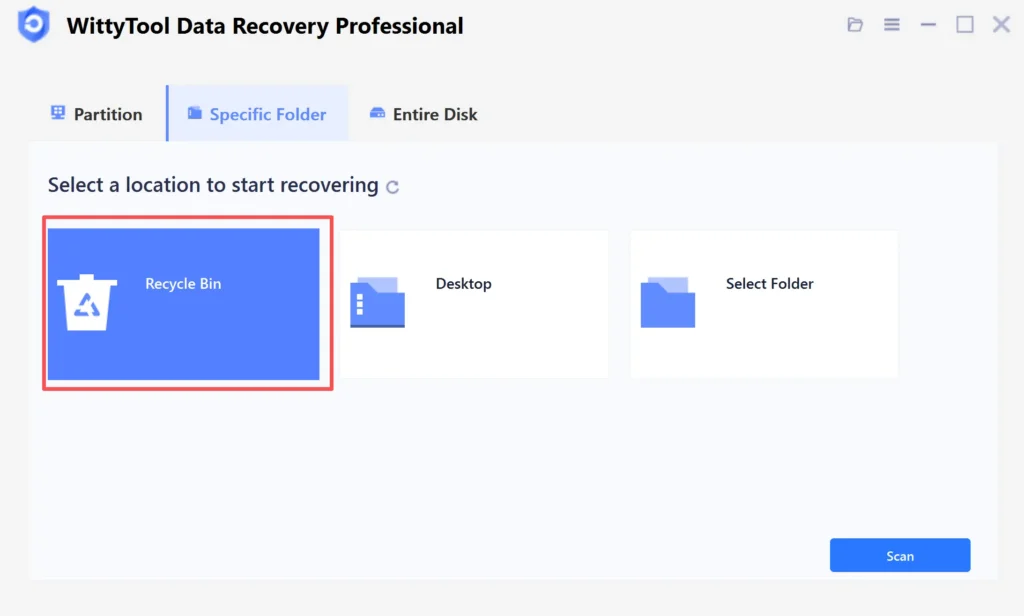
Step 1: To recover specific files from an emptied Recycle Bin on Windows 11/10/8/7, navigate to the Specific Folder tab. Hover over the Recycle Bin option and click Scan.
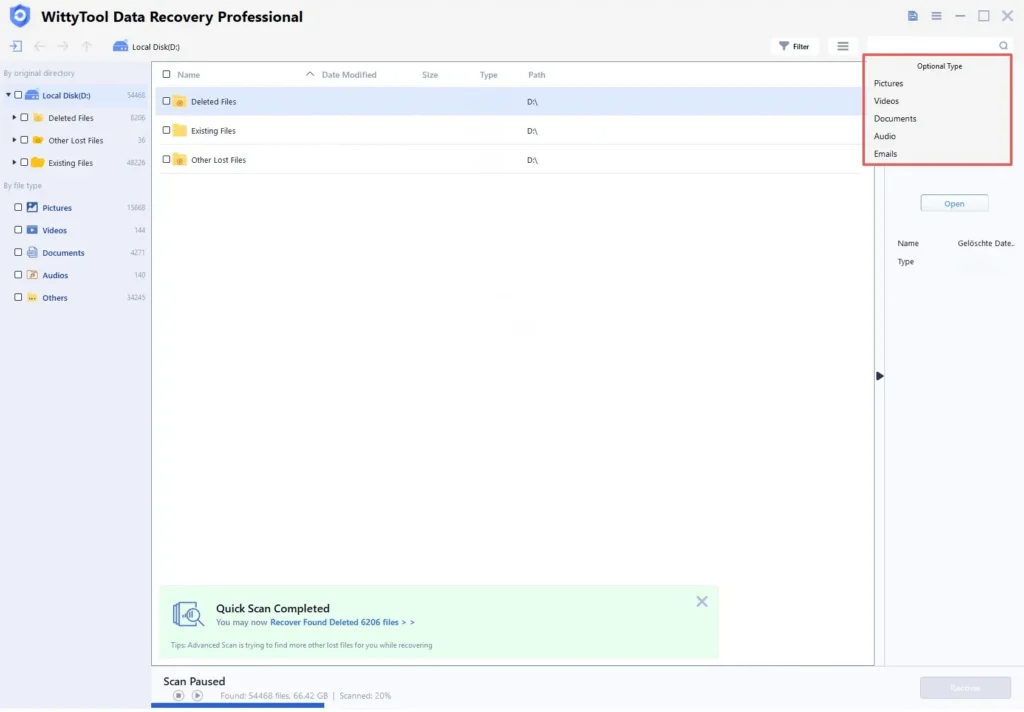
Step 2: WittyTool Data Recovery will immediately begin a quick scan for deleted files, followed by an automatic deep scan to locate additional lost files. Once scanning completes, use the Filter feature to select specific file types like pictures, documents, videos, etc.
Step 3: After locating the files you wish to restore, double-click them for a full preview. Select the target files and click Recover. We recommend saving recovered files to a different volume or external USB drive to prevent potential data overwriting.
Concluding Words
Now you know where the Recycle Bin is located in Windows 10/11 and how to access it through File Explorer, Run commands, PowerShell, and Settings. Remember, the Recycle Bin provides crucial file protection—avoid bypassing it when deleting items! If you’ve permanently emptied files, act quickly using file recovery software. Keep this guide bookmarked for easy reference, and share it with others struggling to find Recycle Bin on their new Windows PC!
FAQ
Q: How do I open the Recycle Bin in Windows 11?
A: There are several ways:
- Desktop Icon: Double-click the Recycle Bin icon on your desktop (if visible).
- Start Menu: Click the Start button (Windows icon), type “Recycle Bin”, and select it from the search results.
- File Explorer: Open File Explorer (folder icon on the taskbar), type “Recycle Bin” in the address bar, and press Enter. Alternatively, find “Recycle Bin” in the navigation pane on the left (you may need to enable it in Folder Options > View > “Show all folders”).
Q: Where is the Recycle Bin located on my hard drive in Windows 10?
A: The Recycle Bin isn’t a single folder. Instead, each drive on your PC has its own hidden system folder:
C:\$Recycle.Bin(for drive C: – replace “C” with your drive letter)- Important Notes:
- This is a hidden system folder. You’ll need to enable “Hidden items” in File Explorer’s “View” tab to see it.
- Inside
$Recycle.Bin, you’ll find folders with cryptic names (likeS-1-5-21-...) corresponding to different user accounts. - Do not modify or delete files here manually – always use the Recycle Bin interface to restore or permanently delete files.
Q: When I delete a file in Windows 11, where does it go?
A: When you delete a file normally (using the Delete key, right-click > Delete, or dragging to the Recycle Bin icon):
- The file is moved to the Recycle Bin on your desktop.
- It remains there taking up space on your hard drive until you either:
- Restore it (right-click the file in Recycle Bin > “Restore”).
- Permanently delete it by emptying the Recycle Bin (right-click Recycle Bin icon > “Empty Recycle Bin” or open the Bin and click “Empty Recycle Bin” in the toolbar).
- Deleted files stay in the Recycle Bin until you run out of space or until its storage limit (managed in Recycle Bin Properties) is reached.