


Wittytool Disk Clone is our first recommendation for Windows cloning with AI assistance, layout controls, and tools for continued system maintenance. DiskGenius is a strong option for free migration and partition management, while Acronis True Image suits ongoing backup and protection. Paragon Hard Disk Manager Advanced and HDClone complete our list for broader home disk maintenance and dedicated copying tasks.
Our Leading Picks at a Glance
OUR FIRST PICK
AI-assisted cloning, destination layout controls, and integrated recovery and deployment tools.
Windows | Free and paid editions
FREE MIGRATION AND PARTITION TOOLS
Move Windows to a new drive and manage partition space within the same application.
Windows | Free and Professional editions
ONGOING BACKUP AND PROTECTION
Combine a drive upgrade with a continuing image-backup and protection routine.
Windows edition covered | Subscription
A Closer Look at AOMEI Cloner
AOMEI Cloner provides disk, system, and partition cloning for Windows. Its settings include destination partition adjustments, SSD alignment, and cloning from WinPE. It also offers one-to-many copying to connected destination disks. These capabilities make it a relevant starting point for an SSD upgrade or a replacement drive.
The choice becomes more interesting when you want a different way to operate the software, additional disk-management tools, or a product that remains useful for recovery and maintenance after migration.
Reasons to Explore Other Cloning Tools
Your reason for comparing alternatives can be as simple as wanting a different combination of features and licensing. These are the factors we would weigh first.
| Selection factor | AOMEI Cloner’s approach | What to compare elsewhere |
|---|---|---|
| Licensing | Annual or lifetime Professional license | Free core migration, subscriptions, and licenses matched to your devices |
| Operating style | Graphical cloning workflow | Natural-language task execution, manual controls, or a broader utility interface |
| Disk layout | Partition adjustment during cloning | Standalone partition management and ongoing disk maintenance |
| Recovery needs | Direct drive copies for replacement or fallback | Stored images, scheduled backups, and recovery media |
| Repeated setup work | One-to-many copying to attached disks | Network image deployment and integrated target-system preparation |
Start by deciding what you need to move. Our explanation of disk cloning versus OS migration covers the difference between copying an entire drive and moving Windows with its supporting partitions.
Five Cloning Tools Worth Considering
Each option below has a different reason to make your shortlist. We compare the capabilities that affect the task, then explain when we would choose the product.
1. Wittytool Disk Clone
Our first pick for AI-assisted Windows cloning and continued system maintenance.
Version: 7.2.1
Platform: Windows PC and Windows Server
Environment: Windows application and WinPE
Editions: Free and paid plans
Capabilities and Everyday Use
Wittytool Disk Clone brings disk, system, and partition cloning together with destination layout controls. You can move a Windows installation to a replacement SSD, copy a complete drive, or transfer a selected partition. Default 4K alignment and support for mainstream SSD brands make the feature set useful across common upgrade choices.
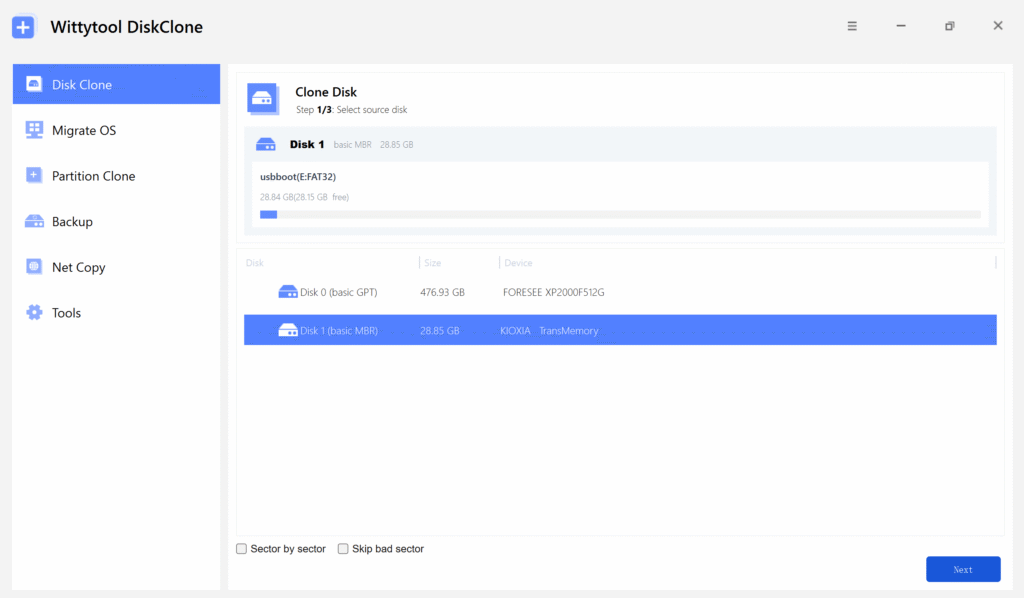
AI Disk Assistant gives you another way to operate the software: describe the task in natural language, and the assistant automatically executes the requested function. Its scope covers all built-in features, including cloning and expansion. Manual controls remain available when you want to work through the selections yourself. This is especially useful if you prefer describing an outcome to locating the corresponding controls.
The recovery tools give the software a role after the drive upgrade. Create image backups, restore them with layout adjustments, or use WinPE rescue media for cloning and restoration outside the installed Windows environment.
For repeated system preparation, you can change Windows SID during cloning or restoration while retaining configured applications, accounts, and settings. Create a system image with Wittytool Disk Clone and use network image deployment to multiple PCs, with target SID processing and deployment progress monitoring. That combination is valuable when a configured system needs to be reused across computers.
Where It Differs from AOMEI Cloner
| Comparison point | Wittytool Disk Clone | AOMEI Cloner |
|---|---|---|
| Cloning scope | Disk, system, and partition | Disk, system, and partition |
| Task controls | Manual controls and AI Disk Assistant | Graphical cloning workflow |
| Destination layout | Layout adjustment and default 4K alignment | Partition editing and SSD alignment |
| Offline environment | WinPE creation, cloning, and restoration | WinPE cloning |
| Repeated setup | Network image deployment with target SID options | One-to-many copying to attached disks |
| Licensing | Free and paid editions | Annual or lifetime Professional license |
Both products cover the core copying job and give you control over the destination layout. We recommend Wittytool Disk Clone when the operating style and supporting tools matter as well: natural-language execution for everyday tasks, recovery tools for future use, and integrated SID and image deployment for repeated setup work.
Reasons to Make the Switch
- Use AI instructions or manual controls within the same application.
- Choose whole-disk, system, or partition copying and adjust the destination layout.
- Keep image backup, restoration, and WinPE tools available after the upgrade.
- Combine cloning and recovery with SID management and network image deployment.
Points to Weigh Before Choosing
The Free edition supports destination drives with a total capacity of up to 150 GB. Pro has no edition-level disk capacity limit. SID change and image deployment are paid-plan features, so choose the plan that covers the computers and maintenance tasks you intend to handle.
For a Windows upgrade with layout control and a choice of AI or manual operation, download Wittytool Disk Clone and use the approach that fits how you work.
2. DiskGenius
A practical choice for free Windows migration with partition-management tools.
Version: 6.2.0.1829
Platform: Windows
Environment: Windows application and WinPE
Editions: Free and Professional
Capabilities and Everyday Use
DiskGenius makes sense when replacing the drive is also an opportunity to reorganize storage. Its Free edition includes disk cloning, partition cloning, and Windows migration, alongside partition resizing and disk-health tools.
System Migration lets you adjust destination partition sizes and select additional partitions. You can choose Hot Migration from the running Windows system or restart into WinPE. A home PC with an undersized C: partition is a good example: the migration and layout work can be considered together before copying begins.
Where It Differs from AOMEI Cloner
| Comparison point | DiskGenius | AOMEI Cloner |
|---|---|---|
| Core migration access | Free edition can complete cloning and OS migration | Professional license |
| Copying scope | Disk and partition cloning; Windows migration | Disk, system, and partition cloning |
| Layout work | Migration layout controls and standalone partition tools | Destination partition editing |
| Migration environment | Hot Migration or restart to WinPE | Windows and WinPE workflows |
| Related utilities | Partition management and disk-health inspection | Cloning and migration settings |
The strongest reason to choose DiskGenius is the combination of free migration and ongoing partition work. AOMEI Cloner already handles layout changes during copying; DiskGenius is more relevant when you also want a separate workspace for organizing volumes and inspecting disks. We would shortlist it for a drive upgrade that includes those additional jobs.
Reasons to Make the Switch
- Complete core cloning and Windows migration in the Free edition.
- Handle partition resizing and migration within one toolset.
- Choose between a running-Windows migration and a WinPE workflow.
Points to Weigh Before Choosing
Free cloning does not make every DiskGenius operation free. Advanced recovery and management permissions differ by edition, including saving certain recovery results. If your task is a straightforward copy, focus on the migration workflow; choose the broader toolset because you expect to use its additional utilities.
3. Acronis True Image
Worth considering when drive migration is part of a continuing backup and protection plan.
Edition covered: True Image for Windows
Platform: Windows 10 (64-bit) and Windows 11
Environment: Windows application and bootable recovery media
Licensing: Subscription
Capabilities and Everyday Use
Acronis True Image combines disk cloning with image backups, recovery, and protection features. It is a relevant alternative if you want to replace a drive now and continue protecting the computer afterward.
A direct clone prepares the replacement disk. A backup schedule serves a different purpose: keeping recovery points as the system changes. Acronis also provides Universal Restore for recovery to different hardware. These features give the product a longer-term role when you expect to use backup and recovery regularly.
Where It Differs from AOMEI Cloner
| Comparison point | Acronis True Image | AOMEI Cloner |
|---|---|---|
| Drive replacement | Direct disk cloning | Disk and system cloning |
| Recovery approach | Stored images and recovery workflows | Direct disk copies for fallback |
| Ongoing use | Scheduled backups and protection | Cloning and migration tasks |
| Bootable tools | Recovery media and Universal Restore | WinPE cloning |
| Licensing | Subscription, with feature tiers | Annual or lifetime Professional license |
We would choose Acronis for its continuing protection routine. If the replacement drive is only the first part of your plan, scheduled images and recovery tools can make the package useful well beyond migration. For an occasional drive copy, weigh how much of that suite you will actually use.
Reasons to Make the Switch
- Bring drive migration and recurring image backups into one product.
- Keep recovery tools available for later system problems.
- Add the protection features included in your chosen plan.
Points to Weigh Before Choosing
Disk cloning is disabled in the trial version, so a trial download will not complete a free clone. Cloud storage and protection capabilities also depend on the subscription tier. We recommend it when ongoing backup and protection are part of your intended use.
4. Paragon Hard Disk Manager Advanced
A fit for home users who want migration, partitioning, and recovery in a broader disk-maintenance suite.
Edition covered: Advanced
Platform: Windows 10 x64 (1809 or newer), Windows 11 x64 and Arm64
Environment: Windows application and WinPE recovery media
Licensing: Home-use annual or perpetual plans
Capabilities and Everyday Use
Paragon Hard Disk Manager Advanced covers disk and partition copying, OS migration, partition management, and backup and recovery. Drive Copy addresses the replacement-drive task; the other tools remain useful when you need to reorganize partitions or restore a system.
Its partitioning tools include splitting, merging, and redistributing free space. Recovery Media Builder creates WinPE media and supports adding storage drivers. For a home computer that needs regular storage maintenance, this gives you several related workflows within the same suite.
Where It Differs from AOMEI Cloner
| Comparison point | Paragon Hard Disk Manager Advanced | AOMEI Cloner |
|---|---|---|
| Migration tools | Disk and partition copying; OS migration | Disk, system, and partition cloning |
| Partition management | Standalone resizing, split/merge, and space redistribution | Destination partition editing |
| Backup work | Scheduled and incremental/differential images | Drive-copy fallback |
| Offline tools | WinPE builder with driver injection | WinPE cloning |
| License positioning | Advanced is for home use | Professional computer license |
Paragon is worth considering when you expect to return to the partitioning and recovery tools after the upgrade. For example, a household PC with several volumes may need both migration and later free-space redistribution. That wider maintenance role is the main reason we would choose this suite over a cloning-focused purchase.
Reasons to Make the Switch
- Combine drive replacement with ongoing partition management.
- Use backup and recovery tools alongside migration.
- Prepare WinPE recovery media with the drivers your storage environment needs.
Points to Weigh Before Choosing
Advanced is strictly for home use, and the computer should not be joined to a domain. Its home plans do not cover Windows Server. A business or server task calls for the appropriate business product and licensing. For eligible home use, compare annual and perpetual plans against the devices you intend to maintain.
5. HDClone
A focused option for disk duplication and file-image tasks across Windows and self-booting environments.
Version and edition covered: X.7 Standard
Platform: Windows application; separate self-booting environment
Working modes: Direct copies and file images
Licensing: Commercial Standard edition
Capabilities and Everyday Use
HDClone focuses on copying storage media and creating file images. Standard adds SmartCopy, SmartImage, partition selection, and resizing tools. Its Windows application and self-booting version use the same interface, which is useful when you alternate between copying from a working installation and operating outside it.
SmartCopy processes used blocks on supported file systems. PartitionSelect lets you choose which partitions to transfer, while file images provide a way to store a copy for later restoration. This makes the copying method and edition particularly relevant to the purchase decision.
Where It Differs from AOMEI Cloner
| Comparison point | HDClone Standard | AOMEI Cloner |
|---|---|---|
| Copying approach | Physical and logical copying; SmartCopy | Disk, system, and partition cloning |
| Partition selection | PartitionSelect | System or partition cloning |
| Image tools | SmartImage and file-image workflows | Direct disk-copy workflow |
| Capacity adjustment | Automatic expansion and reduction for supported file systems | Destination partition editing |
| Working environment | Windows and self-booting versions with a shared interface | Windows and WinPE |
We would shortlist HDClone when the copying environment and method are central to the job. Standard is especially relevant if you want both a Windows application and an independent boot environment while keeping the same interface. Choose the edition around the copy and image functions you need.
Reasons to Make the Switch
- Use dedicated copying and file-image workflows.
- Select partitions and use logical copying where supported.
- Move between Windows and self-booting operation with a consistent interface.
Points to Weigh Before Choosing
The features described here belong to Standard, not the Free edition. Free is intended for private use, while professional service work and multi-target copying have separate edition and licensing requirements. Match the product tier to the work before purchasing.
Which Alternative Gets Our Recommendation?
Our first choice is Wittytool Disk Clone for Windows drive upgrades where AI-assisted operation, destination layout controls, and continued system maintenance are useful together. The other four earn their places for more specific priorities.
| Your main priority | Our recommendation |
|---|---|
| AI-assisted cloning and system maintenance | Wittytool Disk Clone |
| Free migration with partition tools | DiskGenius |
| Recurring backups and protection | Acronis True Image |
| Comprehensive home disk maintenance | Paragon Hard Disk Manager Advanced |
| Dedicated duplication and image workflows | HDClone, in the edition suited to the task |
Our First Pick: Wittytool Disk Clone
Choose it when you want a practical cloning tool that also fits recovery and repeated Windows maintenance. AI instructions and manual controls give you two ways to work, while the integrated toolset remains useful after the replacement drive is installed.
Before using any cloning tool, identify the source drive being copied and the destination receiving the copy. Back up important files separately, including anything on the destination, because cloning can overwrite its contents. Our guide to cloning an HDD to an SSD covers preparation and the migration workflow.
Questions About Choosing an AOMEI Cloner Replacement
Is There a Free Tool That Can Replace AOMEI Cloner?
Yes. Wittytool Disk Clone Free can complete disk cloning, partition cloning, and Windows migration. Its advanced recovery and management features have separate edition permissions, so free migration does not mean every tool in the application is unrestricted.
Can I Move Windows to a Smaller SSD?
Yes, when the tool and copy mode support resizing and the selected partitions fit on the destination. The amount of used data is one part of that check; partition layout and file-system support also matter. A sector-by-sector copy generally requires enough space for the selected source sectors. Our SSD cloning software guide explains the drive-upgrade options.
Will My Installed Applications Move with Windows?
System migration or a complete Windows-disk clone can carry installed applications and settings with the selected source system. Include any separate partitions that contain application data or files you also need. Individual applications may require reactivation, especially when the hardware changes.
How Is AOMEI Cloner Different from AOMEI Backupper?
AOMEI Cloner focuses on disk, system, and partition copying. AOMEI Backupper is a separate backup product with backup and recovery workflows as well as cloning features. Compare Cloner alternatives for drive replacement, and backup products when recurring recovery points are your main need.