


Quick Answer: R-Drive Image, Wittytool Disk Clone, HDClone, O&O DiskImage, and Paragon Hard Disk Manager are five alternatives to Hasleo Disk Clone. Their main differences lie in image recovery, task automation, copying modes, backup routines, and partition maintenance. The right choice depends on what you want to do alongside the drive copy.
01
R-Drive Image
Disk copying with image checks and flexible recovery environments.
Windows, Linux/WinPE startup media
Commercial, with a trial
02
Wittytool Disk Clone
Natural-language task execution with cloning and Windows management.
Windows and WinPE
Free and paid plans
03
HDClone
Dedicated disk copying with a standalone boot environment.
Windows and self-booting versions
Free and paid editions
What Is Hasleo Disk Clone?
Hasleo Disk Clone is a Windows application for moving an operating system, copying a complete disk, or cloning an individual partition. Its graphical workflow includes destination partition-size and position adjustments, which are useful when the replacement drive needs a different layout.
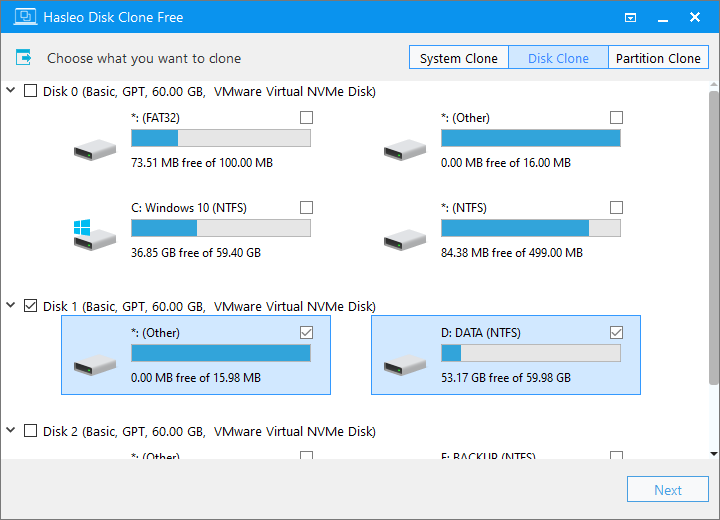
The free home edition includes system, disk, and partition cloning on supported x86/x64 Windows systems. Paid editions add Delta Clone, Windows PE emergency-media creation, and business use, among other capabilities. Delta Clone updates an existing destination copy by processing changed blocks under its supported partition conditions.
That makes Hasleo a relevant option for direct migration and repeat copying. Other applications become interesting when you want a different operating environment, saved image backups, or tools for the work surrounding a migration.
Why you might need an alternative to Hasleo Disk Clone
| Your requirement | Hasleo’s approach | What an alternative may add |
|---|---|---|
| A continuing backup routine | Direct disk copies, including Delta updates in paid editions | Scheduled image backups, image checks, or automatic backup chains |
| A different way to operate the software | A graphical cloning workflow | Natural-language task execution alongside manual controls |
| More startup-environment choices | WinPE emergency-media creation in paid editions | A choice of Linux and WinPE media, or a dedicated self-booting environment |
| Work beyond destination resizing | Partition adjustments within the cloning task | Broader partition maintenance, SID handling, or image deployment |
| A different edition or license fit | A free home edition and paid Professional/Enterprise editions | A different combination of included operations, device licensing, and recovery tools |
Start with the requirement that changes your job. If you need saved recovery states, compare the imaging tools. If you want a different way to carry out a migration, look at task execution and copying controls. For ongoing disk maintenance, consider the partition and recovery functions as well.
Five Hasleo Disk Clone Alternatives Worth Comparing
Each product below has a different reason to enter the shortlist. Use the individual comparison tables to see how its workflow relates to Hasleo, then weigh the capabilities and edition conditions that affect your setup.
1. R-Drive Image
Disk copying with a reusable image-recovery workflow.
Runs in: Windows, with Linux and WinPE startup versions. Access: Commercial software with a 30-day trial.
From a drive copy to a saved recovery image
R-Drive Image combines direct disk and partition copying with image creation, checking, and restoration. Supported partitions can be resized during copying or recovery, letting you adjust the space allocation on the destination. After migration, scheduled image backups give the application a continuing role.
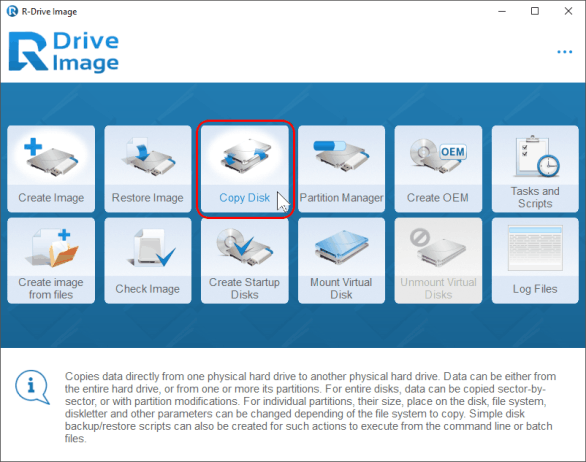
The startup options are a useful distinction. You can access disks outside the installed system through Linux-based or Windows PE media. This matters when Windows cannot start or a system partition needs to be handled from a separate environment.
How R-Drive Image extends the recovery workflow
| Feature | Hasleo Disk Clone | R-Drive Image |
|---|---|---|
| Direct copying | System, disk, and partition modes with layout adjustments | Disk and partition copying with supported resizing |
| Recovery material | A destination disk copy | Direct copies or image files that can be checked and restored |
| Recurring work | Paid Delta Clone for an existing clone | Scheduled image-backup tasks |
| Startup media | WinPE creation in paid editions | Linux-based and WinPE startup versions |
The practical difference is how you expect to recover. A maintained clone gives you a replacement disk; a saved image gives you material to restore later. R-Drive Image is particularly useful when you want to manage both approaches in one application.
Reasons to put R-Drive Image on the shortlist
- Direct copying and image restoration share one application.
- Image checks add a verification step to a backup routine.
- Two startup environments provide different routes to disk access.
Environment choice: Use the WinPE option when Secure Boot or access to BitLocker-encrypted disks is required, with the necessary credentials. The Linux startup version does not access BitLocker-encrypted volumes.
2. Wittytool Disk Clone
Natural-language cloning with tools for broader Windows work.
Runs in: Windows and WinPE. Access: Free and paid plans.
Carry out tasks through instructions or manual controls
Wittytool Disk Clone provides disk, system, and partition copying, destination-size adjustment, and default 4K alignment. Our software supports mainstream SSD brands, so you can plan a migration around the capacity and drive that suit your computer.
With AI Disk Assistant, you describe the task in natural language and the assistant automatically executes the requested operation inside Wittytool Disk Clone. That includes cloning and expansion, with support across all built-in software functions. You can also work through the manual controls when you prefer to select the disks and settings yourself.
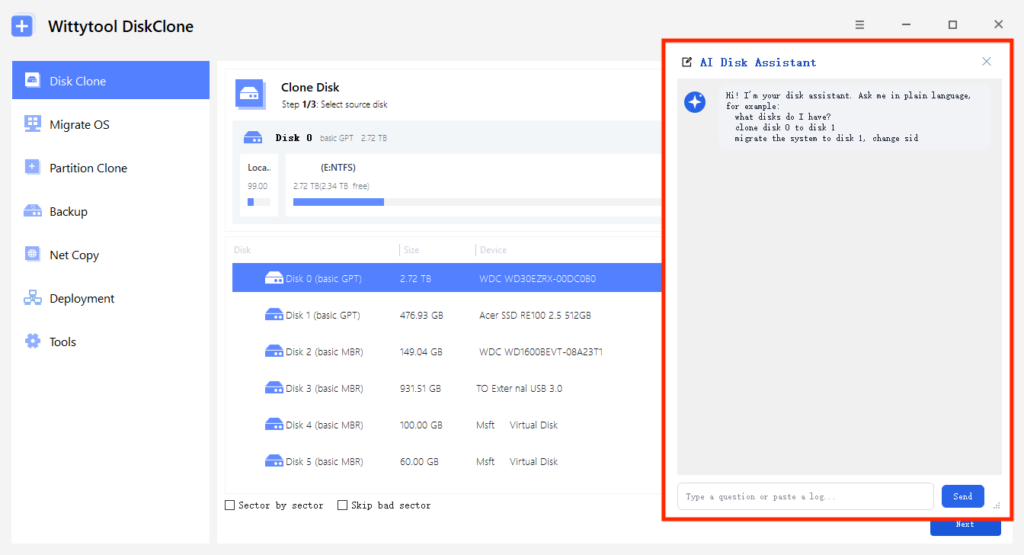
Image backup and restoration extend the workflow beyond a single copy. You can back up system-related or selected partitions and adjust the target layout during restoration. Our guide to cloning and restoring through WinPE covers working from an independent boot environment.
Where Wittytool Disk Clone changes the workflow
| Feature | Hasleo Disk Clone | Wittytool Disk Clone |
|---|---|---|
| Task operation | Graphical cloning workflow | Natural-language task execution and manual controls |
| Layout and alignment | Destination size/position controls and alignment options | Destination-size controls and default 4K alignment |
| Broader workload | Direct migration and updating clones | Cloning, image recovery, SID management, and image deployment |
| Independent operation | WinPE emergency-media creation in paid editions | WinPE cloning and restoration |
For work across separate PCs, integrated Windows SID management and image deployment give our software another role. You can deploy images created by Wittytool Disk Clone, preserve configured applications and accounts, handle target SIDs, and monitor deployment progress.
What makes our tool useful beyond one migration
- Choose natural-language execution or manual operation for the same built-in tasks.
- Reuse the application for image backup and restoration.
- Connect cloning with SID handling and multi-PC image deployment when your work requires them.
The free edition supports destination disks with a total capacity up to 150 GB, regardless of the data copied. Pro has no edition-level disk capacity limit. Paid plans include SID management and image deployment.
Download Wittytool Disk Clone to use AI Disk Assistant or manual controls for your migration and keep the backup and Windows management tools available for later tasks.
3. HDClone
Dedicated copying with Windows and self-booting interfaces.
Runs in: Windows or its standalone boot environment. Access: Free and paid editions.
Choose the copying mode around the job
HDClone offers physical and logical copying, file images, and a dedicated boot environment. Its Windows and self-booting versions use a consistent interface. That makes it worth considering when you want to work with a copying tool both inside and outside the installed operating system.
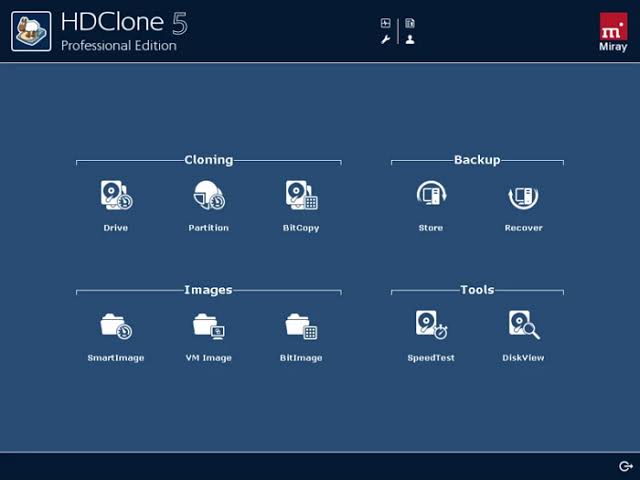
The edition choice is central to the product. A whole-drive copy, copying individual partitions, and reducing supported partitions onto a smaller destination belong to different parts of its feature range.
Copying controls that separate HDClone from Hasleo
| Feature | Hasleo Disk Clone | HDClone |
|---|---|---|
| Free copying scope | System, disk, and partition cloning for home use | Basic whole-drive copying for private use |
| Partition work | Destination-size and position adjustment | Basic adds partition copying and supported automatic resizing |
| Additional copy modes | Sector-copy options and paid Delta Clone | SmartCopy in Standard and higher editions |
| Boot environment | Paid WinPE emergency-media creation | Dedicated self-booting version alongside the Windows application |
HDClone is a useful match when you can identify the required copying mode and choose the corresponding edition. Hasleo’s free partition-cloning support remains relevant when that is the only operation you need.
Where HDClone earns consideration
- A dedicated environment for disk-copying tasks.
- Consistent operation in Windows and self-booting mode.
- Higher editions add partition, image, and copying options for more involved jobs.
Edition fit: Free supports private use with drives up to 4 TB. Basic is also private-use software and supports reducing NTFS/FAT partitions for smaller-target migration. Commercial work requires an appropriate higher license.
4. O&O DiskImage
Cloning as part of an automatic backup routine.
Runs in: Windows, with bootable recovery media. Access: Paid software; business offerings are available.
Keep using the software after the new drive is installed
O&O DiskImage combines drive cloning with computer, drive, partition, and file backup. DiskImage 23 introduces automatic backup chains with configurable intervals and a view of backup history and protection status.
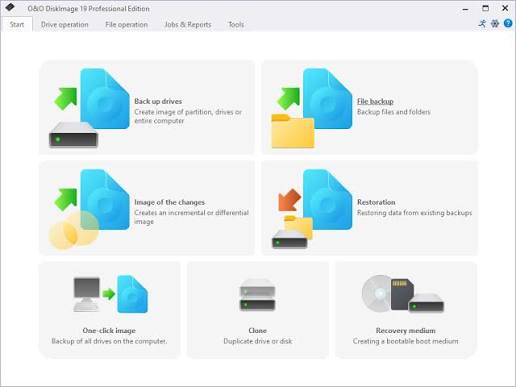
These features are useful when the migration is the beginning of a maintenance routine. You can organize recurring backups and see the state of that protection in one place, instead of returning to the application only for another drive replacement.
How its backup routine relates to Hasleo’s cloning tools
| Feature | Hasleo Disk Clone | O&O DiskImage |
|---|---|---|
| Main workflow | System, disk, or partition cloning | Drive cloning alongside drive and file backup |
| Recurring protection | Paid Delta Clone updates an existing clone | Automatic backup chains with configured intervals |
| Recovery material | A destination disk copy | A cloned drive or saved backup images |
| Recovery environment | WinPE emergency media in paid editions | Bootable media for image restoration |
The attraction here is ongoing backup management. R-Drive Image also handles imaging, but O&O’s automatic chains and protection overview give you a distinct reason to consider it.
Why O&O DiskImage may suit a regular backup plan
- Drive cloning and file backup are available in the same product.
- Backup intervals can be configured as part of automatic chains.
- Backup history and protection status help you review the routine.
Scope to consider: For a single drive replacement, the backup-management functions may have little continuing value. They matter more when you intend to maintain recurring protection. Match company use to O&O’s corresponding business offering.
5. Paragon Hard Disk Manager
Migration tools within a broader partition-management suite.
Runs in: Windows, with WinPE recovery media. Access: Paid home product or separate business products.
Handle the disk layout before and after migration
Paragon Hard Disk Manager combines copying, OS migration, backup, and partition operations. Resizing, merging, and redistributing free space give the suite a role beyond placing the copied partitions on a new disk.
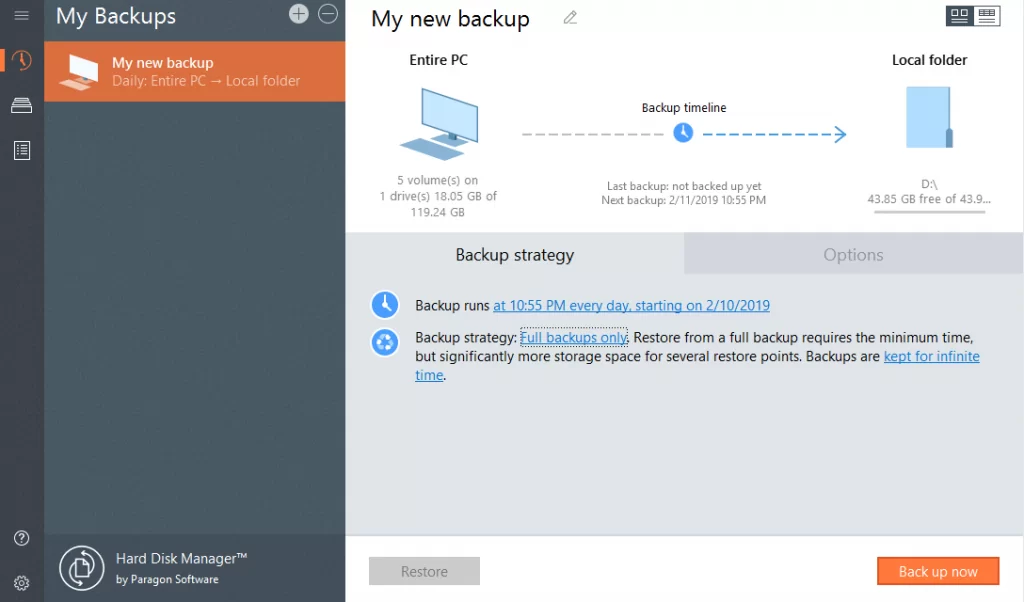
That is useful when a drive upgrade is part of a larger storage reorganization. Recovery Media Builder also supports preparing WinPE media with drivers and network settings, so you can plan a recovery environment alongside the layout work.
Where Paragon goes beyond migration-time adjustments
| Feature | Hasleo Disk Clone | Paragon Hard Disk Manager |
|---|---|---|
| Migration | System, disk, and partition copying | OS migration, disk copying, and partition copying |
| Layout work | Destination adjustment during cloning | Migration controls plus wider split/merge and free-space tools |
| Ongoing protection | Direct copies and paid Delta updates | Scheduled image backup and restoration |
| License fit | Free home and paid business-capable editions | Home/non-domain product and separate business products |
Hasleo already addresses layout changes within a cloning task. Paragon becomes more compelling when you also need to maintain the surrounding disk structure over time.
Reasons to choose the broader suite
- Copying and partition maintenance share one application.
- Backup and recovery tools remain useful after migration.
- Recovery-media preparation includes driver and network configuration.
License fit: The home product is restricted to home use on computers that are not joined to a domain. A business or domain-based setup needs the corresponding business product. Its wider partition tools are most valuable when you expect to keep using them.
Finding the Right Tool for Your Next Drive
The five alternatives lead in different directions. Start with the task you want to keep doing after the copy:
- R-Drive Image: Copy drives, check saved images, and work through different startup environments.
- Wittytool Disk Clone: Use natural-language or manual operation, with image recovery and Windows management available in the same application.
- HDClone: Match a dedicated copying environment and edition to a specific disk job.
- O&O DiskImage: Establish automatic backups and review their history and protection status.
- Paragon Hard Disk Manager: Combine migration with continuing partition and storage maintenance.
For everyday migration with a choice of interaction methods, our Wittytool Disk Clone tools connect the initial copy to later backup, SID, or deployment work. For a backup-centered routine or extensive partition maintenance, weigh the corresponding specialist features in the other products.
Before starting a clone, back up important files and confirm the source and destination disks. Cloning can overwrite destination data. Our HDD-to-SSD migration guide covers preparation and copying once you have selected your application.
Questions About Switching Cloning Tools
Can I clone a larger hard drive to a smaller SSD?
Yes, when the application supports the required resizing and the selected data plus all necessary system partitions fit. A low used-space figure alone is not enough: partition placement and the copying mode also matter. Full sector-by-sector copying generally needs a destination at least as large as the source.
Can image backups replace a Delta Clone routine?
They can serve a different recovery plan. Delta Clone updates a previous clone on a destination disk, with changed-block copying subject to its partition requirements. Image backups store data in files that you restore when needed. Choose an updated clone for a standby drive, or retained image backups when restoring an earlier saved state is the priority.
Do I need bootable media if Windows still starts?
Not for every operation. Supported copying tasks can begin in Windows, while work on locked system partitions may require a restart or separate startup environment. Bootable media also gives you a recovery route if Windows later stops starting. Prepare the environment required by the selected operation before relying on it.
When should I reuse or erase the original drive?
Keep the source unchanged until you have started Windows from the destination, checked important files and applications, and established a separate backup. A completed copying progress bar is only one check. Before erasing anything, confirm which physical drive you are using and that no required files remain only on the original.