


Quick Answer
Yes. if the SSD can hold the used data, the source HDD is not BitLocker-encrypted, the hardware connection is suitable, and your backups are ready. For a full-disk HDD-to-SSD copy, use Disk Clone mode.
The cloning operation does not affect data on the source disk, but it writes to the destination. Back up first, identify both disks carefully, and keep the original HDD unchanged until you have checked the SSD. Cloning does not guarantee boot, zero data loss, or complete preservation in every configuration.
Can You Clone an HDD to an SSD?
Use this ten-second check before you begin:
| Condition | Continue when… |
|---|---|
| Used data fits | The SSD has enough capacity for the used data on the HDD. |
| Source is supported | The source HDD is not BitLocker-encrypted. Wittytool Disk Clone currently cannot recognize a BitLocker-encrypted source disk. |
| Connection is appropriate | The SSD and its connection method are suitable for the PC according to the relevant manufacturer documentation. |
| Backups are ready | Important source data and any destination data you need have been backed up independently. |
This article covers a full-disk clone, so the correct product mode is Disk Clone, not Migrate OS. If you only want to move Windows to another drive, follow the OS-migration path. If you are unsure which method fits, compare disk cloning and OS migration.
Stop before cloning if the HDD is physically damaged, unstable, irreplaceable, managed by an organization, or business-critical. Use the appropriate administrator, technician, manufacturer, or data-recovery path instead.
What You Need Before Cloning
Prepare these five things:
- An independent source backup. Back up important files somewhere other than the destination SSD, then open representative files from the backup to confirm that it is usable.
- A destination backup. Copy off anything you need from the destination disk or destination volume.
- A source-and-destination disk map. Write down which disk is the source HDD and which is the destination SSD. Compare disk number, capacity, current role, and any visible model or device identifier. Disk Management in Windows can show the disks and volumes detected by Windows. If the identities are uncertain, stop.
- A suitable connection and stable power. Connect the SSD according to the PC, motherboard, enclosure, or adapter manufacturer’s instructions. Keep the connection secure while cloning.
- A rollback path. Plan to leave the original HDD unchanged until the SSD and the independent backup have been checked.
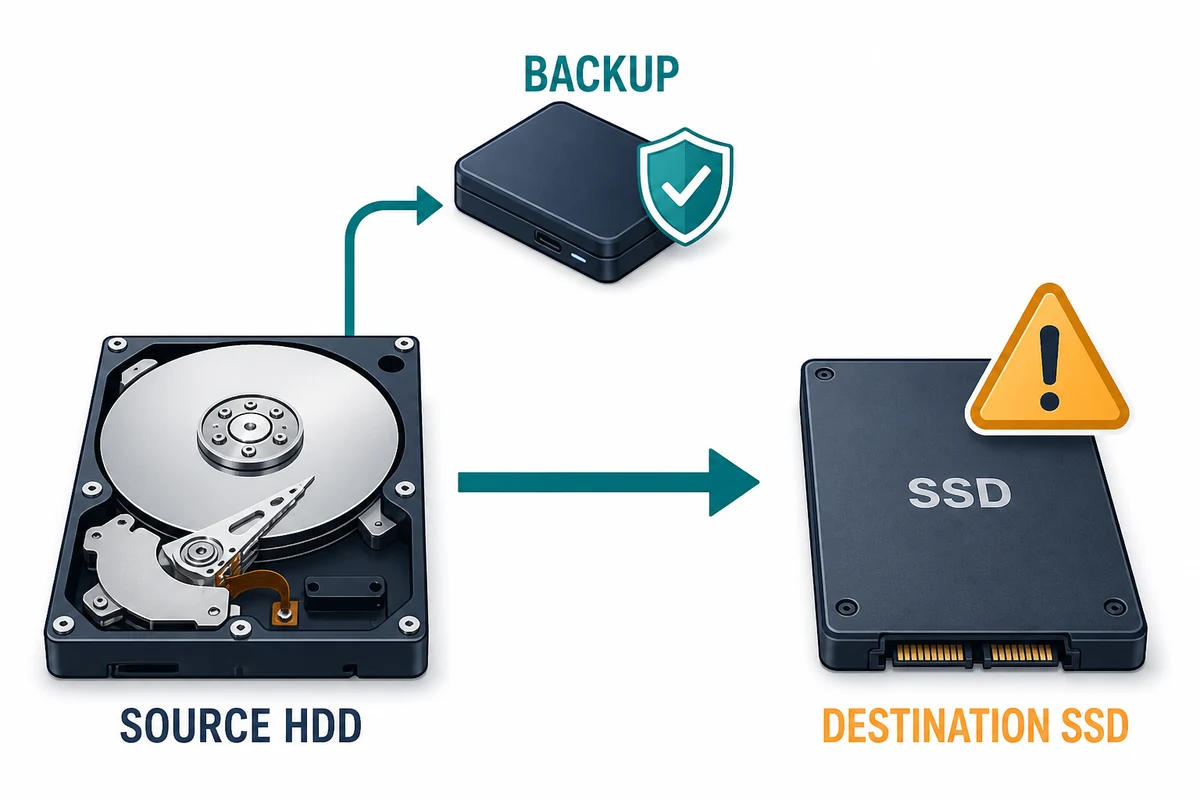
Warning: Data on the destination disk or destination volume will be erased. Confirm the destination backup and both disk identities before continuing to the cloning steps.
How to Clone an HDD to an SSD with Wittytool Disk Clone
Wittytool Disk Clone provides the Disk Clone mode used for this full-disk HDD-to-SSD task. It supports cloning a larger HDD to a smaller SSD when the target has enough capacity for the used data, and the cloning operation does not affect data on the source disk. Wittytool Disk Clone currently cannot recognize a BitLocker-encrypted source disk. The destination-data erasure warning appears above and is repeated in the final confirmation immediately before Start Clone.
The operation sequence used here has three screens: choose the source, choose the destination, and review the target layout before starting. Screen details can vary by product build. If your screen changes the source, destination, layout, warning, or start action described here, stop and obtain current Wittytool guidance.
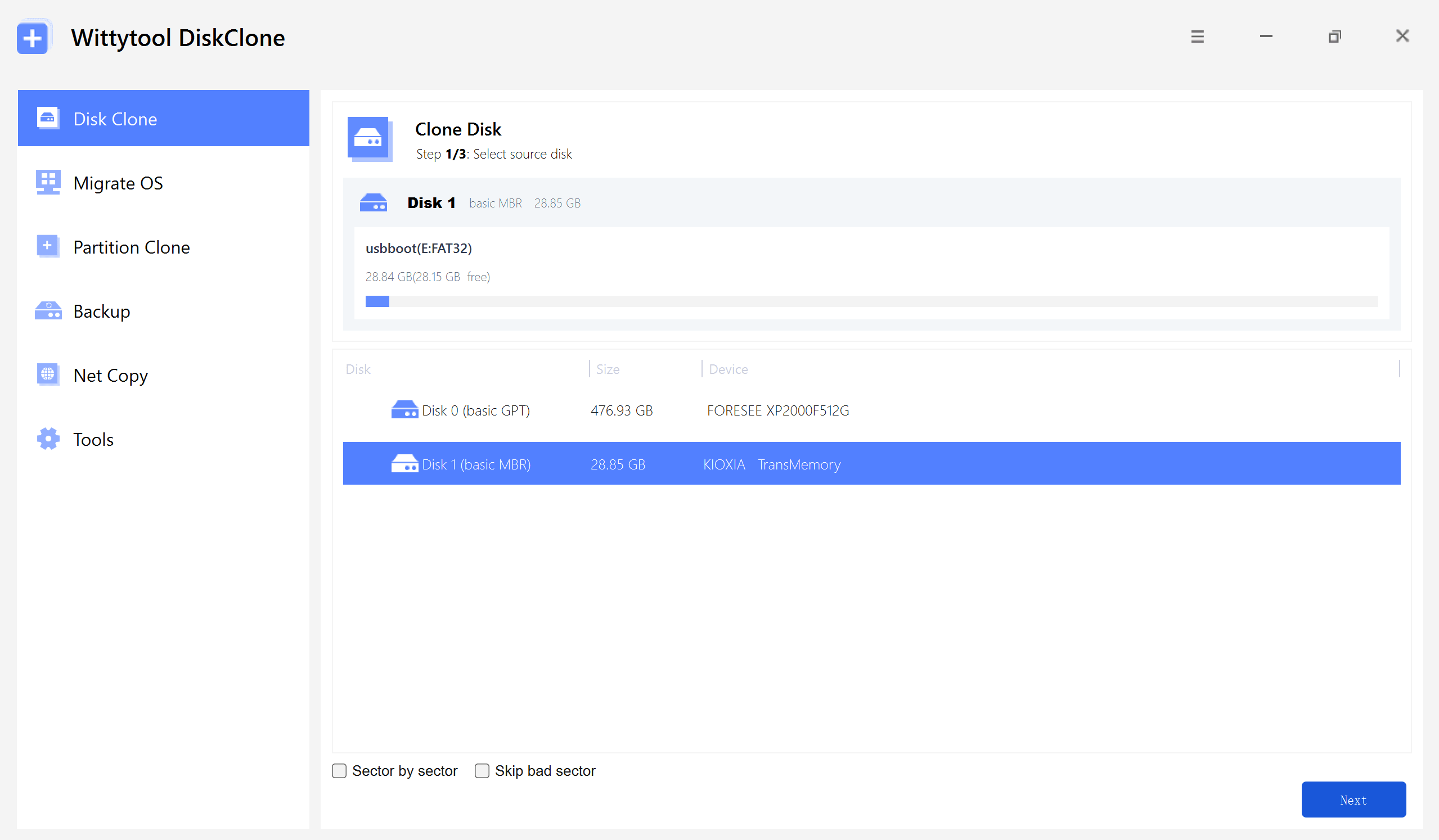
Step 1: Select Disk Clone and the source HDD
Open Disk Clone. Select the HDD you want to copy, match it to the source in your disk map, and then select Next.
Step 2: Select the destination SSD
Select the SSD that will receive the clone. Match it to the destination in your disk map, then select Next.
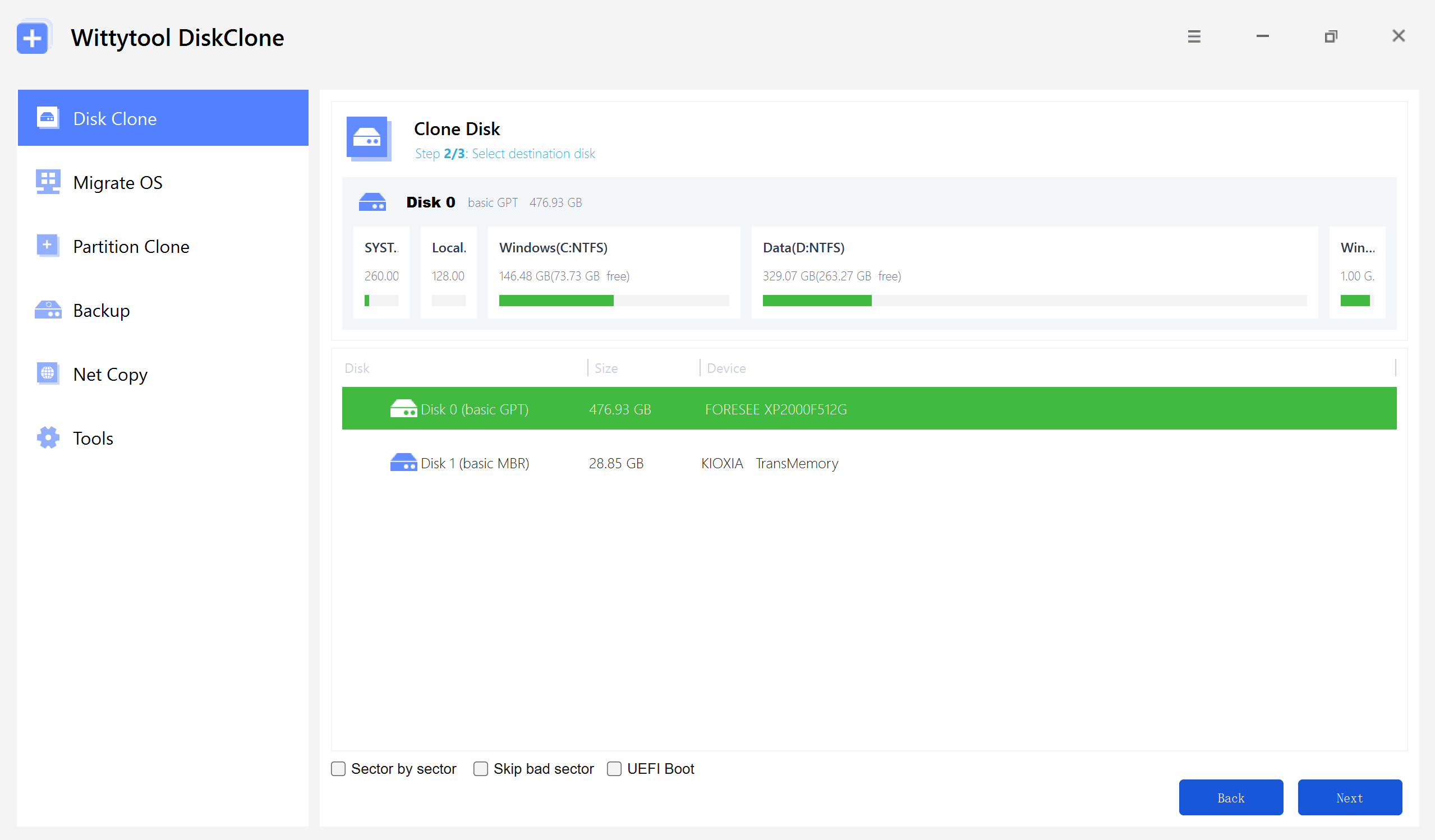
You may see optional controls on this screen. Sector-by-sector cloning, bad-sector handling, and UEFI-related options are outside this guide because they require separate conditions and verification.
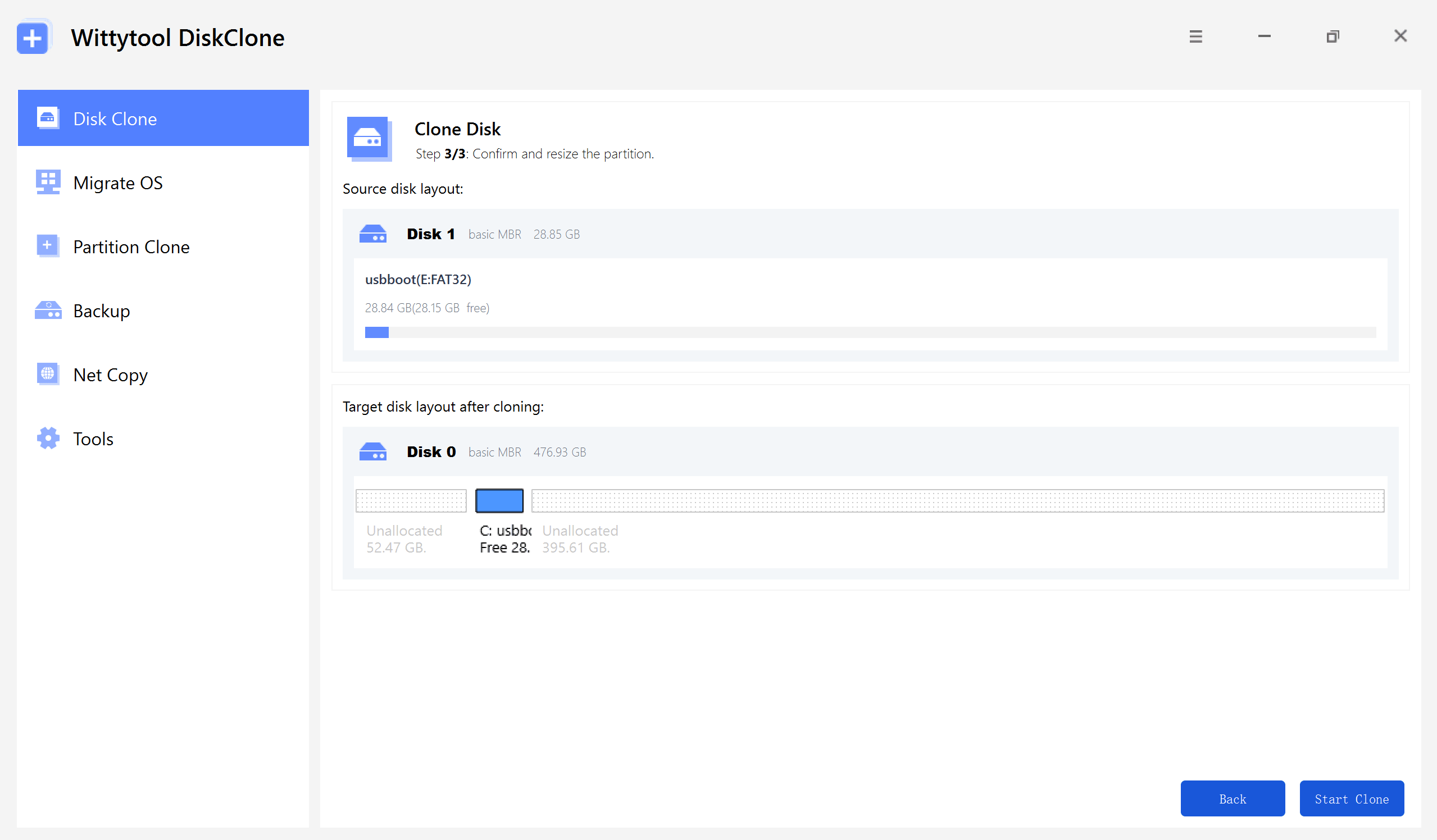
Step 3: Review the target layout
Review the proposed layout on the target SSD. If you change a partition size, confirm that the result is the layout you intend and that the SSD still has enough capacity for the used data.
Step-by-Step Video Guide:
Immediately before the action that starts cloning, complete this final check in order:
- Verify that the selected source disk is the HDD you intend to copy.
- Verify that the selected destination disk or destination volume is the SSD you intend to overwrite.
- Confirm that all required data from the destination has been backed up.
- Read the consequence again: Data on the destination disk or destination volume will be erased.
- Give final confirmation only if the source, destination, and destination backup are correct.
- Only then, select Start Clone.
Keep both drives connected while cloning is in progress. If Wittytool reports an error or the connection becomes unstable, preserve the original HDD and do not erase, initialize, or reformat either disk as a first response. Follow the operation status shown in your current product build; this guide does not assume a universal completion label.
What to Do After the Clone
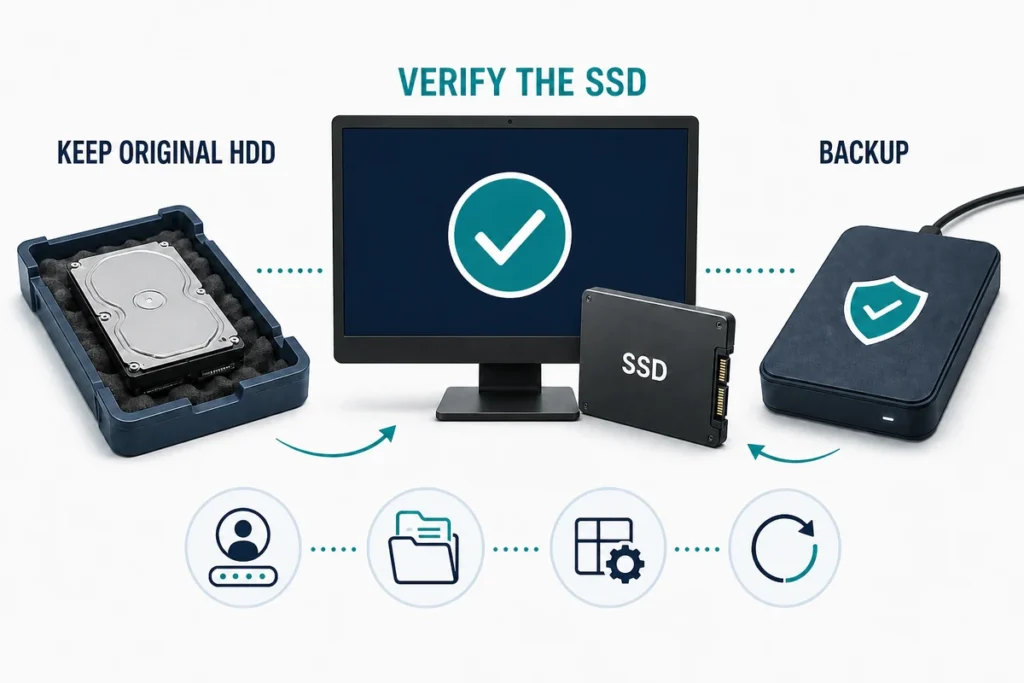
Do not erase, repartition, or reuse the original HDD yet. First verify the result:
- Follow the PC or motherboard manufacturer’s instructions to install the SSD or select it as the intended boot device. This guide does not provide generic firmware keys or settings.
- Start the computer from the SSD and sign in to Windows.
- Open Disk Management, review the disks and volumes Windows sees, and confirm that you are checking the intended SSD.
- Open a representative selection of important files and applications.
- Restart the computer once, sign in again, and repeat the basic checks.
- Confirm that your independent backup is still accessible.
These checks reduce uncertainty; they do not prove that every file, application, setting, partition behavior, or hardware configuration was preserved. Keep the original HDD unchanged until the SSD has passed the checks that matter for your use and you have decided what to do with the old drive.
Common Special Cases
The SSD is smaller than the HDD
Wittytool Disk Clone supports cloning a larger HDD to a smaller SSD when the target has enough capacity for the used data. The drive’s advertised size alone does not decide suitability; the used-data condition still has to be met. Do not extend this support statement to every partition layout, file system, encrypted source, or optional clone mode.
The source HDD is BitLocker-encrypted
Do not use this Wittytool workflow. Wittytool Disk Clone currently cannot recognize a BitLocker-encrypted source disk. This guide does not provide decryption, suspension, recovery-key, or administrator instructions. For general encryption information, see Microsoft’s BitLocker FAQ.
The laptop has one internal drive slot
Use an external enclosure or adapter only when that connection method is supported by the laptop, SSD, and accessory manufacturers. Do not improvise a connection by removing the only working source drive without a supported plan.
The destination is an M.2 or NVMe SSD
Check the interface, physical size, connector or keying, installation method, and boot support in the documentation for the PC or motherboard and the SSD. Device-specific disassembly and firmware instructions belong in the relevant manufacturer’s guide, not this general procedure.
If the SSD Does Not Boot
Do not assume the clone has destroyed the source. Preserve the original HDD and, when it is safe to do so, return to the last working hardware configuration. Then:
- Check whether the cloning operation reported an error or interruption.
- Recheck the SSD connection and boot-device selection against the documentation for the specific computer or motherboard.
- Do not format either disk, initialize a disk, change unrelated firmware or security settings, or run generic boot-repair commands simply because the SSD did not start.
- Follow the dedicated cloned SSD boot troubleshooting guide for the Wittytool troubleshooting path.
- If you need Windows recovery choices, use Microsoft’s official Recovery options in Windows and preserve a backup before starting a recovery process.
If the source drive is unstable, the data is irreplaceable, or the safe next step is unclear, stop and contact the appropriate manufacturer, administrator, Wittytool support channel, qualified technician, or data-recovery specialist.
When You Should Not Clone
Do not use this procedure when:
- The source HDD is BitLocker-encrypted.
- The source HDD is physically damaged, unstable, or contains irreplaceable data.
- You cannot identify the source and destination with confidence or cannot back up the data that matters.
- The computer is managed or business-critical and you lack authorization or an approved change plan.
- You need an OS-only migration rather than a full-disk copy.
- You need guaranteed boot, recovery, or complete preservation; this workflow cannot provide those guarantees.
Final Summary
For a full-disk HDD-to-SSD clone, use Disk Clone. Wittytool Disk Clone supports cloning a larger HDD to a smaller SSD when the target has enough capacity for the used data. Wittytool Disk Clone currently cannot recognize a BitLocker-encrypted source disk. Data on the source disk is not affected by the cloning operation. Data on the destination disk or destination volume will be erased.
Back up first, verify both disk identities, keep the original HDD unchanged, and check the SSD before reusing the source. Cloning does not guarantee boot, zero data loss, complete preservation, or universal compatibility.
Frequently Asked Questions
Can you clone a larger HDD to a smaller SSD?
Yes. Wittytool Disk Clone supports cloning a larger HDD to a smaller SSD when the target has enough capacity for the used data.
Does cloning erase the source HDD or destination SSD?
Data on the source disk is not affected by the cloning operation. Data on the destination disk or destination volume will be erased. Back up important source data and anything you need from the destination before starting.
Can Wittytool Disk Clone recognize a BitLocker-encrypted source disk?
No. Wittytool Disk Clone currently cannot recognize a BitLocker-encrypted source disk. Do not use this workflow for that source.
Should you use Disk Clone or Migrate OS for an HDD-to-SSD upgrade?
Use Disk Clone for a full-disk HDD-to-SSD copy. Migrate OS is a different workflow for OS-only migration.
Is a cloned SSD guaranteed to boot?
No. Cloning does not guarantee that the SSD will boot in every configuration. Keep the original HDD unchanged and verify the SSD before reusing the source.