


Quick Answer
Our five EaseUS Disk Copy alternatives are Wittytool Disk Clone, Hasleo Disk Clone, AOMEI Cloner, Macrium Reflect X, and Rescuezilla.
Wittytool Disk Clone is our recommendation for AI-assisted cloning combined with backup, SID management, and image deployment.
Hasleo offers free home cloning and paid Delta Clone, AOMEI focuses on cloning and partition-layout controls, Reflect X suits ongoing backup routines, and Rescuezilla provides free graphical cloning from a USB-booted environment.
These applications overlap in basic disk copying, but the differences become more useful when you look at partition adjustments, recurring tasks, licensing, and how you want to operate the software. Below, we explain where each alternative fits and how the choice compares with EaseUS Disk Copy.
How We Compare Disk Cloning Software
We assess each application against five questions that affect the actual job:
- What can you copy? Whole-disk, system, and partition modes serve different purposes. Our explanation of disk cloning versus OS migration helps you match the copying scope to what you want on the destination.
- How much layout control do you have? Keeping the source partition sizes, distributing additional space, and manually adjusting partitions produce different results on a replacement drive.
- Where does the application run? Starting in Windows and booting a separate USB environment involve different preparation and working habits.
- What does the license include? Home use, business use, bootable media, and advanced copying features can belong to different editions.
- What remains useful after the first copy? AI task execution, repeat cloning, image recovery, and multi-PC deployment give each product a different role.
A good match combines the copying controls you need with a workflow you will actually use. For a one-time SSD replacement, that might mean adjusting partitions during the copy. For ongoing maintenance, scheduling, reusable images, or deployment controls may carry more weight.
Our Reviews of 5 EaseUS Disk Copy Alternatives
1. Wittytool Disk Clone
Best suited to: Users who want AI-assisted disk cloning together with image backup, Windows SID management, and deployment tools.
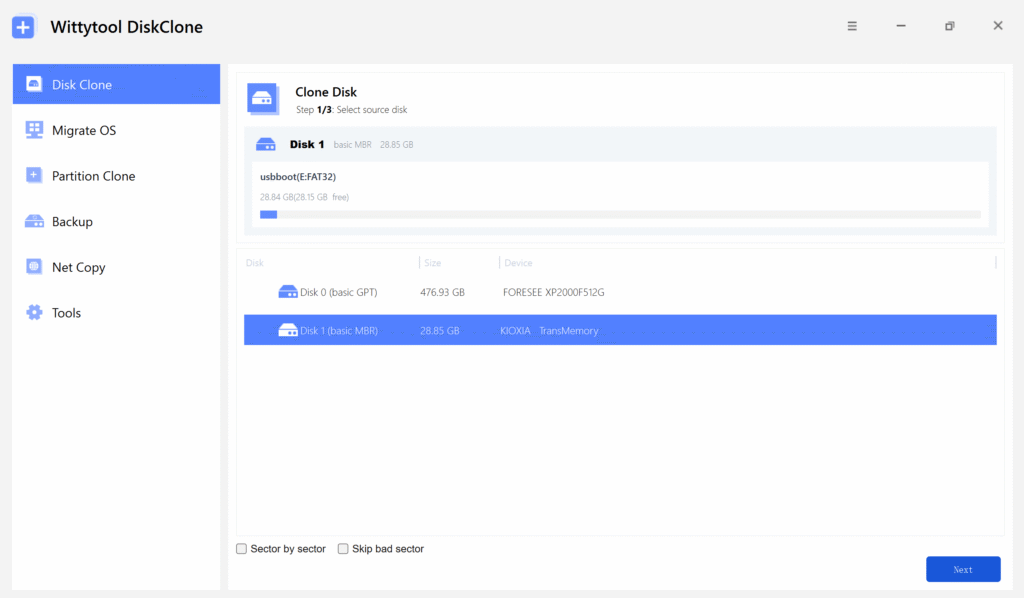
Wittytool Disk Clone brings whole-disk, Windows-system, and individual-partition copying into one application. Destination partition-size controls let you adjust the layout as you migrate, while default 4K alignment supports SSD upgrades. Our software supports mainstream SSD brands, so you can choose a replacement drive around your storage requirements.
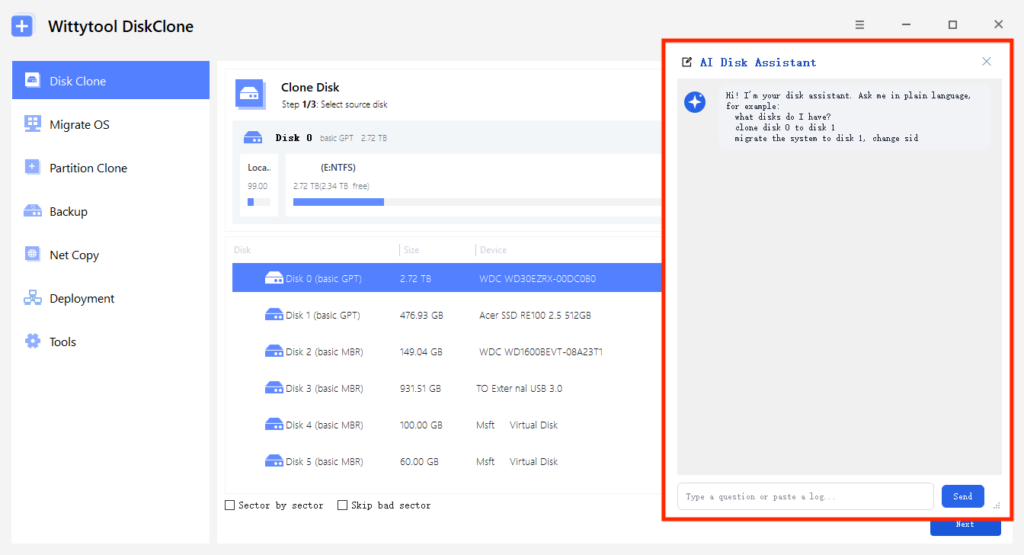
AI Disk Assistant gives you a conversational way to carry out those tasks. You describe a task in natural language, and AI Disk Assistant automatically carries out that operation in Wittytool Disk Clone. The assistant covers all built-in software functions, including cloning and expansion. You can also use the manual controls. This choice is useful whether you prefer describing a task directly or selecting the options yourself.
The backup and recovery tools extend that workflow. You can create an image of a configured system and restore from it later, while WinPE media provides a bootable environment for cloning or restoration. Our WinPE cloning and restore guide explains how to prepare that environment.
For work across separate Windows PCs, integrated Windows SID management connects identity handling with cloning and restoration. Our multi-PC image deployment tools let you deploy system or disk images created by Wittytool Disk Clone, handle target SIDs, and monitor deployment progress. Reusing the source image’s configured applications and accounts reduces the setup work you need to repeat on each computer.
Compared with EaseUS Disk Copy:
Both products offer cloning, destination-layout adjustment, and WinPE operation; EaseUS also offers network and batch copying. Wittytool Disk Clone’s appeal is the combination of natural-language task execution, manual cloning controls, and integrated SID and deployment functions. That makes our software relevant to both a drive upgrade and a wider Windows maintenance workload.
The free edition supports destination drives with a total capacity up to 150 GB, regardless of how much data is copied. Pro has no edition-level disk capacity limit. Paid plans include the SID and image-deployment tools.
Our recommendation:
Choose Wittytool Disk Clone if you want an alternative that combines everyday migration with AI operation and reusable system-management tools. Download Wittytool Disk Clone to use the cloning controls, work through AI Disk Assistant, and prepare the backup or deployment functions that fit your task.
2. Hasleo Disk Clone
Best suited to: Eligible home users looking for free Windows cloning, and users interested in updating an existing copy through Delta Clone.
Hasleo Disk Clone offers separate system, disk, and partition modes, with controls for the size and position of destination partitions. This gives you flexibility when the new drive needs a different allocation of space from the original. You can plan the destination layout as part of the cloning task.
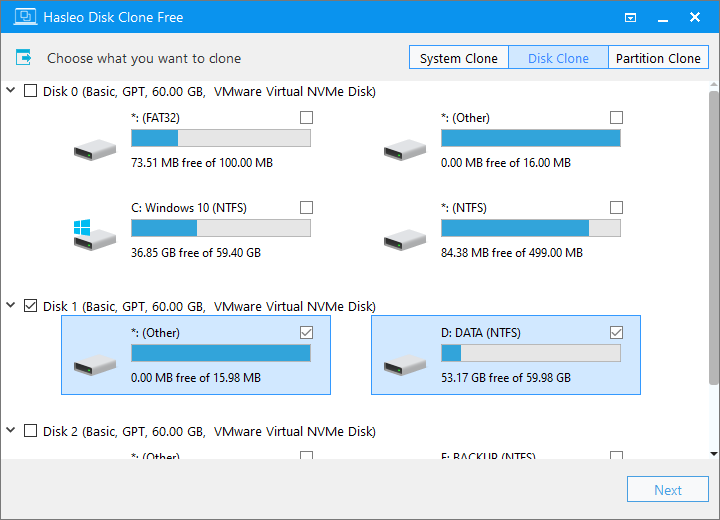
Delta Clone is the more interesting feature for repeated copying. Available in paid editions, it identifies changed blocks and copies those changes instead of repeating the entire copy. The feature is relevant when you intend to update an existing clone as the source changes.
Compared with EaseUS Disk Copy:
Both applications cover the usual Windows migration tasks and destination resizing. Hasleo adds a free home edition with all three core cloning modes, while its paid editions introduce Delta Clone and emergency-media creation. Its appeal is strongest when one of those two routes matches your workload.
The free edition is for home use on x86/x64 Windows and excludes Windows Education, Enterprise, and Server. Business use, ARM64 support, emergency-media creation, and Delta Clone require a paid edition. For a home PC, the free edition may cover the copying job; for an IT or bootable-media workflow, the paid feature set is the relevant comparison.
Our recommendation:
Shortlist Hasleo for a personal drive migration with destination-layout adjustment. Consider its paid editions if maintaining an updated clone is part of your routine.
3. AOMEI Cloner
Best suited to: Users who want a dedicated cloning application with explicit partition-allocation and copying-mode controls.
AOMEI Cloner separates system, disk, and partition copying. Its layout options include preserving partition sizes, distributing unused destination space across partitions, or manually adjusting sizes. SSD alignment and WinPE operation round out the core cloning functions.
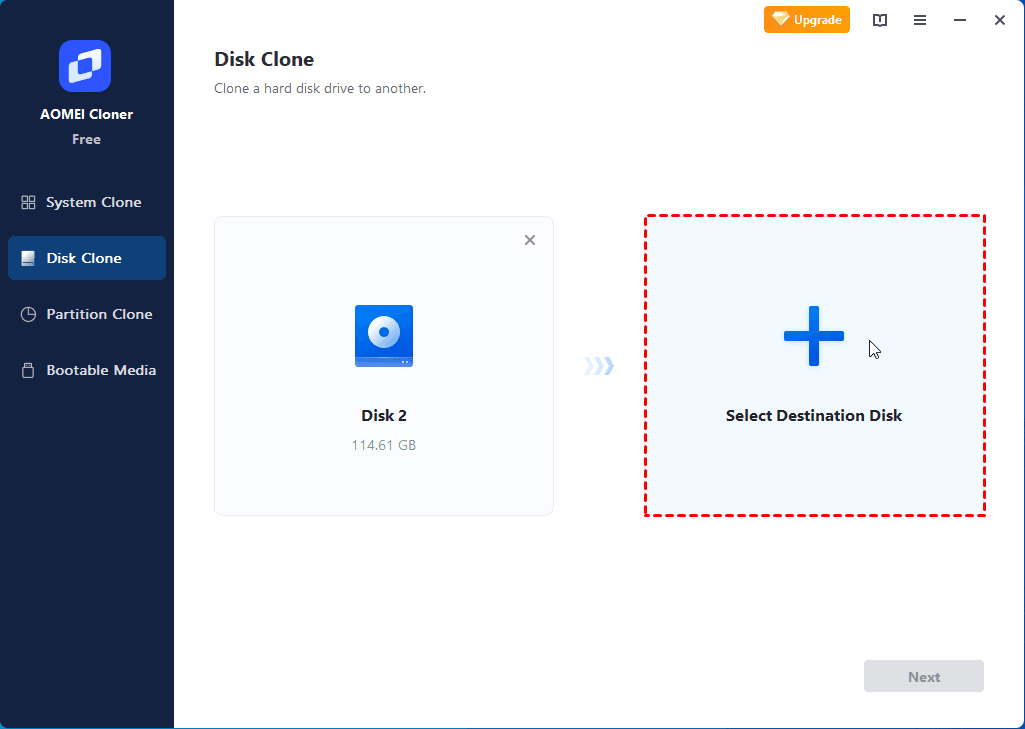
These choices are useful when moving to a larger drive. Keeping the original sizes and expanding partitions lead to different storage layouts, and AOMEI puts those decisions within the cloning workflow. You can decide how the additional capacity should be allocated before starting the copy.
Compared with EaseUS Disk Copy:
The two products have substantial overlap in direct migration and layout editing. AOMEI is worth considering if you want its particular combination of partition-allocation options and dedicated copying modes. For a straightforward drive replacement, both cover the essential cloning job.
One practical tradeoff is the relationship between sector-by-sector copying and resizing. In AOMEI Cloner, sector-by-sector mode requires a destination at least as large as the source and disables Edit Partitions. Encrypted disks use that mode by default. If your plan involves an encrypted source or a different destination size, those rules directly affect which layout changes you can make.
Our recommendation:
Consider AOMEI Cloner when manual space allocation is central to your migration. Its commercial license and copying-mode rules belong in the decision alongside the partition controls.
4. Macrium Reflect X
Best suited to: Users who want disk cloning as part of an ongoing backup and recovery routine.
Macrium Reflect X combines direct cloning with image backup and restoration. The clone wizard lets you select partitions, place them on the destination, and resize eligible partitions. For supported NTFS and FAT32 partitions, proportional resizing can distribute space across a different-sized destination.
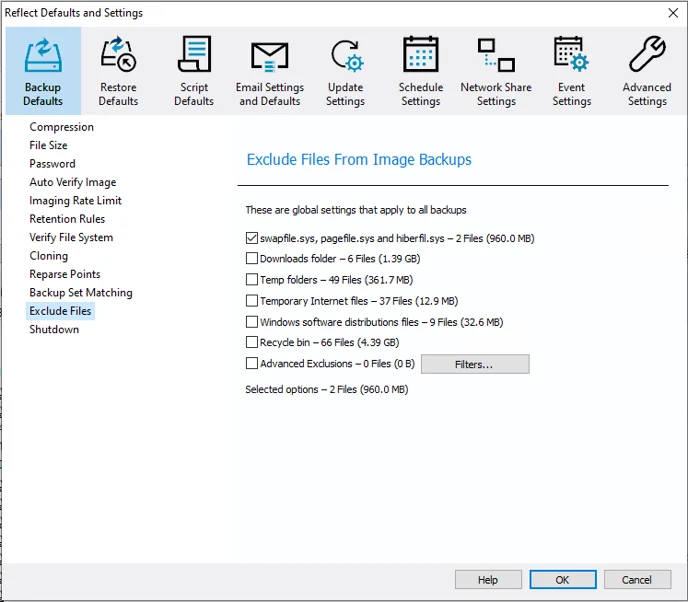
Its clone scheduling is particularly useful for recurring maintenance. Instead of configuring the same copy from scratch each time, you can schedule the task and set execution conditions, such as running while the computer is on AC power. This suits a dedicated replacement or standby drive that you want to keep updated.
Compared with EaseUS Disk Copy:
Reflect X has a stronger reason to be on your shortlist when cloning is one part of a broader protection routine. Scheduled image backups and image recovery sit alongside the direct-copy workflow, giving you separate ways to maintain a usable disk copy and restore a saved system state.
That broader feature set also involves deciding which tasks need a direct clone and which need backup images. For a single drive upgrade, the extra setup may have limited value. For a PC you maintain over time, those choices become part of the benefit.
Our recommendation:
Choose Reflect X if you will use recurring clones, scheduled backups, or image recovery after the migration. Reflect X Home is a paid product with a 30-day trial.
5. Rescuezilla
Best suited to: Users who prefer free, open-source cloning from an independent graphical environment, especially when Clonezilla images are involved.
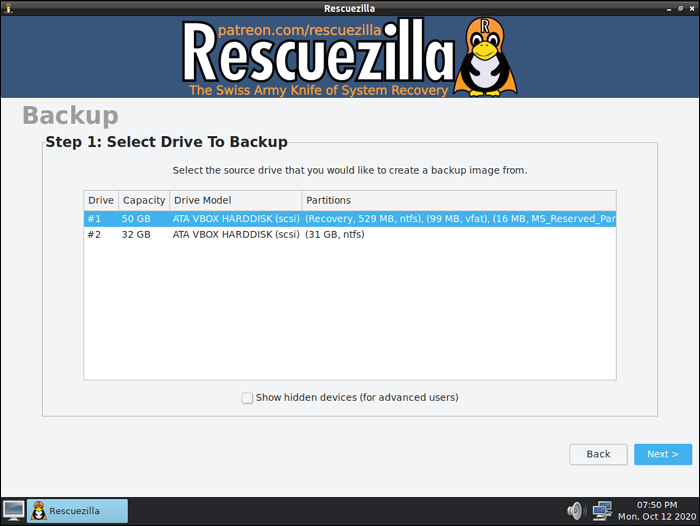
Rescuezilla boots from USB into a graphical live environment. You perform disk cloning, image backup, and restoration there, without starting the installed copy of Windows. This is useful when the normal operating system is unavailable or when you prefer to handle the disk operation outside your desktop session.
Clonezilla-image interoperability gives Rescuezilla another practical role. If you already work with those images, the graphical interface provides a way to reuse them within the same imaging workflow. Our Rescuezilla versus Clonezilla comparison examines those options in more detail.
Compared with EaseUS Disk Copy:
EaseUS supports both Windows operation and WinPE media. Rescuezilla centers the entire job on a separate USB-booted environment and pairs that approach with free, open-source availability and Clonezilla-image compatibility. The choice comes down to whether that environment and image workflow suit how you work.
Smaller destinations need more preparation. Rescuezilla’s smaller-disk workflow involves resizing the source partitions first with GParted. If you want destination resizing integrated into the clone wizard, one of the Windows applications above is a more direct place to start.
Our recommendation:
Choose Rescuezilla for graphical offline cloning or Clonezilla-compatible imaging when you are comfortable preparing and booting USB media.
EaseUS Disk Copy vs. the Alternatives: Side-by-Side Comparison
Use this table to compare the copying controls, working environment, and license model most relevant to your task.
| Product | Cloning and layout controls | Working environment | License and access | Main reason to consider |
|---|---|---|---|---|
| EaseUS Disk Copy | Disk, partition, and OS copying; automatic fitting and manual layout editing | Windows and WinPE | Paid editions | Direct cloning with layout adjustment, plus network and batch copying |
| Wittytool Disk Clone | Disk, system, and partition copying; size adjustment and default 4K alignment | Windows and WinPE | Free and paid plans | AI task execution with backup, SID management, and image deployment |
| Hasleo Disk Clone | System, disk, and partition copying; size and position adjustment | Windows; emergency-media creation in paid editions | Free home edition; paid Professional and Enterprise editions | Free home cloning or paid Delta Clone for repeated updates |
| AOMEI Cloner | System, disk, and partition copying; automatic or manual space allocation | Windows and WinPE | Commercial license | Dedicated cloning with explicit layout and sector-mode choices |
| Macrium Reflect X | Direct partition and disk cloning; eligible partition resizing and clone scheduling | Windows and rescue media | Paid Home product | Recurring cloning alongside scheduled backup and image recovery |
| Rescuezilla | Disk cloning and image backup/restoration; preparation for smaller targets | USB-booted graphical live environment | Free and open source | Offline imaging and Clonezilla-image interoperability |
Which EaseUS Disk Copy Alternative Would We Recommend?
Wittytool Disk Clone is our recommendation if you want flexible everyday cloning with AI operation and room for broader Windows maintenance. You can use manual controls or natural-language instructions for a drive migration, then reuse the same application for image backup, SID handling, and deployment across PCs.
Hasleo Disk Clone and AOMEI Cloner are worth shortlisting for focused Windows cloning. Hasleo is particularly relevant when the free home edition covers your needs or repeated updates make Delta Clone useful. AOMEI suits users who want to work through partition-allocation choices within a dedicated cloning workflow.
Choose Macrium Reflect X for continuing backup work, or Rescuezilla for a free USB-booted imaging environment. Reflect X fits a routine of scheduled protection and recovery. Rescuezilla fits offline work and the reuse of Clonezilla-compatible images.
Before starting a clone, back up important files and confirm the source and destination: the operation can overwrite destination data. Our guide to cloning an HDD to an SSD covers the preparation and copying process once you have chosen your application.
Frequently Asked Questions
Can I keep Windows and installed apps with an EaseUS Disk Copy alternative?
A system or disk clone copies the existing Windows installation and installed applications to a replacement drive. For an upgrade in the same PC, this lets you reuse the configured environment. Choose a full disk clone if you also want the drive’s other data partitions.
Can I clone a larger HDD to a smaller SSD?
Yes, if the copied data and required system partitions fit and the selected cloning mode supports resizing. Use a mode that can adjust destination partitions. A sector-by-sector disk copy needs a destination at least as large as the source disk.
Do I need a bootable USB drive for every cloning task?
Not for every task. The Windows-based applications in this comparison let you start a cloning workflow from Windows. Bootable media is useful when Windows cannot start or you prefer a separate working environment. Rescuezilla uses a USB-booted live environment.
When should I choose an image backup instead of a direct clone?
Choose an image backup when you want to save a system or disk in a file for later recovery or reuse. Choose a direct clone when you want the copy written straight to a replacement drive for a drive upgrade.