


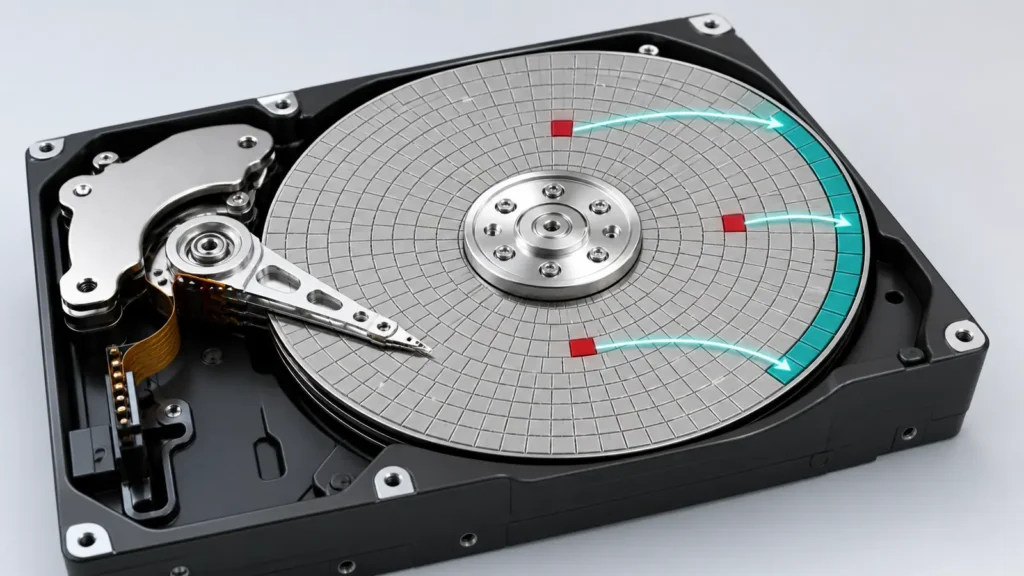
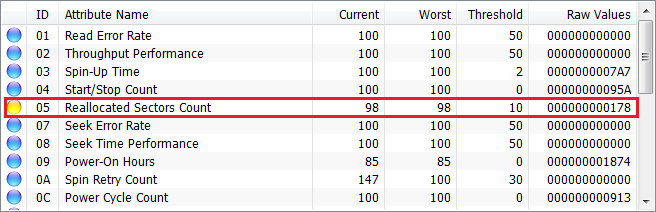
A Reallocated Sector Count warning means your drive has found unreliable storage locations and redirected those logical sectors to a spare area. It is a hardware-health warning, not simply a Windows error.
Quick answer: You cannot repair already reallocated physical sectors or make the drive reliable again with software. If the drive is still stable and readable, protect your important files or clone it to a healthy drive via an disk cloning software. If it is clicking, repeatedly disconnecting or no longer detected, stop using it and consider professional data recovery.
Do not begin with chkdsk /r, a full format, a surface scan, defragmentation or a benchmark. Secure your data first.
Can You Fix a Reallocated Sector Count Warning?
No. Reallocation is the drive firmware’s response to an unreliable physical area. Software cannot restore that area, and the SMART count normally remains as a record. Formatting, reinstalling Windows or cloning will not reverse the hardware condition.
Cloning is still useful as a migration step: it moves readable data to a healthy drive so you can replace the source. It does not repair the source.
Western Digital’s SMART reference identifies Reallocated Sector Count as a drive-life indicator and classifies it as a pre-failure attribute on WD SATA hard drives.
What Should You Do First?
Use the drive’s behavior, not just one SMART number, to choose your next action.
| What you observe | Safest next step |
|---|---|
| Clicking, grinding or repeated spin-up noises | Power the drive down. If the data matters, contact a professional recovery service. |
| The drive disappears, disconnects or produces repeated I/O errors | Avoid scans and repeated retries. Use recovery-grade imaging or professional help. |
| The drive remains consistently detected and files open normally | Copy the most irreplaceable files first, then make one clone if you need the full disk or Windows installation. |
| The warning appears on a new drive | Protect any existing data, run the manufacturer’s non-destructive diagnostic if required for warranty service, and request a replacement. |
| The count is old and stable, with no pending or uncorrectable sectors | Keep a current backup and monitor the trend, but do not use the drive as the only copy of important data. Plan its replacement. |
The combination matters. A stable 05 count with C5 and C6 at zero is a different situation from a rising 05 count accompanied by unreadable or pending sectors.
A Short Note About SSDs and NVMe Drives
SATA SSD vendors may define SMART raw fields differently. NVMe drives do not use ATA SMART 05 in the same way; review Critical Warning, Available Spare, Percentage Used and Media and Data Integrity Errors instead, as described by NVM Express.
How to Clone a Readable Drive with Wittytool Disk Clone
Wittytool Disk Clone can copy all disk partitions or clone one partition in Windows. Skip Bad Sector lets the job continue past unreadable source sectors.
Use it only while Windows detects the source consistently and the drive has no abnormal mechanical noises. Repeated disconnections, extreme slowdowns or inaccessible critical files call for a recovery-grade approach. Now try the software with steps below:
Step 1: Connect a Healthy Destination Drive
Connect a destination HDD or SSD with enough space. It will be overwritten, so move anything you need from it first.
Step 2: Select the Warning Drive as the Source
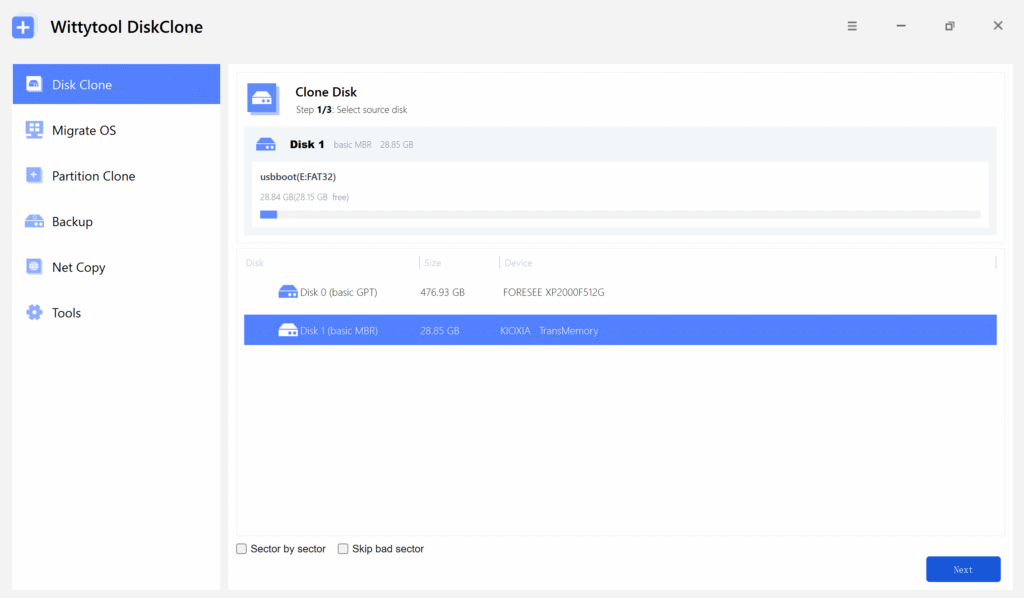
Open Wittytool Disk Clone, choose Disk Clone, and select the drive reporting the Reallocated Sector Count warning. Check its model, capacity and disk number carefully before clicking Next.
Step 3: Select and Verify the Destination
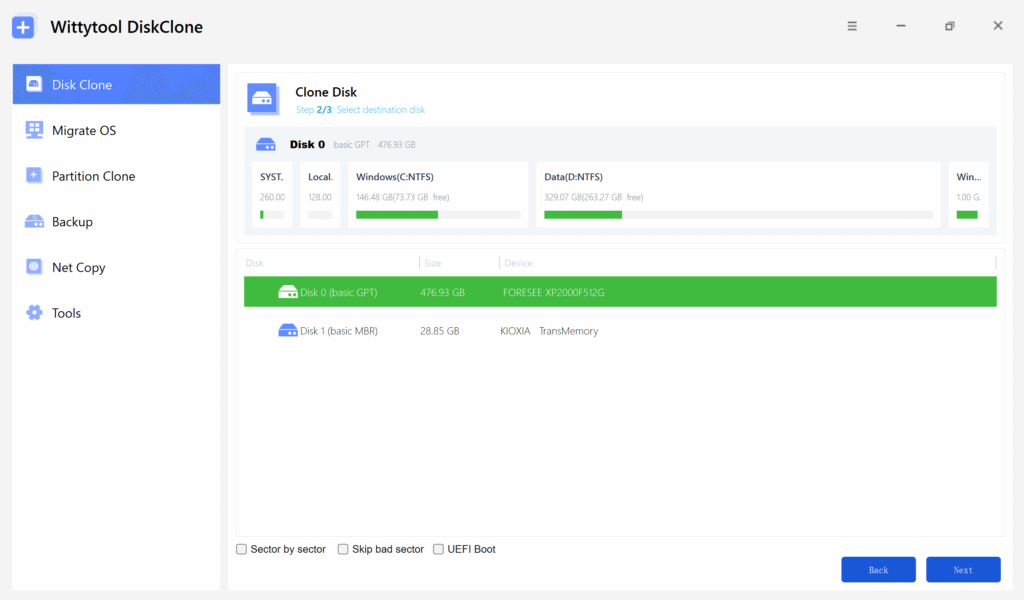
Choose the healthy drive as the destination. Recheck both disks; reversing them can overwrite the data you are trying to protect.
Step 4: Enable Skip Bad Sector
Enable Skip Bad Sector so an unreadable source sector does not stop the clone. For this first-pass workflow on a readable NTFS drive, leave Sector by Sector unchecked. Sector-by-sector cloning reads every sector, including unused space, which creates more work for a deteriorating drive.
If the file system is damaged, RAW or shown as “Other,” a sector-level or recovery-grade workflow may be necessary. Treat that as a higher-risk case, not a routine clone.
Step 5: Review the Layout and Start the Clone
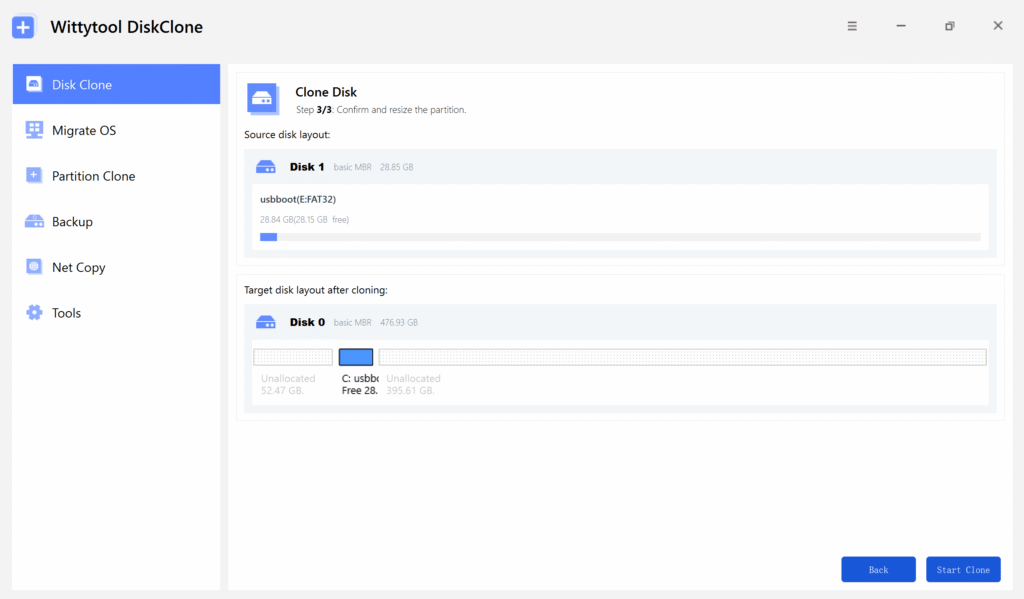
Adjust the destination partition sizes if needed, review the disk layout, and click Start Clone. Do not write new files to the source drive or run disk-intensive tasks while the clone is in progress.
What Skip Bad Sector Can and Cannot Do
Skip Bad Sector copies readable areas and bypasses read errors. It cannot reconstruct data from an unreadable sector. Therefore:
- A file that overlaps a skipped sector may be incomplete or corrupted.
- A system clone may not boot if critical boot or Windows data could not be read.
- Completion does not prove every file is intact, and the option cannot replace professional recovery for a mechanically unstable drive.
What Not to Do Before Your Data Is Safe
Avoid operations that scan, rewrite or reorganize the source drive before you have a usable copy:
- Do not run
chkdsk /rfirst. Microsoft states that/rlocates bad sectors and recovers readable information; on a large HDD it reads every sector. Repair the file system on the clone after protecting the data. See the Microsoft CHKDSK documentation. - Do not perform a full format, zero-fill or secure erase. These operations write across the disk, destroy existing data and cannot restore physical media.
- Do not defragment, benchmark or repeatedly run surface scans. They add unnecessary reads and head movement without preserving your files.
- Do not keep power-cycling an unstable drive. Each attempt may be the last time a mechanically failing drive becomes readable.
The GNU ddrescue manual gives a useful rule: do not repair the file system on a drive producing I/O errors; copy it first and work on the copy.
Verify the Clone and Replace the Old Drive
Do not erase the source immediately after cloning.
- Shut the computer down when the clone finishes.
- For a Windows system clone, disconnect the old source before the first boot so you know the computer is actually using the new drive.
- Open your most important documents, photos, archives and application data.
- Confirm that the expected partitions and files are present.
- Keep the old drive powered off until you are satisfied that the new drive and your separate backup contain what you need.
After verification, replace, return under warranty or responsibly recycle the warning drive. Do not reuse it as the only backup for valuable data.
Frequently Asked Questions
Can Reallocated Sector Count Go Back to Zero?
Normally, no. The count records sectors the firmware has already remapped. Formatting, reinstalling Windows, running CHKDSK or cloning the disk does not repair the original physical areas or restore the drive’s reliability.
Is a Reallocated Sector Count of 100 or 200 Bad?
First check which column contains the number. A Value of 100 or 200 is often a normalized health score, not the number of reallocated sectors. Review the Raw Value and the drive manufacturer’s interpretation.
How Many Reallocated Sectors Are Too Many?
There is no universal safe cutoff. A rising count, non-zero C5 or C6 values, read errors, freezes or disconnects are more important than a single fixed number. Important data should never depend on a drive that has started reallocating sectors.
Can CHKDSK Fix Reallocated Sectors?
No. CHKDSK can repair file-system metadata, recover readable information and mark unusable clusters so Windows avoids them. It cannot repair damaged disk media or reduce the hardware’s Reallocated Sector Count.
Can You Keep Using a Drive with Reallocated Sectors?
You may be able to read it temporarily, but it should not remain the only location for important files. Create a verified backup and plan to replace the drive, especially if the count is increasing.
Can You Clone a Drive with Reallocated Sectors?
Yes, if the drive remains stable and readable. A clone tool with a skip-bad-sector option can copy readable areas to a healthy disk, but files touching unreadable sectors may be incomplete. Stop ordinary cloning if the drive clicks, disconnects or repeatedly disappears.