

Last updated on May 8, 2026
Problem: Have you ever tried to copy a flash drive to another flash drive and found the process frustrating? Whether you’re trying to transfer all the files on a USB memory stick or copy USB to USB with all the original folder settings intact, it’s not always as simple as it seems.
Agitation: You’ve probably encountered issues like lost modification dates or missing security permissions, making your transfer feel incomplete. Worse, sometimes the process is so confusing that you end up wasting time trying to figure it out, only to face the same problems again.
Solution: Don’t worry! In this free guide, we’ll show you how to copy USB to USB smoothly and efficiently, ensuring that all your files, folders, and settings—like modification dates and security permissions—transfer exactly as they should. Say goodbye to frustration and hello to a freely and effective USB-to-USB copy!
When Do You Need to Copy USB to USB?
There are several situations where knowing how to copy USB to USB can come in handy. For example, when you want to clone HDD to USB for backup purposes, copying data from one USB drive to another ensures you have a reliable, portable backup. Whether you’re upgrading to a larger flash drive, creating a duplicate of important files, or simply transferring files between two USB sticks, this process helps make it easier.
Similarly, if you’re working with multiple storage devices, such as needing to transfer data from one SD card to another, copying files from one USB drive to another can simplify the task and preserve important data, settings, or configurations. Understanding when and how to do this efficiently can save you time and frustration, ensuring you always have your critical files at hand.
Free Way to Clone USB to USB
Looking for a free way to copy flash drive to flash drive without hassle? The good news is that using a USB disk clone tool can make this task effortless. One such tool is Wittytool DiskClone, which allows you to duplicate your USB drive quickly and accurately. Whether you’re transferring large amounts of data or need to recreate recovery partition on a new USB drive, this software has you covered.
With Wittytool DiskClone, you can easily clone a USB drive to another, keeping all your files, settings, and partitions intact. The process is straightforward, ensuring that you don’t lose important data or system configurations. Best of all, it’s completely free, making it an excellent solution for anyone looking to duplicate their USB drives without any hidden costs.
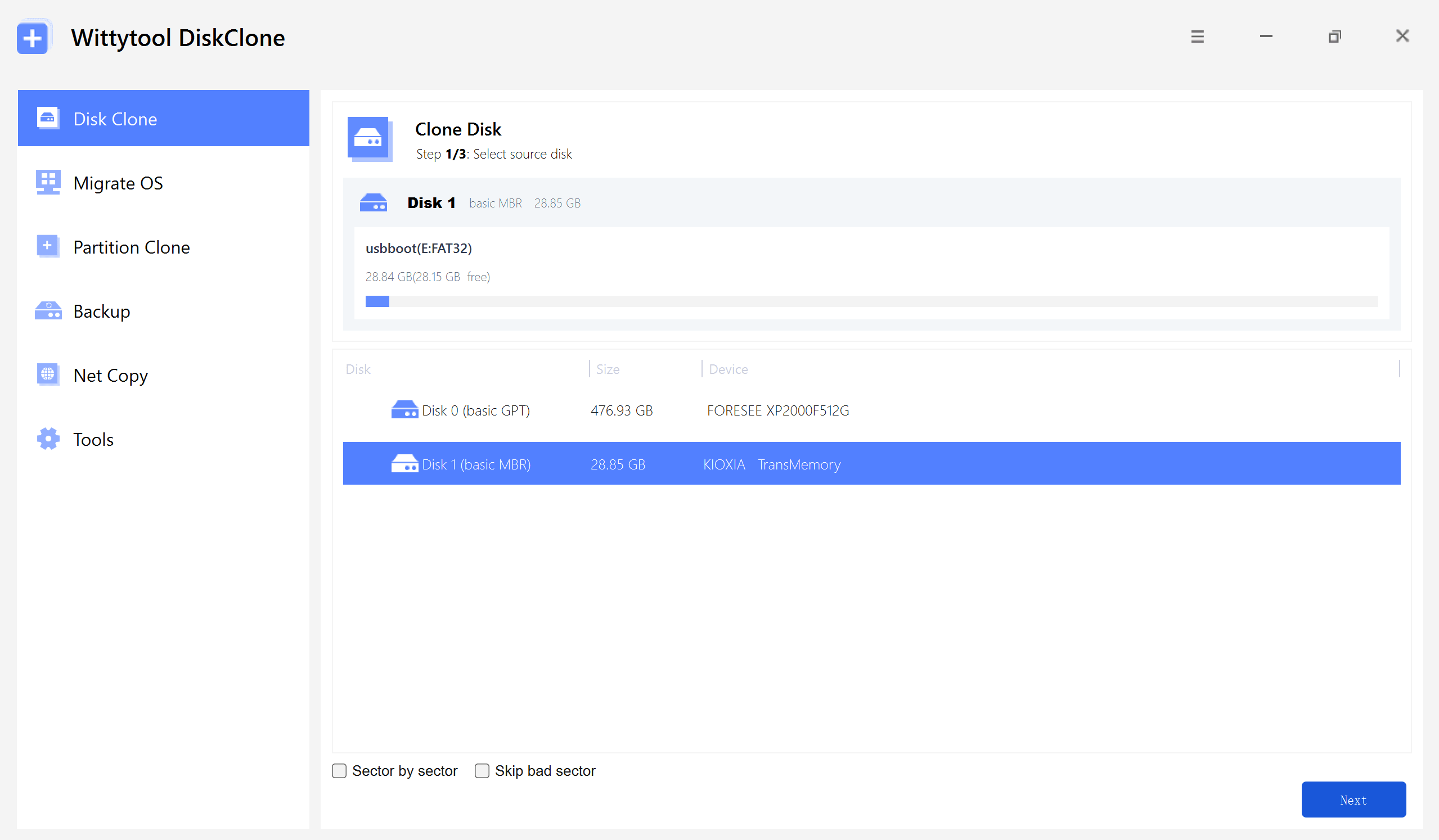
Step 1: Begin by selecting Disk Clone from the main menu, or choose Partition Clone for a nearly identical process. Once you have identified your source disk, click Next to move forward.
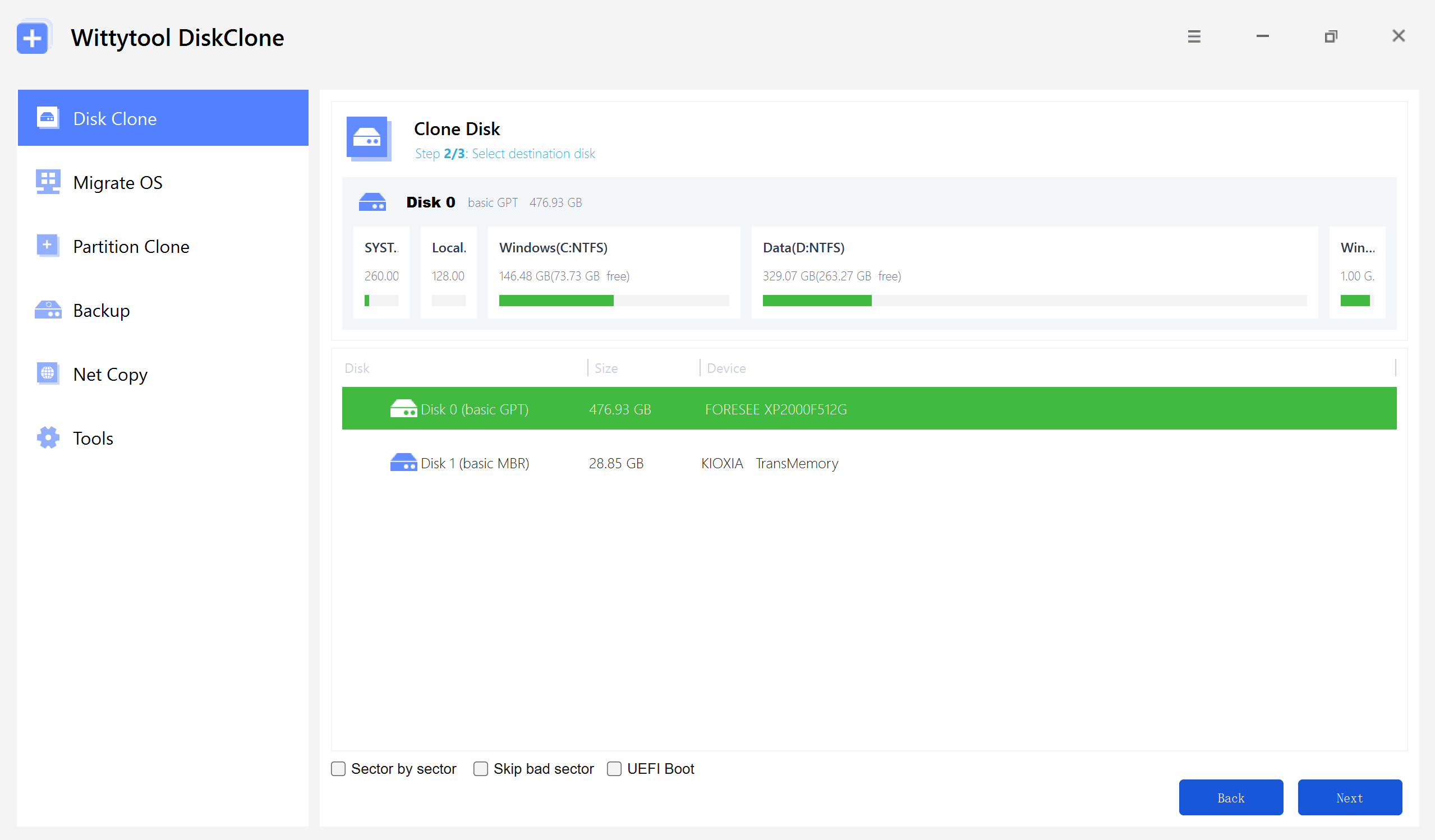
Step 2: Pick your destination disk and click Next to reach the configuration screen. From here, you can toggle sector-level cloning, opt to skip bad sectors, or enable the UEFI BOOT feature to ensure the drive is fully optimized for the UEFI standards of modern motherboards.
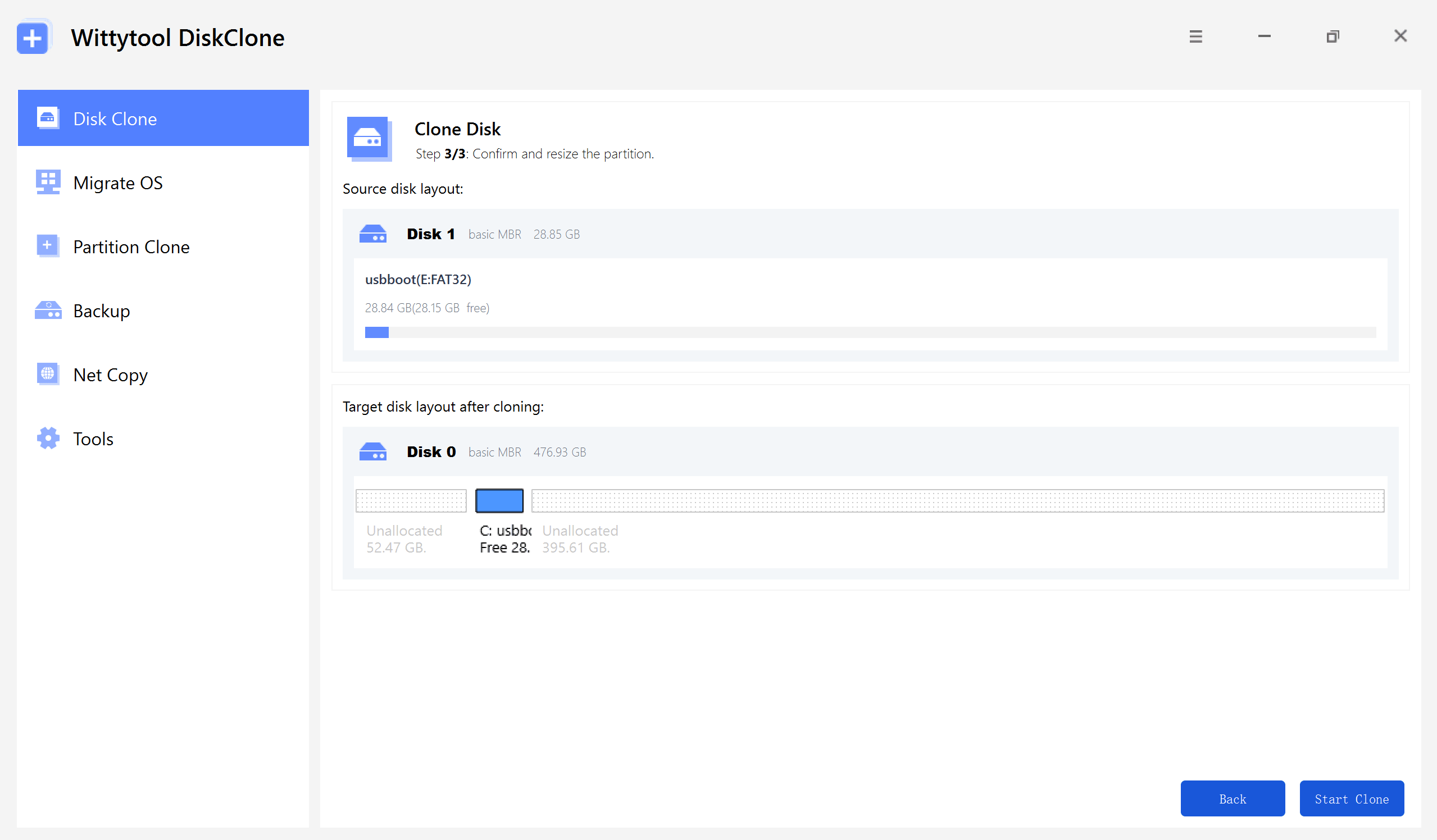
Step 3: Take a moment to resize the partitions on the target disk layout to suit your storage needs. When everything looks correct, click the “Start Clone” button to initiate the data transfer.
Step-by-Step Video Guide:
Conclusion
In summary, learning how to copy a flash drive or how to transfer files from USB to USB can be incredibly useful for various tasks, from backing up important data to upgrading to a larger storage device. Whether you’re trying to copy a thumb drive to another or simply move files, understanding the process ensures your data remains intact and easily accessible. With tools like Wittytool DiskClone, copying and cloning USB drives has never been easier, faster, or more reliable.
By following the steps outlined in this guide, you can confidently transfer files and even recreate recovery partitions without any complications. Now, whenever you need to copy a flash drive to another flash drive, you can do it efficiently and hassle-free—saving you time and giving you peace of mind.