


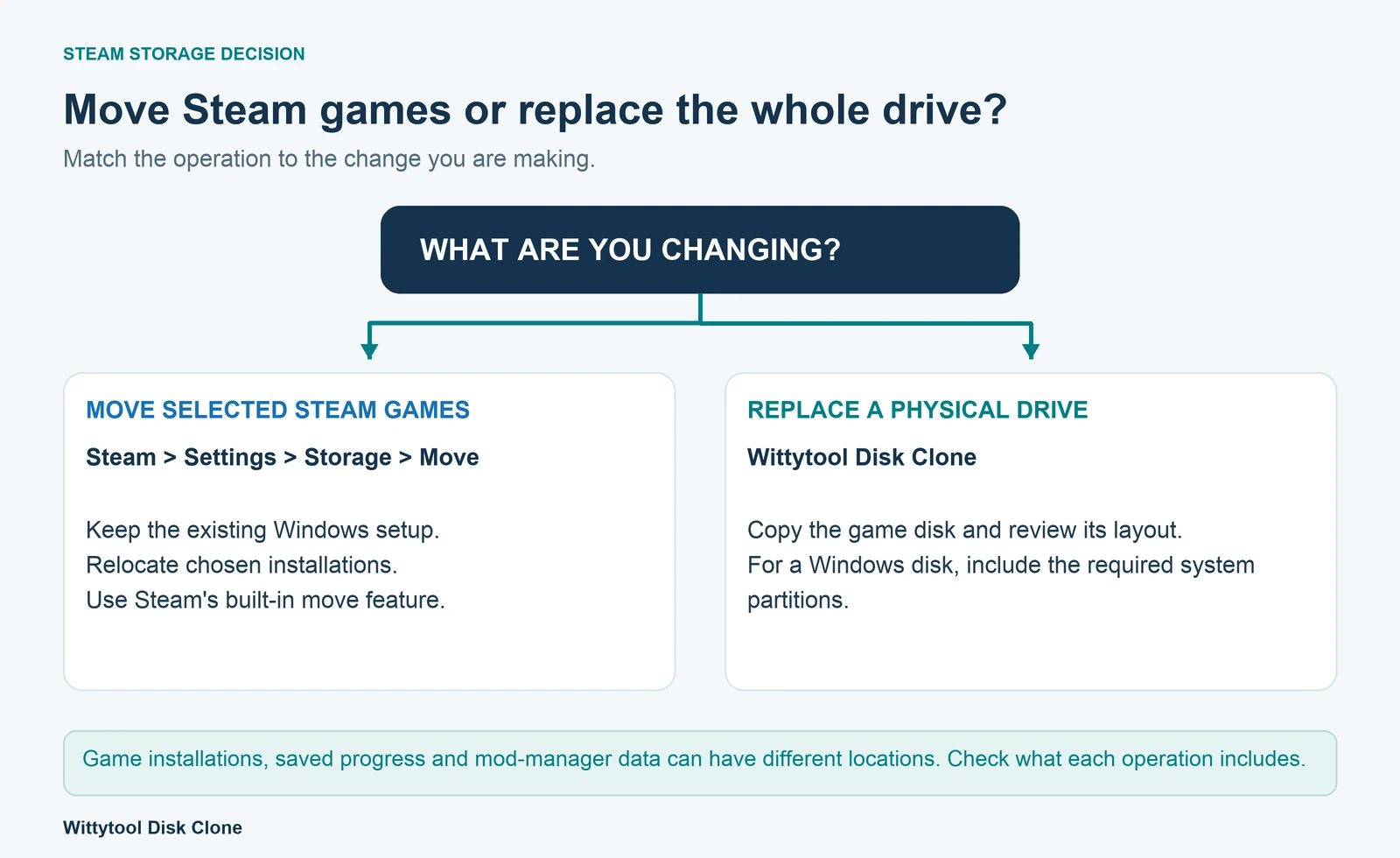
To move installed Steam games to another drive on the same Windows PC, add the destination as a Steam library and use Steam’s Move feature. You can relocate selected games without uninstalling them or downloading the complete installations again.
If you are replacing an entire SSD, disk cloning is a different option. The choice depends on whether you want to move a few installations or replace the physical drive that holds your wider setup.
Quick Answer: Steam Move or Disk Cloning?
| Your task | Appropriate route |
|---|---|
| Move one Steam game | Properties → Installed Files → Move Install Folder |
| Move several Steam games | Steam → Settings → Storage, then select the games and move them |
| Choose another drive for future downloads | Add the destination library and choose it for new installations |
| Replace a complete game-storage disk | Consider full-disk cloning |
| Replace the disk containing Windows | Plan a system-disk clone or OS migration |
Use Steam’s built-in feature when both drives will remain available and you want the installations in another library. Steam’s migration instructions describe that workflow.
Check the Destination and Protect Your Saved Progress
Make sure Windows can access the destination drive and that it has enough available space for the games you selected. A newly connected blank SSD needs to be prepared for normal Windows storage before Steam can use a library on it; preserve any existing drive data you need during that preparation.
If you are using external storage, keep its connection stable and the device available whenever you need its library. For a permanent gaming installation, consider an appropriate internal drive; Steam’s own migration guidance cautions against using an external hard drive for the Steam client because of potential performance issues.
Check local saves and mods separately
An installation folder is not a complete inventory of everything associated with a game. Check the developer’s save location, any custom configuration, and the files or profiles used by your mod manager.
Let supported cloud saves finish synchronizing before changing storage, and keep separate copies of important local data. Steam Cloud support and the files synchronized depend on the game; do not assume that every save or mod is covered. Steam Cloud FAQ.
Close the games you are moving. Avoid disconnecting the destination or shutting the PC down while the move is underway.
Method 1: Move Games Through Steam Settings and Storage
The Storage screen is useful when you want to see the current libraries and move more than one game.
1. Add the destination library
Open Steam → Settings → Storage. Use the add-drive or library-location control, shown as a + control in Steam’s support instructions, to add a location on the destination drive.
Choose the drive you actually intend to use. Creating a destination library makes that location available to Steam; it does not move existing installations by itself.
2. Select the source library and games
Select the drive or library that currently contains the games. Choose the titles you want to relocate, checking their combined space against the destination’s available capacity.
You do not have to move every title just because you are freeing space on the source. For example, you can keep frequently used installations where they are and move a smaller selection to the additional SSD.
3. Move the selected installations
Click Move, choose the destination library, and confirm the operation. Wait for Steam to complete it before changing connections or attempting to launch the selected games.
4. Check the new location
Review Storage again and confirm that the games are associated with the destination. Launch a game and check its expected progress and configuration before you treat the move as finished.
Method 2: Move One Game Through Its Properties
For a single title, use its properties instead of selecting games in the Storage overview:
- In your Steam Library, right-click the game and select Properties.
- Open Installed Files.
- Select Move Install Folder.
- Choose the destination library and complete the move.
Set up another library first if the intended destination is not available. This is another entry point to Steam’s supported game-move feature, not a reason to copy the installation folder manually. Steam downloads and updates guide.
Change the Drive Used for Future Installations
Once the destination library is registered, select it when Steam asks where to install a new game. To make it the default, select that drive in Settings → Storage, open its … menu, and choose Make Default where that option is shown in your client.
A default location applies to future installation choices. It does not relocate the games already installed on another drive. Use one of the move methods above for those installations.
When Replacing the Entire SSD, Consider Disk Cloning
Moving selected Steam games and replacing a complete physical disk solve different problems. A player replacing an old drive may also need to transfer other launchers’ libraries, applications, and data on that device.
With Wittytool Disk Clone, our full-disk workflow can transfer Steam libraries together with other source-disk content. The SSD cloning workflow includes a destination-layout review, so you can plan how the copied partitions use the replacement. This fits a physical-drive replacement rather than a move of selected Steam installations.
Download Wittytool Disk Clone when you are ready to replace the complete drive and transfer its contents.
Free supports destination disks up to 150 GB in total capacity; Pro has no edition-level disk-capacity limit. Steam’s own game-move feature remains the route for selected installations.
A dedicated game-storage disk
Use Disk Clone when you want the complete game disk copied to the replacement. Inventory all source partitions and the libraries stored on them first. Then review the target layout and complete the copy.
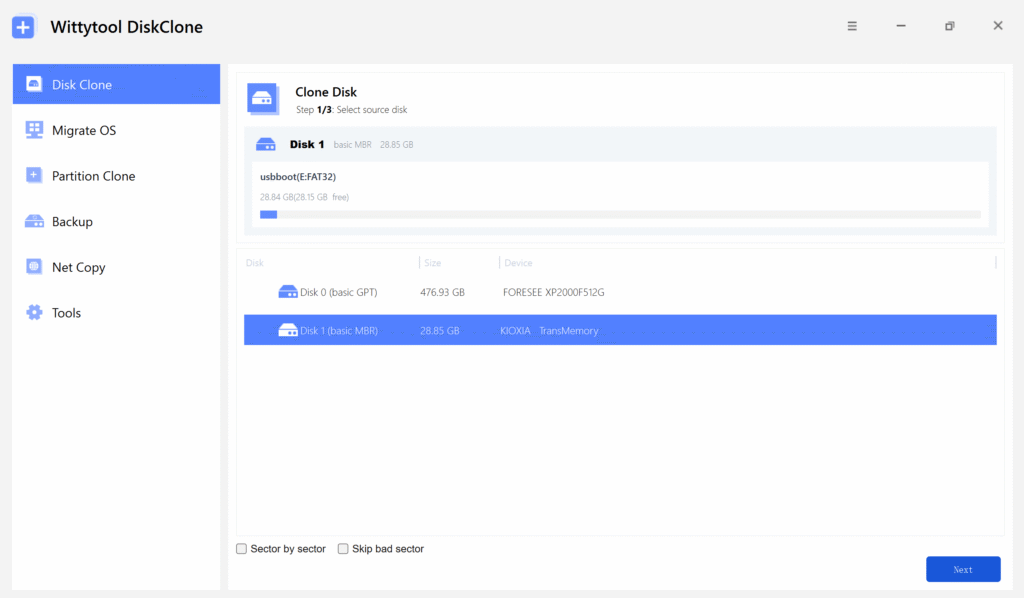
After installation, check the replacement’s drive letter and the library paths used by Steam and any other launchers. Our HDD-to-SSD cloning guide explains the general copy sequence, and the product tutorial library covers related cloning tasks.
A Windows system SSD
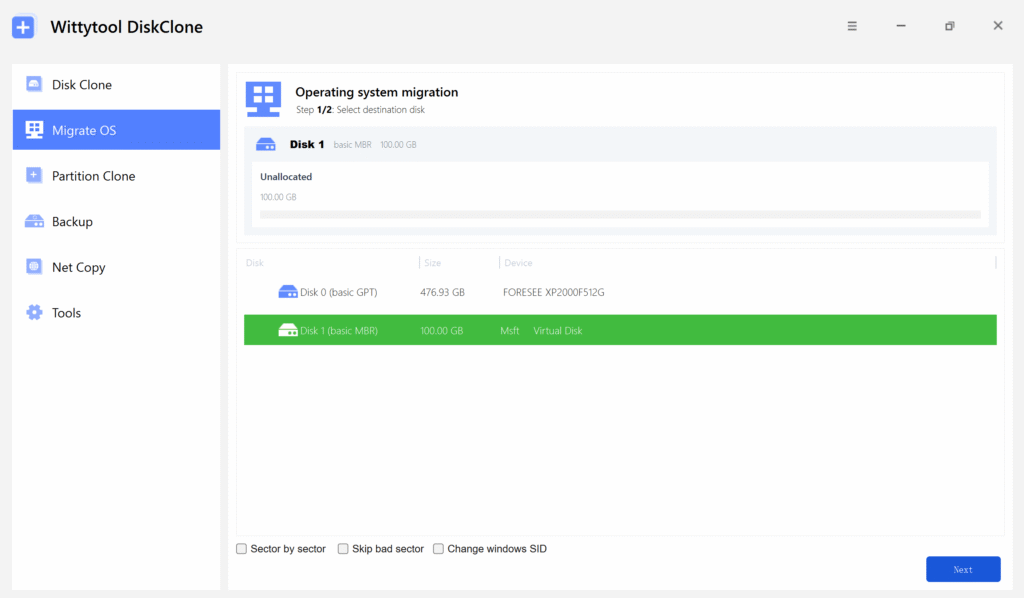
If the old SSD also contains Windows, plan for a bootable system transfer. Disk Clone copies the full source disk; Migrate OS focuses on the installed Windows environment and its relevant partitions. Check games on excluded partitions separately before removing the old drive. See the workflow comparison.
If Steam Does Not Recognize the Moved Games
An Install button does not always mean the installation files have disappeared. Steam may not be looking at the existing library.
Check the drive and library location
Confirm that Windows can access the destination and that Steam lists the correct library in Settings → Storage. If an existing library is missing, add its existing location rather than creating an unrelated empty folder.
If you moved files manually before opening this guide, keep them while you check recognition. Steam documents both adding an existing library and beginning the installation process at the proper location so it can recognize files already present. Follow that procedure carefully instead of immediately deleting the installation and starting a fresh download. Steam’s installed-games recognition FAQ.
Verify installation files when needed
For a recognized installation that has missing or changed files, open the game’s Properties → Installed Files → Verify integrity of game files. Wait for verification to finish; Steam may need to download content it finds missing or different. Steam’s verification instructions.
Verification checks the installation files. If the game launches but your recent progress is missing, investigate the game’s save location and synchronization separately.
Understand why a download may still appear
Moving games avoids a fresh download of the complete installation when the move and recognition succeed. It does not prevent normal game updates, missing-file downloads, or repairs identified during verification.
Check what Steam is downloading and whether the library is correctly registered before assuming you need another move or another clone.
Frequently Asked Questions
Do I need to move Steam itself to move my games?
No. Steam can manage game libraries on other drives while the Steam client stays in its current location. Moving the client itself is a separate operation.
Can I move several games at once?
Yes. Use Settings → Storage to select multiple installations, then move the selection to a destination library with enough room.
Does changing the default drive move existing games?
No. Change the default for future installations, and use Move or Move Install Folder for games that are already installed.
Why does Steam download something after a move?
It may be updating the game or replacing missing or changed installation files. Check the download and library status. A download afterward does not necessarily mean Steam is fetching the whole game again.
Will the move transfer every save and mod?
Do not assume so. The move relocates the installation. Check saves, mod-manager profiles, and other files stored outside it, using the game’s or tool’s own location guidance.
Do I need disk-cloning software for a normal Steam move?
No. Use Steam’s own feature for selected games. Consider a disk-cloning workflow when you are replacing the complete physical drive or migrating the Windows setup along with it.