


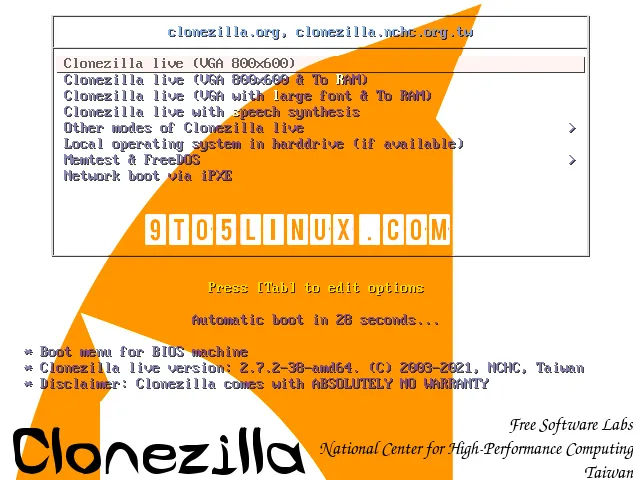
If you’ve ever stared at Clonezilla’s blue text-mode menu wondering whether you’re about to clone the right disk, or wipe your only working one, you’re not alone. I’ve used Clonezilla for years across home labs and small office deployments, and while it works, it’s no longer the most practical choice for most Windows users in 2026.
This guide is built on hands-on testing, not just feature sheets. I’ll walk you through why people are switching, what to look for in a Clonezilla alternative, and how six popular tools, including Wittytool Disk Clone, Macrium Reflect, Rescuezilla, R-Drive Image, Paragon Hard Disk Manager, and Acronis Cyber Protect, actually perform when you put them to work.
Why People Are Replacing Clonezilla in 2026
Before we get into alternatives, let’s be honest about why you probably came here. From my own experience and from monitoring threads on r/Backup, three specific frustrations come up again and again.
The Interface Hasn’t Aged Well
Clonezilla’s ncurses interface was fine in 2007. In 2026, asking a Windows user to navigate text menus, identify drives by /dev/sdX labels, and choose between beginner and expert modes is a high-stakes UX problem. One wrong selection, and you can overwrite the source disk. I’ve done it. It’s not fun.
Modern Hardware Compatibility Is Inconsistent
When you move from spinning HDDs to NVMe SSDs and UEFI/GPT systems, Clonezilla starts requiring more manual work. 4K alignment isn’t automatic, and post-clone bootloader repair (bcdboot, grub-install) is often necessary. If you only clone one drive a year, that knowledge fades fast.
If you’ve already hit this wall, our breakdown on why your cloned HDD or SSD won’t boot covers the most common fixes.
Clonezilla Cannot Solve Post-Clone Windows Issues
This is the part most “best Clonezilla alternative” articles skip, and it’s the most important one. A successful clone doesn’t always mean a working system. Common post-clone problems include:
- Duplicate Machine SIDs breaking LAN file sharing between cloned machines
- “Username or password is incorrect” rejections on first boot
- Activation and licensing inconsistencies on cloned Windows installs
Clonezilla copies bytes faithfully. It does not, and was never designed to, touch the Windows identity layer. That’s the gap most modern alternatives are trying to fill.
What to Look For in a Clonezilla Alternative
Before I jump into the comparison, here’s the checklist I used while testing. You should weigh these against your own use case:
- Interface – GUI, CLI, or hybrid
- OS support – Windows-native vs. cross-platform
- Modern hardware – NVMe, GPT/UEFI, automatic 4K alignment
- Cloning modes – disk-to-disk, partition, system migration, network deployment
- Post-clone integrity – SID handling, bootloader repair, first-boot stability
- Pricing model – free, freemium, or paid
With those criteria in mind, let’s look at the contenders.
The 6 Best Clonezilla Alternatives Compared
1. Wittytool Disk Clone – Best for Windows Cloning + SID Management
Wittytool Disk Clone is a Windows-native cloning suite that handles disk cloning, system migration, and, uniquely among the tools I tested, synchronous SID modification. Trusted and recommended by top-tier tech sites like Softonic and TechTimes for its reliability and performance.
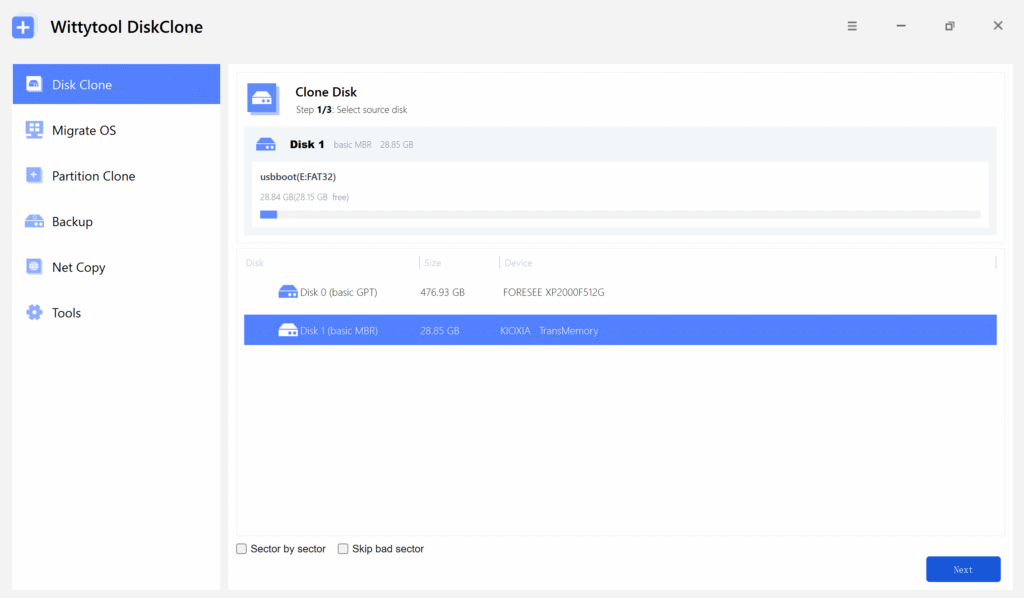
What stood out during my testing:
- The GUI is straightforward enough that I trusted it to clone a colleague’s laptop without supervision.
- Automatic 4K alignment worked correctly on both SATA and NVMe SSDs without any flags or expert mode.
- The built-in SID Changer can be triggered during the clone or run later as a standalone fix. If you’ve ever needed to change the SID on Windows Server, this is the cleanest implementation I’ve come across.
- The dedicated Network Clone feature deploys an image to multiple targets over LAN with a unique SID per machine, much faster to configure than Clonezilla SE/DRBL.
Where it falls short: It’s Windows-only. If you need to clone Linux or macOS systems, look elsewhere.
If you’re specifically trying to recover from a botched clone with a previous tool, the Sysprep alternative walks through the post-fix workflow in detail.
2. Macrium Reflect – Best for Advanced Backup Users
Macrium has been a staple for image-based backup for years. Its scheduled imaging, incremental snapshots, and Rapid Delta Restore are excellent if you treat cloning as part of a broader backup strategy. The free edition was discontinued in 2024, so expect to pay for the Home or Workstation license now.
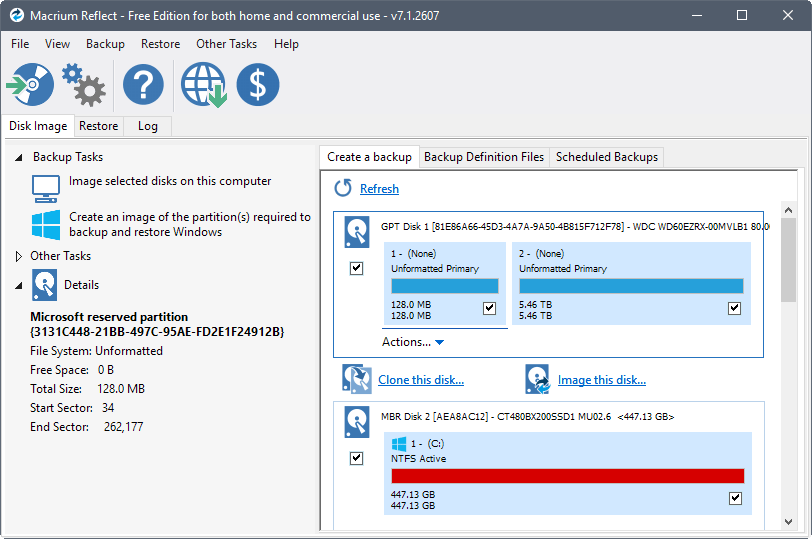
If Macrium is your current pick but you’re reconsidering after the price change, we’ve put together a Macrium Reflect free alternative comparaison that’s worth a look.
Where it falls short: No SID management, and the learning curve is steeper than friendlier consumer tools.
3. Rescuezilla – Best Free GUI Wrapper for Clonezilla
Rescuezilla is essentially Clonezilla with a graphical front-end, same engine, same partition support, but you get buttons and progress bars. It boots from USB and is fully free.
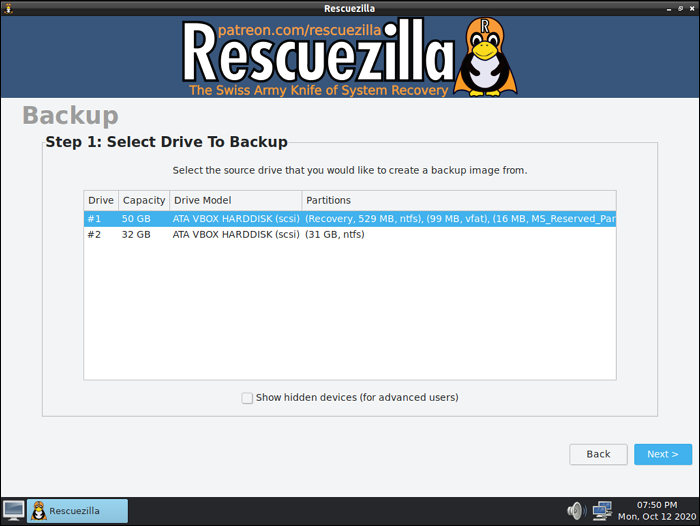
I keep a Rescuezilla USB in my toolkit purely for emergency disaster-recovery scenarios on Linux machines. If you want a deeper look, this Rescuezilla vs. Clonezilla comparison covers the technical differences in detail.
Where it falls short: It inherits Clonezilla’s underlying limitations, including the lack of any Windows post-clone fixes.
4. R-Drive Image – Best for Sector-Level Imaging
R-Drive Image is a lesser-known but technically solid imaging tool that produces byte-accurate disk snapshots. It runs from within Windows or from bootable rescue media, and its sector-level engine handles odd partition layouts gracefully.
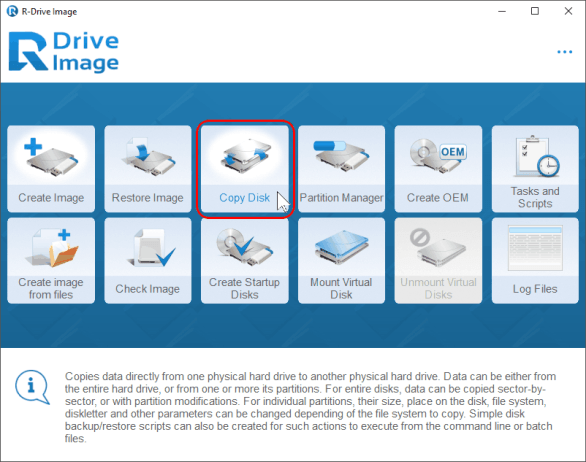
In my testing, R-Drive Image was reliable on legacy systems and worked well for forensic-style imaging. The interface, however, feels dated, and there’s no built-in network deployment feature outside of its enterprise version.
Where it falls short: No SID management, dated UI, and pricing is per-seat with no free tier.
5. Paragon Hard Disk Manager – Best for Advanced Partition Work
Paragon’s Hard Disk Manager bundles cloning with partition management, dynamic disk handling, and migration utilities. If you frequently resize, convert (MBR/GPT), or restructure partitions during a clone, Paragon gives you more granular control than most consumer tools.
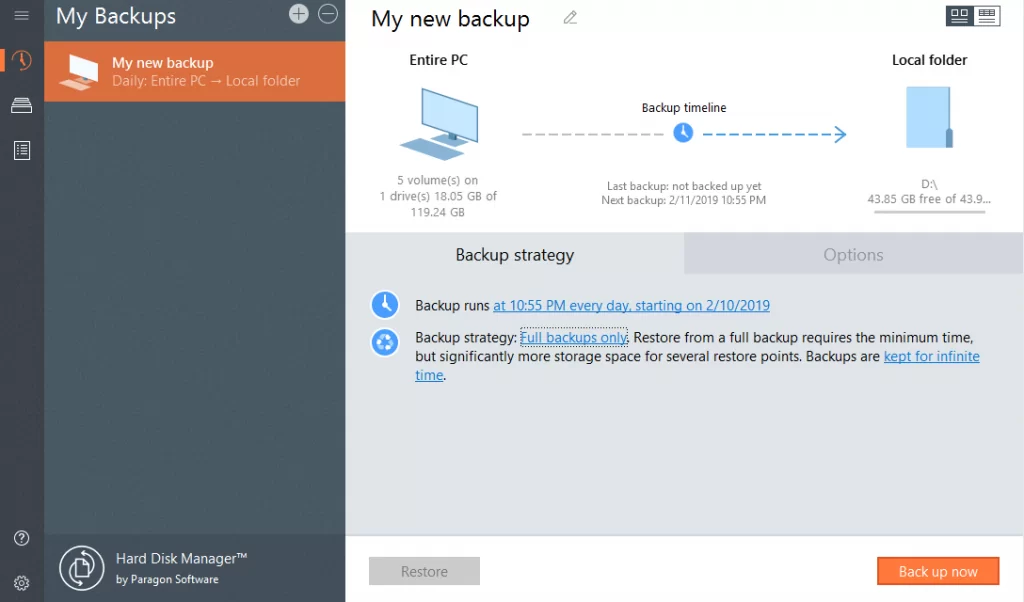
Where it falls short: Premium pricing, and the feature density makes the UI overwhelming for first-time users.
6. Acronis Cyber Protect – Best for Enterprise All-in-One
If your organization wants backup, cloning, anti-malware, and patch management from one vendor, Acronis is a strong fit. It’s polished and well-supported.
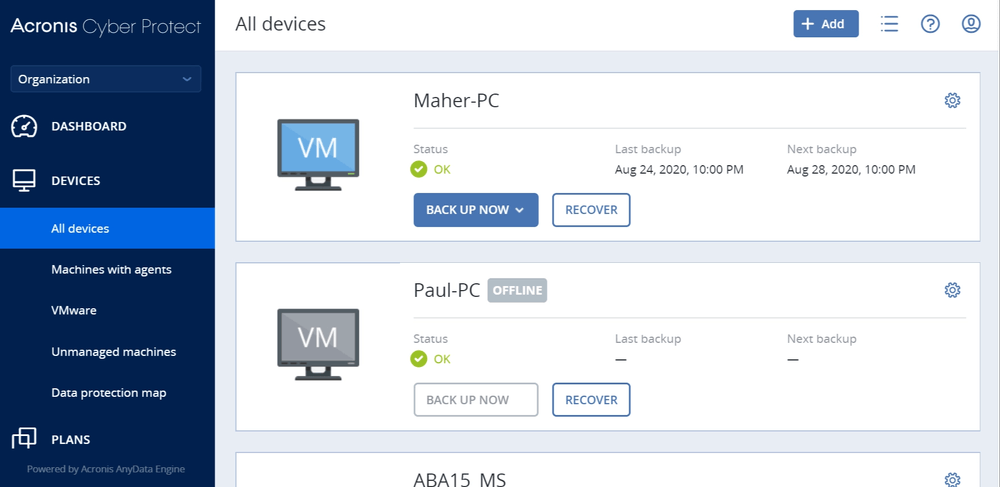
Where it falls short: It’s expensive, and the breadth of features is overkill for individual users or small teams who just need to migrate a few machines.
Side-by-Side Comparison Table
To make the decision easier, here’s how the six tools compare on the criteria that matter most:
| Feature | Clonezilla | Wittytool Disk Clone | Macrium Reflect | Rescuezilla | R-Drive Image | Paragon HDM |
|---|---|---|---|---|---|---|
| GUI Interface | ❌ CLI only | ✅ | ✅ | ✅ | ⚠️ Dated GUI | ✅ |
| Windows 10/11 Native | ⚠️ Boot media | ✅ | ✅ | ⚠️ Boot media | ✅ | ✅ |
| Auto 4K Alignment (NVMe) | ⚠️ Manual | ✅ | ✅ | ⚠️ Manual | ✅ | ✅ |
| System Migration | ⚠️ Limited | ✅ | ✅ | ⚠️ Limited | ✅ | ✅ |
| SID Change | ❌ | ✅ | ❌ | ❌ | ❌ | ❌ |
| Partition Resize on Clone | ⚠️ Limited | ✅ | ✅ | ⚠️ Limited | ✅ | ✅ |
| Network Batch Clone | ⚠️ DRBL setup | ✅ Built-in | ❌ | ❌ | ⚠️ Enterprise only | ⚠️ Enterprise only |
| Free Tier | ✅ | ✅ | ❌ | ✅ | ❌ | ❌ |
The tools that score high on the criteria most Windows users care about are Wittytool Disk Clone and Macrium Reflect, for different audiences.
Why Wittytool Disk Clone Stood Out in My Testing
I want to be upfront: no single tool wins every category. But for the specific use case most readers of this article have, cloning a Windows machine, on modern hardware, in 2026, Wittytool addressed problems the others didn’t even acknowledge.
It Solves SID Duplication on Cloned Machines
When you clone two Windows machines from the same source, they end up with identical Machine SIDs. On the same network, that breaks file sharing, causes authentication oddities, and creates subtle bugs that can take hours to diagnose.
In my own test, I cloned an identical Windows 11 image to two laptops on the same LAN. Without SID modification, file sharing between them broke within minutes. After running Wittytool’s Windows SID Changer on the duplicate, sharing was restored without reinstallation.
If you express the probability of an SID conflict among n cloned machines using identical images on the same network, the practical answer is essentially:
P(conflict)≈1
A unique SID per machine reduces this to effectively zero.
Synchronous SID Modification Saves a Manual Step
Rather than cloning first and patching later, Wittytool injects the new SID into the target registry before the first boot. The full workflow is documented in How to Clone Your Disk and Change Windows SID. In practice, it saved me about 15 minutes per machine compared to cloning with Clonezilla and then running a separate SID utility.
Network Clone Is Genuinely Useful for Small IT Teams
If you’ve ever set up Clonezilla SE with DRBL, you know it’s a half-day project. Wittytool’s Network Clone deployed a single image to four test machines simultaneously over my LAN, with each receiving a unique SID. It’s not as configurable as DRBL, but it works out of the box.
How to Switch from Clonezilla to Wittytool, Step by Step
Migrating workflows isn’t difficult. Here’s the process I followed:
- Download the installer of Wittytool Disk Clone and install it on the source Windows machine.
- Choose Disk Clone, System Migration, or Network Clone depending on your scenario. (If you’re not sure which applies, our guide on disk cloning vs. OS migration explains the difference.)
- Select your source and target disks. Take a moment to verify, this is the step where mistakes happen.
- ✅ Check “Modify SID Automatically”, this is the step Clonezilla cannot perform.
- Start the clone. When it completes, boot into the new system. No bootloader repair, no SID conflicts, no manual bcdboot.
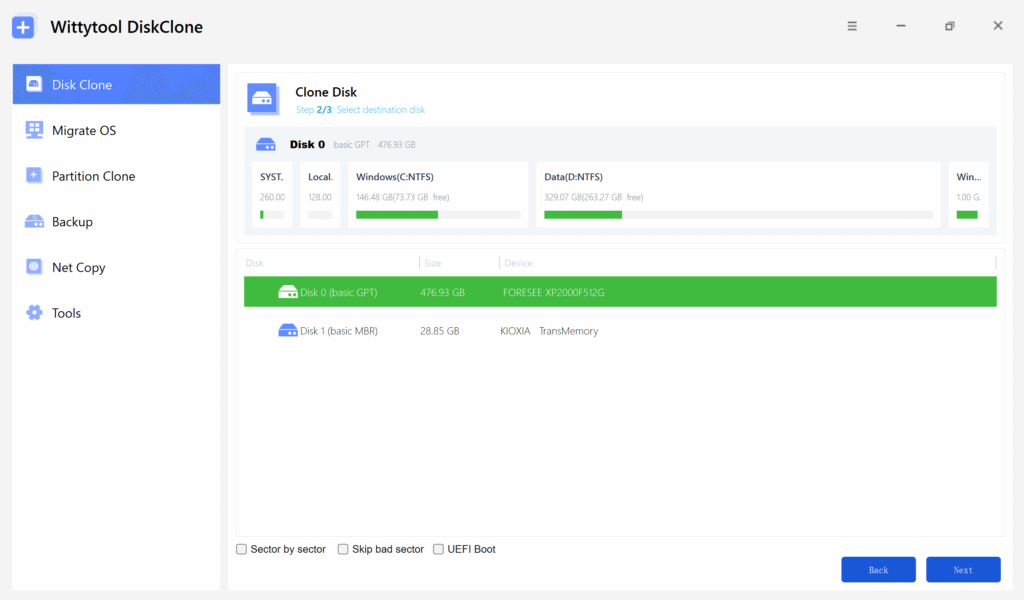
For users who already cloned with Clonezilla and are dealing with SID issues now, the standalone SID Changer fixes existing systems retroactively without re-cloning.
Frequently Asked Questions
Q: Is Clonezilla still good in 2026?
For Linux administrators and command-line users, yes. For most Windows users wanting a GUI, automatic SSD alignment, and post-clone integrity, a dedicated Windows-native tool is a better fit.
Q: What’s the easiest free Clonezilla alternative?
Rescuezilla is the closest free GUI equivalent since it uses the same underlying engine. For a broader free comparison, see our free disk cloning software roundup.
Q: Why does my cloned Windows fail to log in or share files?
Almost always due to duplicate Machine SIDs. The troubleshooting guide for “username or password is incorrect” covers exactly this scenario.
Q: Can I clone Windows without reinstalling?
Yes, that’s what system migration tools do.
Q: Does Wittytool support enterprise batch deployment?
Yes. The built-in Network Clone deploys a single image to multiple targets over LAN, automatically assigning a unique SID to each machine.
Conclusion: Pick the Tool That Matches Your Workflow
Clonezilla is excellent at what it was designed to do, but what it does is increasingly narrow for modern Windows environments. The right alternative depends on who you are:
- Linux sysadmins – Stick with Clonezilla, or use Rescuezilla for the GUI.
- Backup-focused power users – Macrium Reflect.
- Forensic or sector-level imaging – R-Drive Image.
- Advanced partition manipulation – Paragon Hard Disk Manager.
- Enterprises wanting one vendor – Acronis Cyber Protect.
- Windows 10/11 users, especially anyone managing multiple cloned machines – Wittytool Disk Clone is the option I’d recommend, because it handles both the clone and the post-clone identity layer.
Cloning in 2026 isn’t just about copying bits anymore. It’s about producing a working, uniquely identified Windows system on the other side. Choose the tool that understands that difference, and you’ll save yourself a lot of late-night troubleshooting.